Full and Incremental Backup with GoodSync
Published · Updated

There are three basic backup types: full, differential, and incremental.
- Full backup creates a copy of all files as they were at the time of the backup.
- Differential backup copies only files altered since the last full backup.
- Incremental backup copies only files altered since the last backup, whether that backup was incremental or full.
This article describes how to implement a daily incremental backup with a periodic weekly full backup using GoodSync. You can use the same approach with different frequencies.
If you do not currently have GoodSync, download the free trial.
We will use four GoodSync features:
- On File Change automatic synchronization
- Periodic automatic synchronization
- Time-based parameters in folder paths
- The ability to create destination folders that do not exist
See the GoodSync Manual sections for automatic jobs and environment variables for additional detail.
Step 1: Set up the paths
Source folder: Set the left path to the local source folder you want to back up. This approach requires a local source because file monitoring works reliably on the computer’s local drives.
Destination folder: Add time-based parameters to the right path to create dated destination folders.
GoodSync supports these variables:
%YYYY%— current year%MM%— current month, from 01 to 12%DD%— current day of the month, from 01 to 31%DOW%— current day of the week, from 0 to 6%WOM%— current week of the month, from 1 to 4%HH%— current hour, from 00 to 23%II%— current minute, from 00 to 59
For example, a destination path can be:
C:\Backup Destination Directory\Backup %YYYY%-%MM%-%DD%\
Each time GoodSync runs on a new day, it creates a new directory when “Create Folder if Does Not Exist” is enabled. On February 7, 2018, for example, the full backup directory could be:
C:\Backup Destination Directory\Full Backup 2018-02-07\
The destination can use any file system supported by GoodSync.
Step 2: Set up automation
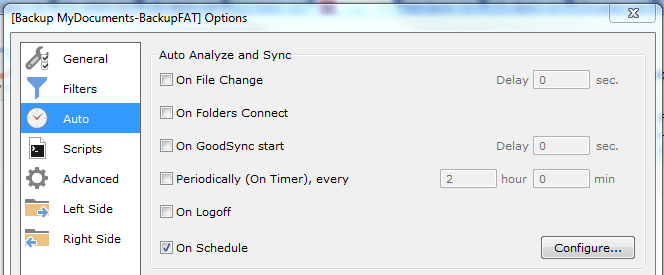
Right-click the job you are editing, select Options, and then select Auto. Enable the On File Change and On Schedule options.
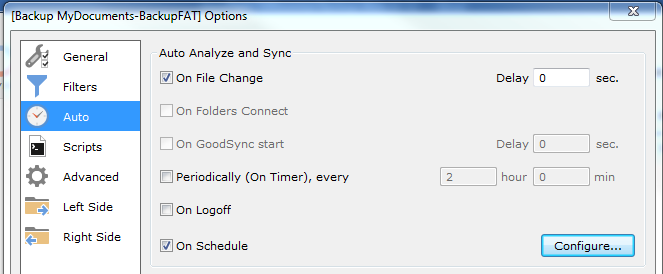
Select Configure to choose the scheduling details.
Select the desired schedule, such as Sundays.
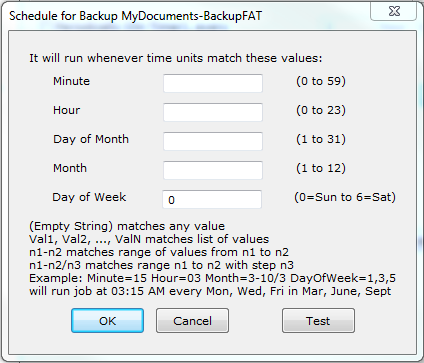
This setting forces GoodSync to perform a full backup once a week on Sundays.
What to expect
After you save these settings, GoodSync creates a dated subfolder at the destination and performs a full backup of the source folder.
When the full backup finishes, GoodSync monitors the source folder and sends copies of changed or newly created files to the destination. The following day, GoodSync creates a folder with the new date and sends that day’s changed or newly created files there.
On Sunday, GoodSync continues monitoring and propagating changes while also making a full copy of the source folder. This process then continues daily.
You can purge older backup data with scripts run independently on a schedule or as a post-synchronization action. See the GoodSync scripting documentation.


