GoodSync Explorer is an add-on component installed with a standard GoodSync application for Windows and Mac computers.

GoodSync Explorer is a file explorer for all file systems, all devices connected via GoodSync Connect, and all cloud storage service accounts. With GoodSync Explorer, you can explore/view/list/open files stored locally or files stored on your remote computers, your cloud storage accounts, and all that from a single interface.
GoodSync Explorer can show any file stored on any GoodSync Account connected devices or authorized cloud storage providers in one or two trees.
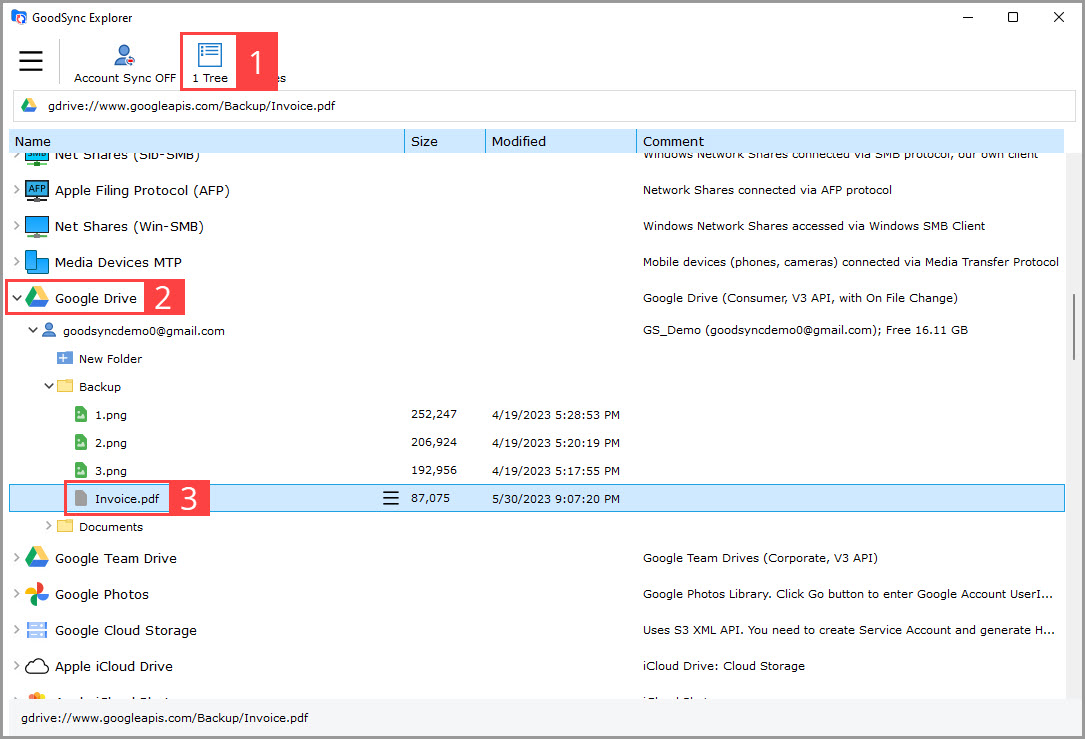
One Tree mode:
1) Select the "1 Tree" mode.
2) Select a device, file system, or storage service provider.
3) Select a file to open/download/delete.
Copy and move commands are available when GoodSync Explorer is used in the Two Trees mode:
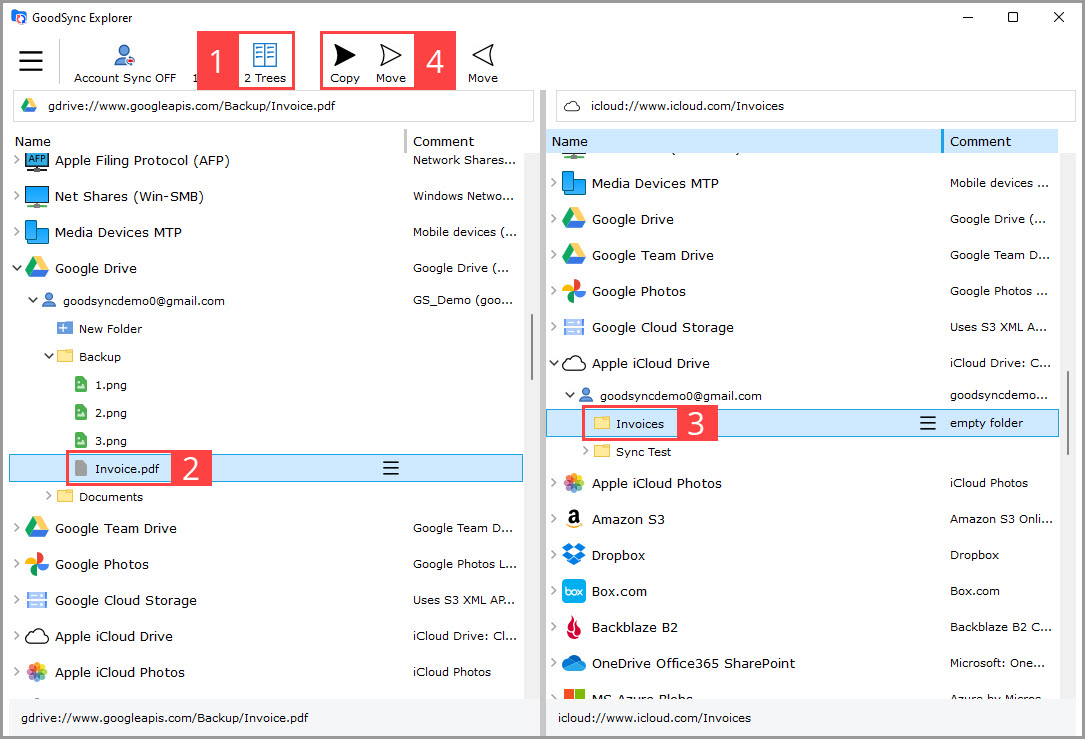
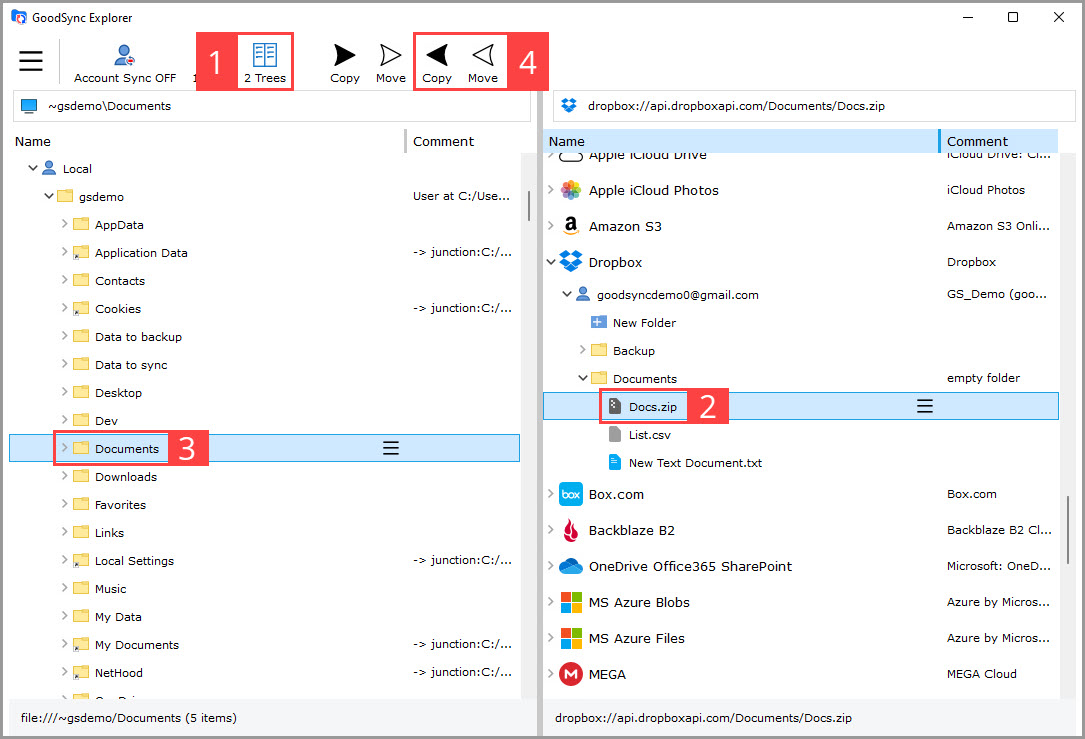
1) Select the "2 Trees" mode.
2) Select a source file or folder.
3) Select a destination folder.
4) Use the "Copy" or "Move" button.