If you haven't already, download and install GoodSync.
With GoodSync, you can back up and sync data to and from an FTP, FTPS (both implicit and explicit modes), or SFTP server. Follow these steps to get started:
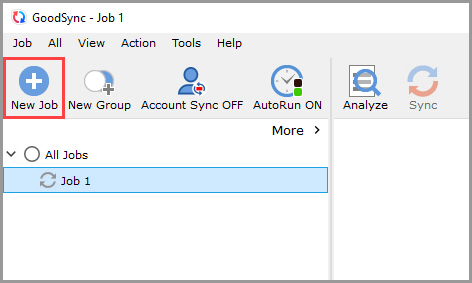
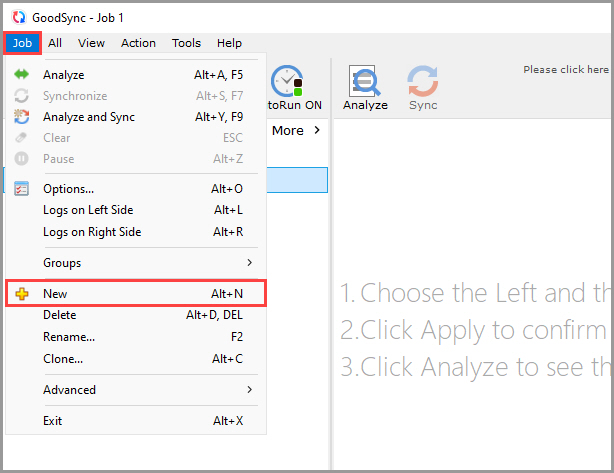
1) Open GoodSync and click the "New Job" button in the toolbar, or, in the "Job" menu, select "New."
NOTE: You can select and modify an existing GoodSync job instead of creating a new one. In this case, skip to Step 3.
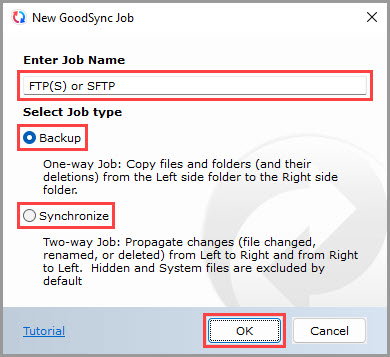
2) In the New GoodSync Job prompt, enter the name of your new Job. Then, select "Backup" or "Synchronize" as your Job type.
Click the "OK" button when done.
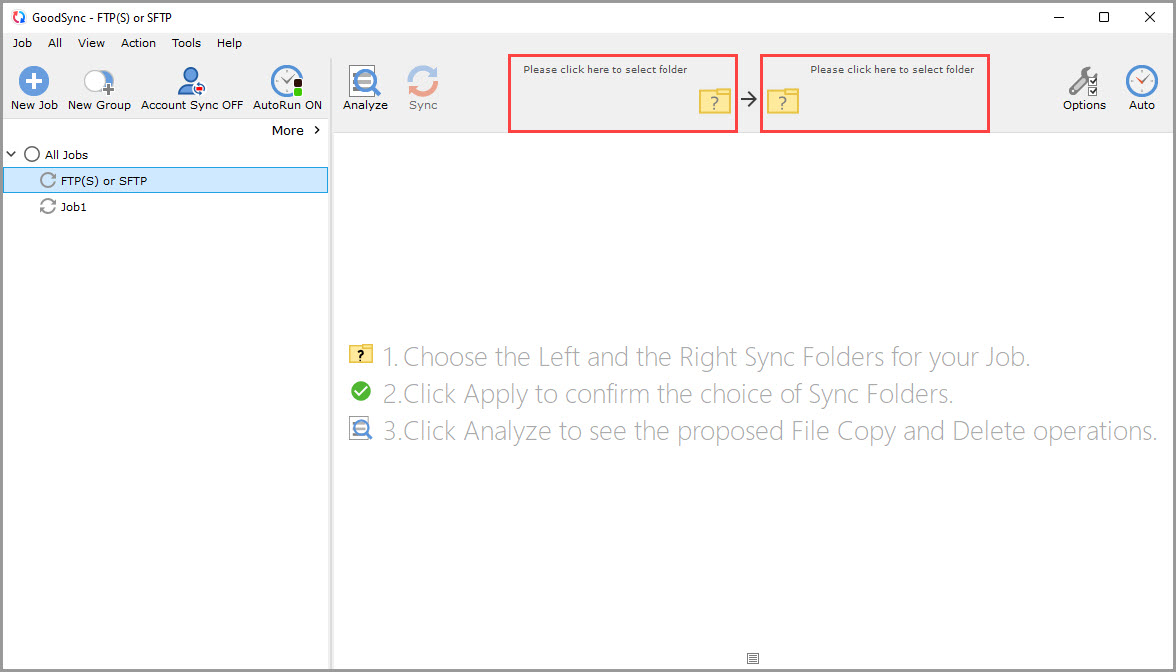
3) Click the left or right sync folder controls to view the files and folders available for selection.
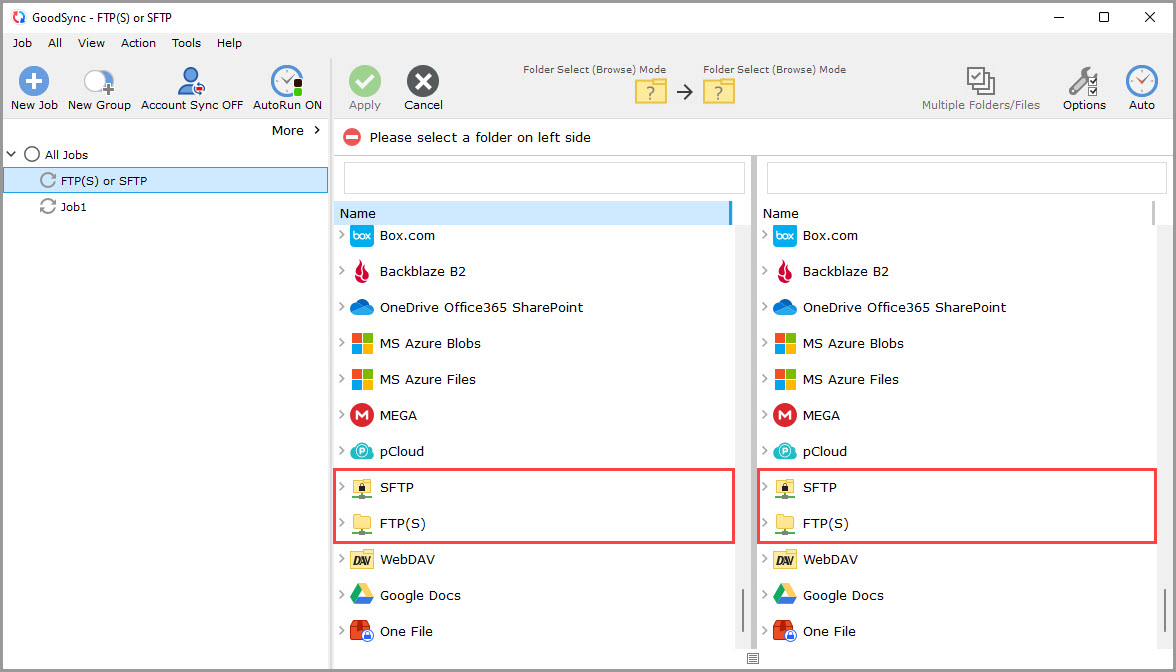
4) Scroll down and select "FTP(S)" or "SFTP" from the list of supported services on either side.
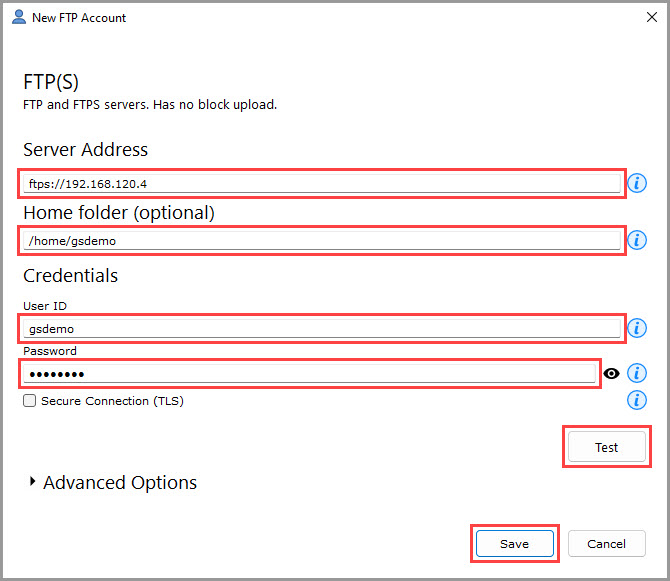
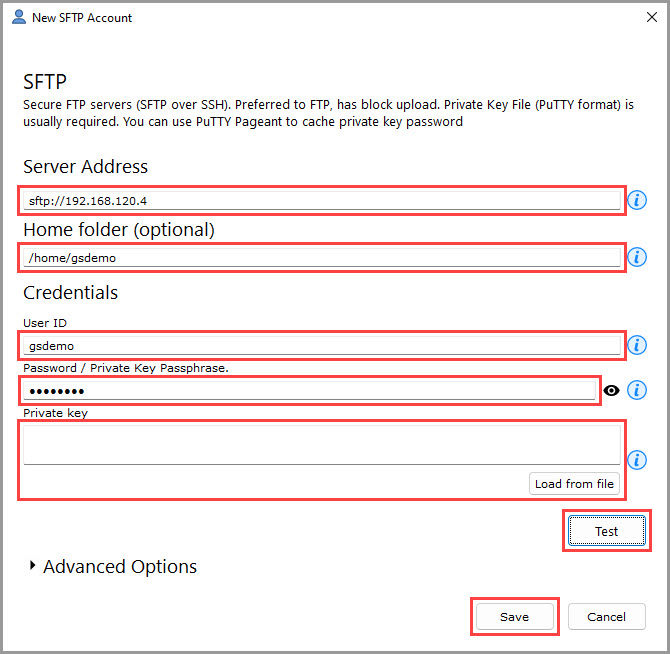
5a) For FTP(S) servers, enter the server name into the "Server Address" field in the format: ftp://server.com. If a custom port is required, specify it after the server address, separated by a colon: ftp://server.com:1001.
You can optionally set a Home folder in the "Home folder" field.
Enter your UserID or Email and Password in the respective fields.
Once all details are entered, click "Save" at the bottom right.
NOTE: You can test your connection before saving by clicking the "Test" button.
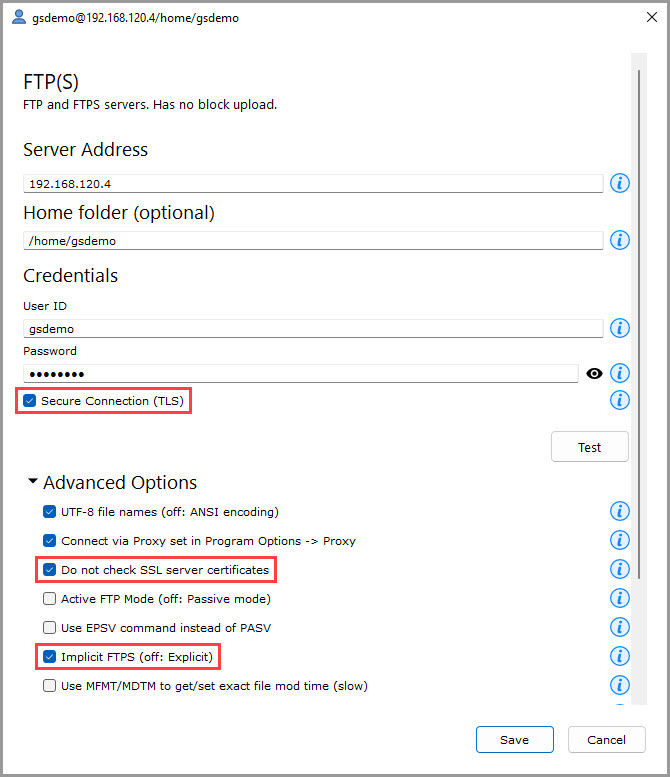
For a secure explicit or implicit FTPS connection, enable the "Secure Connection (TLS)" setting. By default, explicit FTPS mode will be used. To switch to implicit FTPS, check the "Implicit FTPS" box under "Advanced Options."
NOTE: If your FTP server uses a self-signed SSL certificate, also check the "Do not check SSL server certificates" box.
5b) For SFTP servers, enter the required server details as outlined above in Step 5a.
You may use a private key for authentication instead of a password by pasting the private key in the "Private key" field or loading it from a file using the "Load from file" button.
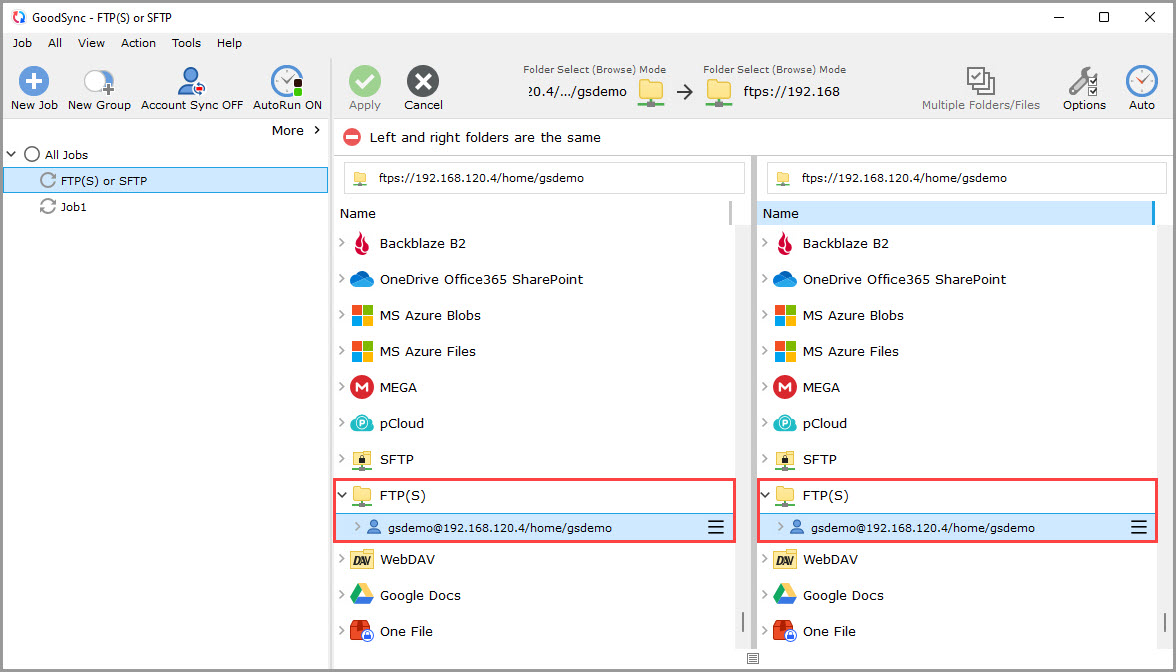
6) After connection to the FTP(S) or SFTP server is set up, your server account will be shown within the GoodSync interface.
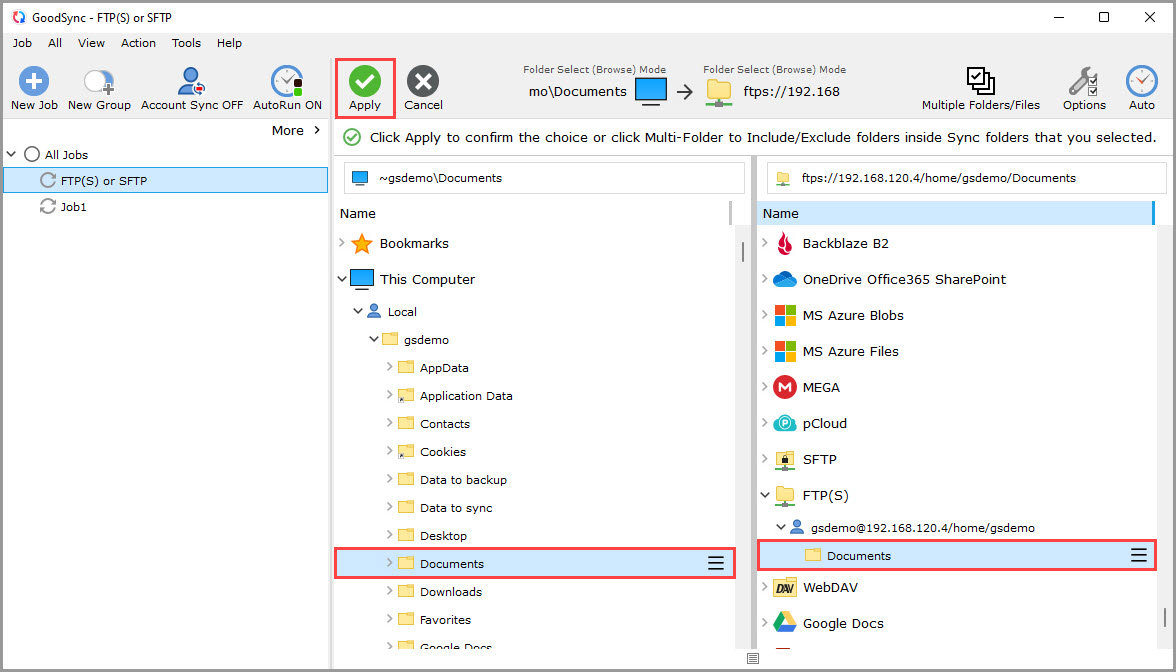
7) Select a folder on the server you wish to back up or sync to.
Select your source/destination folder on the opposite side.
Then, click the green "Apply" button.
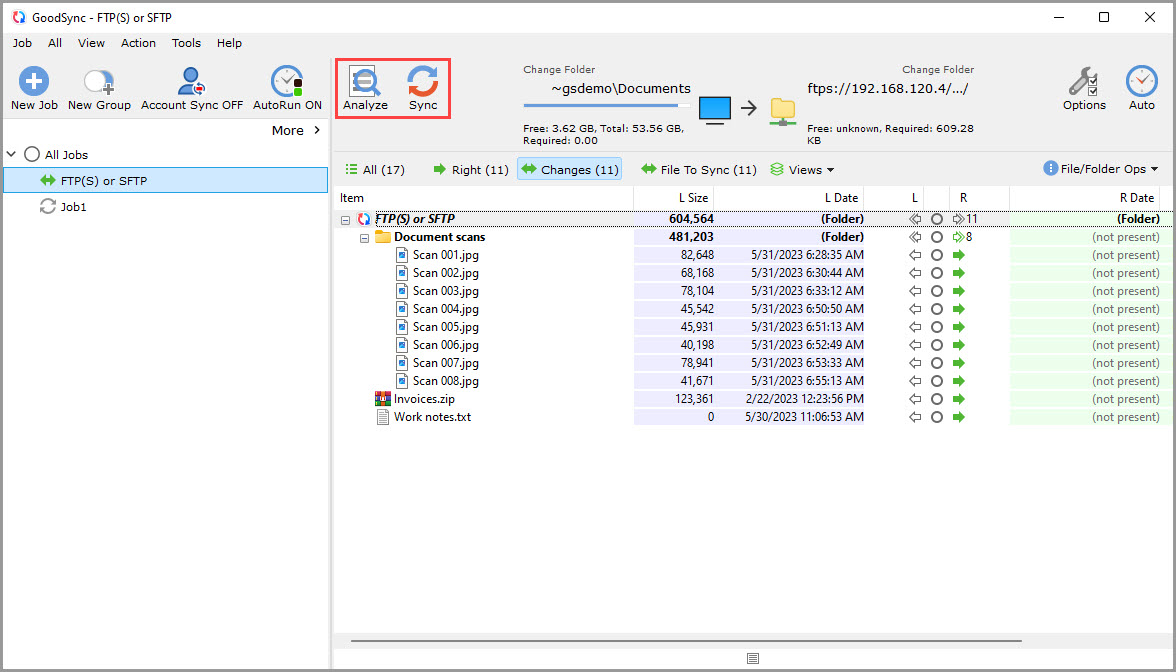
8) Your Job is now ready to Analyze and Sync.