First, make sure you have downloaded and installed GoodSync for Linux.
Also, make sure that you have added your purchased licenses to your GoodSync Account so that they may be used for activation. If you have not yet added licenses to your account, click here for a tutorial.
1) Enter this command to verify that you have enrolled your Linux device in the GoodSync Account:
gsync /versionYou should see the output similar to the following:
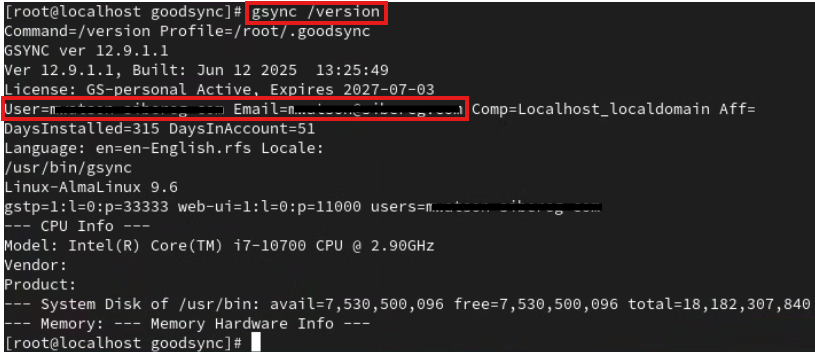
If the "User" and "Email" fields display your GoodSync Account details, proceed to Step 3.
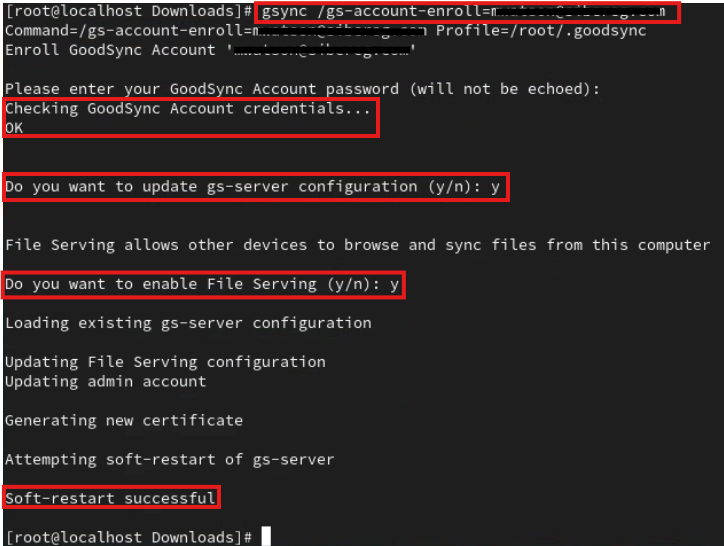
2) If you haven't enrolled the device in your GoodSync Account, run the following command to do so:
gsync /gs-account-enroll=email@domain.comwhere "email@domain.com" is your GoodSync Account email address.
Enter "y" for "Do you want to update gs-server configuration" and authenticate with your Linux user account if prompted.
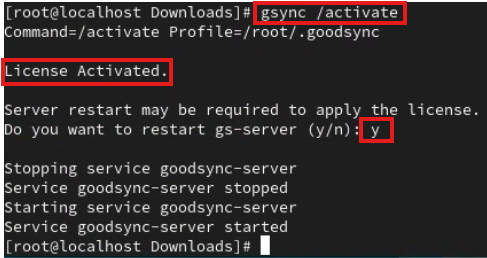
3) Use this command to activate this installation with the licenses in your GoodSync Account:
gsync /activateEnter "y" for "Do you want to restart gs-server" and authenticate with your Linux user account if prompted.
You may enter gsync /version to confirm that the installation is activated.
A value will show in the "License" field for the appropriate license.