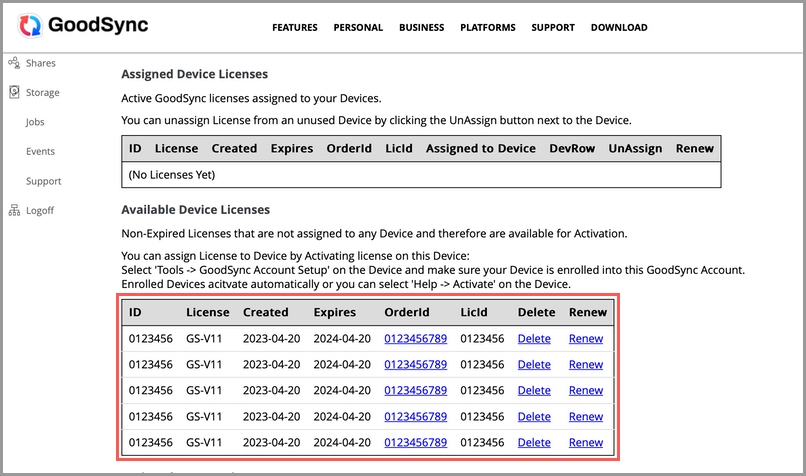
The following guide will detail how to add licenses to your GoodSync Account for activation. If you have not yet created a GoodSync account, see our tutorials on how to do so.
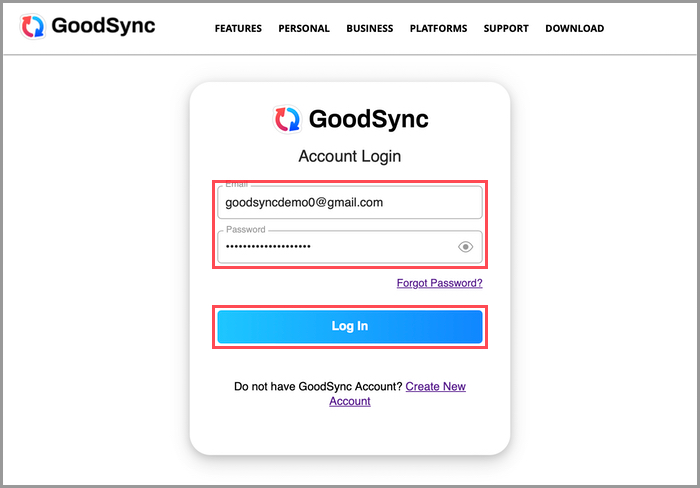
1) Go to the GoodSync Account Login page and log in to your GoodSync Account.
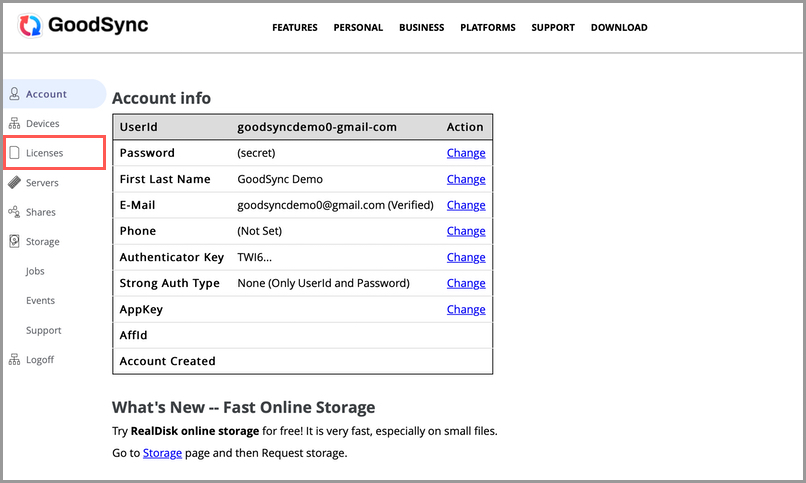
2) Once you have logged in to your GoodSync account, select "Licenses" from the column on the left.
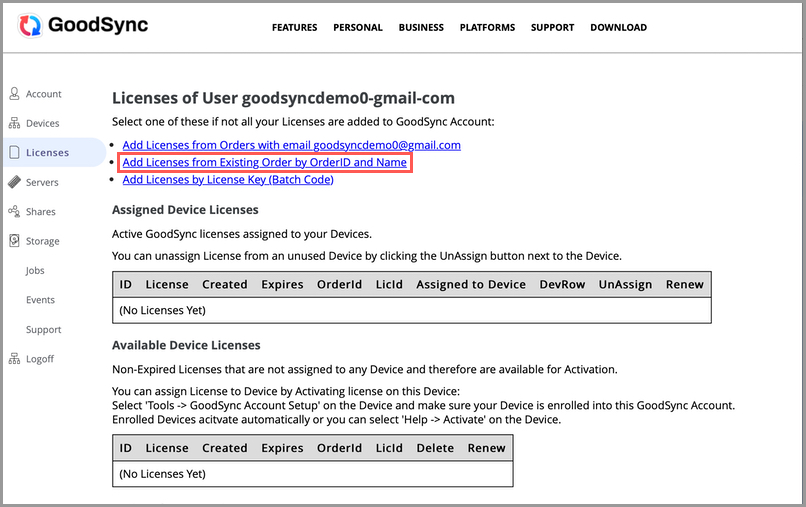
3) On the Licenses page, click "Add Licenses from Existing Order by OrderID and Name."
4) Enter the Licensee Name and Order ID from your purchase into the appropriate fields and click the "Submit" button.
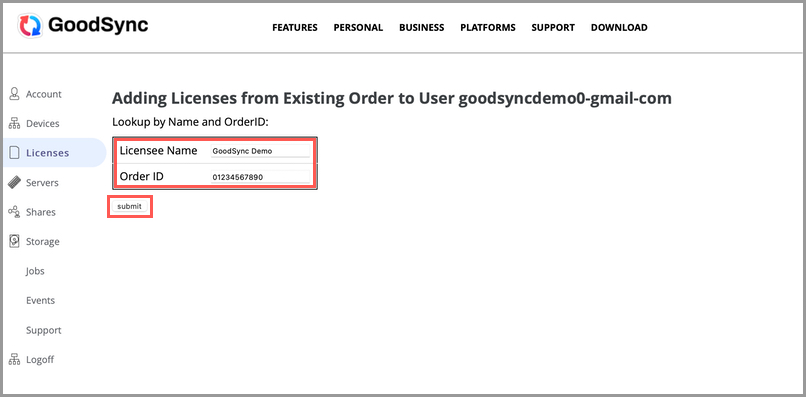
NOTE: The Licensee Name and Order ID can be found in an email you received from us after the purchase.
5) If you have entered your order information correctly, you should see a summary of licenses added to your account. Click "Back to Licenses" to return to the main licenses page.
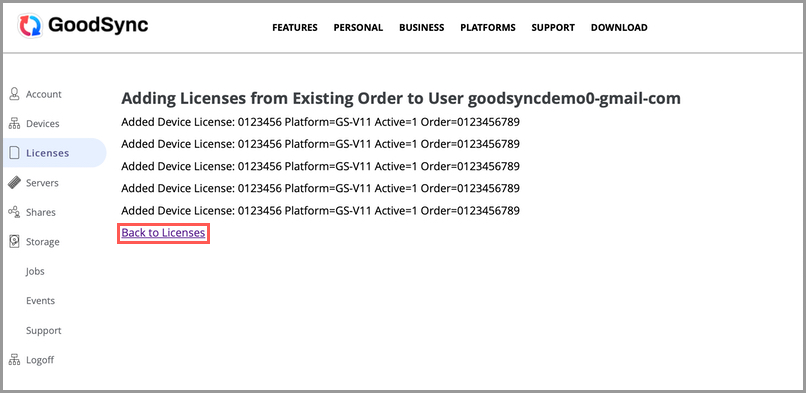
6) You will now see the list of unused licenses that can be used to activate your devices.