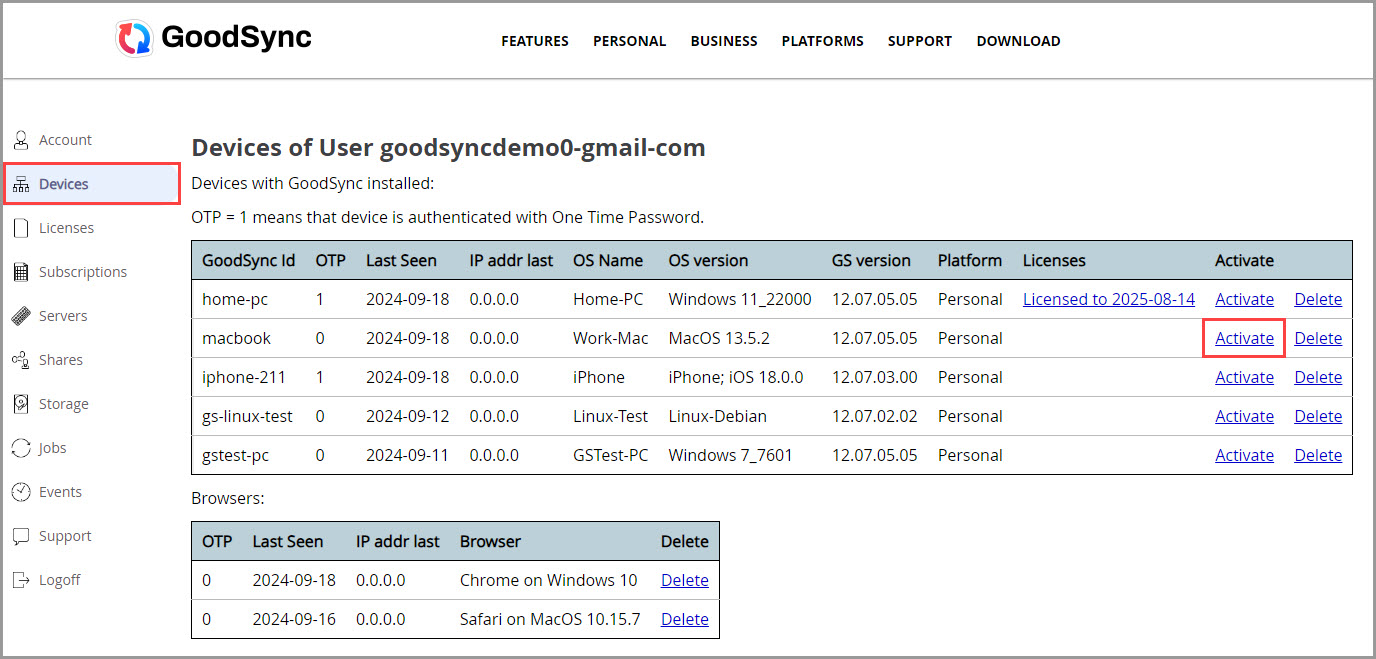
A GoodSync subscription typically allows installation and use on up to five(5) devices. If you need to assign a newly purchased GoodSync license to a device, or unassign a license from an inactive device so it can be used on a new device, you can manage this from your GoodSync Account.
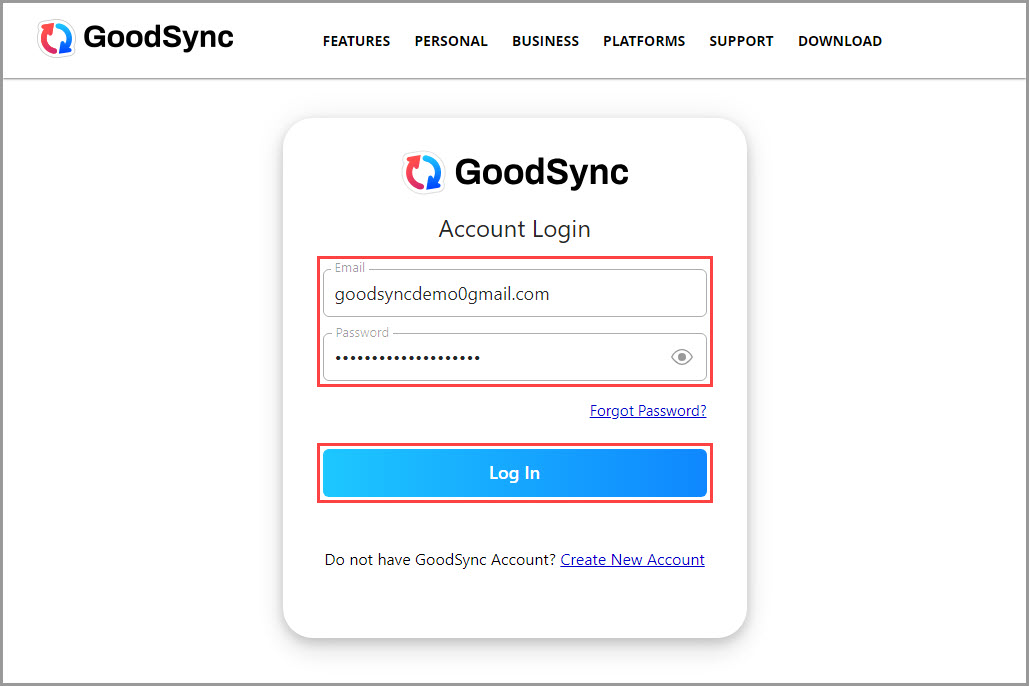
1) Go to the GoodSync Account Login page and log in to your GoodSync Account.
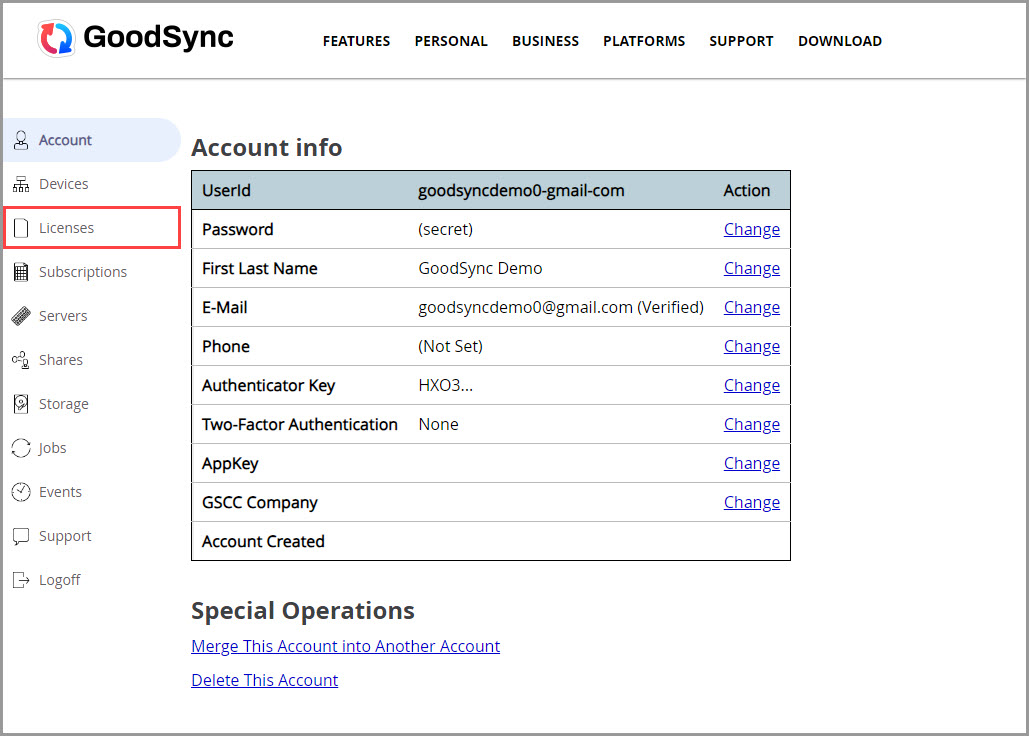
2) Once you are logged in, select "Licenses" from the column on the left.
3a) If there are no licenses listed in your GoodSync Account, add the licenses from your order.
3b) If the license is already listed in your GoodSync Account but is assigned to an inactive device, click the "UnAssign" link to make the license available for activation on a new device.
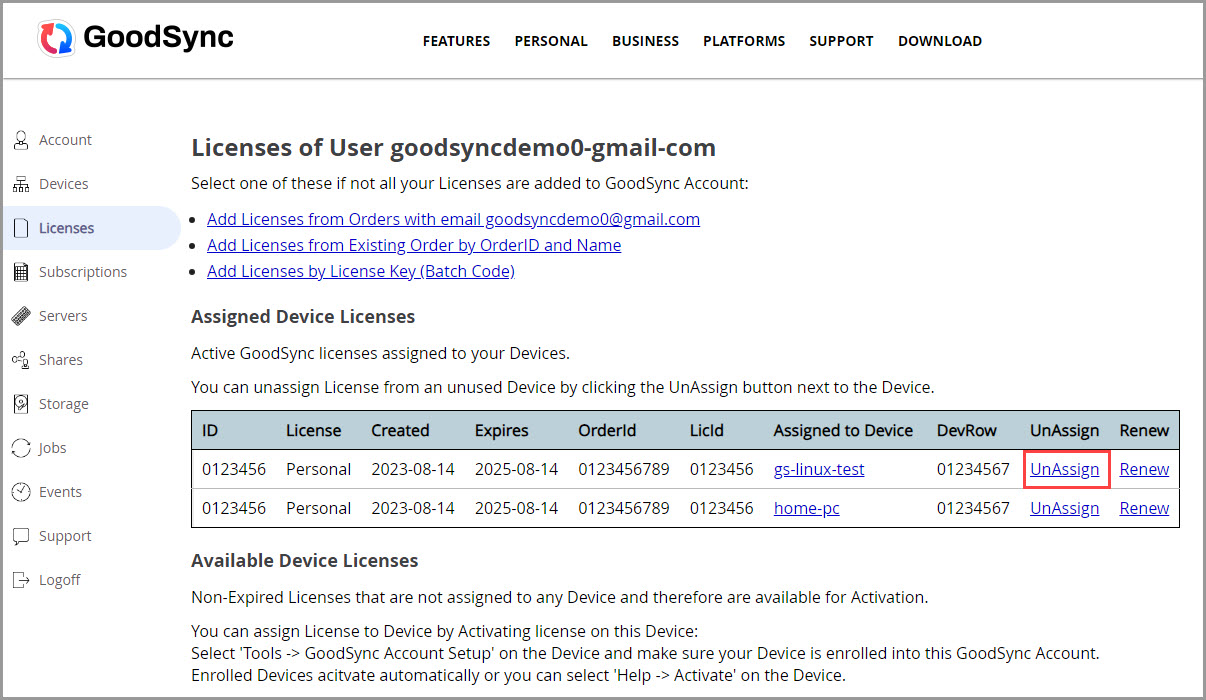
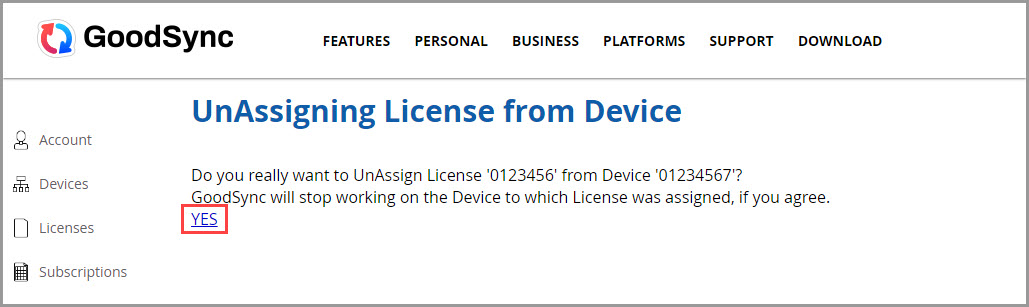
On the next screen, confirm that you want to unassign the license from the device by clicking "YES."
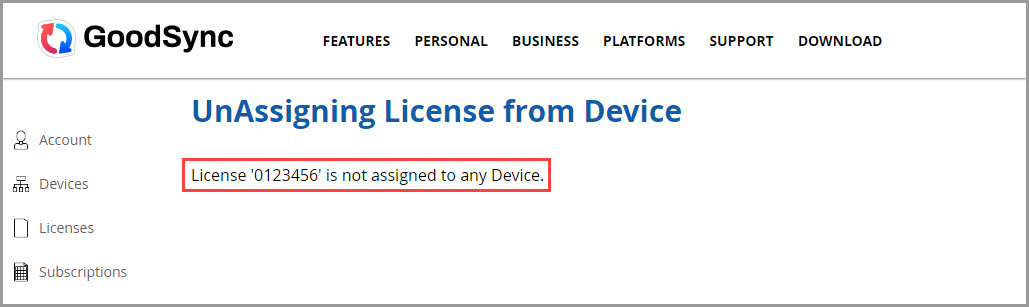
A confirmation message will appear indicating that the license is now available for use on another device.
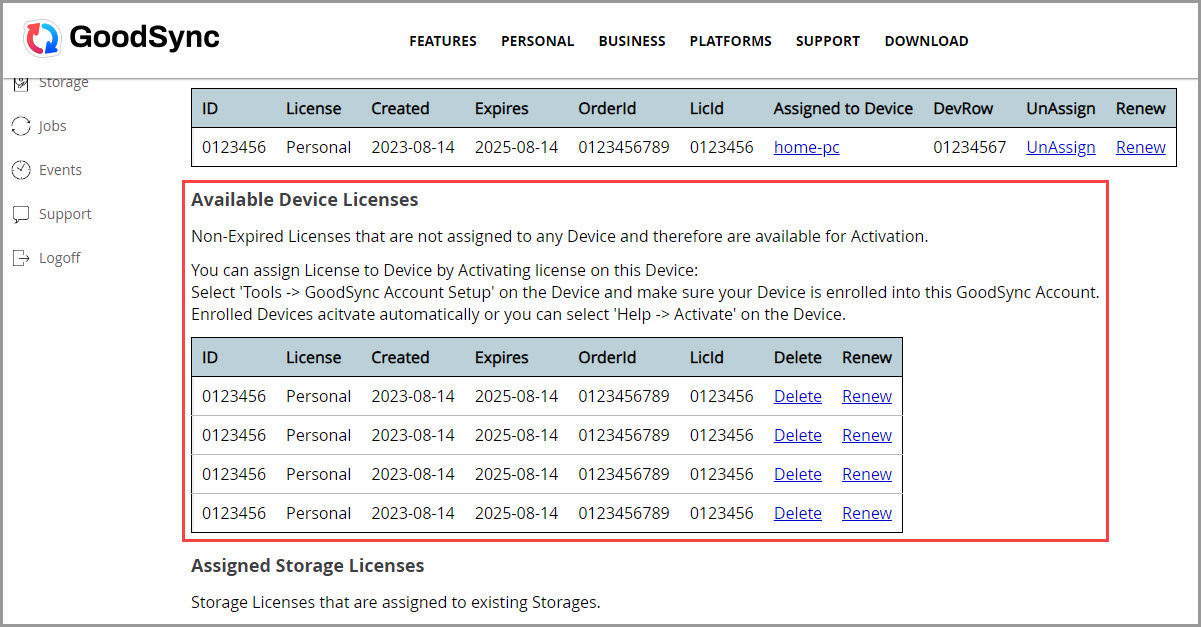
4) Once the license appears under "Available Device Licenses," it can be activated on another device through the GoodSync application.
- License activation instructions for Windows
- License activation instructions for macOS
- License activation instructions for Linux
Alternatively, you can assign a license to a device directly from your GoodSync Account.
To do this, go to the "Devices" section and click "Activate" next to the device you want to license.