You have two options for transferring a GoodSync license to another account:
- If you no longer use the account associated with the license
- If you plan to continue using the current account
If you no longer use the account associated with the license
1) Log in to the current GoodSync account that holds the license.
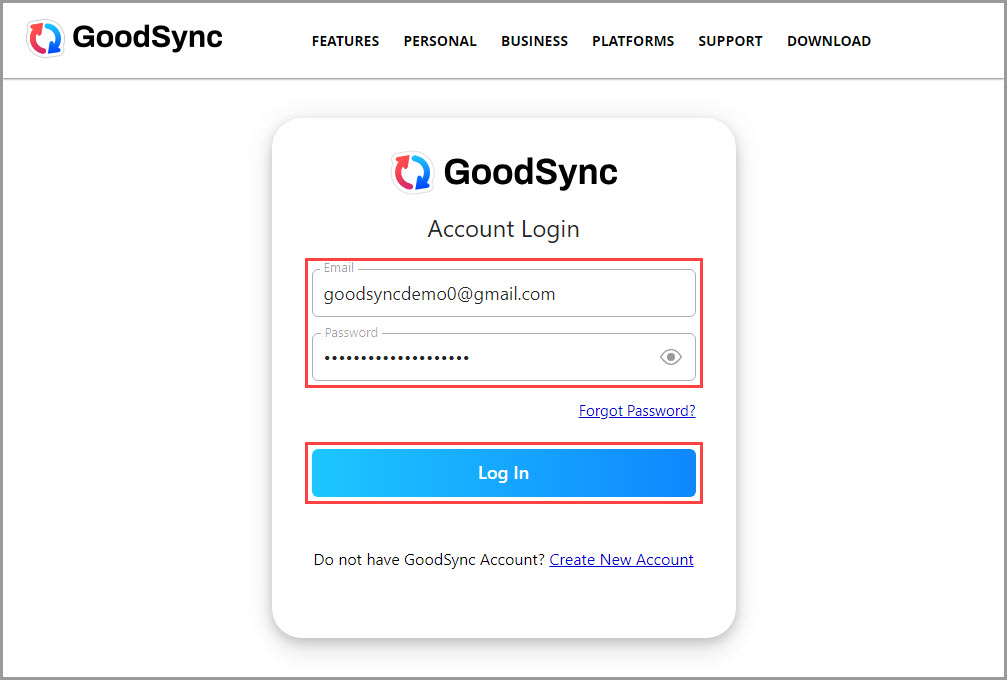
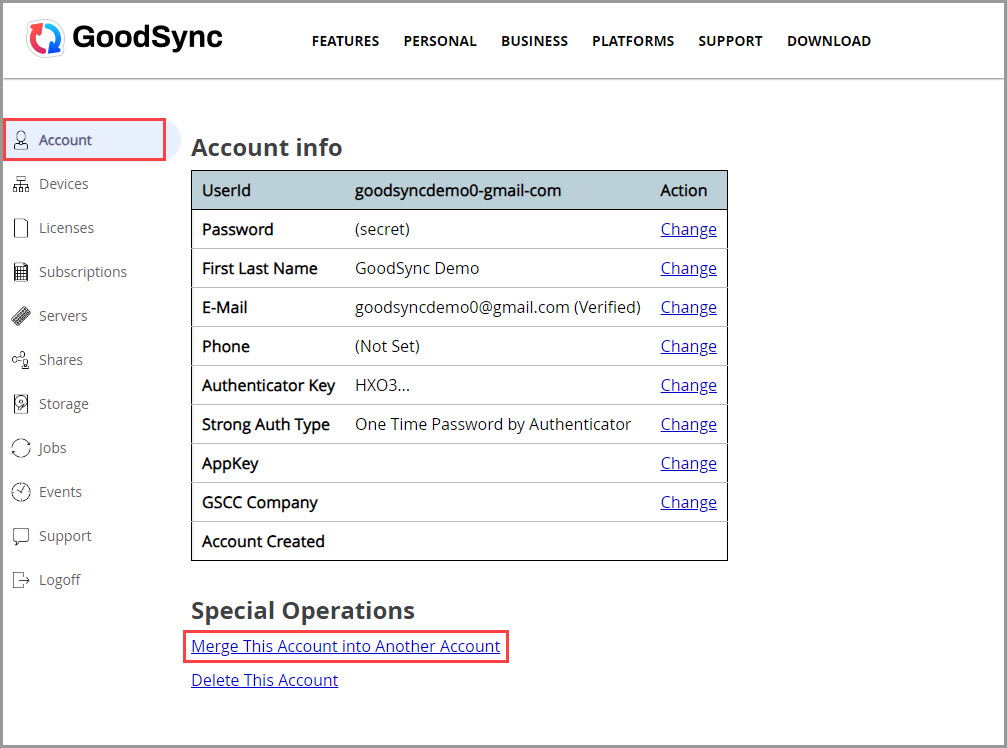
2) Select the "Account" tab from the column on the left.
Scroll down to the "Special Operations" section and click "Merge This Account into Another Account."
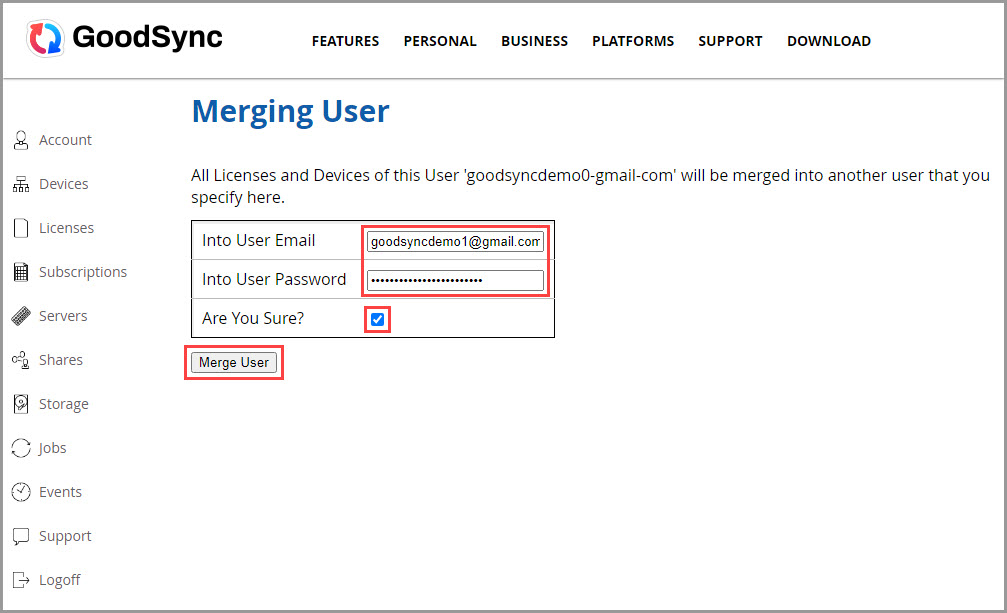
3) Enter the email address and password for the GoodSync Account you want to merge into.
Confirm the action by checking the "Are You Sure?" box.
Click the "Merge User" button to complete the merge.
4) After the accounts have been merged, log in to the new GoodSync Account and verify that the license has been transferred.
The merged license can be found under the "Licenses" section.
If you plan to continue using the current account
1) Log in to the current GoodSync account holding the license.
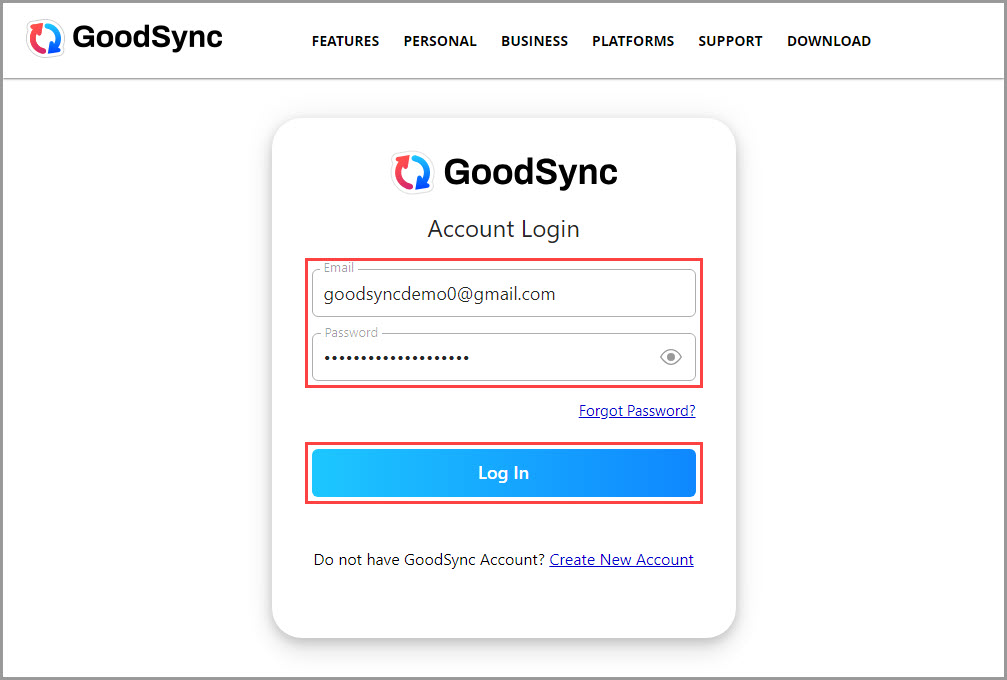
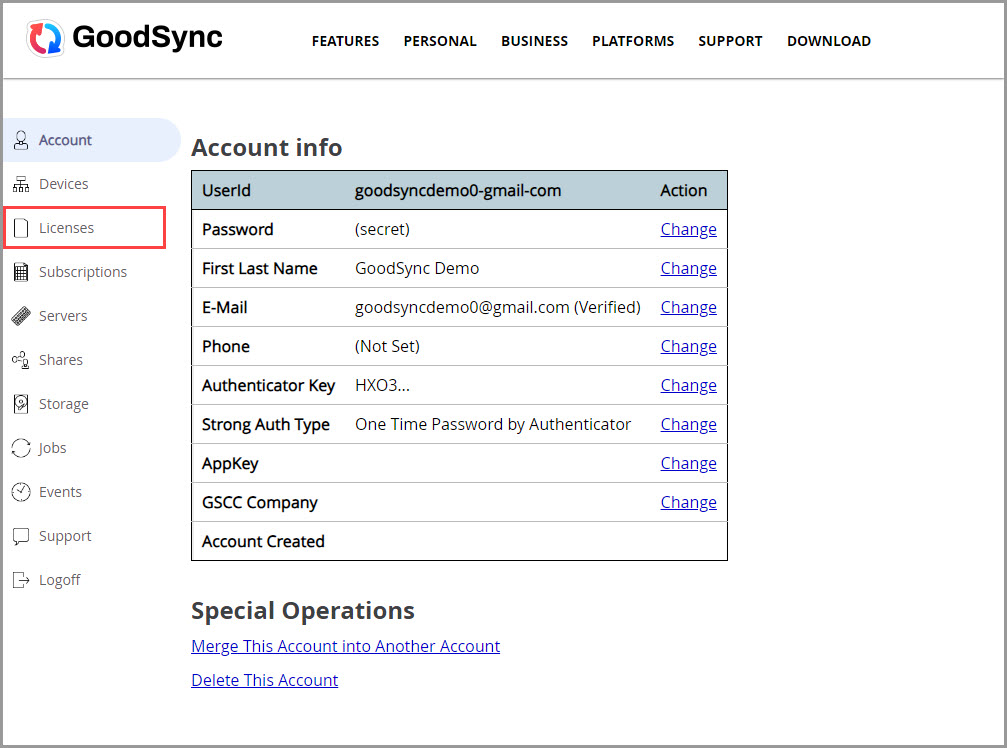
2) Once logged in, select "Licenses" from the column on the left.
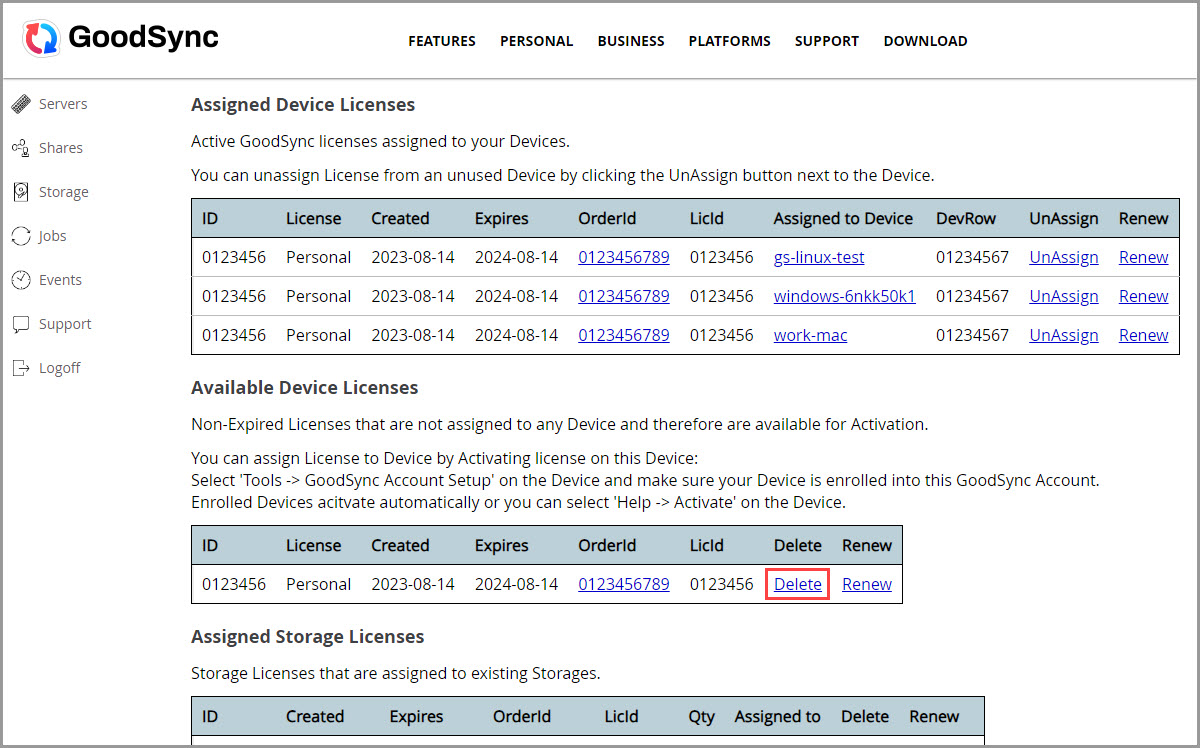
3) Scroll down to the "Available Device Licenses" section and click "Delete" next to the license you want to remove from the account.
If no licenses are listed under "Available Device Licenses," go to the "Assigned Device Licenses" section and click "UnAssign" next to the device currently using the license. After the license is unassigned, it will appear under "Available Device Licenses" and can be deleted from the account.
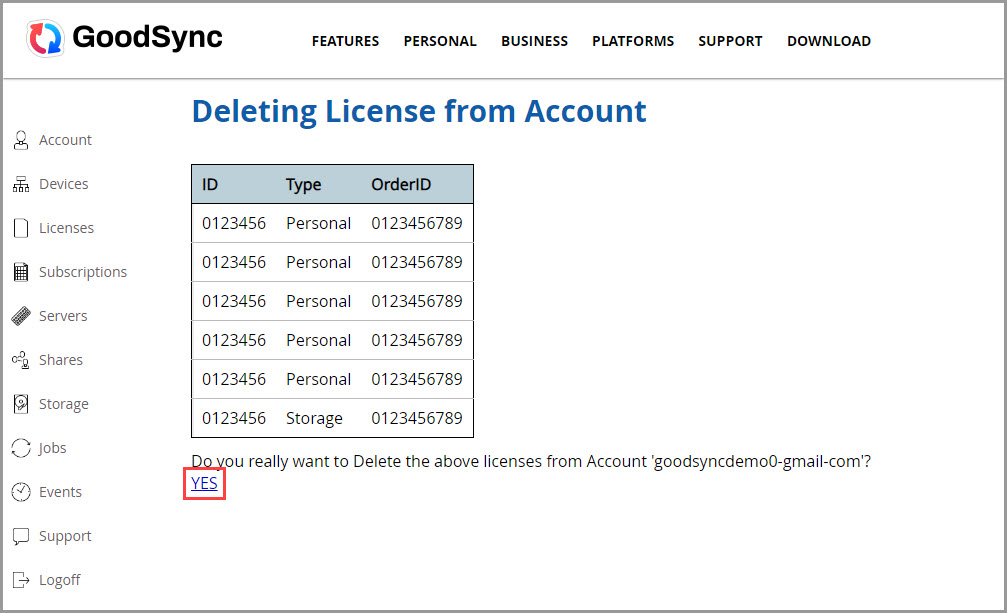
4) Review the license that will be deleted from the current account.
Confirm the deletion by clicking "YES" at the bottom of the page.
Note: When transferring a GoodSync Personal license, the license can only be transferred in full.
Individual device licenses cannot be transferred separately.
5) Log in to your new GoodSync account.
6) Log in to the GoodSync Account where you want to add the license.
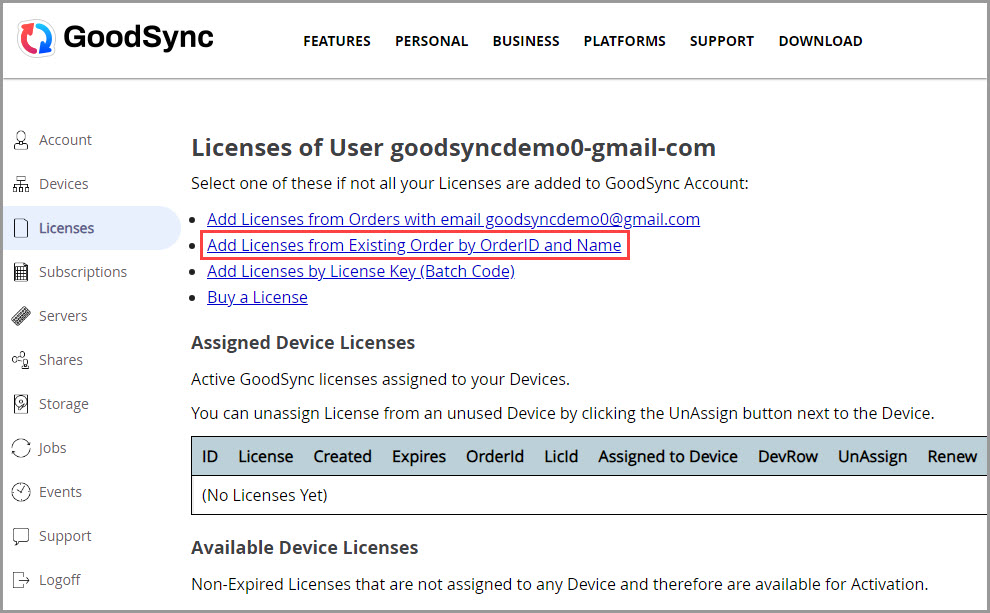
Select "Licenses" from the column on the left.
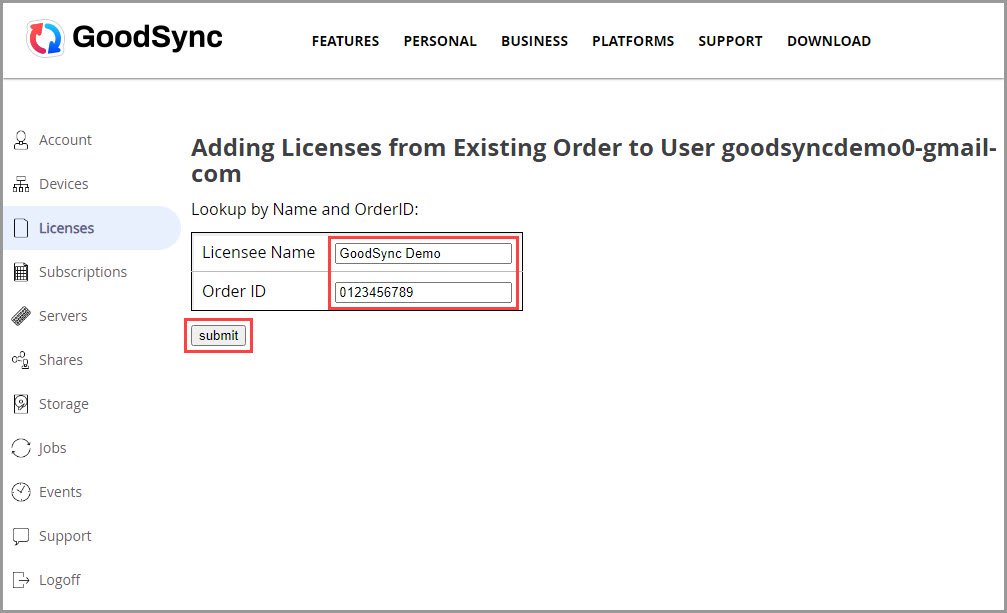
Click "Add Licenses from Existing Order by OrderID and Name."
7) Enter the Licensee Name and OrderID from the original order.
Click the "Submit" button.
NOTE: After the license has been successfully transferred to the new account, reactivate GoodSync on your devices using the updated account information.