The GoodSync app for iOS allows you to access GoodSync's file backup and synchronization capabilities from your iOS device.
To install the GoodSync app for iOS, follow the steps below:
1) Open your iOS device and tap the "App Store" app.
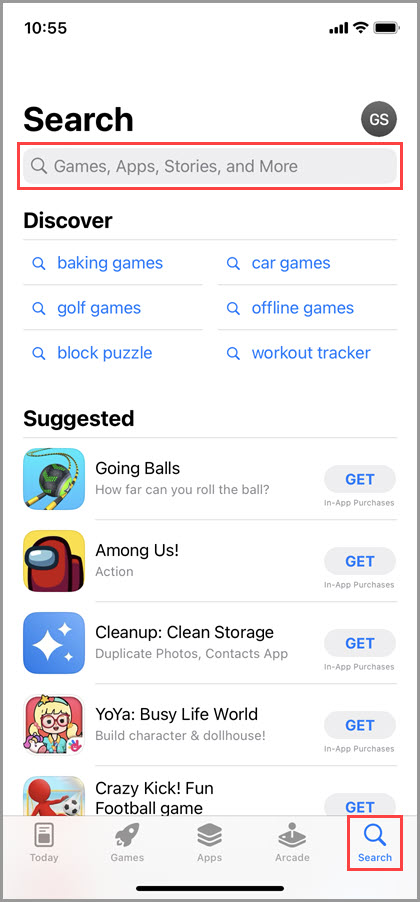
Tap "Search" in the bottom right corner and use the search bar at the top of the screen to search for "GoodSync."
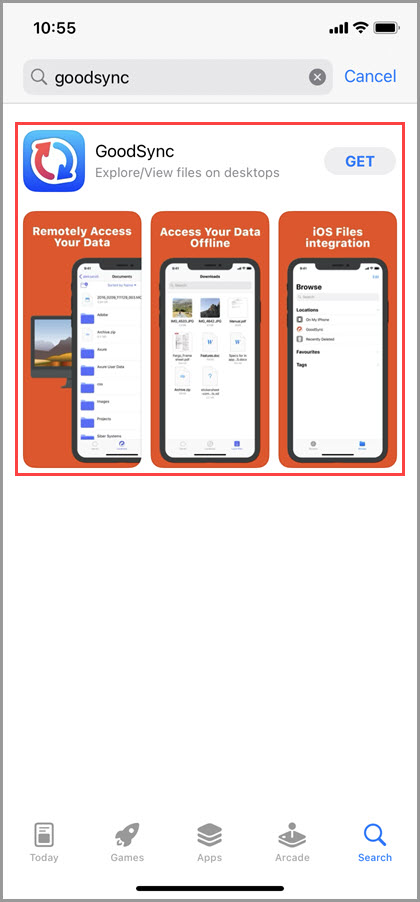
2) Tap the search result for "GoodSync."
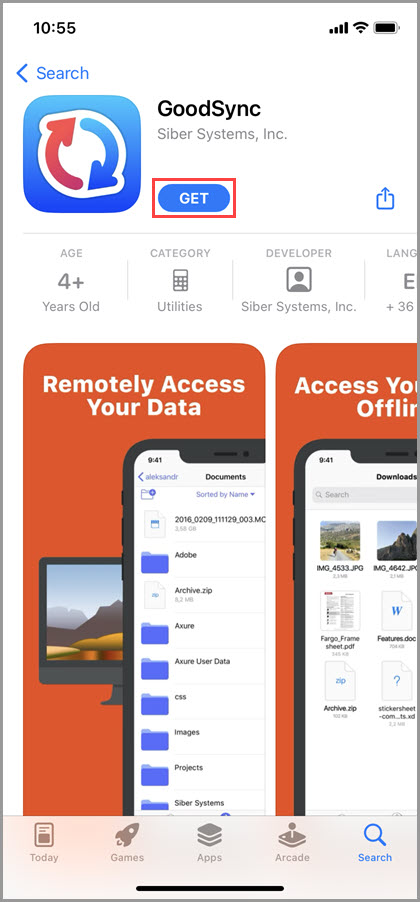
3) Tap the blue "GET" button on the GoodSync page.
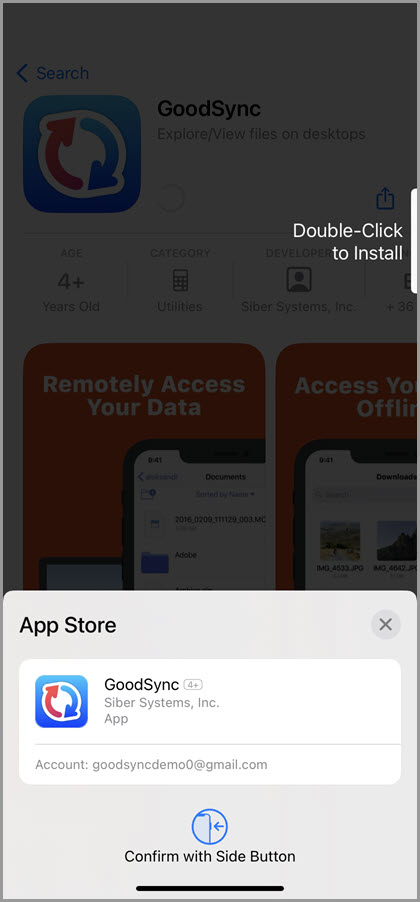
4) Confirm installation of the GoodSync app with the Side or Home Button (depending on the iOS device model).
5) At the bottom of the screen, tap the blue "Install" button, which will appear.
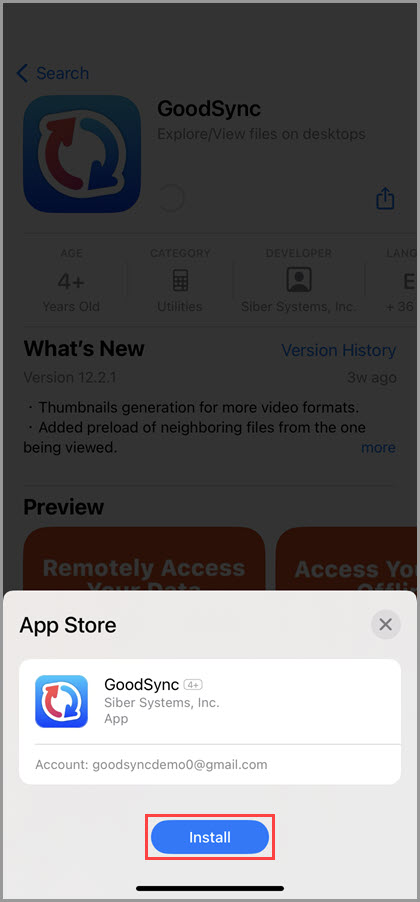
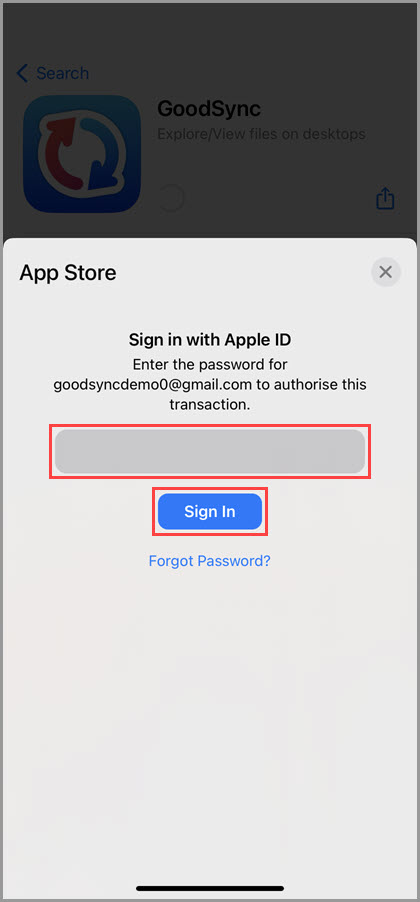
6) Next, you will be asked to input your Apple ID password. After inputting the password, tap the blue "Sign In" button.
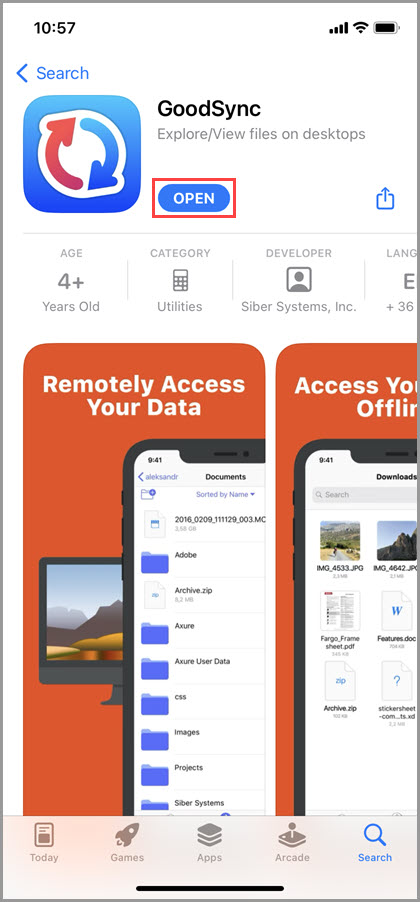
7) After the download and installation process is complete, tap the blue "OPEN" button, which will appear at the top of the screen.
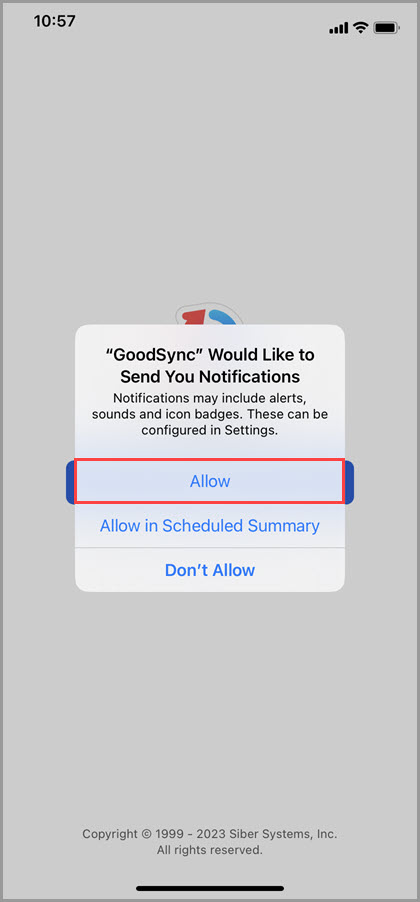
8) When prompted, confirm that you agree to receive notifications from GoodSync by selecting "Allow."
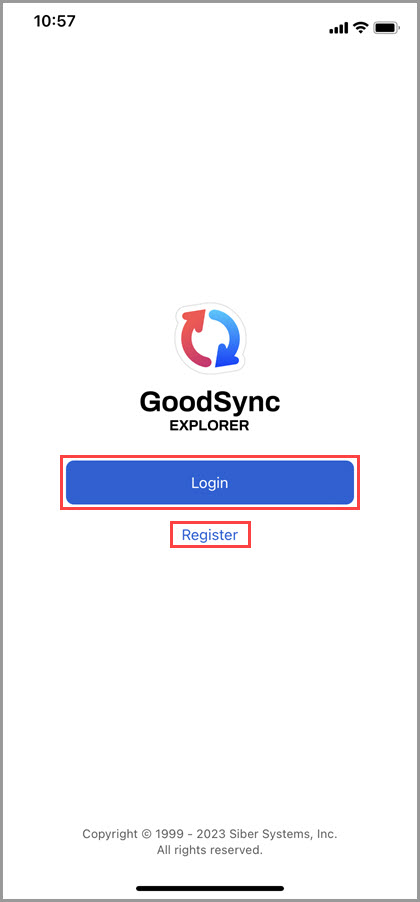
9) You will then be prompted to either register a new GoodSync Account or log in to an existing Account.
If you already have an Account, choose the option to Login and skip to Step 11.
If you do not have a GoodSync Account, select the option to Register a new Account, and Step 10 will guide you through the process.
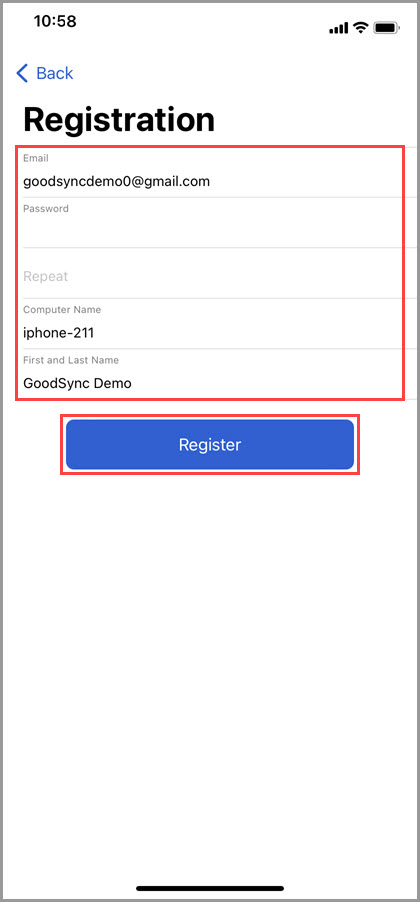
10) Enter the email address you would like to use with your GoodSync Account, a secure password that you will be able to remember, and your first and last name.
NOTE: The email must be active, as it will be used for One Time Password (OTP) authentication.
You can also edit the device name if you would like a different name to display while using GoodSync.
Once you have entered the appropriate information, tap the blue "Register" button.
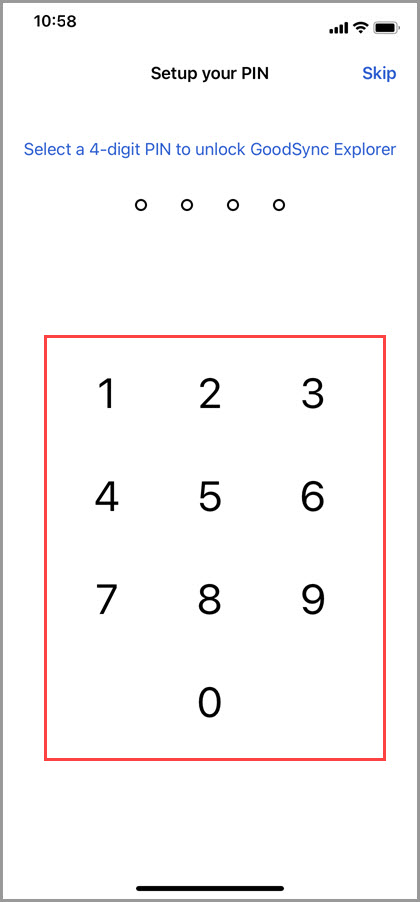
11) You will then be prompted to create a 4-digit PIN to access GoodSync on this device. Enter your PIN, and you will be asked to re-enter it to confirm.
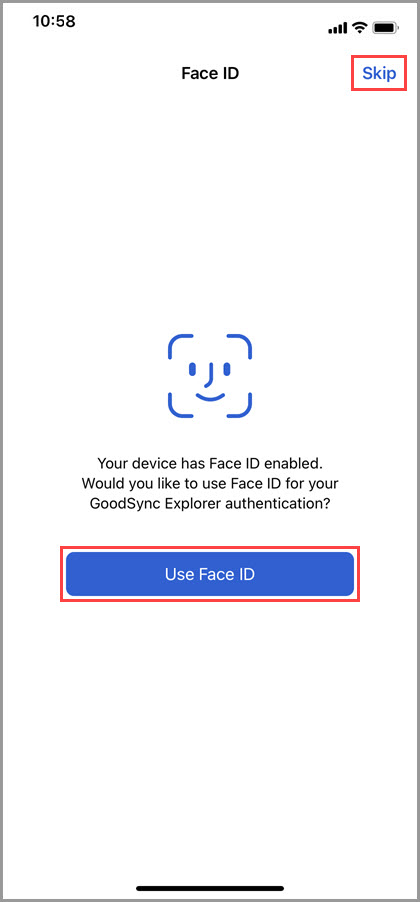
12) If your device has biometrics (Touch ID or Face ID) enabled, you will be prompted to use them for unlocking GoodSync. Tap "Skip" on the top-right if you prefer to always unlock the GoodSync app with the PIN.
13) GoodSync for iOS is now ready for use.
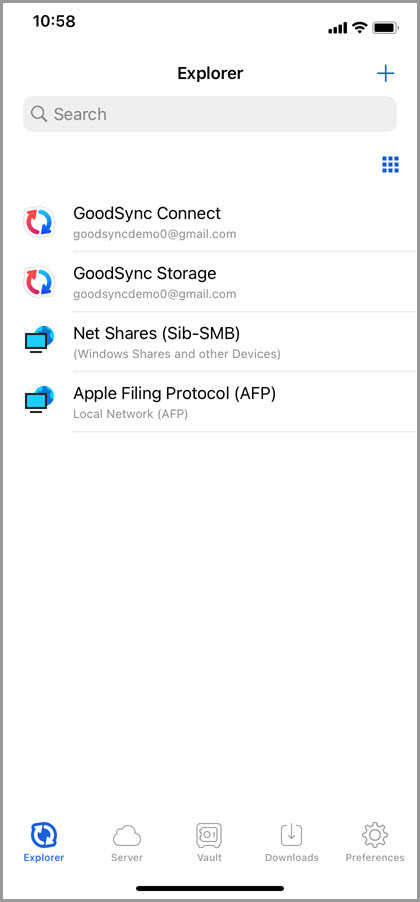
To discover the features and capabilities of the GoodSync app for iOS, click this link.