For download and installation instructions for the GoodSync app for iOS, click this link.
The GoodSync app for iOS allows you to utilize an iOS device with GoodSync Connect, store and manage files, back up the device's data, and more.
Below, we will review the specifics of each of the tabs located at the bottom of the app screen.
Explorer
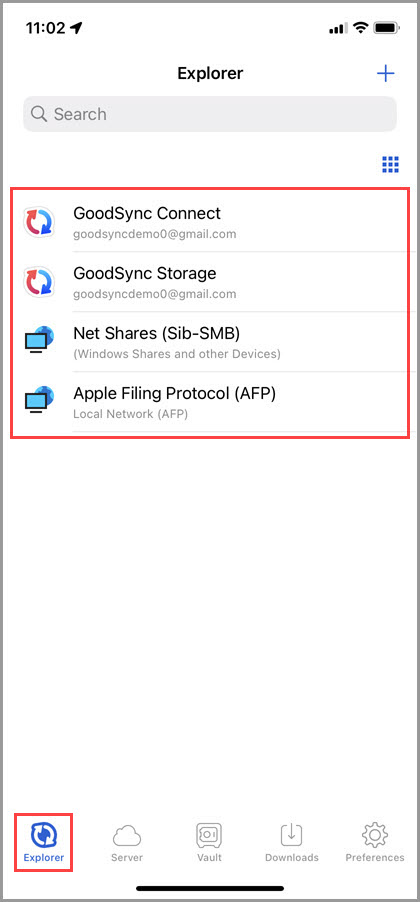
When GoodSync for iOS is initially opened, the "Explorer" tab will be displayed, providing default connections to GoodSync Connect, GoodSync Storage, and the network shares available in the local network.
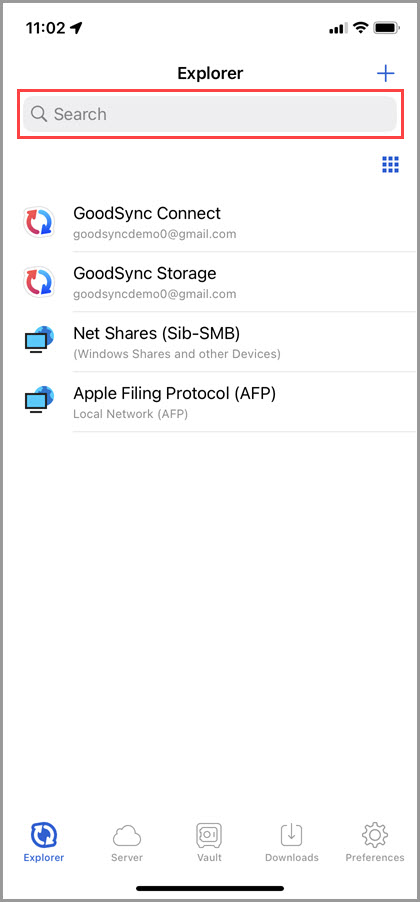
Here, the "Search" field enables the searching of items listed on the current screen, which essentially filters the items by name.
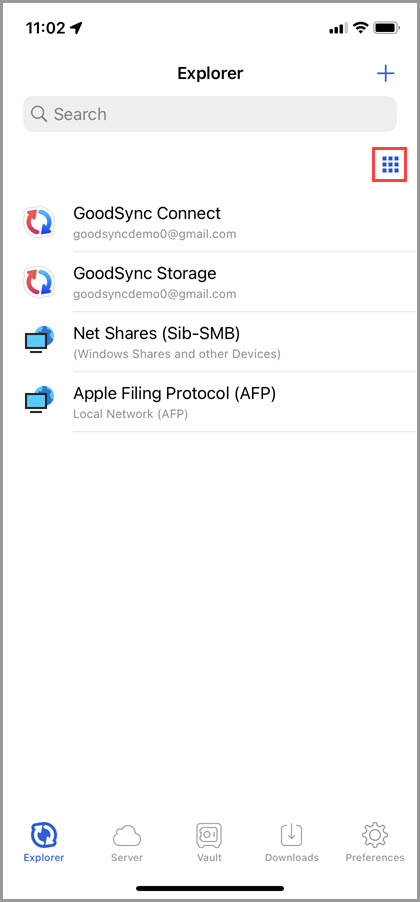
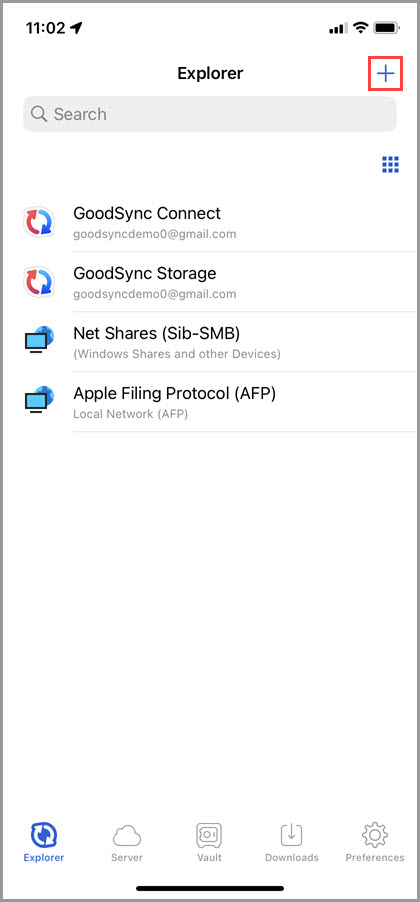
View modes can be toggled by tapping the Grid or List icons in the upper right.
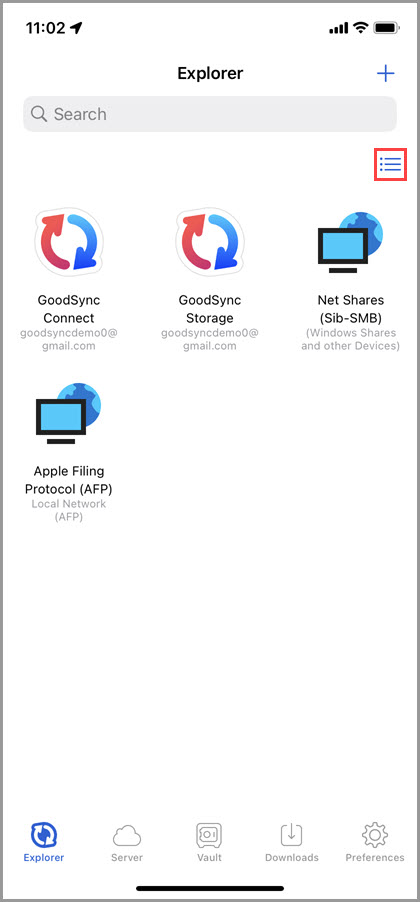
Tapping the "+" (plus) button in the top right corner will show a list of supported File System types that can be added to the "Explorer" tab as an Account (a combination of a File System path/server URL, credentials, and options).
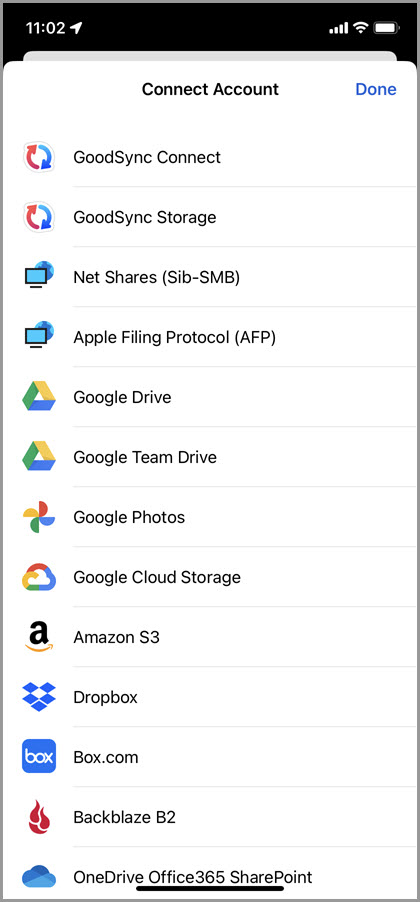
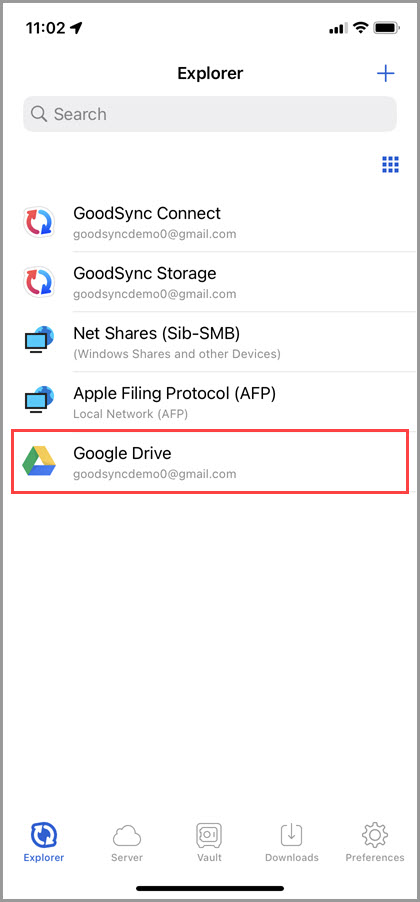
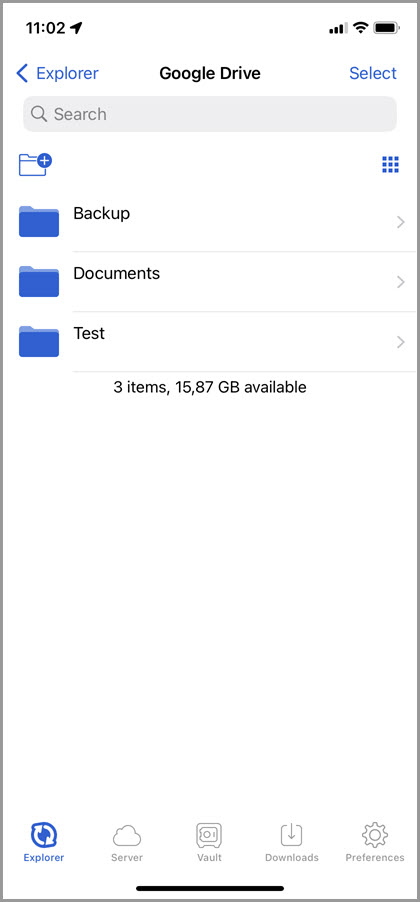
Through the "Explorer" tab, tapping any of the connected Accounts will show their respective File Systems. Let's take a look at a Google Drive Account as an example.
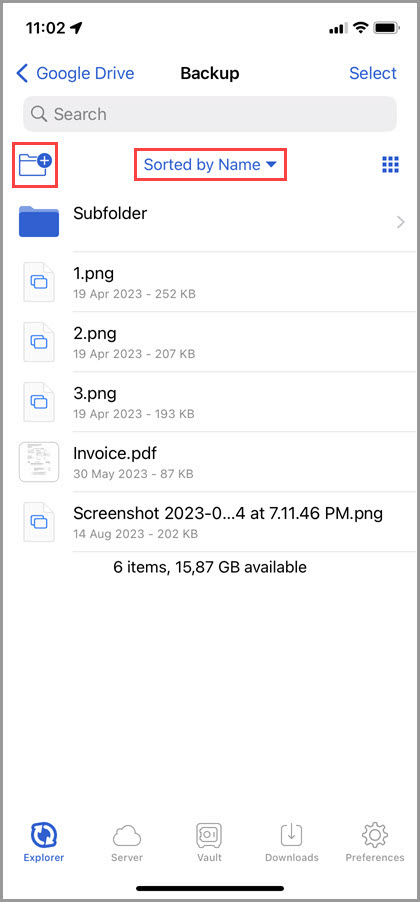
In the File System of the Account, new folders can be created by tapping the folder icon with a plus sign, and data sorting can be changed by tapping "Sorted by" at the top of the screen.
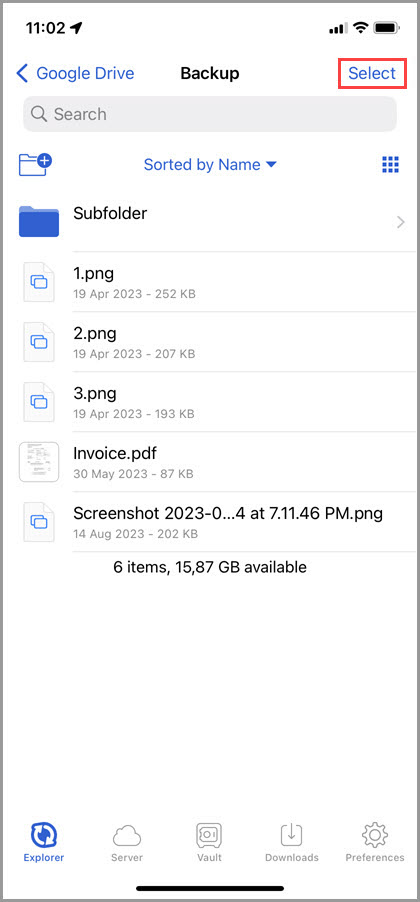
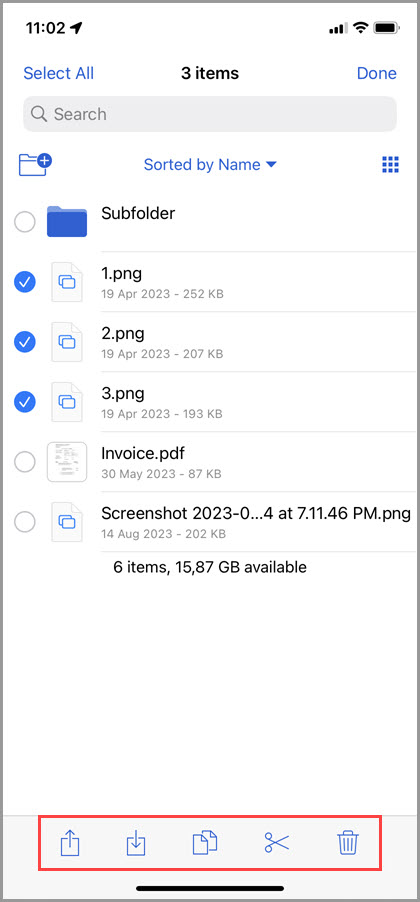
By tapping "Select" in the upper right corner and choosing an item or multiple items, the GoodSync app for iOS will present buttons at the bottom of the screen that enable Sharing, Downloading (this will add the item to the "Downloads" tab), Copying, Cutting, or Deleting selected items.
If the currently viewing folder was previously encrypted (and optionally compressed) using one of the GoodSync Compression and Encryption options, there will be displayed a 3-dot icon in the upper right corner. Tap it to see the options to "Select" or "Enter Encrypted Folder/Enter Compressed-Encrypted Folder."
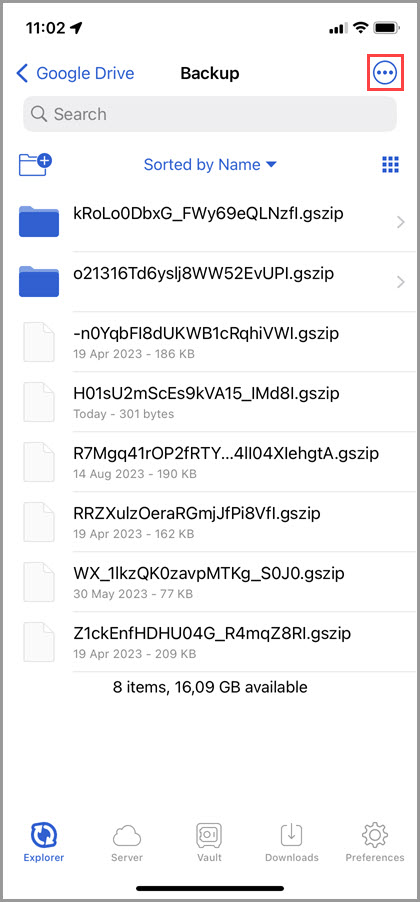
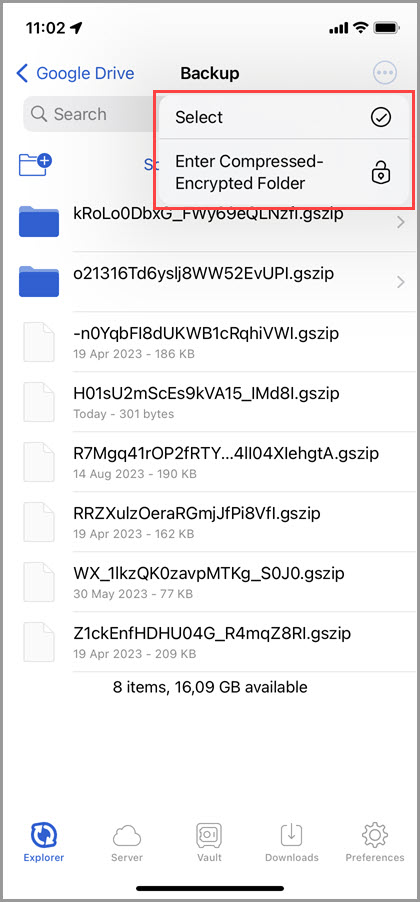
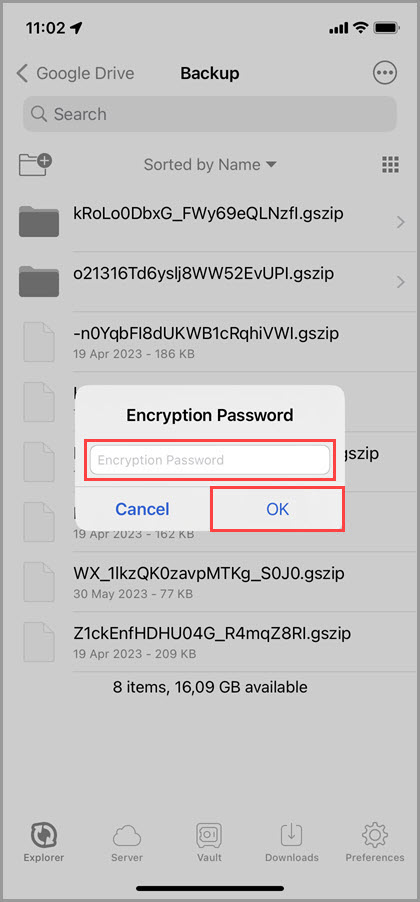
To decrypt and decompress the folder contents, select "Enter Encrypted Folder/Enter Compressed-Encrypted Folder," input the encryption password, and tap "OK." The app will then proceed to decrypt and decompress the items and display the raw folder contents.
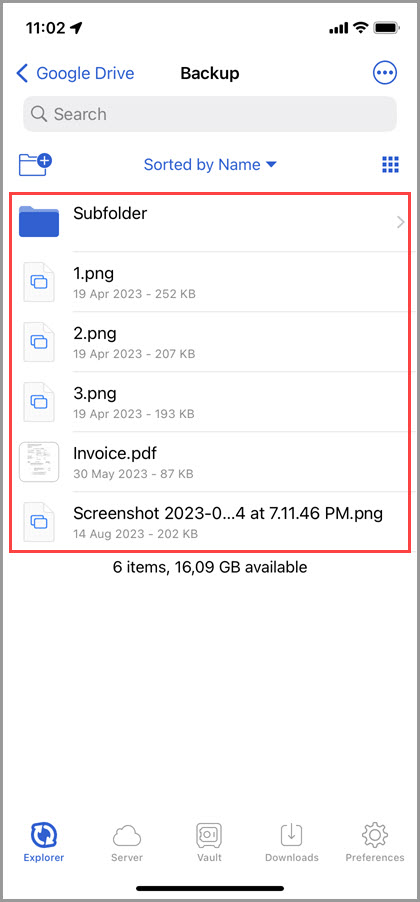
To exit the encrypted folder, tap the same 3-dot icon and select "Exit Encrypted Folder/Exit Compressed-Encrypted Folder."
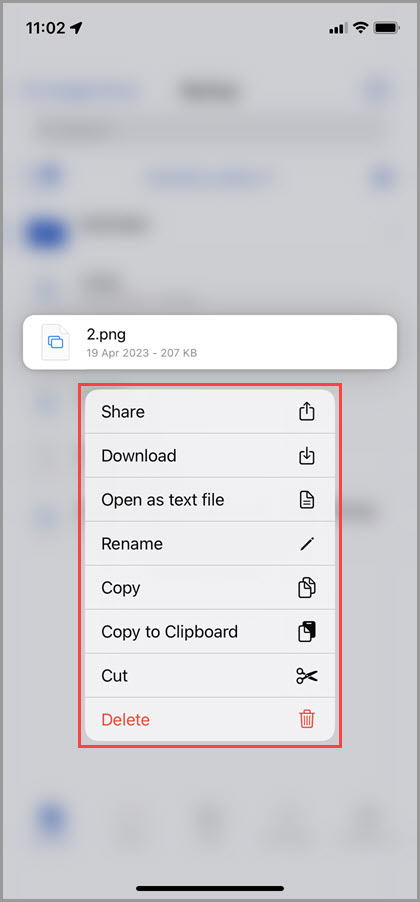
If an item is long-pressed, the GoodSync app will show a menu with the options to Share, Download, Open as text file, Rename, Copy, Copy to Clipboard, Cut, and Delete.
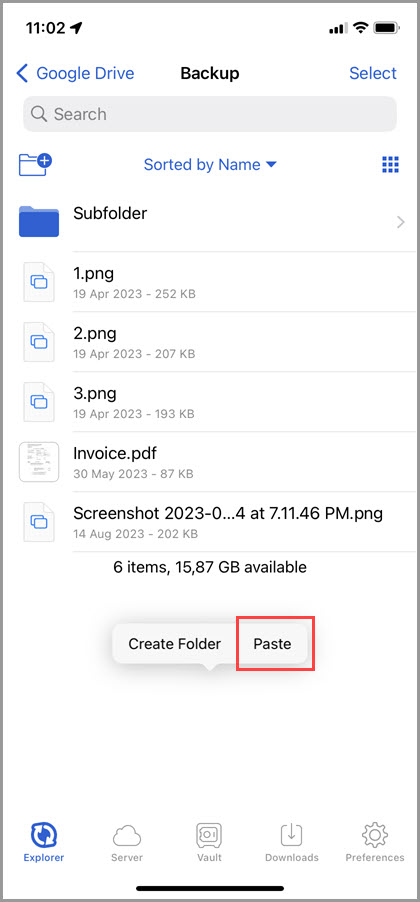
A copied item can be pasted by performing a long-press anywhere within the empty space of the destination folder, and choosing "Paste."
Server
On the right of the "Explorer" tab, one can see the "Server" tab. This tab allows utilizing the iOS device as a server through the use of GoodSync Connect.
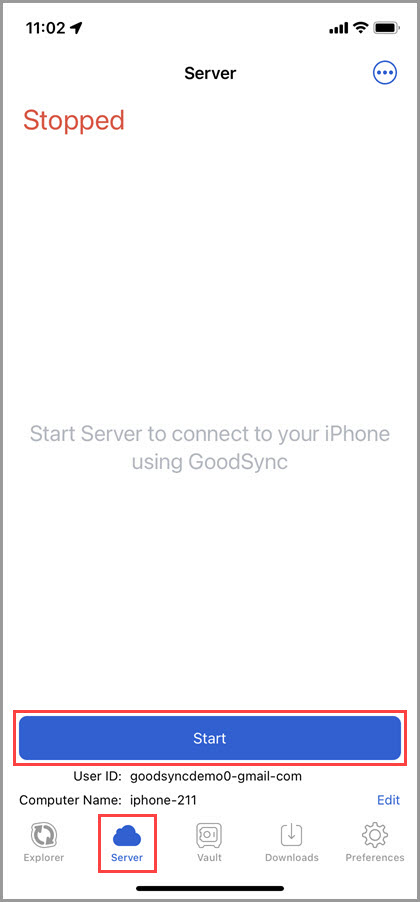
To start the server, press the blue "Start" button at the bottom of the page.
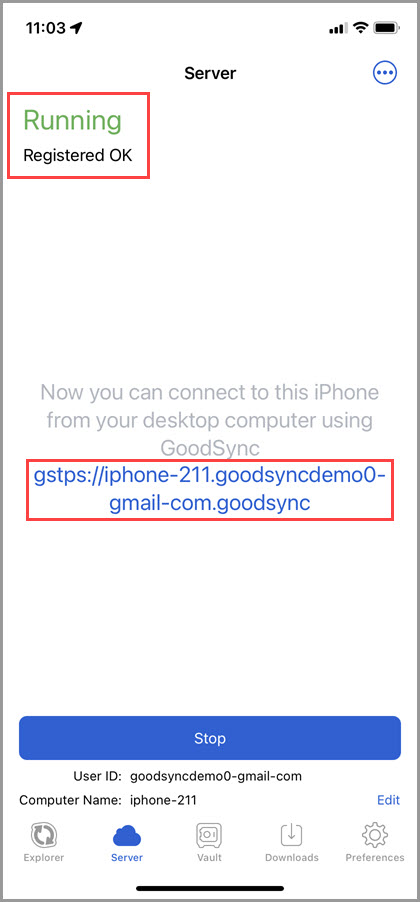
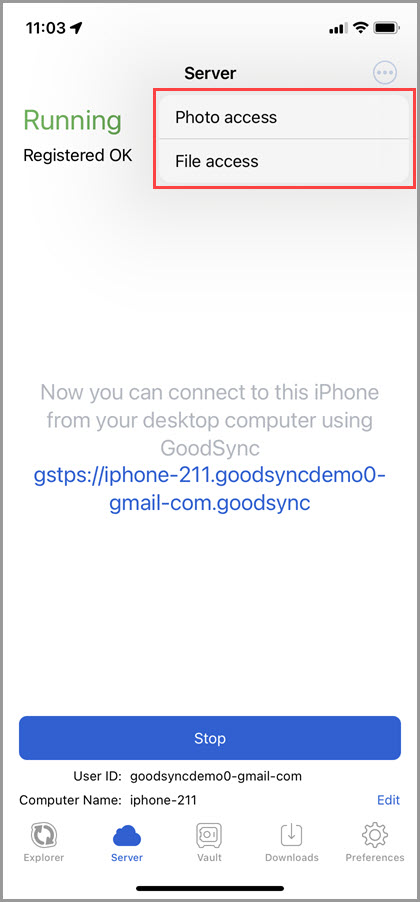
When the app shows "Running" in green at the top of the screen, the server has successfully started. The GSTP URL for connecting to the device through GoodSync Connect will appear in the center of the app screen.
Tapping the 3-dot icon in the upper right corner and selecting "Photo access" or "File access" will allow GoodSync for iOS access to some or all photos or files on the device. That is useful for situations where one may want to transfer photos or files to or from an iOS device.
NOTE: For more information about utilizing the "Server" tab to transfer photos and data to and from an iOS device, click here.
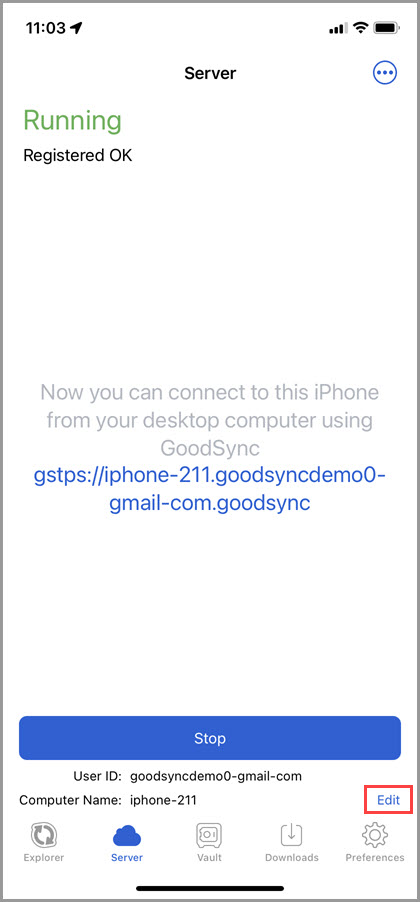
In the bottom right corner, there is the "Edit" button, tapping which will show the Server preferences.
Vault
Next to the "Server" tab, there is the "Vault" tab.
This tab provides a designated area to store files on an iOS device. Storing files in the Vault makes accessing and managing them from your devices streamlined.
The Vault also serves as the actual storage location for downloaded items.
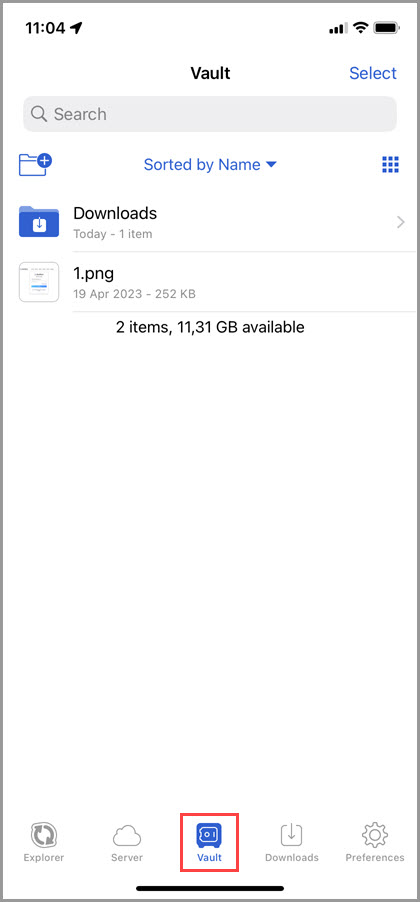
Files stored in the Vault can be accessed from any other apps installed on the iOS device.
NOTE: The "Allow other apps to access Vault" option should be turned on in the "Storage" section of the Preferences.
For example, let's view the Vault contents through the Files app, which comes preinstalled on iOS:
1) Open the Files app from the Home screen of your iOS device.
2) Tap "On My iPhone/On My iPad."
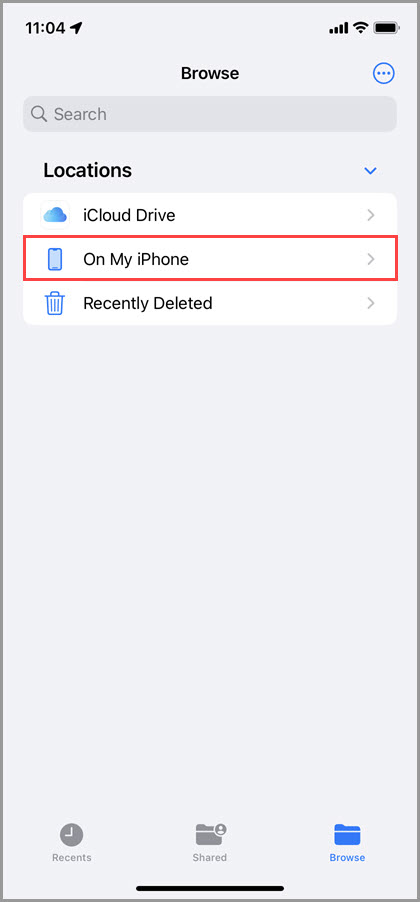
3) Tap "GoodSync."
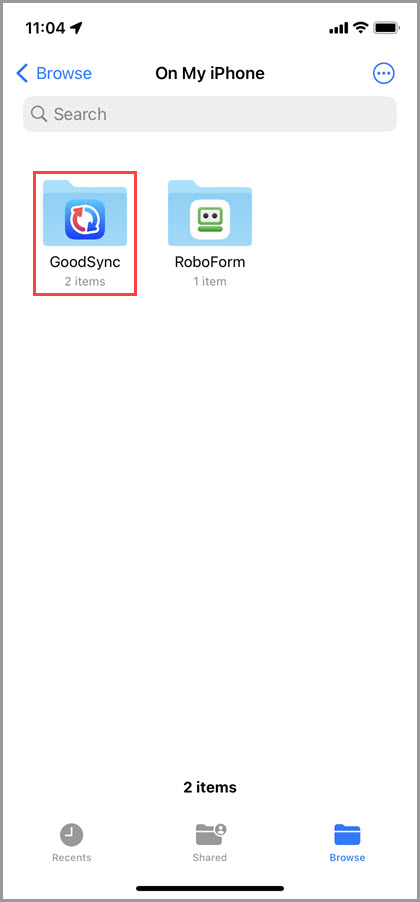
4) You will encounter the items stored in the GoodSync Vault.
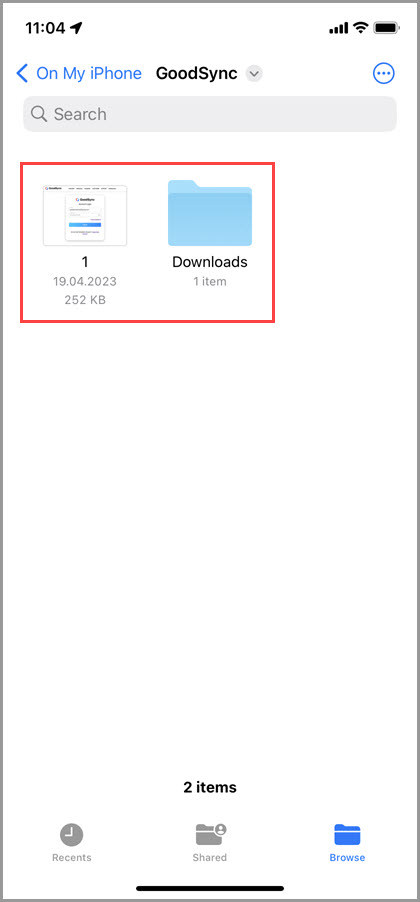
The actions above can be executed with any other app installed on the iOS device for accessing the files from the Vault.
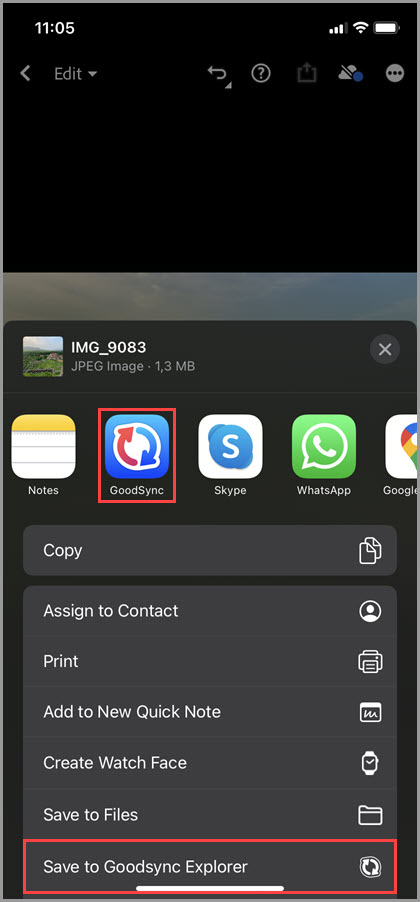
When saving, sharing, or exporting files from other iOS apps, GoodSync may be chosen as the destination for saving, and the files will be saved to GoodSync Vault. Here is an example of exporting a photo to the Vault from a photo editing app:
The "Vault" tab provides identical file management controls as the "Explorer" tab:
- The "Search" field enables searching of the items listed on the current screen.
- New folders can be created by tapping the folder icon with a plus sign.
- Data sorting can be changed by tapping "Sorted by" at the center top of the screen.
- View types can be toggled by tapping the Grid or List icons in the upper right.
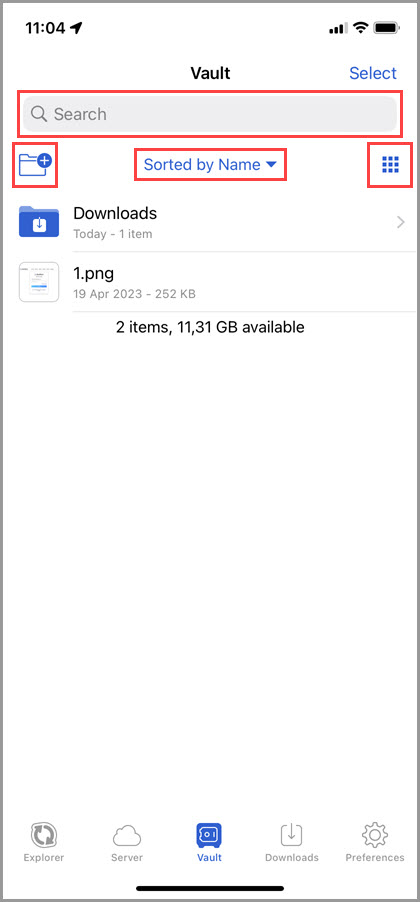
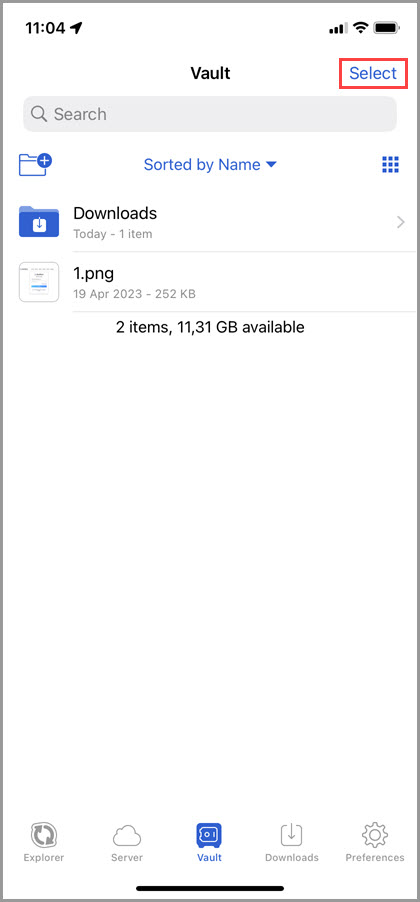
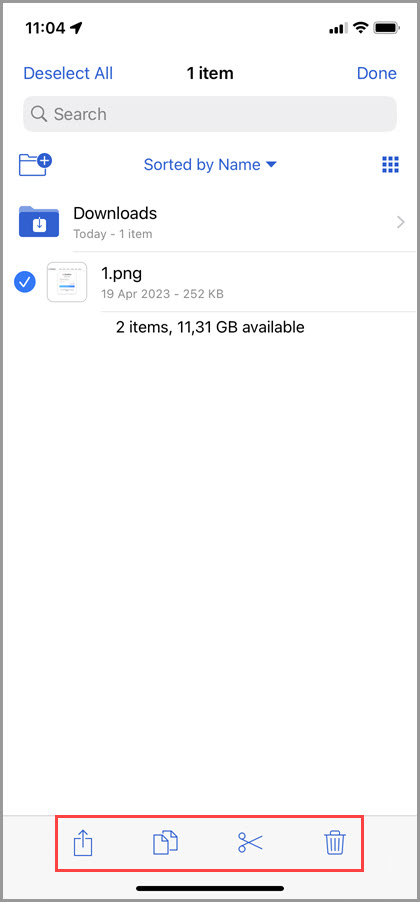
In the top right, there is a blue "Select" button. By tapping "Select" and choosing an item or multiple items, buttons will appear at the bottom of the screen that, from left to right, enable Sharing, Copying, Cutting, or Deleting selected items.
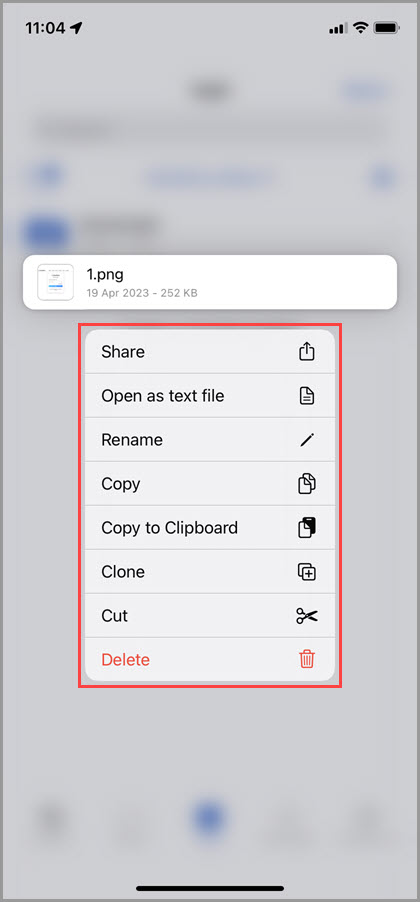
A long-press on the item will show a menu with the options to Share, Open as text file, Rename, Copy, Copy to Clipboard, Clone, Cut, and Delete.
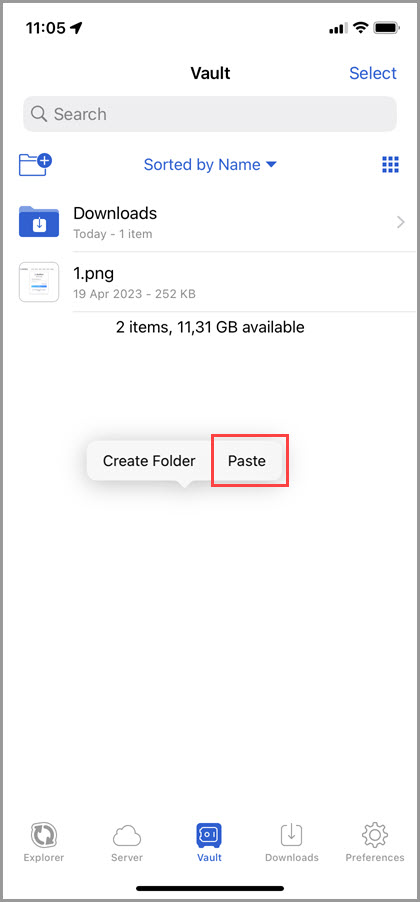
A copied item can be pasted by performing a long-press anywhere within the empty space of the destination folder and choosing "Paste."
Downloads
To the right of the "Vault" tab, one will see the "Downloads" tab. This tab is where files are downloaded from the "Explorer" tab.
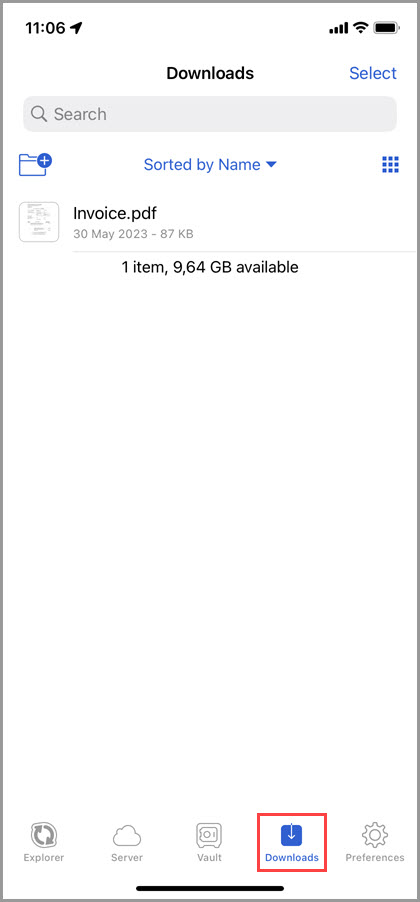
As downloaded files are stored in the Vault, the "Downloads" tab provides all the same file management and viewing controls, as outlined in the "Vault" chapter above.
Preferences
To the right of the "Downloads" tab is the "Preferences" tab. Below, we review the options and controls presented in each section of this tab.
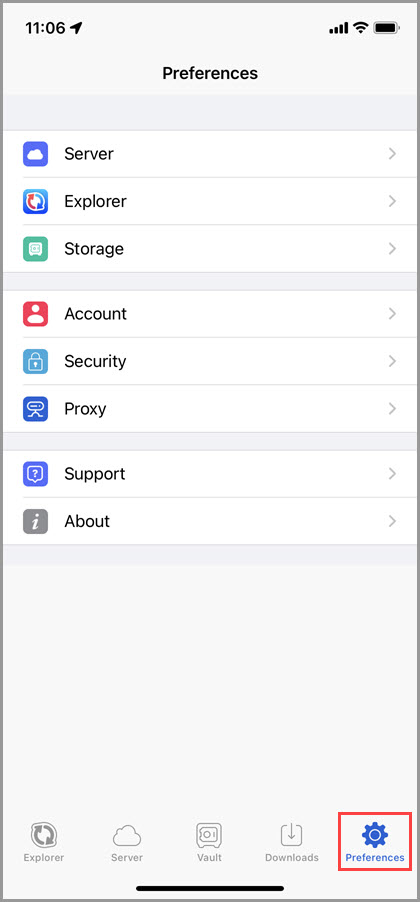
Server
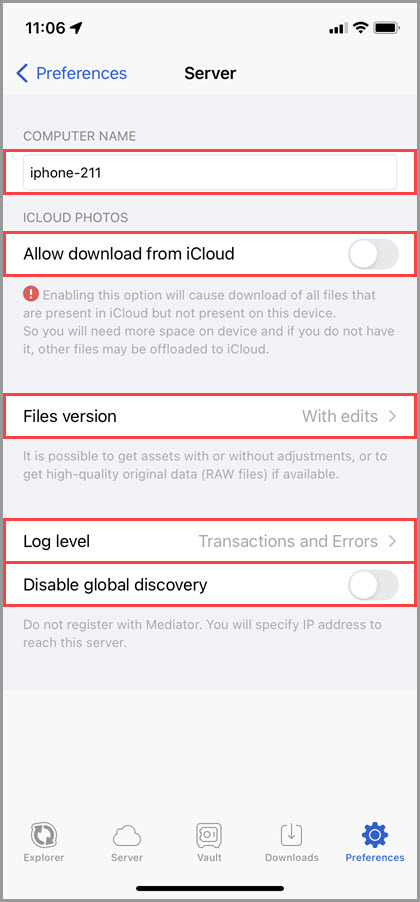
– Computer name. Sets the name of the iOS device, as it will appear in GoodSync Connect.
– Allow download from iCloud. If turned on, it will cause the download of all files that are present in iCloud but not on the device. If the server is already running, restart it for this option to take effect.
NOTE: More space will be needed on the device. If there is no more space, other files may be offloaded to iCloud.
– Files version. Sets which version of the files to download from iCloud. Possible options are "With edits," "Original," and "Original RAW."
– Log level. Sets the log detail level. Possible options are "Transactions and Errors" and "Errors only."
– Disable global discovery. If turned on, the server running on this iOS device will not be registered with the Mediator server, making the device inaccessible through a mediated addressing URL, such as https://iphone-211.goodsyncdemo0-gmail-com.goodsync. Instead, it will be accessible directly via its IP address, such as https://11.22.33.44
Explorer
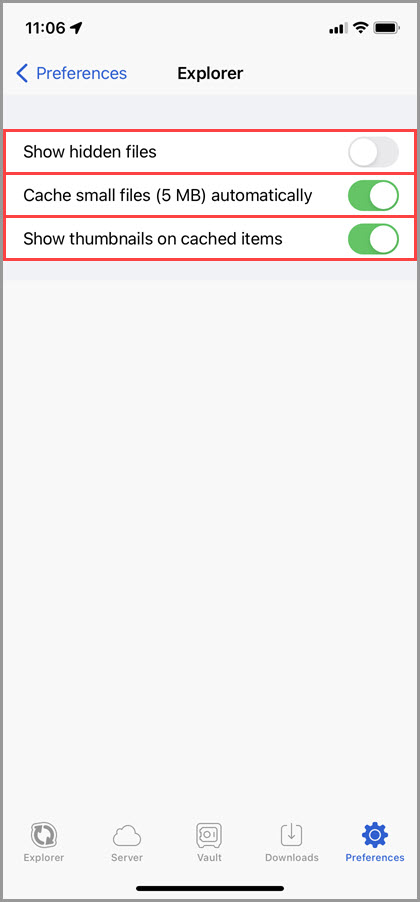
Show hidden files. If turned on, the GoodSync app will display hidden files and folders while navigating through File Systems.
Cache small files (5 MB) automatically. If turned on, the app will automatically cache files less than 5 MB on the device, reducing the need to download them repeatedly.
Show thumbnails on cached items. If turned on, show thumbnails on cached items, such as images and documents.
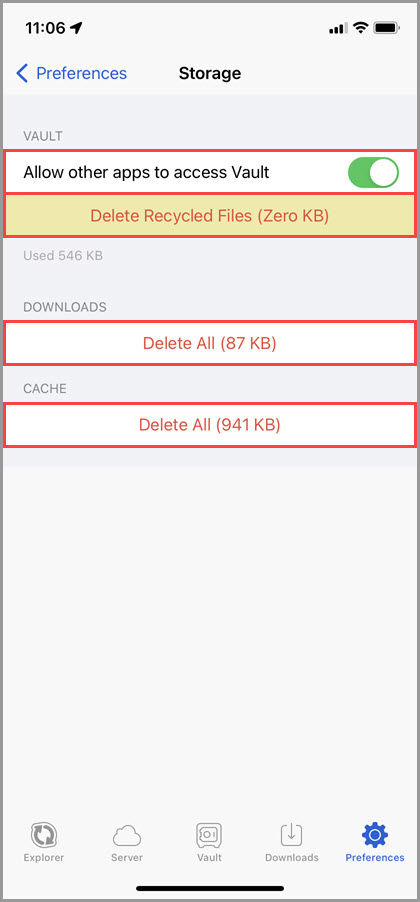
Storage
Allow other apps to access Vault. If turned on, other apps installed on the iOS device will have access to files stored in the Vault.
Delete Recycled Files. Delete the recycled files, such as old versions of modified and deleted files appearing during synchronization.
Delete All (Downloads). Delete all downloaded files.
Delete All (Cache). Delete all cached files.
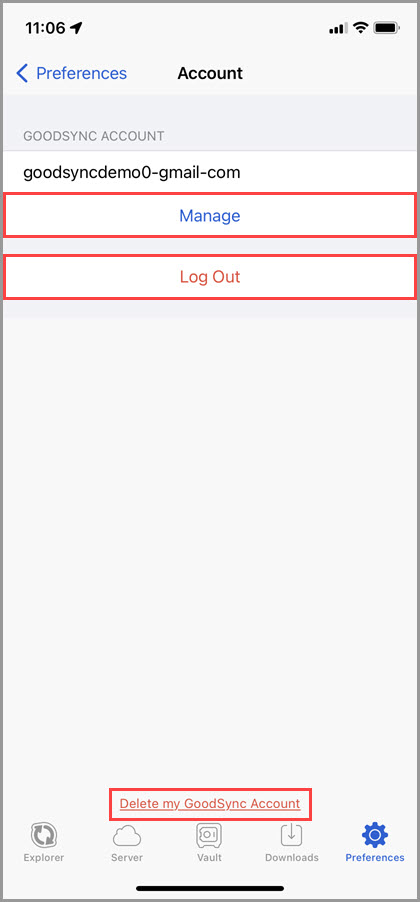
Account
Manage. Open the GoodSync Account Web UI for the current GoodSync Account (specified above the button).
Log Out. Log out of the current GoodSync Account.
Delete my GoodSync Account. Delete the GoodSync Account and all its data permanently.
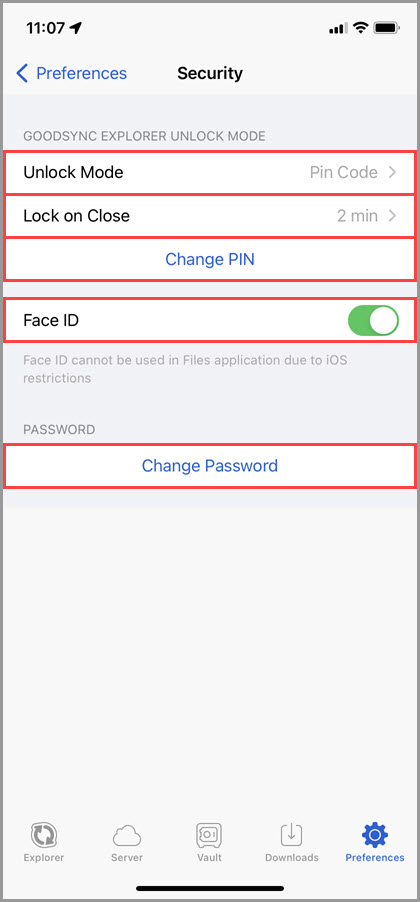
Security
Unlock Mode. Sets the GoodSync app unlock mode. Possible options are "Password," "Pin Code," and "No Authorization."
Lock on Close. Sets the delay duration before the app locks when it is inactive, i.e., minimized.
Change PIN. Change the app unlocking PIN.
Touch ID/Face ID. If turned on, use iOS biometrics (Touch ID or Face ID) to unlock the app.
Change Password. Change the password of the current GoodSync Account. Opens the GoodSync Account Web UI.
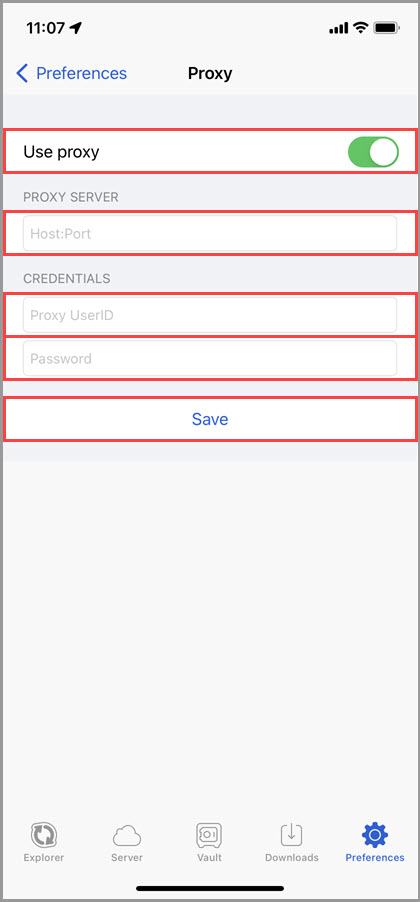
Proxy
Use proxy. If turned on, use a proxy server for connections.
Proxy server. Proxy server address specified in the host:port format.
Proxy UserID. Proxy user name.
Proxy Password. Proxy password.
Save. Click to save proxy settings.
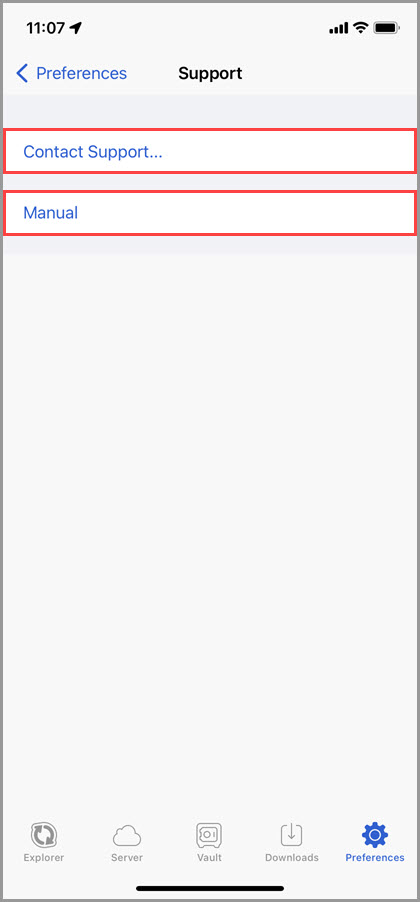
Support
Contact Support. Submit a support ticket. The reply notification will be sent to the email address of the current GoodSync Account.
Manual. Open the GoodSync Manual.
About
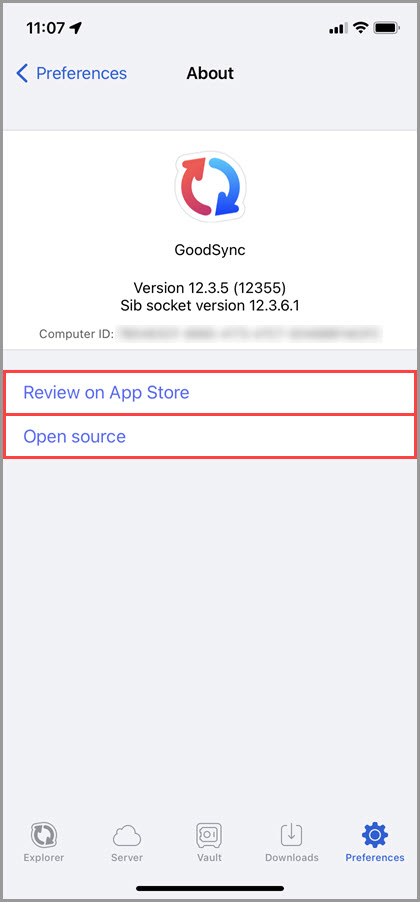
Review on App Store. Open the GoodSync for iOS app page in the App Store to leave a review.
Open source. Show the information about open-source libraries used in the app.