This article applies to both GoodSync for Windows and GoodSync for Mac unless noted otherwise.
You may save an existing job (partially configured or complete) as a Template for use in the creation of future jobs. This can save you time if you frequently create similarly configured Jobs.
Creating a Template from a Job
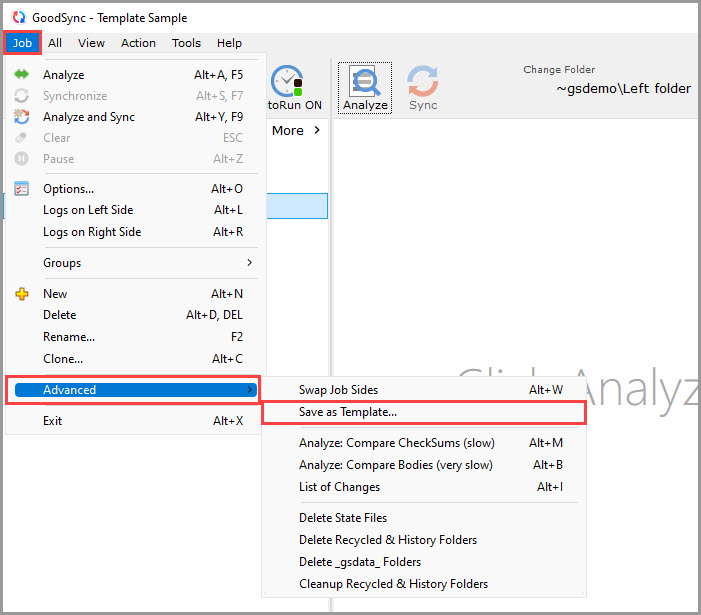
1) In the "Job" menu, select "Advanced," then select "Save as Template."
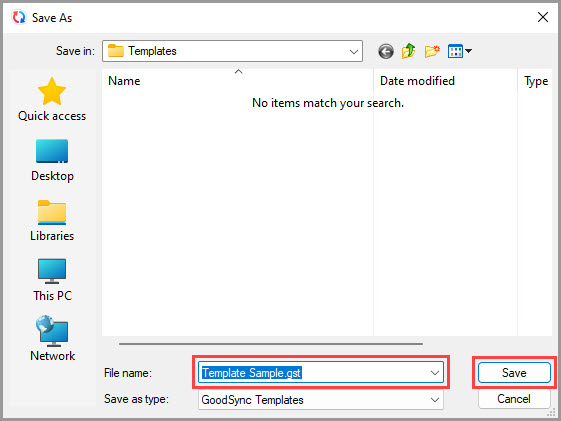
2) The "Save" dialog will appear. Name the template as you wish and click the "Save" button.
Creating a Job from a saved Template
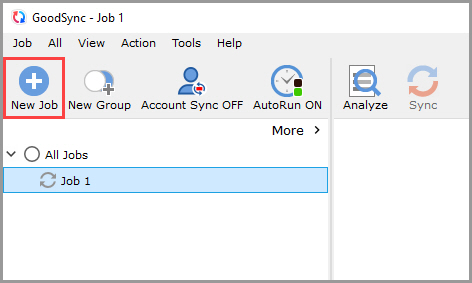
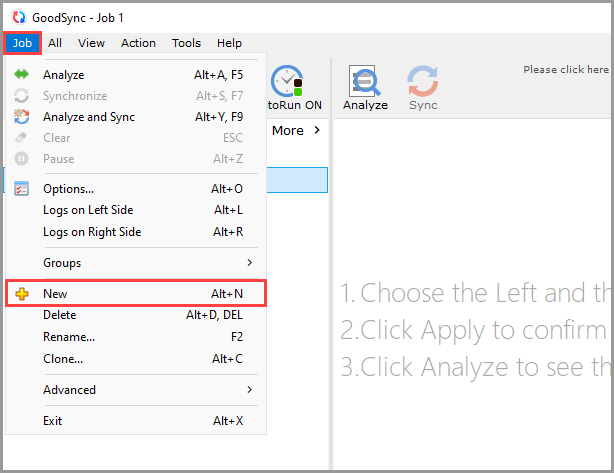
1) In the "Job" menu, select "New," or click the "New Job" button in the toolbar.
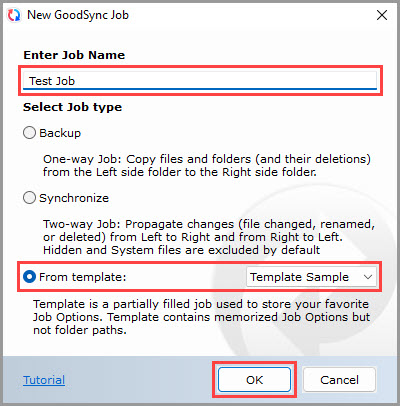
2) In the new job dialog, select the "From template" option, select the template from which the job should be created, and click the "OK" button.