If you have not yet done so, download and install GoodSync.
To set an external drive as a source or destination, follow these steps:
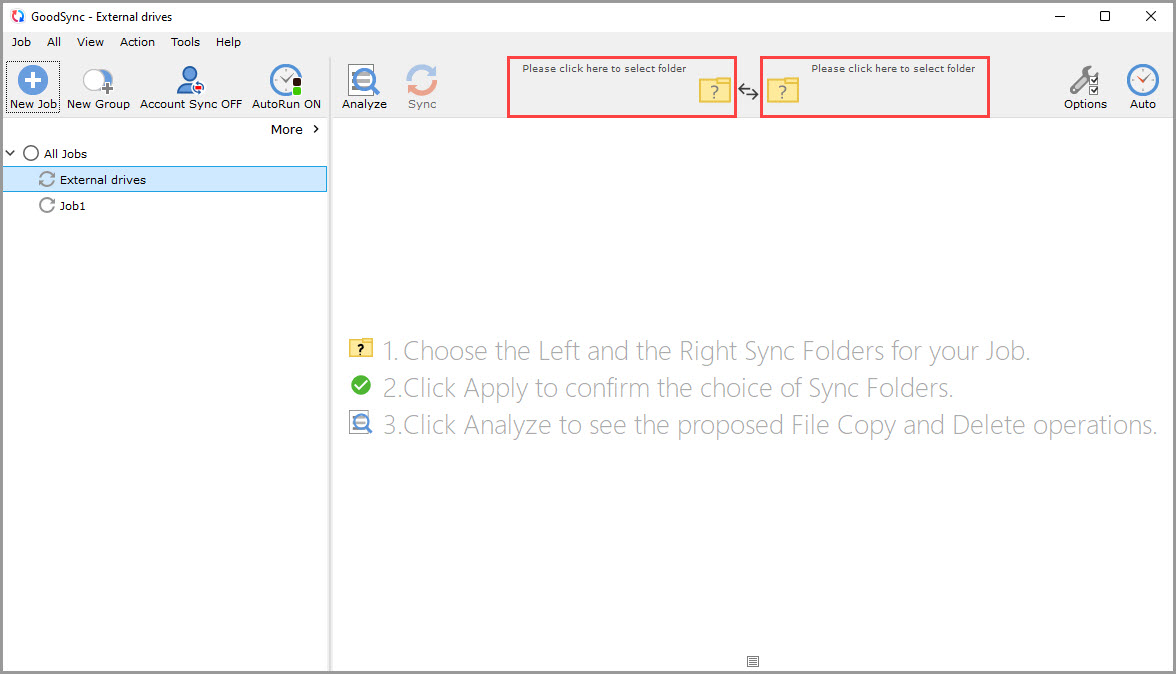
1) Open GoodSync and select or create your Job.
2) Click the Left or Right Browse buttons to view the files and folders available for selection.
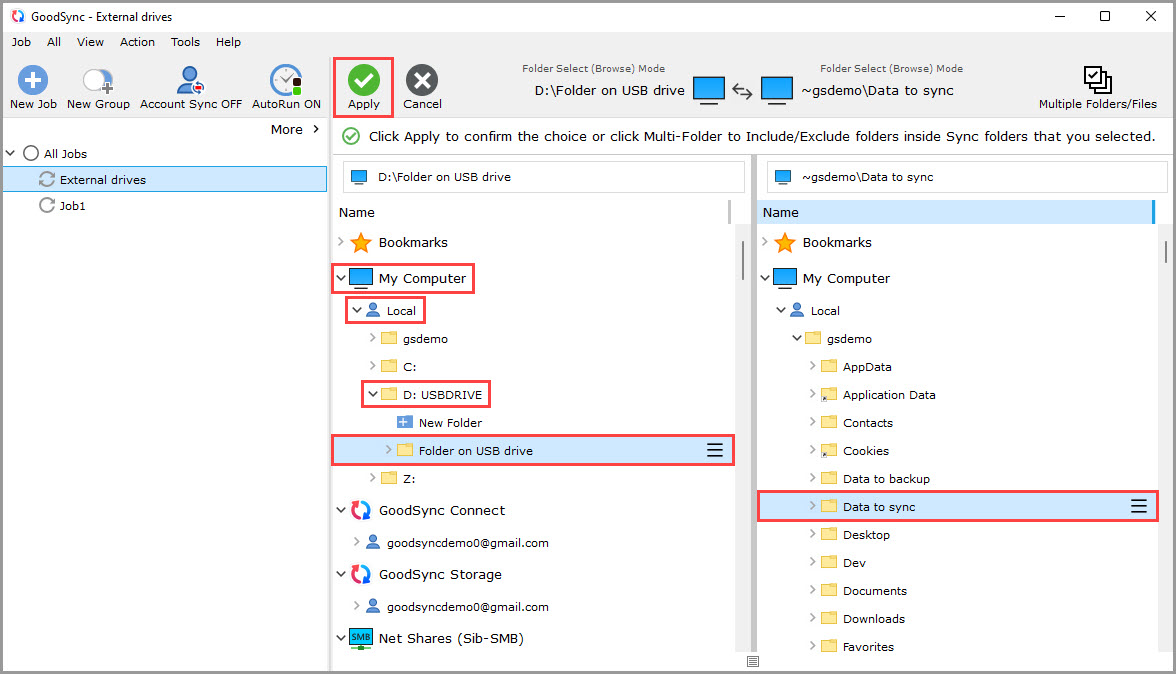
3) Choose the "My Computer" option (or "My Mac" in GoodSync for Mac) from the list.
4) Click "Local," and you should see your external drive listed in the list that drops down.
External drives will be listed with a drive letter. On Mac, external drives are typically listed under "Volumes."
5) Click your external drive and select a folder you wish to back up or sync to.
Select your source/destination folder on the opposite side.
Then, click the green "Apply" button.
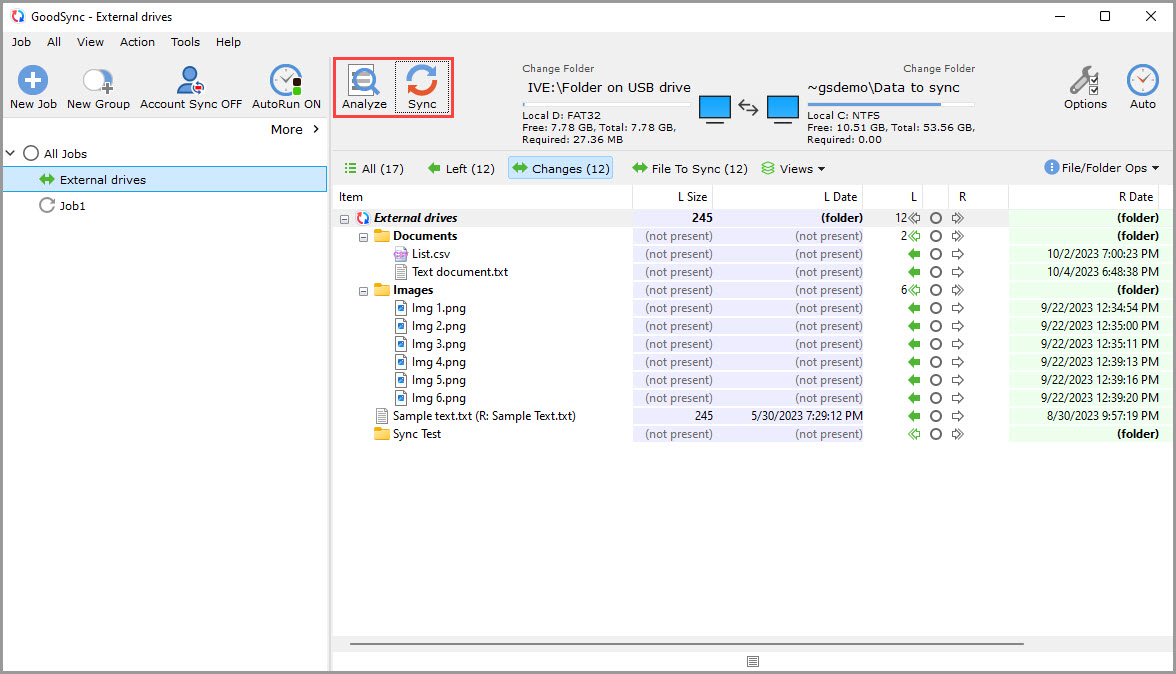
6) Your Job is now ready to Analyze and Sync.