If you haven't already, download and install GoodSync.
For mobile applications, you may leverage the Media Transfer Protocol (MTP) to make transfers. Simply plug in your mobile device via USB and select MTP as the file system in GoodSync.
To set an MTP device as a source or destination, follow these steps:
1) Plug in your mobile device via USB and open GoodSync.
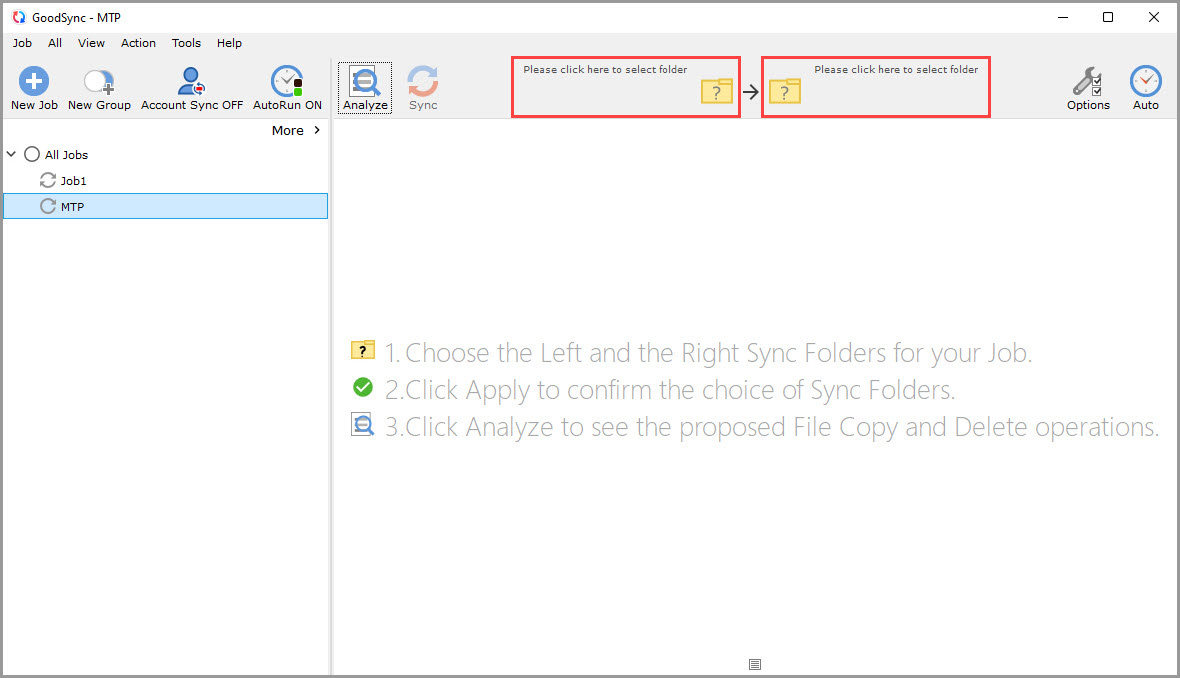
2) Select or create your Job and click the Left or Right Browse buttons to view the files and folders available for selection.
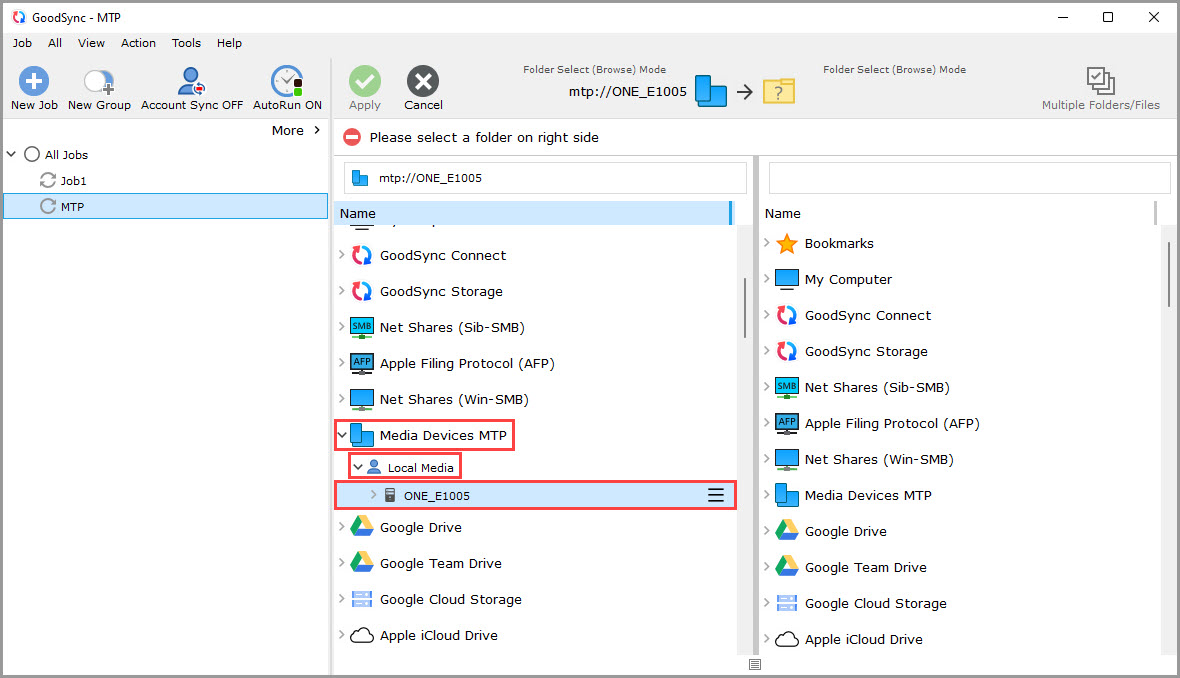
3) Choose the "Media Devices MTP" option from the list.
4) Click "Local Media," and in the list that drops down, you should see your MTP device listed.
5) Click the MTP device to select it.
After completing these steps for the Left or Right folder, you may select the folder or external drive on the opposite side and proceed with your Job.