If you haven't already, download and install GoodSync.
One File allows GoodSync users to compress and encrypt a series of files into a simple, individual file. You may replicate data to/from an encrypted One File format by selecting One File from the list of supported services in GoodSync.
Backing up data to One File
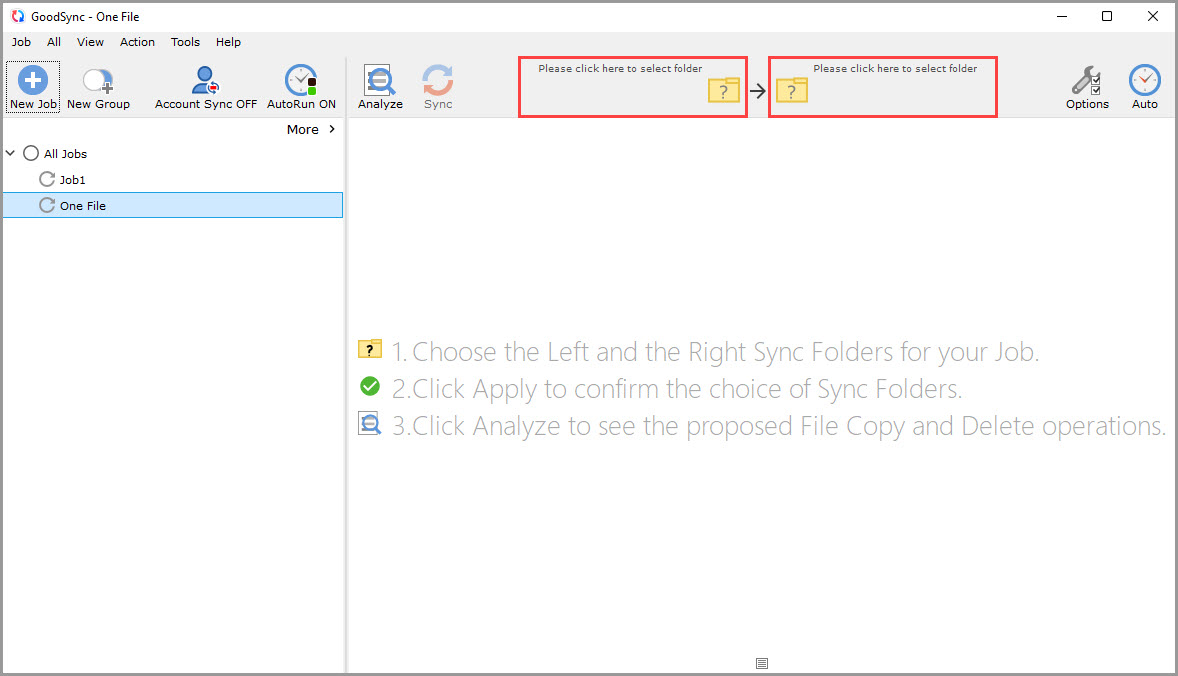
1) Select or create your Job and click the Left or Right Browse buttons to view the files and folders available for selection.
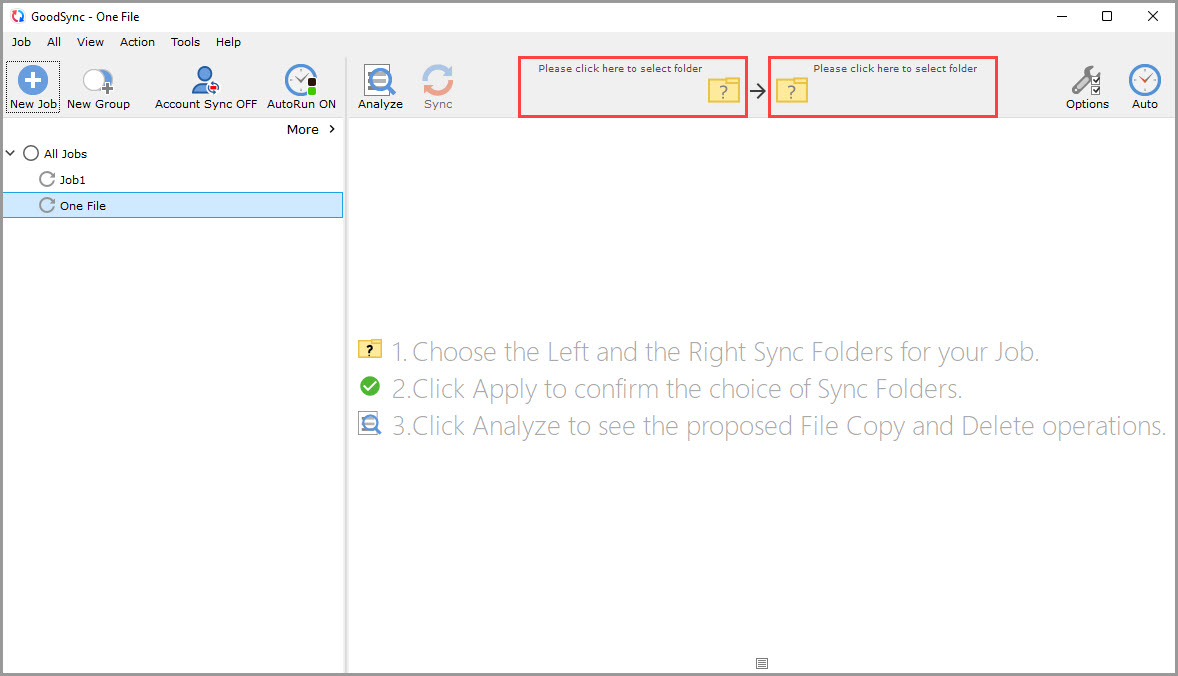
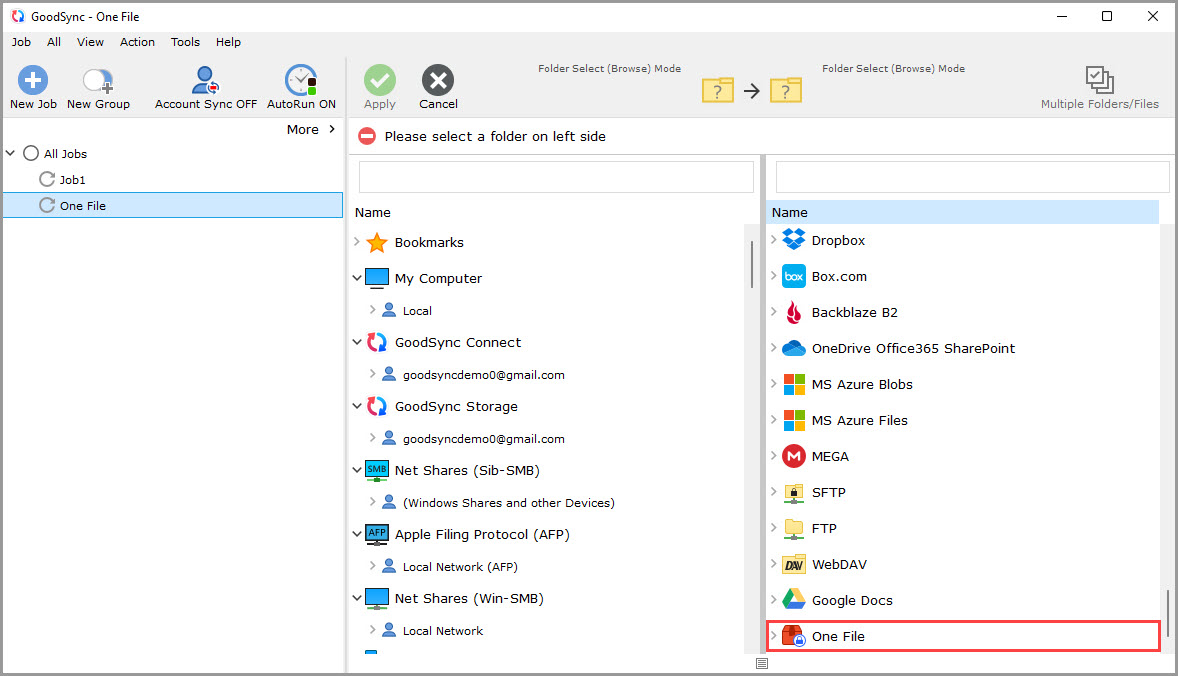
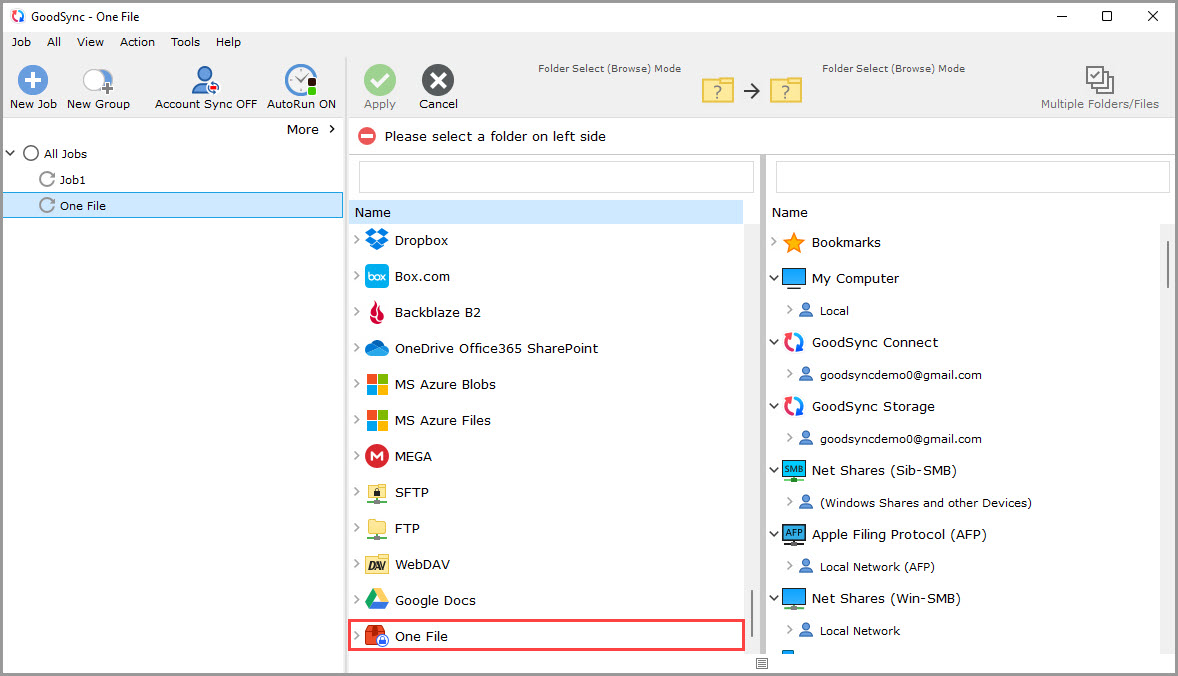
2) To back up and encrypt data to a One File format, ensure you click "One File" on the side of the destination folder.
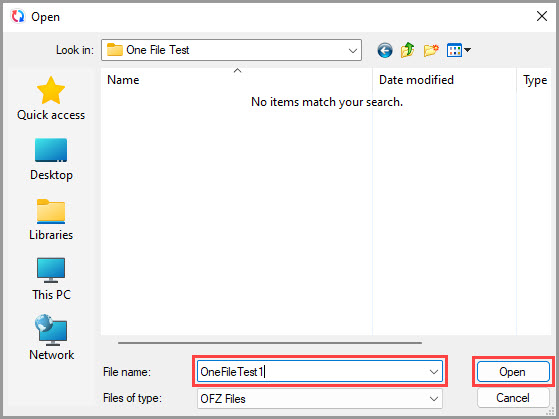
3) After you click "One File," a window will appear, prompting you to select a folder and file name for your new One File. Click "Browse" and select a folder to store the new One File in. Give the new One File a name in the "File name" field at the bottom, then click "Open."
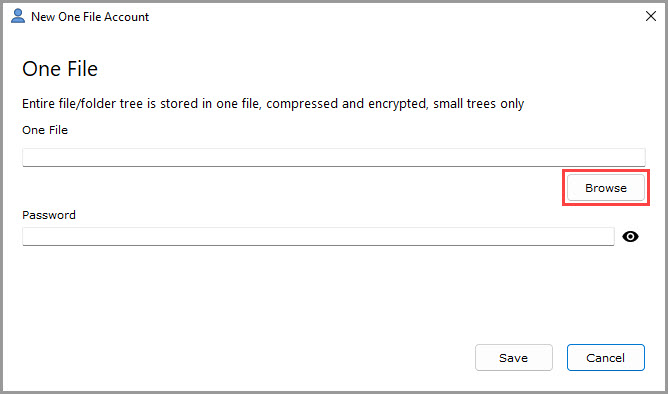
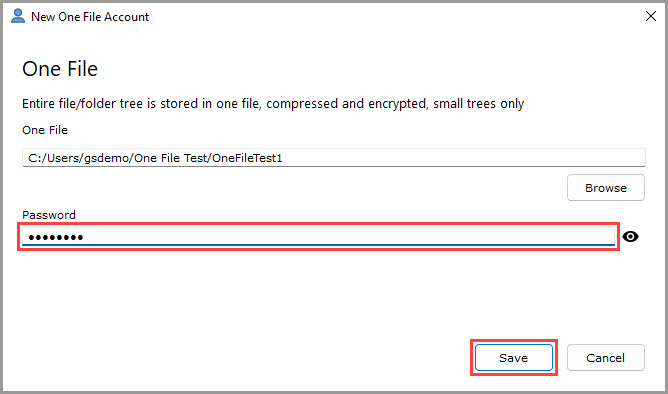
4) Enter a password into the password field so that any data placed into the One File will be encrypted. Then, click the "Save" button.
NOTE: This password will be used for both encryption and decryption moving forward.
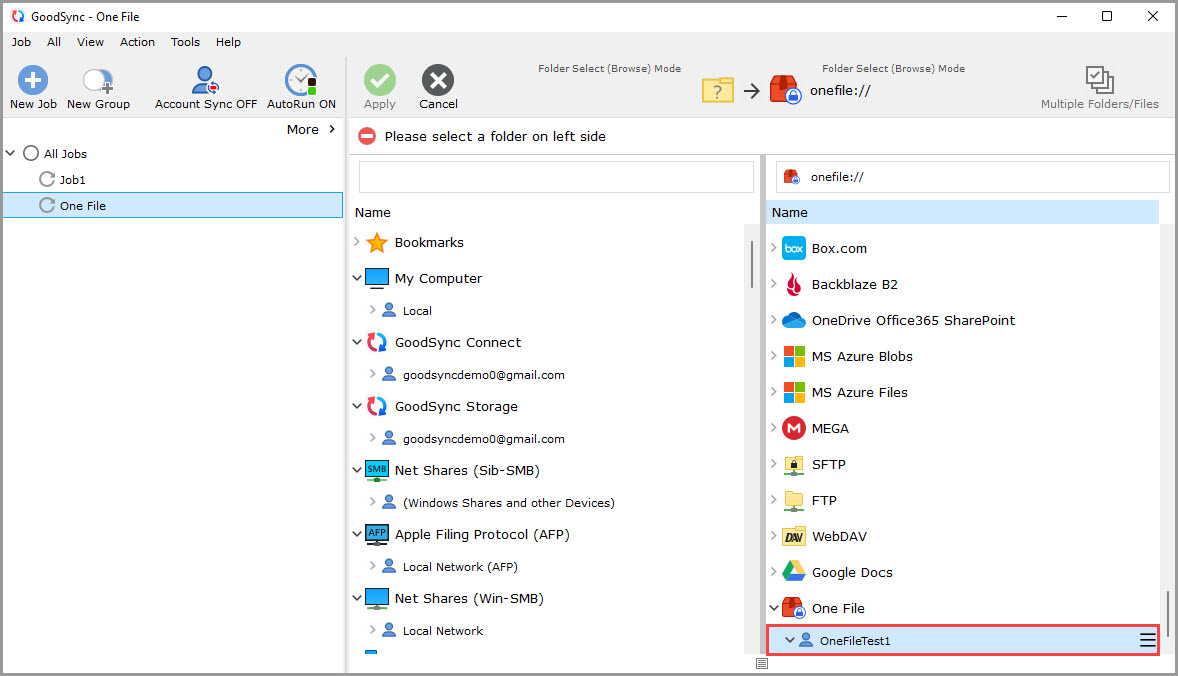
5) The new file name will appear under One File in the file browse menu. Select this folder as your destination.
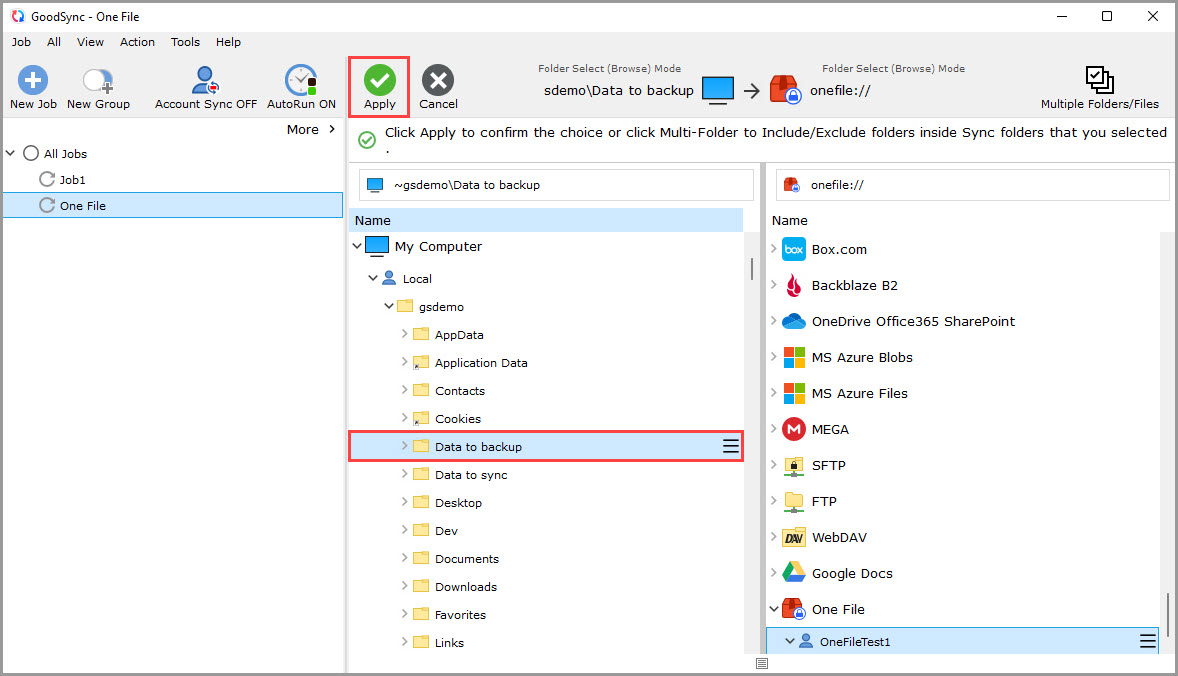
6) Select your source folder and click the green "Apply" button.
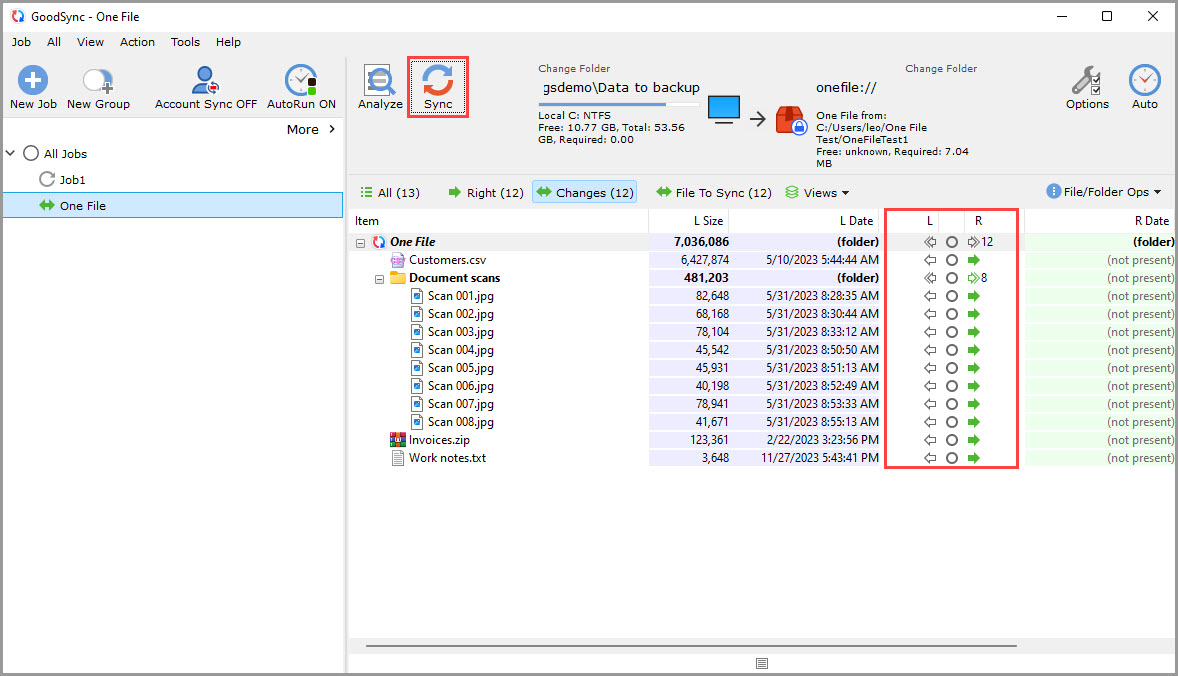
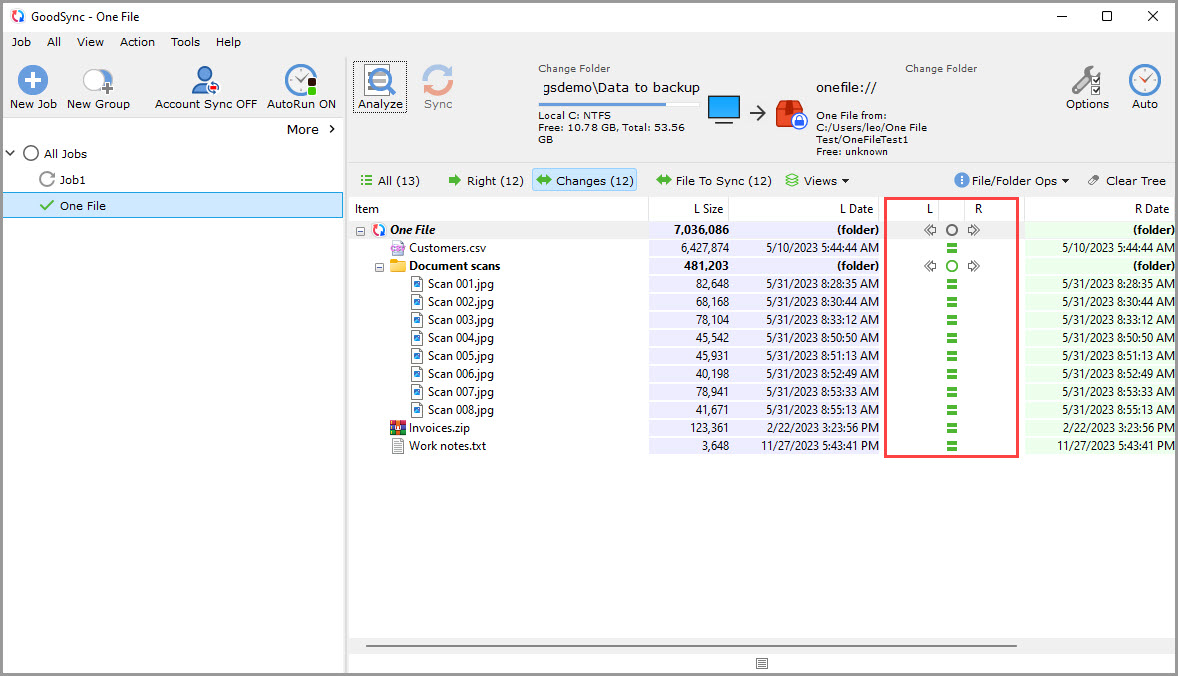
7) Your Job is now ready to Analyze and Sync. Upon successful sync, the source files will be converted to One File format.
Decrypting and decompressing One File data
1) Select or create your Job and then click the Left or Right Browse buttons to view the files and folders available for selection.
2) To decrypt and decompress a One File, ensure you click "One File" on the side of the source folder.
NOTE: If your desired file is shown under "One File," select it and proceed to Step 5. If it is not shown, to the right of "One File," click the blue "Person" icon with a plus sign next to it to add it to GoodSync and proceed to Step 3.
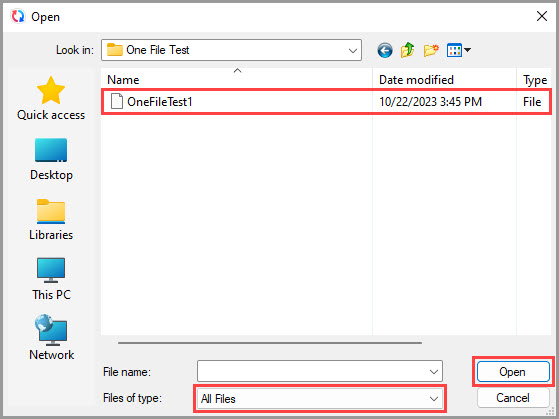
3) A window will appear, prompting you to select the specific One File you wish to decrypt and decompress. Click "Browse," select "All Files" to the right of "Files of type," and select the One File you wish to use. Then, click the "Open" button.
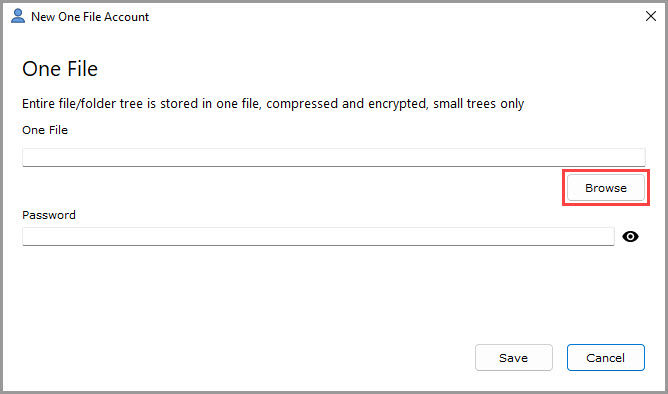
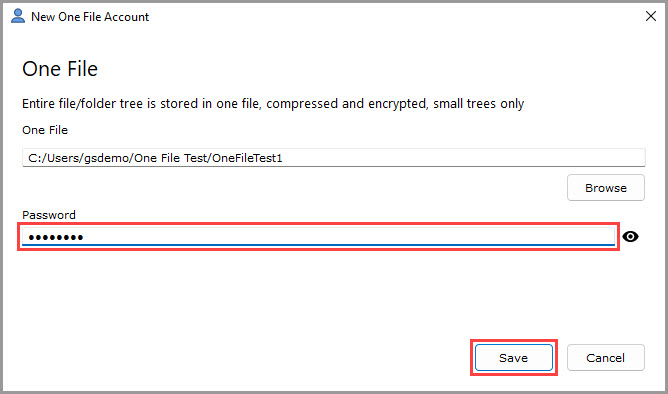
4) Enter the proper password for the One File into the password field and then click the "Save" button.
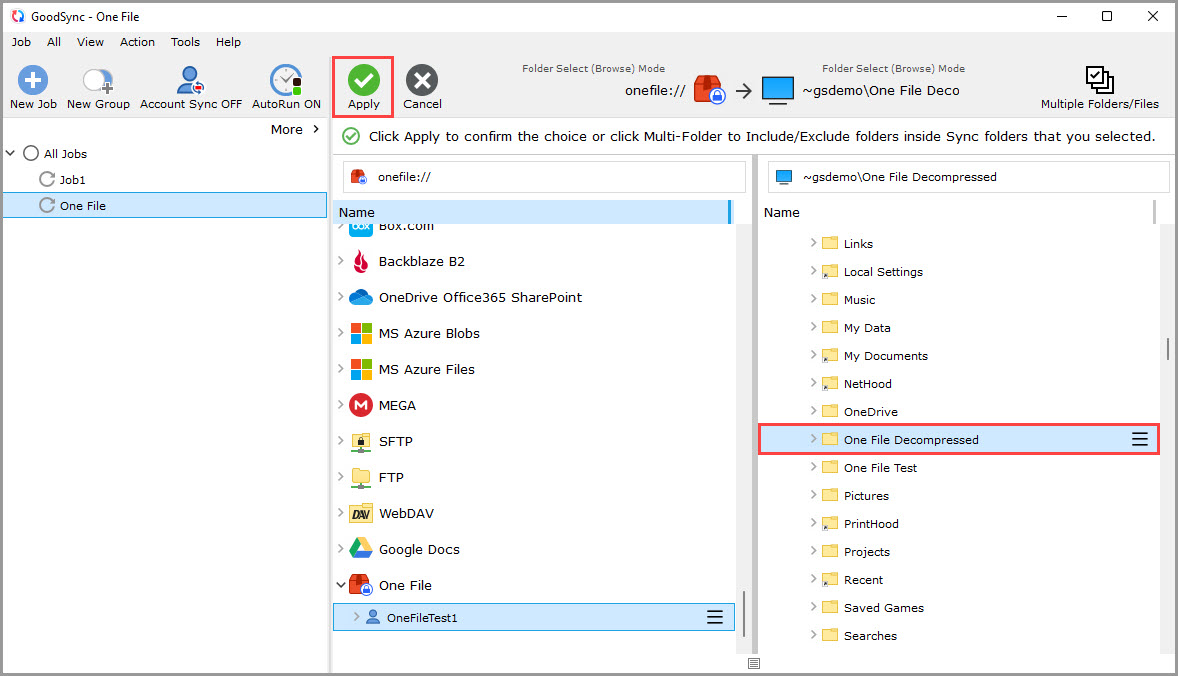
5) Select your destination folder and click the green "Apply" button.
6) Your Job is now ready to Analyze and Sync. Upon successful sync, the source files (One File) will be extracted to destination.
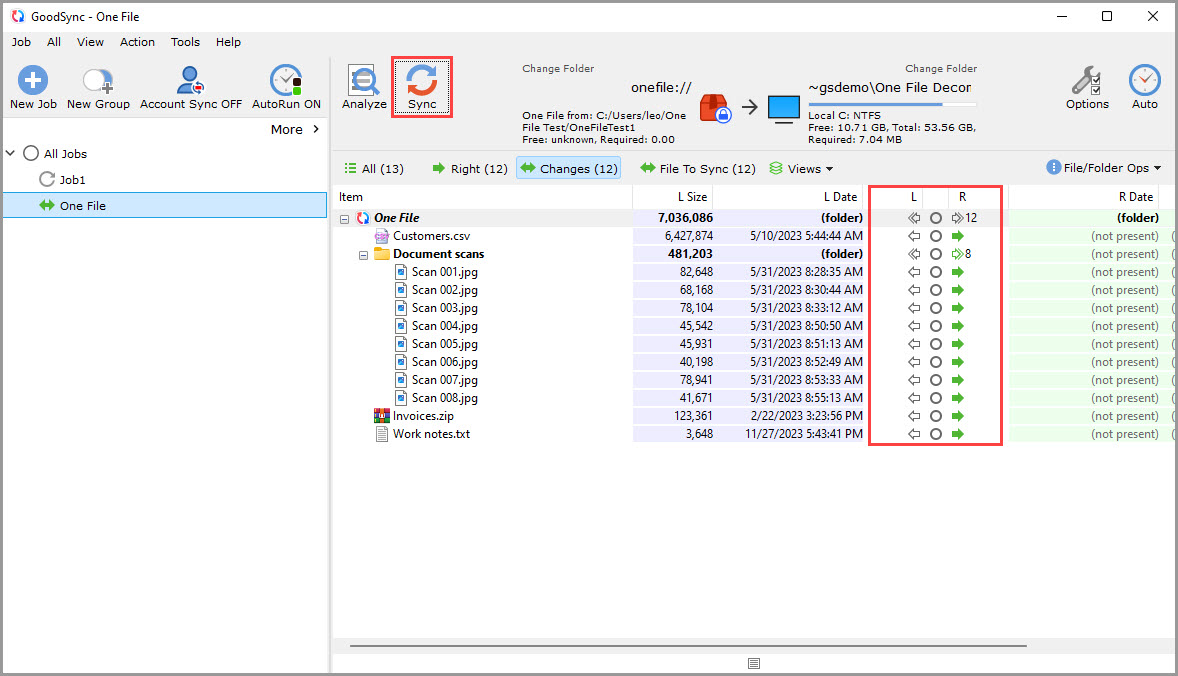
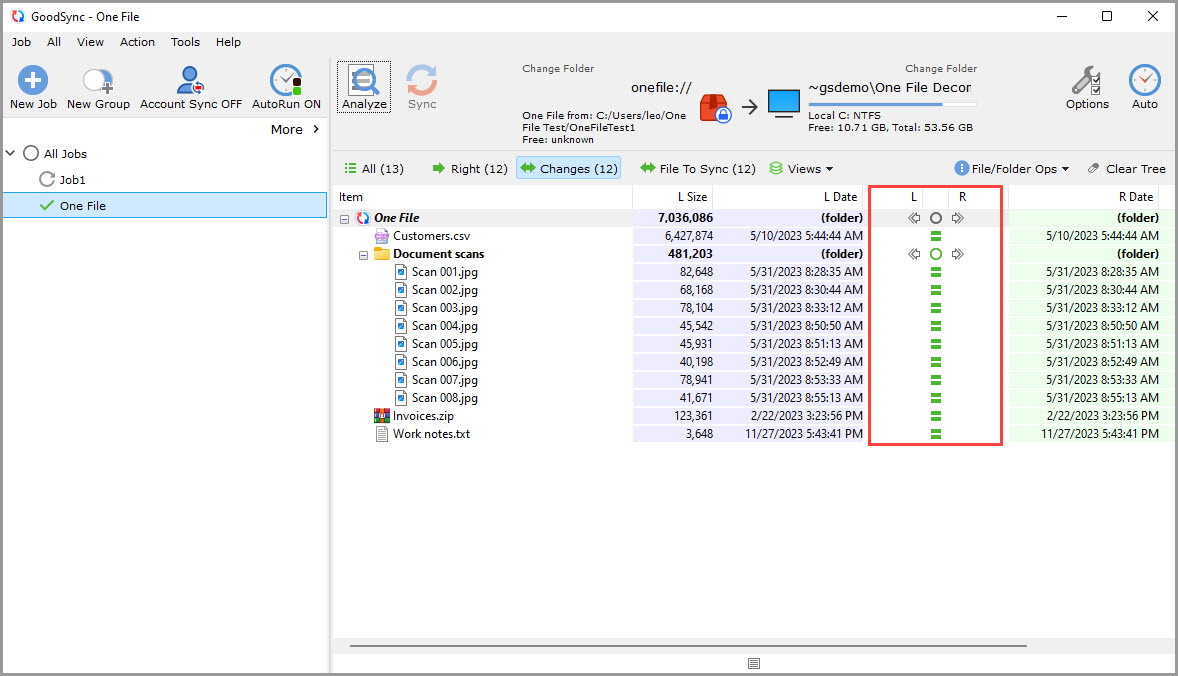
NOTE: A 2-way sync will treat the One File location as both a source and destination, and it will allow for both decryption and encryption as needed, depending on the flow of data.