This overview applies to both GoodSync for Windows and GoodSync for Mac unless noted otherwise.
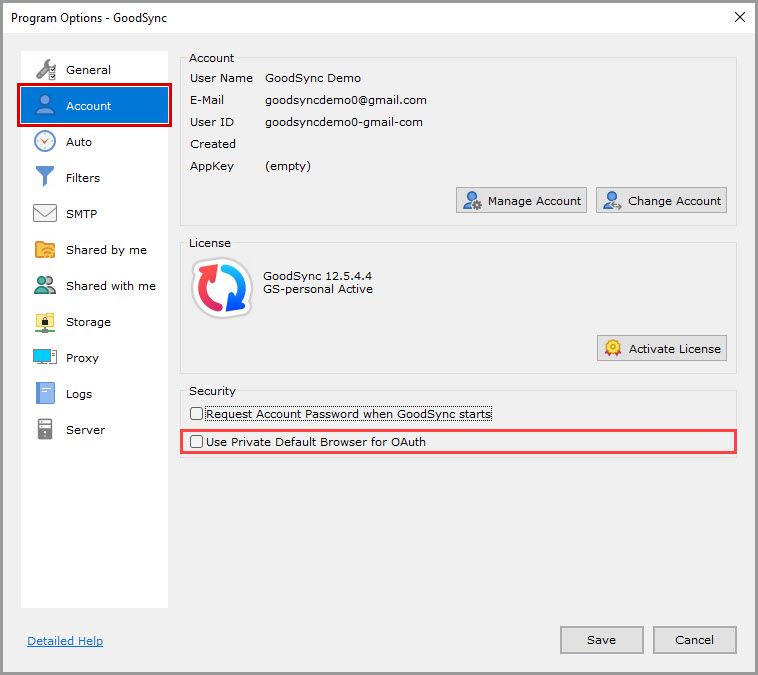
- Manage Account button
- Change Account button
- Activate License button
- Request Account Password when GoodSync starts
- Use Private Default Browser for OAuth
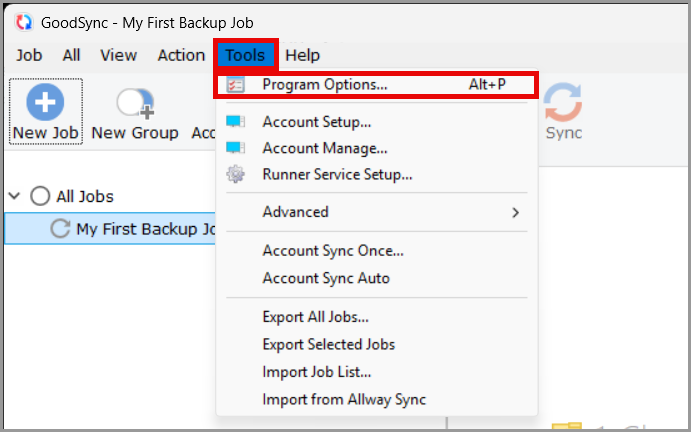
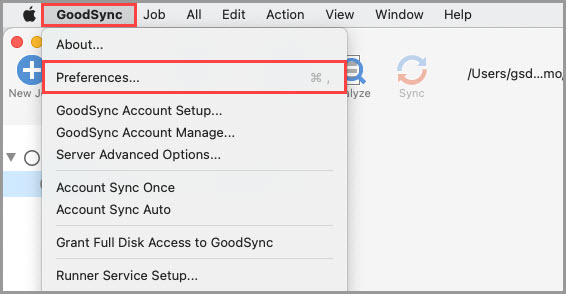
The "Tools" >> "Program Options" (on Mac, "GoodSync" >> "Preferences") menu item allows you to view and modify the global GoodSync options.
The "Account" section enables you to oversee the GoodSync Account associated with your current GoodSync installation and manage your GoodSync license.
Account
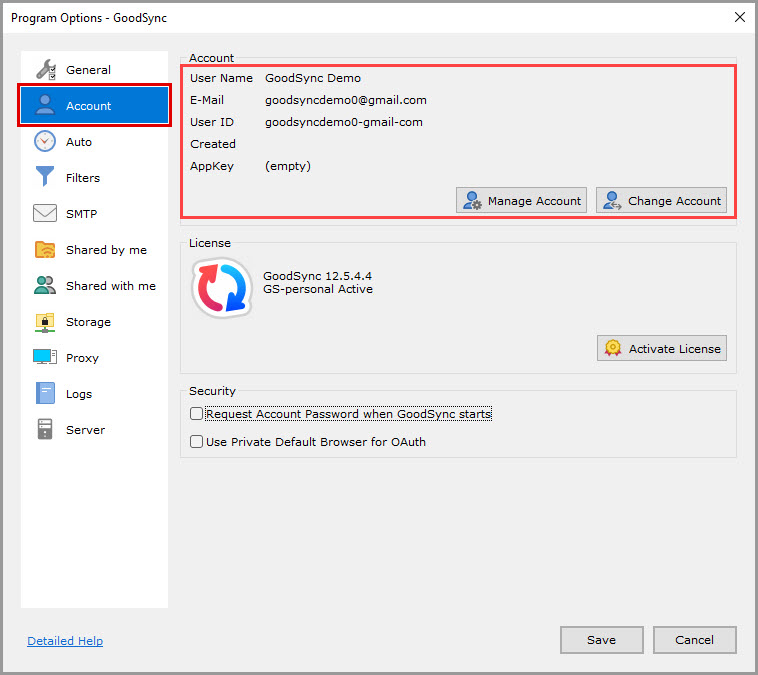
This panel provides brief details about the GoodSync Account currently logged in within the GoodSync application.
Manage Account button
Open the GoodSync Account Web UI in the default web browser.
That will automatically log you into your Account online to manage Devices, Licenses, GoodSync Storage, Account settings, and more.
Change Account button
Run the GoodSync Account Setup dialog to log in with another GoodSync Account.
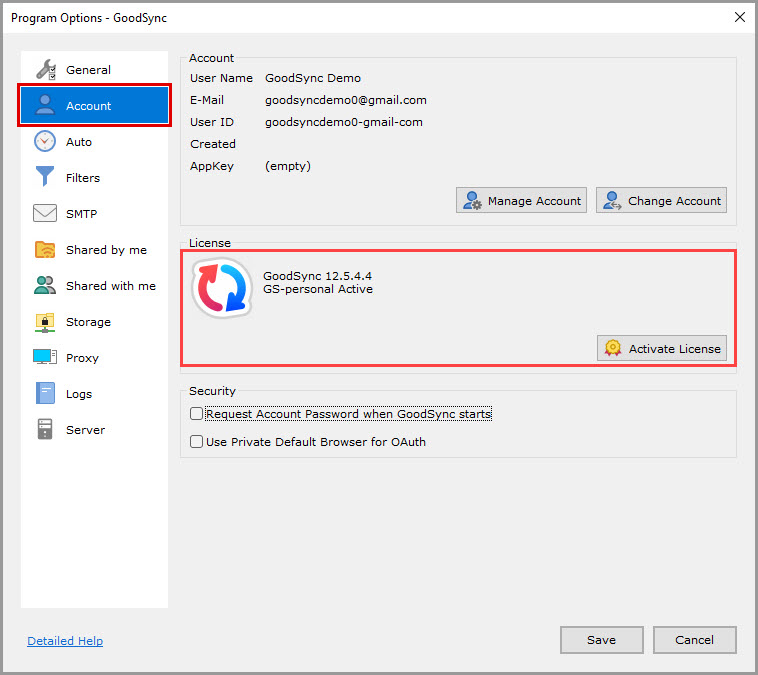
License
This panel provides details about the GoodSync license assigned to this computer.
Activate License button
Run the GoodSync Activation dialog to activate an unused GoodSync license on this computer.
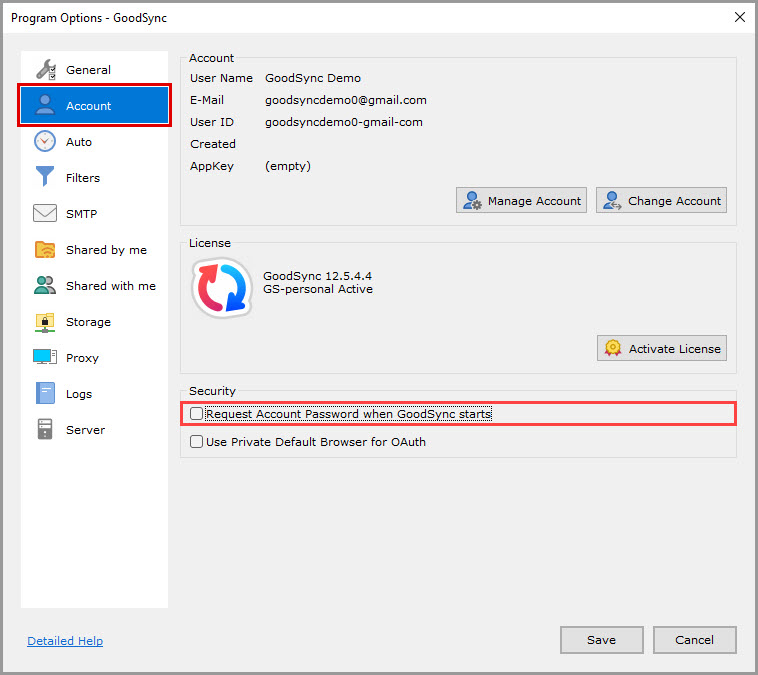
Security
Request Account Password when GoodSync starts (unchecked by default)
If checked, ask to enter the GoodSync Account Password when the GoodSync application starts, but do not do it when the Runner Service starts.
Use Private Default Browser for OAuth (unchecked by default, Windows only)
If checked, open the default web browser in Private mode for OAuth authentication when needed.
If unchecked, open the default web browser in the regular mode.