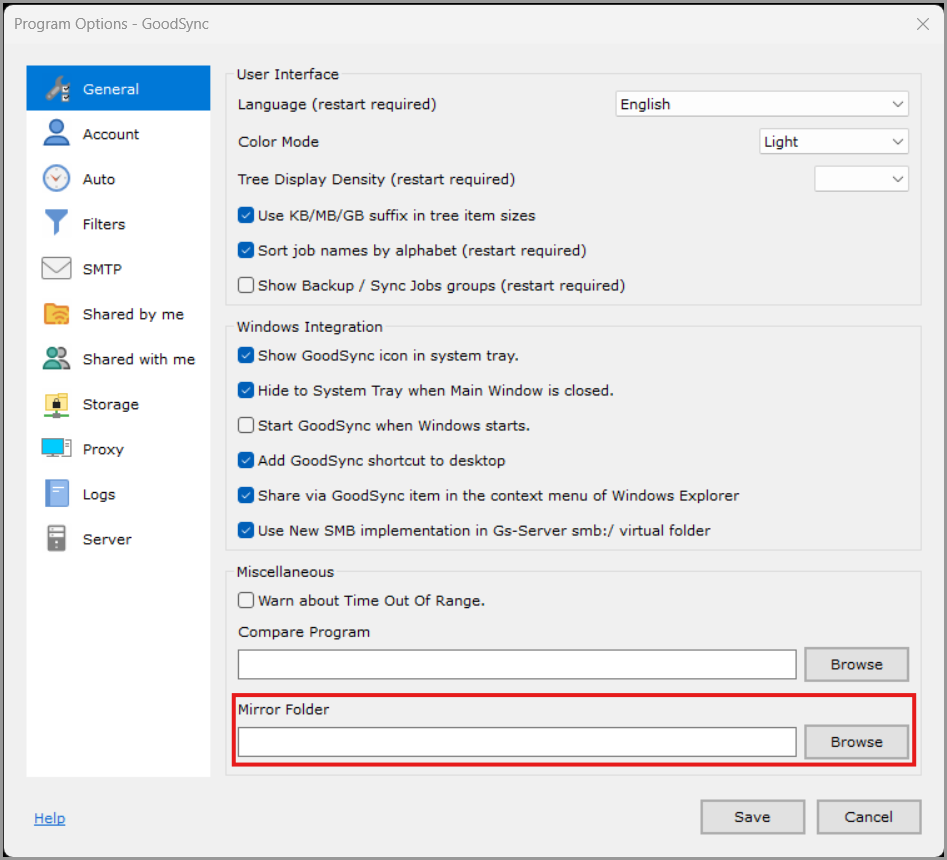
This overview applies to both GoodSync for Windows and GoodSync for Mac unless noted otherwise.
- Language (restart required)
- Color Mode (restart required)
- Tree Display Density (restart required)
- Use KB/MB/GB suffix in tree item sizes (restart required)
- Sort job names by alphabet (restart required)
- Show Backup / Sync Jobs groups (restart required)
- Show GoodSync icon in system tray
- Hide to System Tray when Main Window is closed
- Start GoodSync when Windows starts
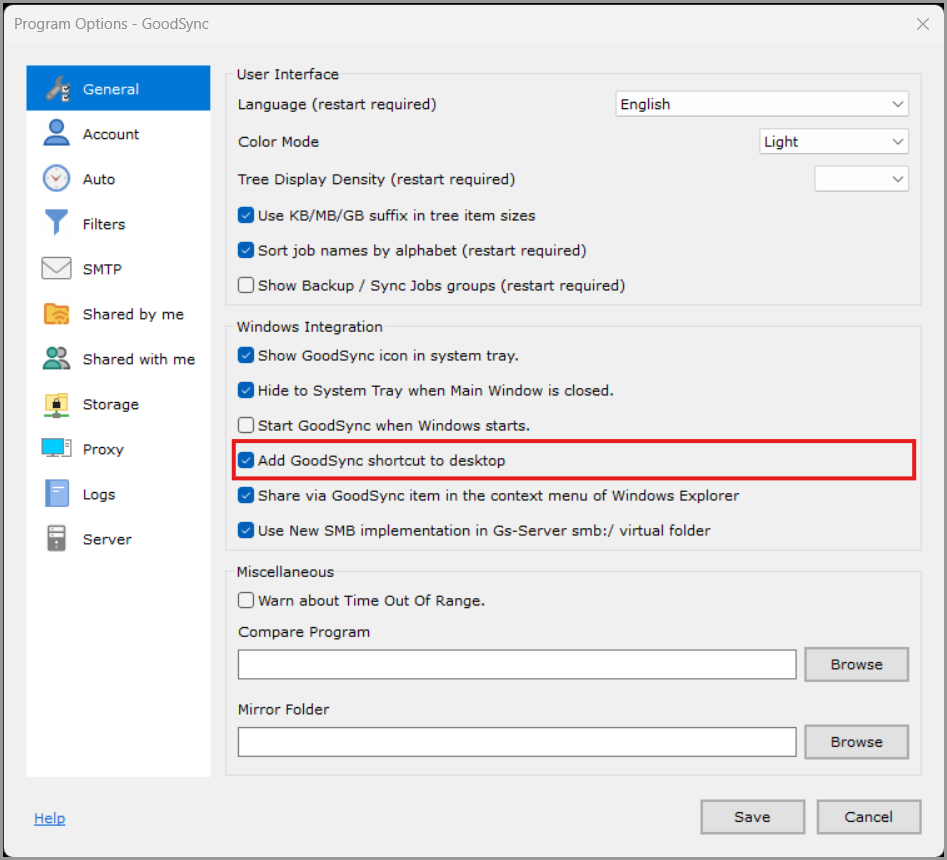
- Add GoodSync shortcut to desktop
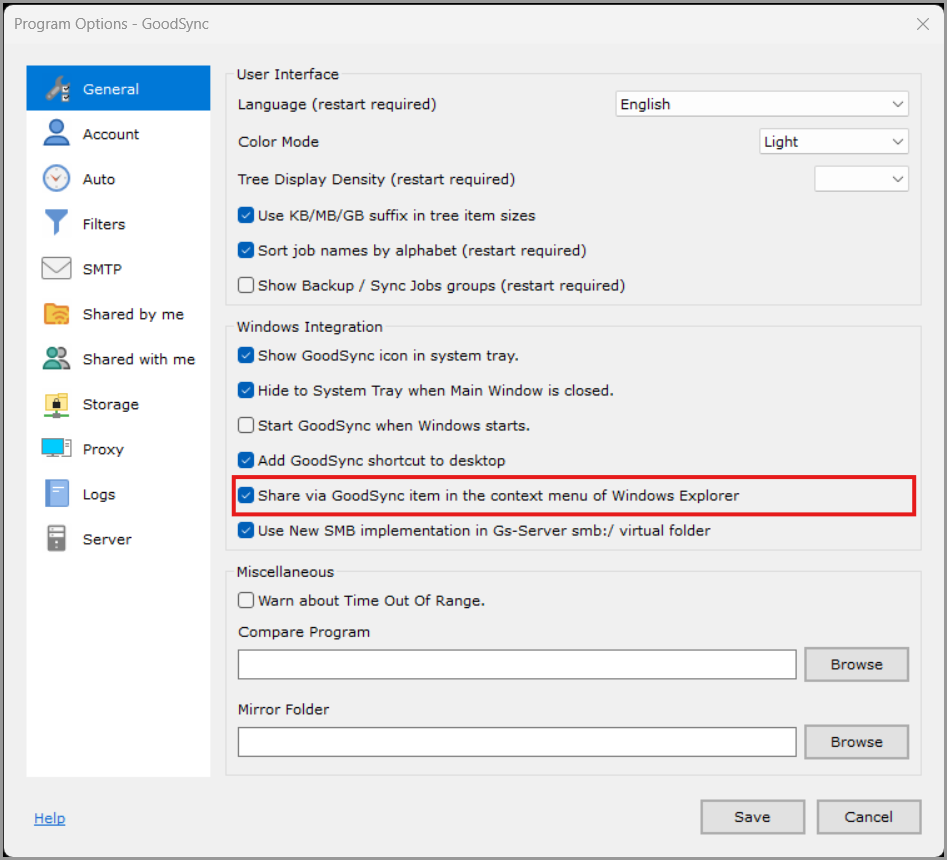
- Share via GoodSync item in the context menu of Windows Explorer
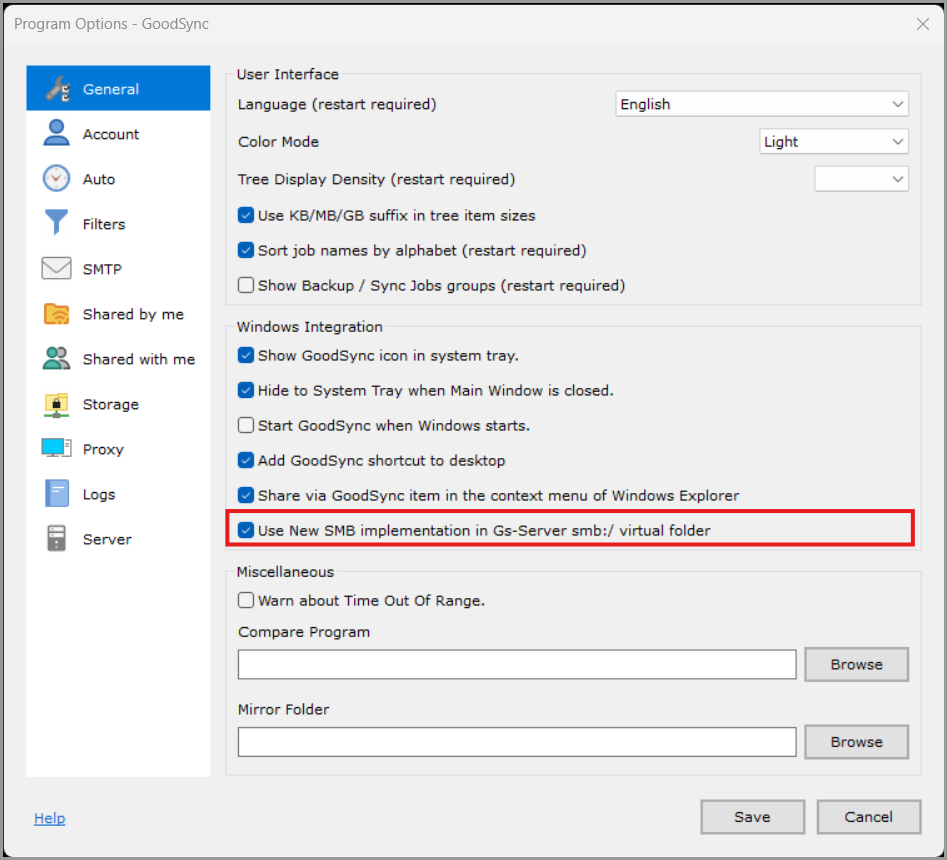
- Use New SMB implementation in Gs-Server smb:/ virtual folder
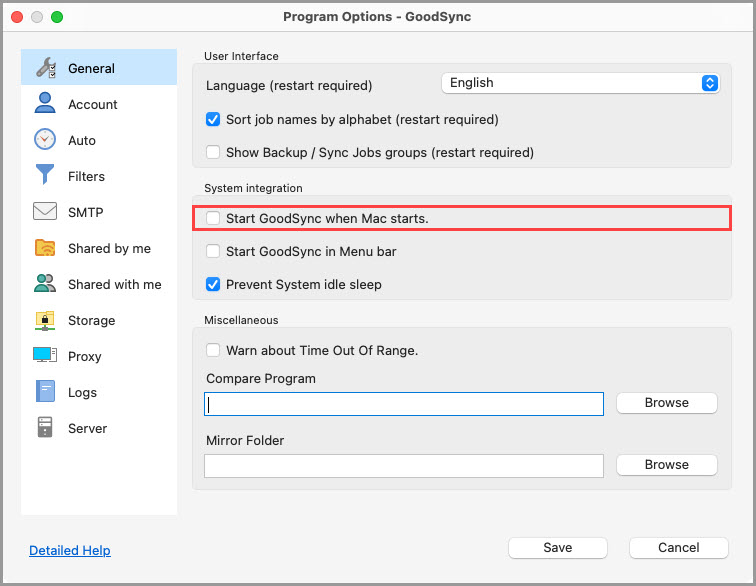
- Start GoodSync when Mac starts
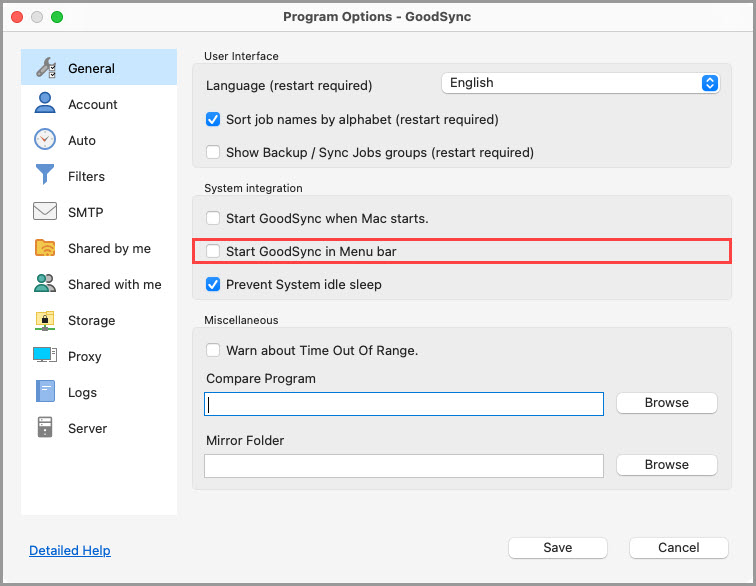
- Start GoodSync in Menu bar
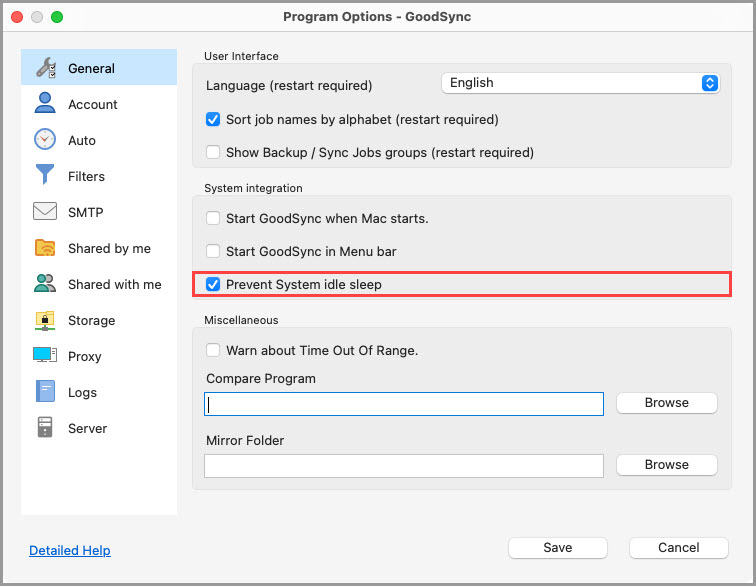
- Prevent System idle sleep
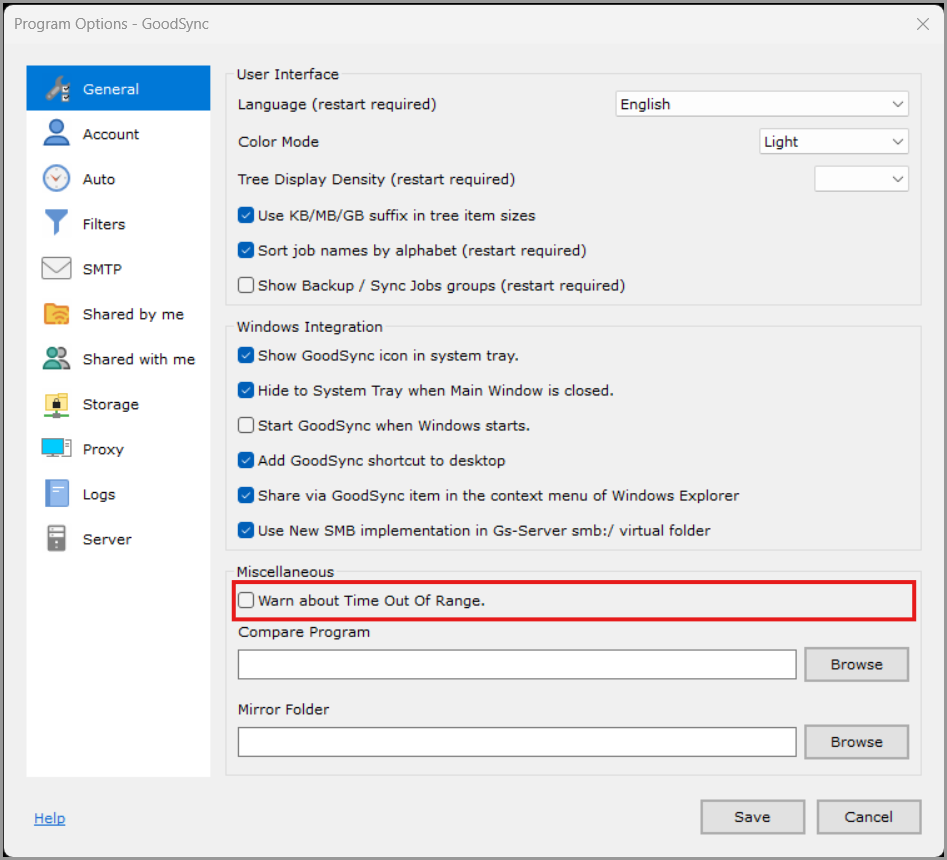
- Warn about Time Out Of Range
- Compare Program
- Mirror Folder
The "Tools" >> "Program Options" (on Mac, "GoodSync" >> "Preferences") menu item allows you to view and modify the global GoodSync options.
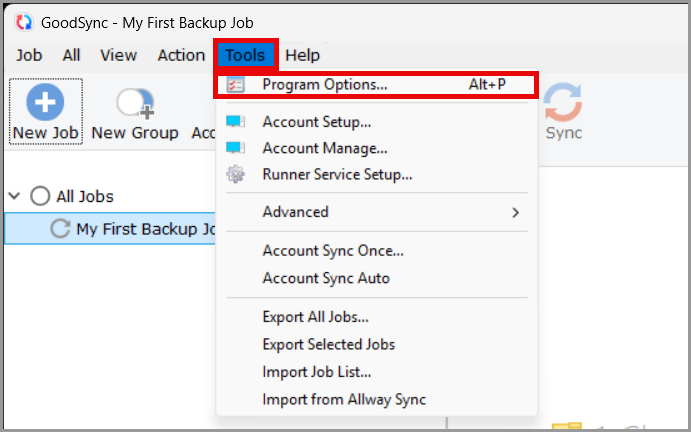
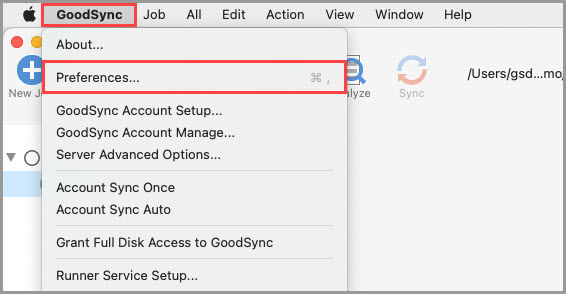
The "General" section outlines options that affect the overall behavior and appearance of the GoodSync application.
User Interface
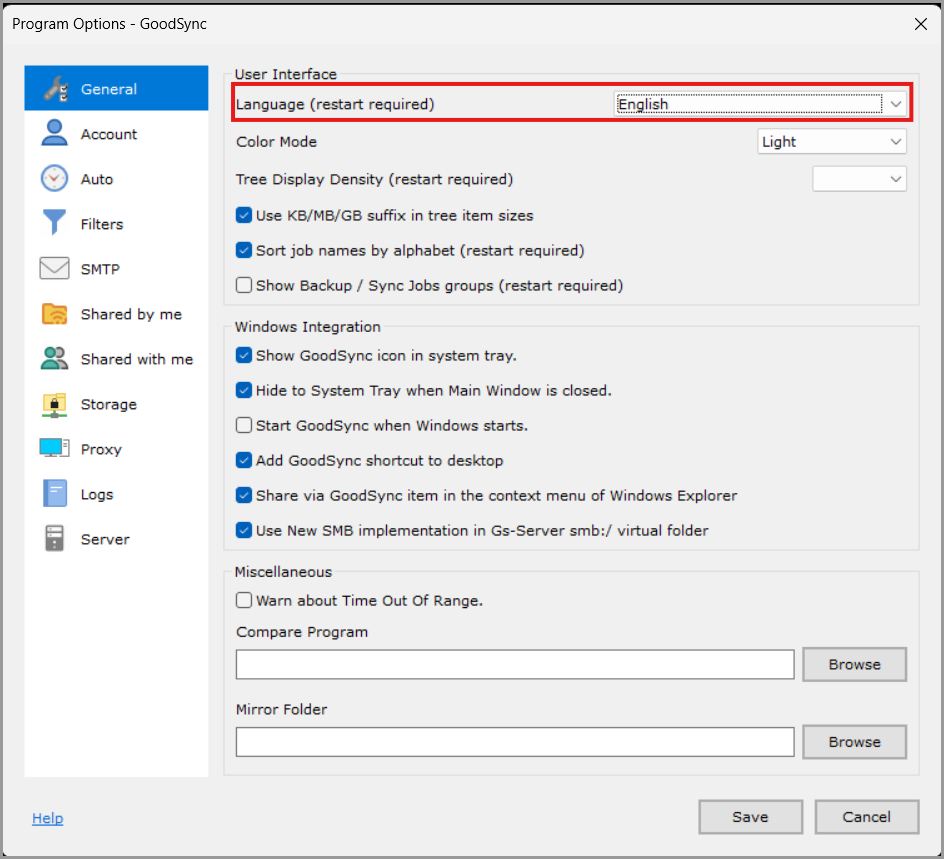
Language (restart required)
This option allows you to select your preferred language from the dropdown menu on the right.
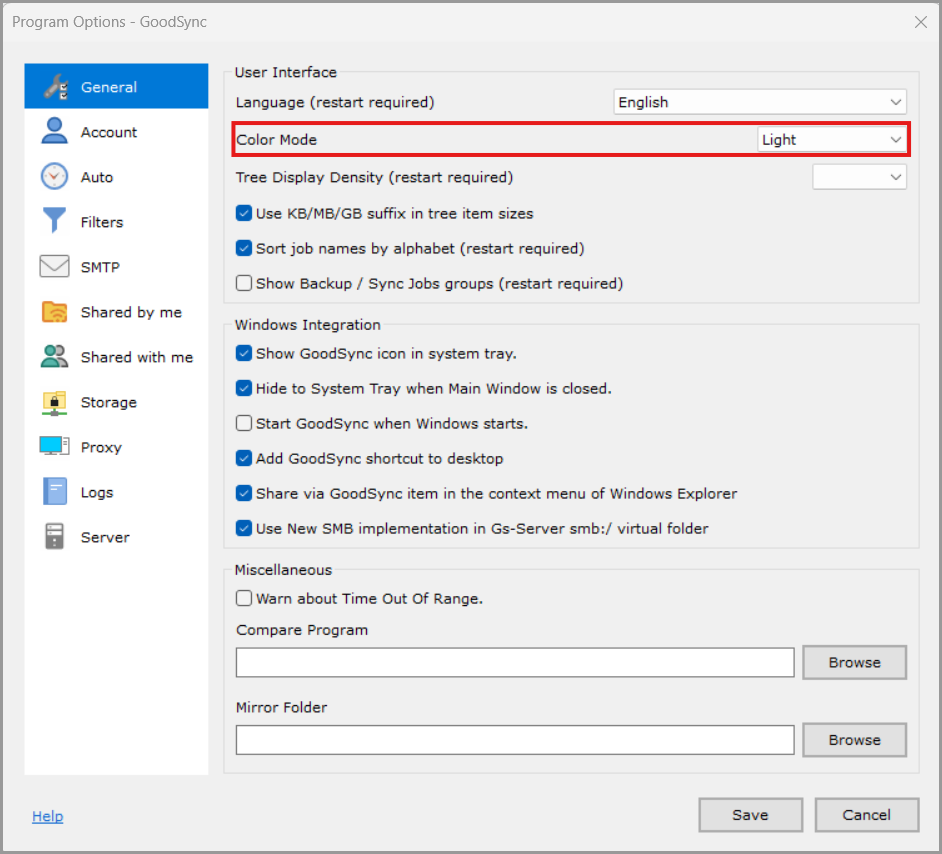
Color Mode (restart required)
This option allows you to select your preferred color from the dropdown menu on the right (Light Default).
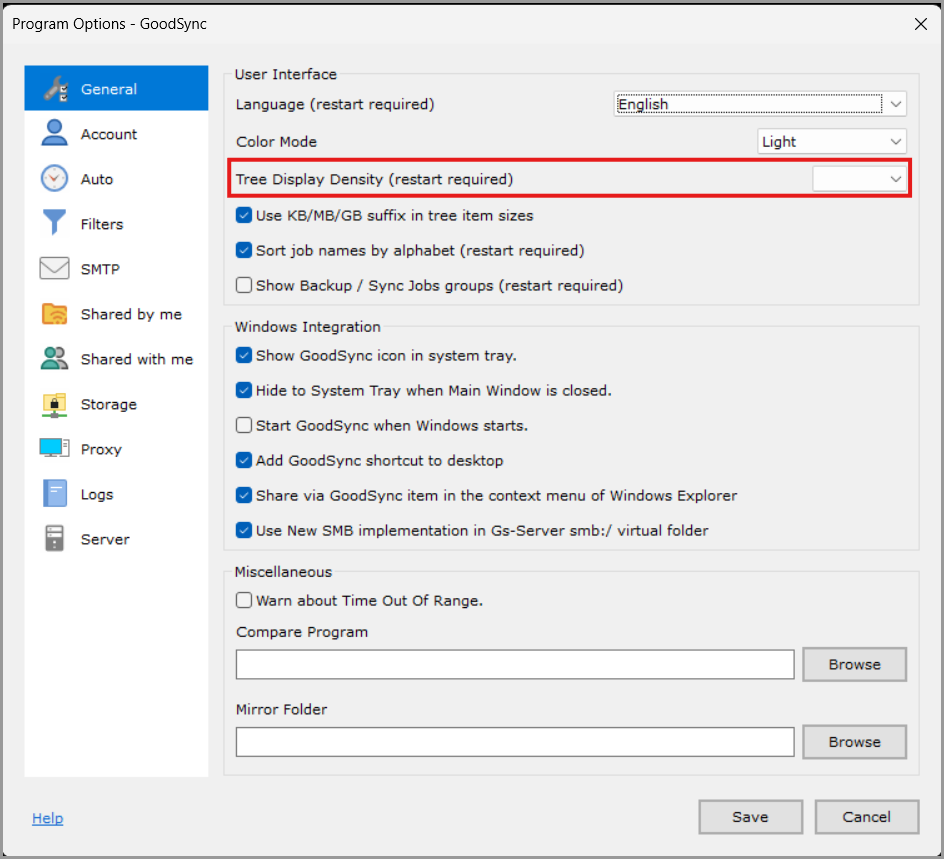
Tree Display Density (restart required) (Medium by default)
Allows you to select the line spacing in the Sync Tree. Higher settings allow you to see more items per page.
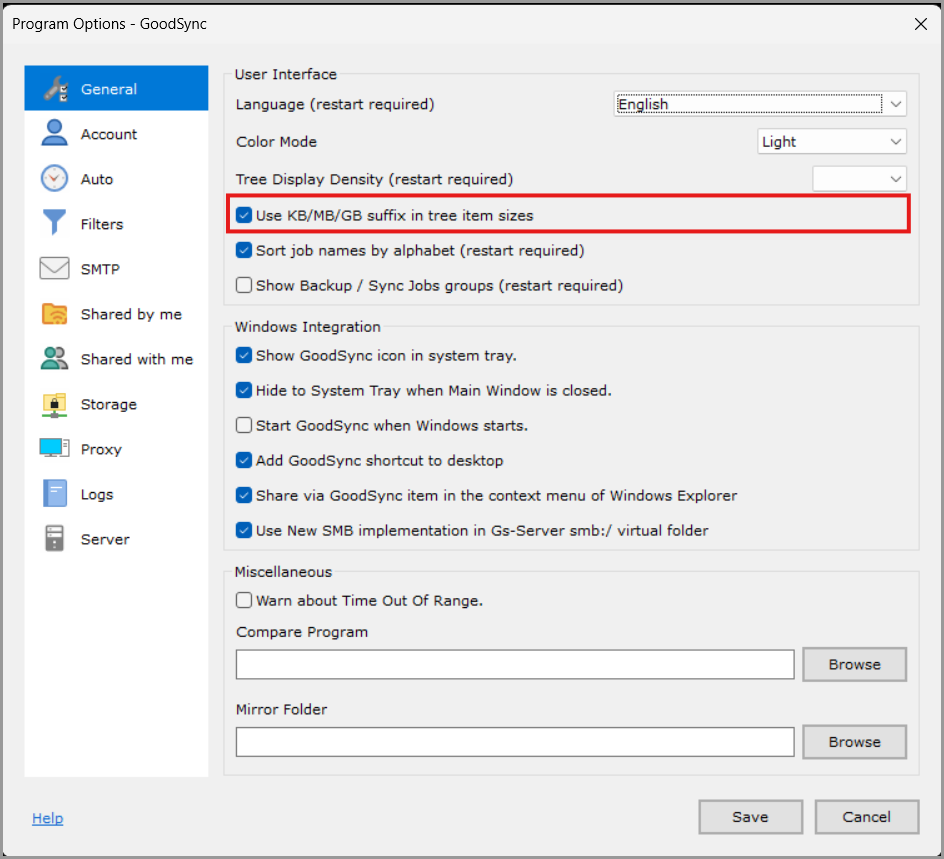
Use KB/MB/GB suffix in tree item sizes (restart required) (unchecked by default)
If checked, GoodSync will show file/folder sizes in kilobytes/megabytes/gigabytes
If unchecked, GoodSync will show file/folder sizes in bytes
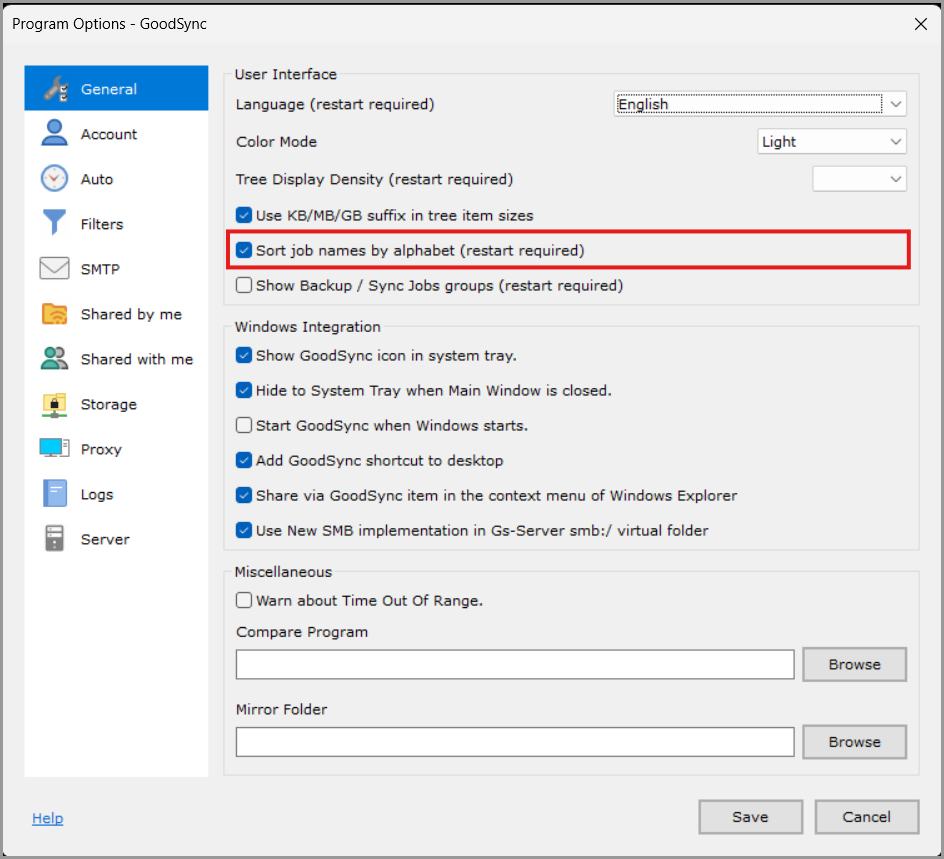
Sort job names by alphabet (restart required) (checked by default)
If checked, GoodSync will list your Jobs and Groups in alphabetical order.
If unchecked, GoodSync will allow you to reorder your Jobs and Groups by dragging and dropping them in the Job List.
Show Backup / Sync Jobs groups (restart required) (unchecked by default)
If checked, GoodSync will show the backup and sync Job Groups in the Job Tree.
If unchecked, GoodSync will not show the backup and sync Job Groups in the Job Tree.
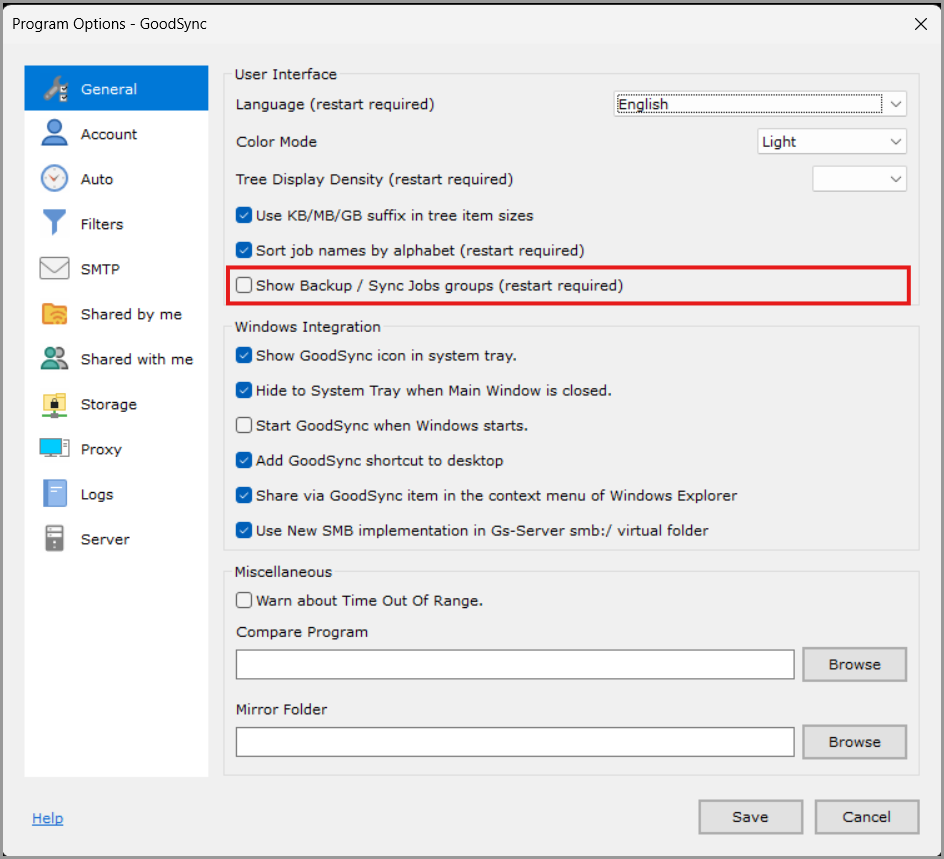
Windows Integration (Windows only)
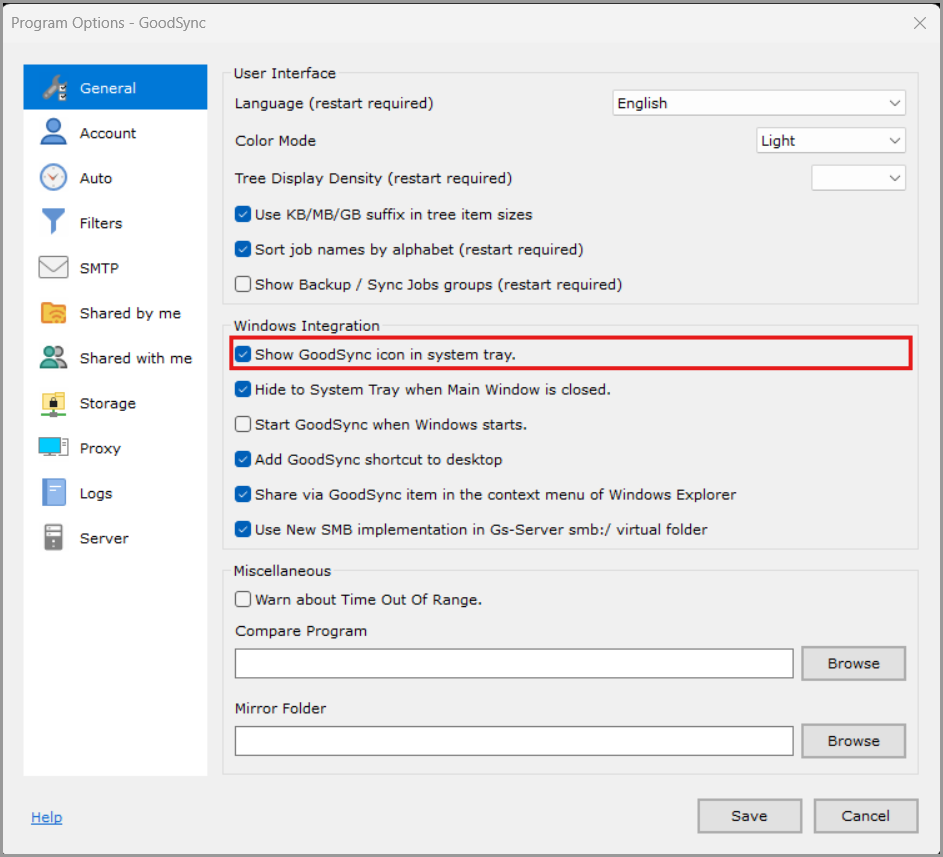
Show GoodSync icon in system tray (checked by default)
If checked, a GoodSync icon will appear in the System Tray when running.
If unchecked, a GoodSync icon will not appear in the System Tray when running.
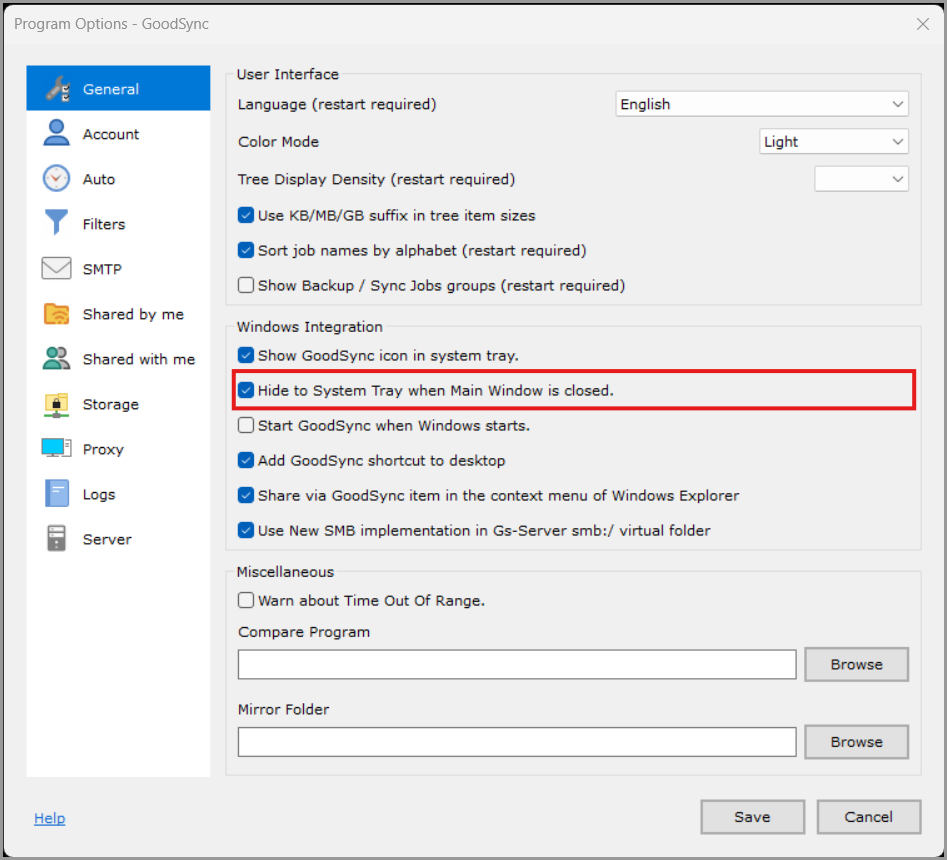
Hide to System Tray when Main Window is closed (unchecked by default)
If checked, GoodSync will run in the background when you close it.
If unchecked, GoodSync will unload from memory when you close it.
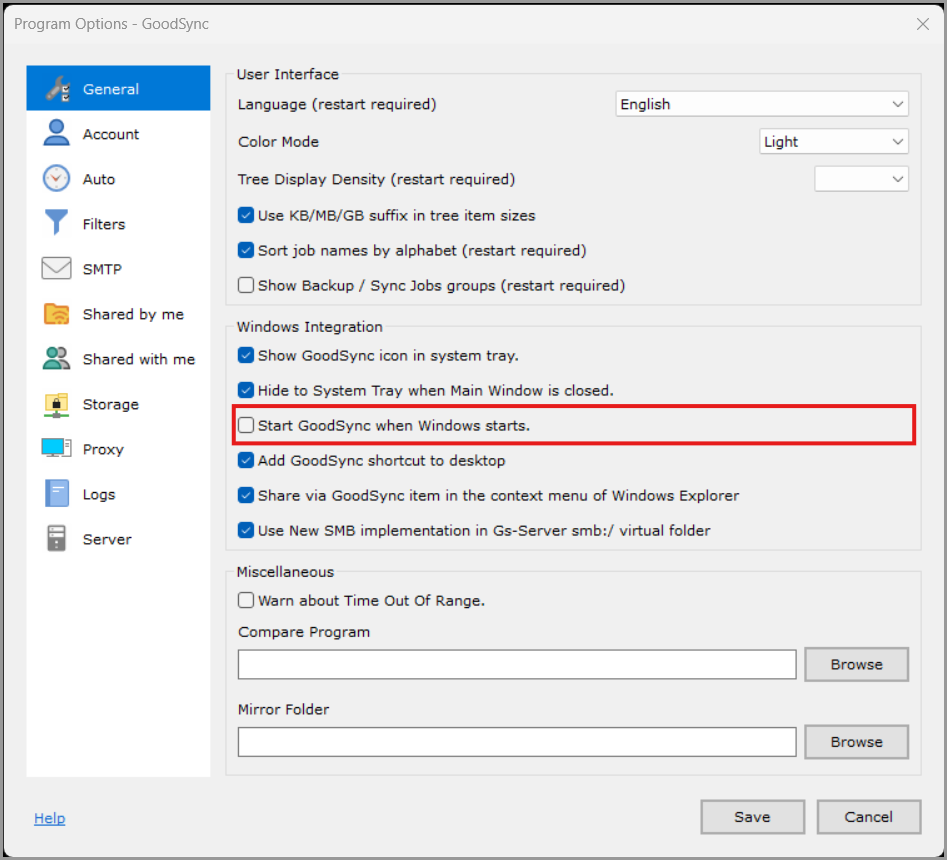
Start GoodSync when Windows starts (unchecked by default)
If checked, GoodSync will start automatically when you log into your System Account.
If unchecked, GoodSync will not start automatically when you log into your System Account.
Add GoodSync shortcut to desktop (checked by default)
If checked, GoodSync will add its shortcut to the desktop.
If unchecked, GoodSync will not add its shortcut to the desktop.
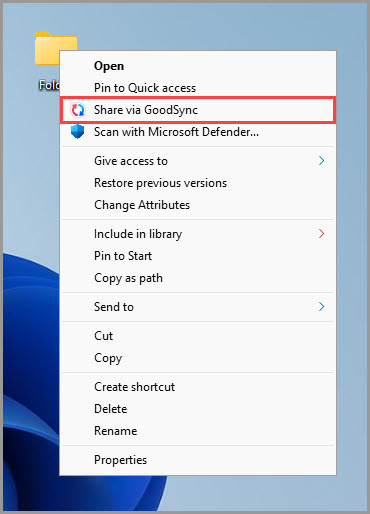
Share via GoodSync item in the context menu of Windows Explorer (checked by default)
If checked, a "Share via GoodSync" option will be added to the context menu of Windows Explorer, enabling you to share folders with other GoodSync users.
If unchecked, the "Share via GoodSync" option will be removed from the context menu of Windows Explorer.
NOTE: The shared folders will be listed in the "Shared by me" section of the Program Options (or Preferences on Mac).
Use New SMB implementation in Gs-Server smb:/ virtual folder (checked by default)
When checked, it allows you to use the new Sib-SMB client implementation (recommended).
When unchecked, a native Windows SMB client will be used.
System Integration (Mac only)
Start GoodSync when Mac starts (unchecked by default)
If checked, then GoodSync will start automatically when you log into your System Account.
If unchecked, GoodSync will not start automatically when you log into your System Account.
Start GoodSync in Menu bar (unchecked by default)
If checked, then the main GoodSync window will not open on startup, and will instead be available only through the GoodSync Menu Bar icon in the upper right of your screen.
Prevent System idle sleep (checked by default)
If checked, then GoodSync will prevent your Mac from going to sleep while a Job is running or is scheduled to run.
NOTE: Force Sleep by selecting "Sleep" from the Apple menu or closing a laptop will still put the device to sleep and cannot be prevented.
Miscellaneous
Warn about Time Out Of Range (unchecked by default)
If checked, GoodSync will issue a warning if the file modification time is out of the 1980-2037 range.
Compare Program
In the "Compare Program" field, you may specify command-line arguments to compare file paths.
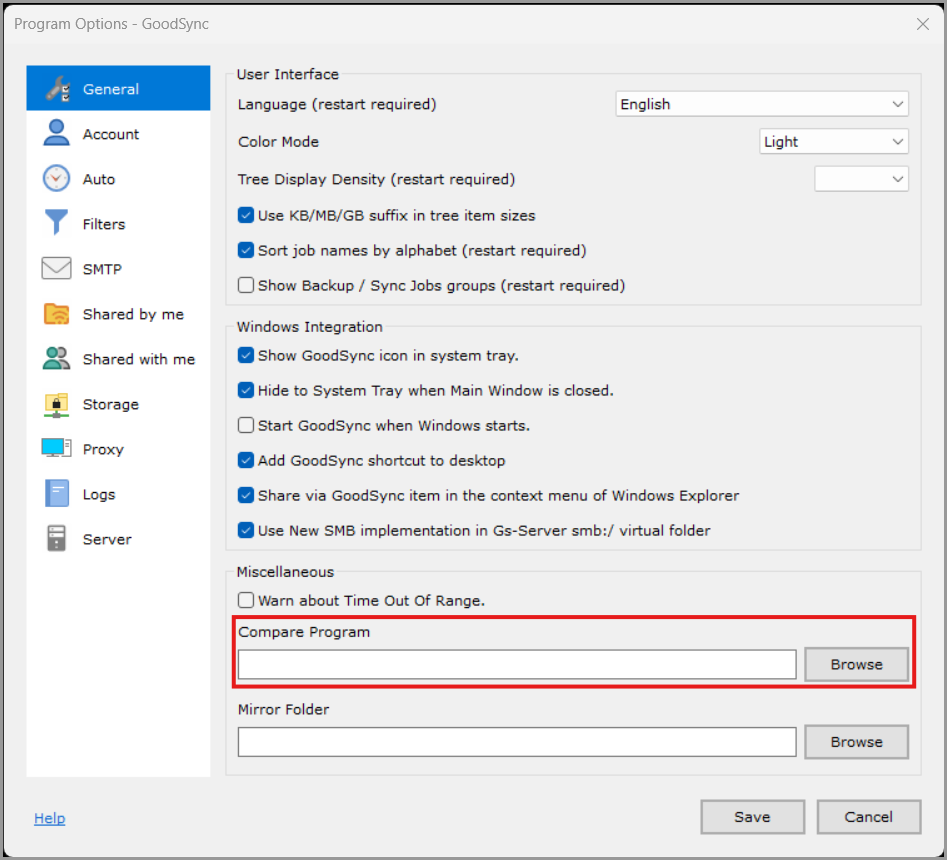
Mirror Folder
The Mirror Folder ("_mirrors_") serves as a local analog of the "_gsdata_" folder, established within the GoodSync Profile folder. It includes subfolders that align with Job sides, housing essential data for the functioning of GoodSync. That includes Job State Files, Job Logs, previous versions of deleted/overwritten files, and other technical files used and generated during synchronization.
Initially, Job Logs are written locally to the Mirror Folder. Logs of Analyze-only Jobs are available only in the local Mirror Folder. The "Job" >> "Logs on Left Side/Logs on Right Side" menu item shows the log files from both the syncing folders and the local Mirror Folder.