This overview applies to both GoodSync for Windows and GoodSync for Mac unless noted otherwise.
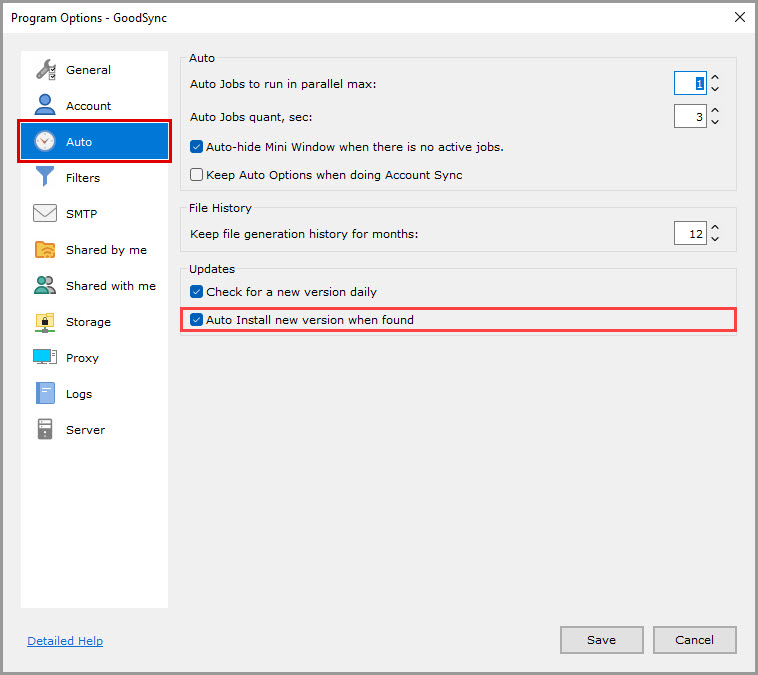
- Auto Jobs to run in parallel max
- Auto Jobs quant, sec
- Auto-hide Mini Window when there is no active jobs
- Keep Auto Options when doing Account Sync
- Keep file generation history for months
- Check for a new version daily
-
Auto Install new version when found
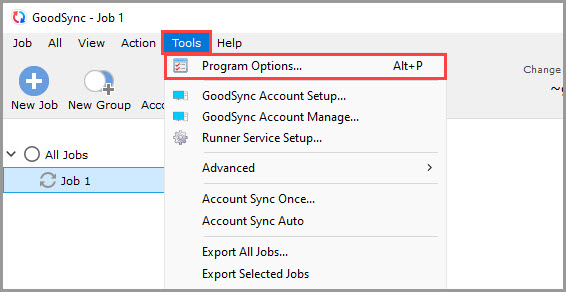
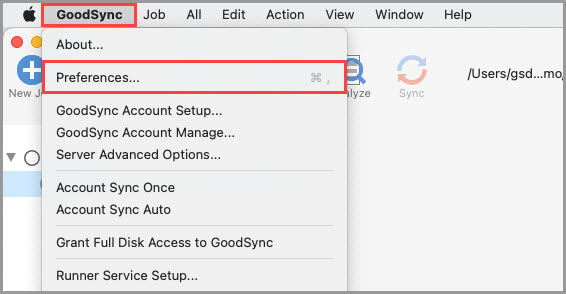
The "Tools" >> "Program Options" (on Mac, "GoodSync" >> "Preferences") menu item allows you to view and modify the global GoodSync options.
Within the "Auto" section, you can configure the global automation settings for GoodSync.
Auto
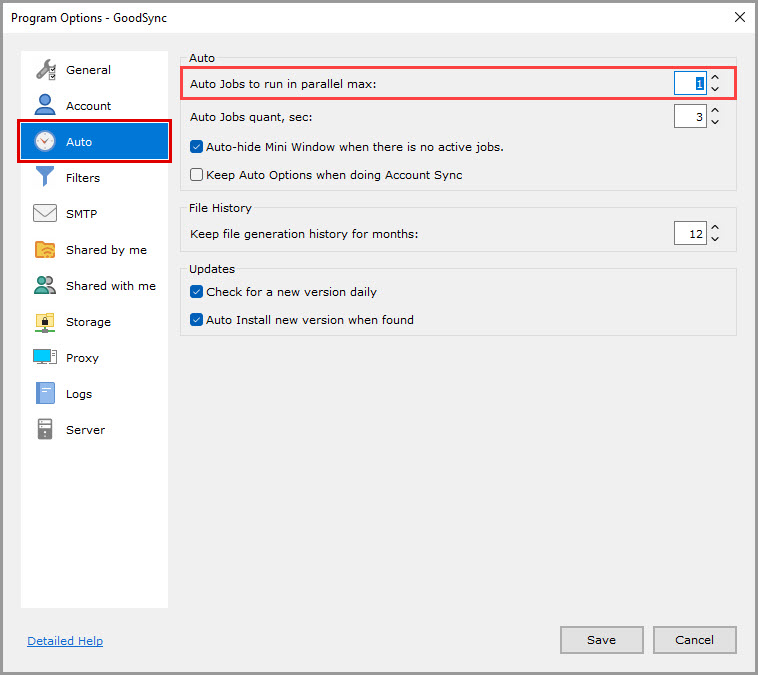
Auto Jobs to run in parallel max (1 by default)
This option allows you to specify the number of automatically started Jobs which can be run simultaneously.
Auto Jobs quant, sec (3 by default)
GoodSync automatically reviews your Jobs to see if any are scheduled to run. This option allows you to specify the length of time in seconds between checks.
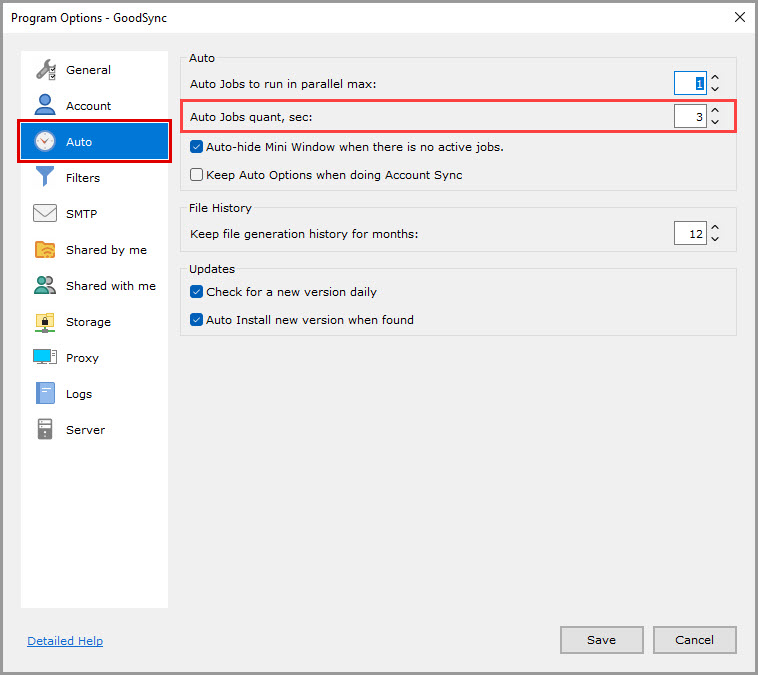
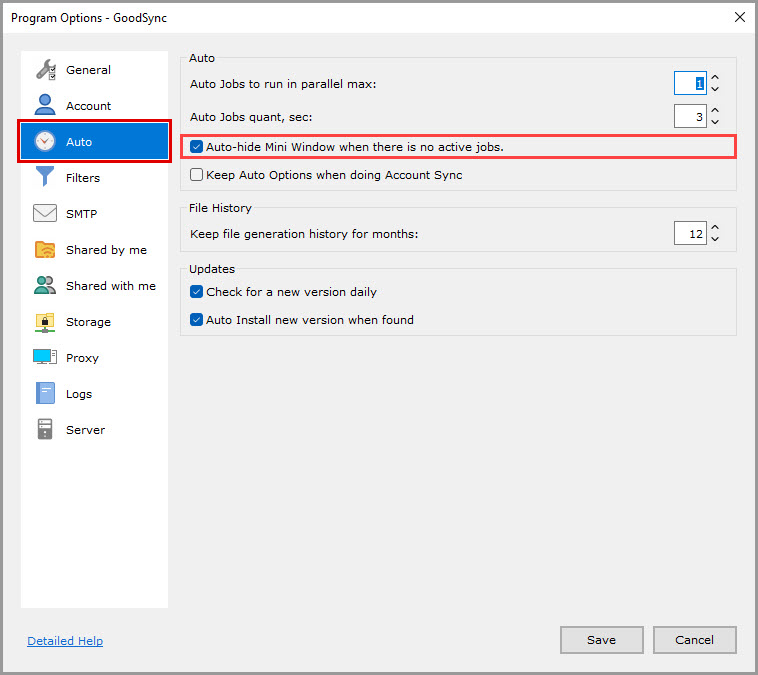
Auto-hide Mini Window when there is no active jobs (checked by default, Windows only)
If checked, the Mini Window will be automatically hidden when there are no active Jobs.
If not checked, the Mini Window will always be shown in Mini Mode.
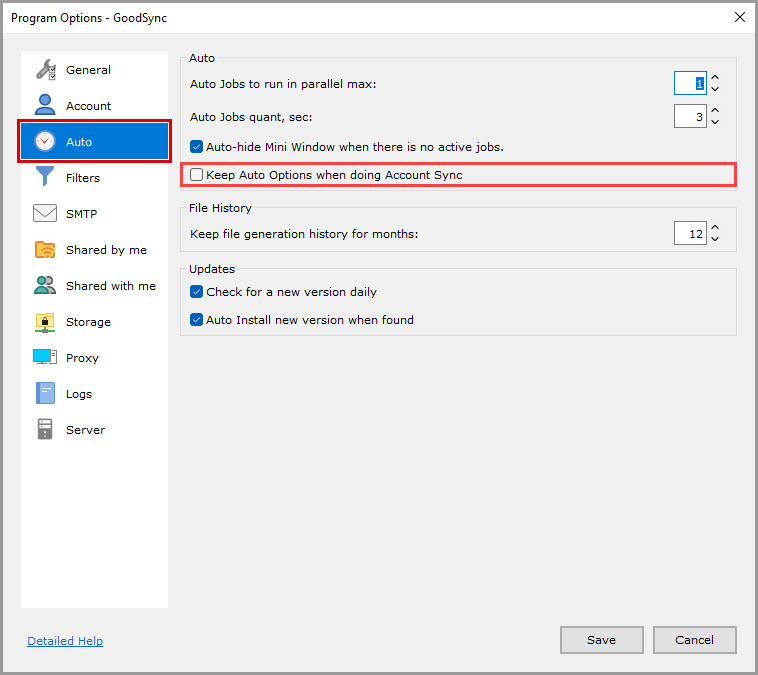
Keep Auto Options when doing Account Sync (unchecked by default)
Keeps the options you set in Auto when syncing your GoodSync Account.
File History
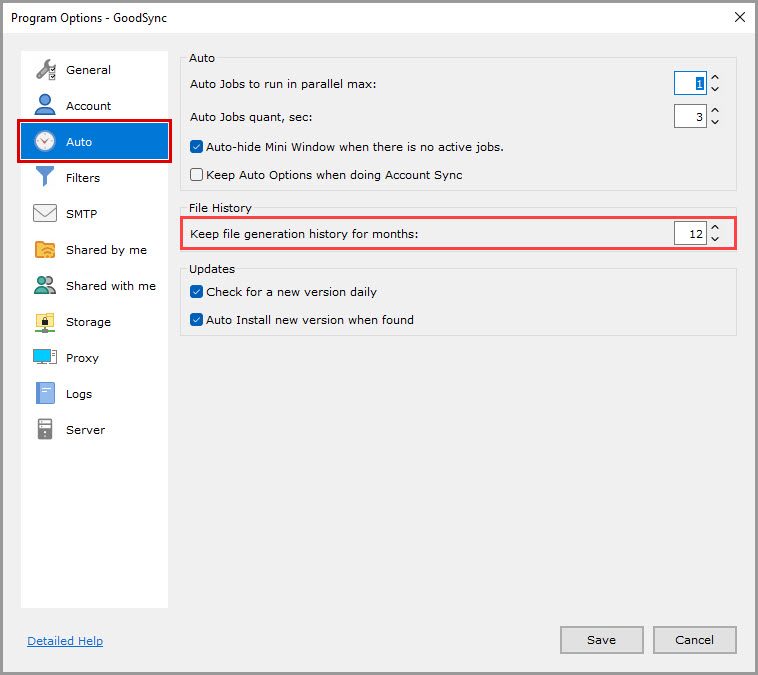
Keep file generation history for months (12 by default)
This option allows you to set the period you would like GoodSync to keep file generation history for. File generation history that is older than this period will be discarded.
Updates
Check for a new version daily
If checked, GoodSync will check for new versions daily.
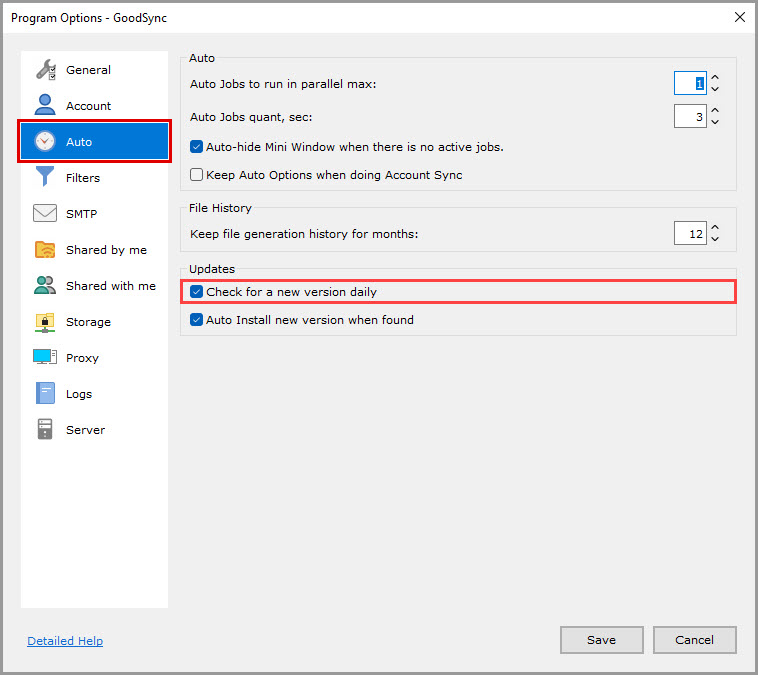
Auto Install new version when found
If checked, new versions will be installed automatically.