This overview applies to both GoodSync for Windows and GoodSync for Mac unless noted otherwise.
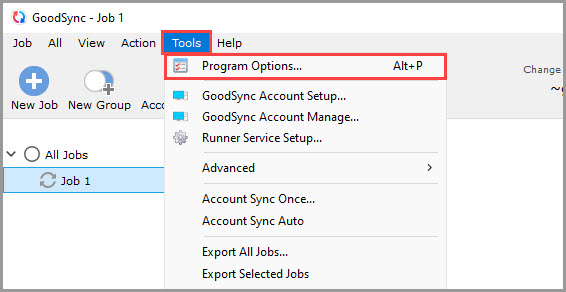
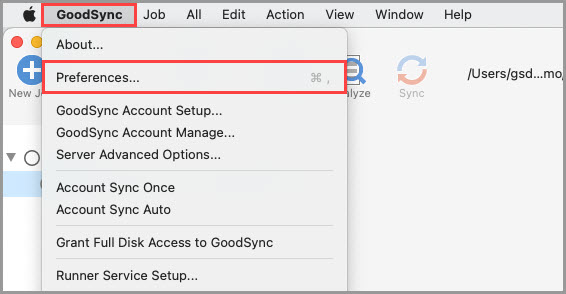
The "Tools" >> "Program Options" (on Mac, "GoodSync" >> "Preferences") menu item allows you to view and modify the global GoodSync options.
The "Logs" section details options that specify the global logging settings.
Logs
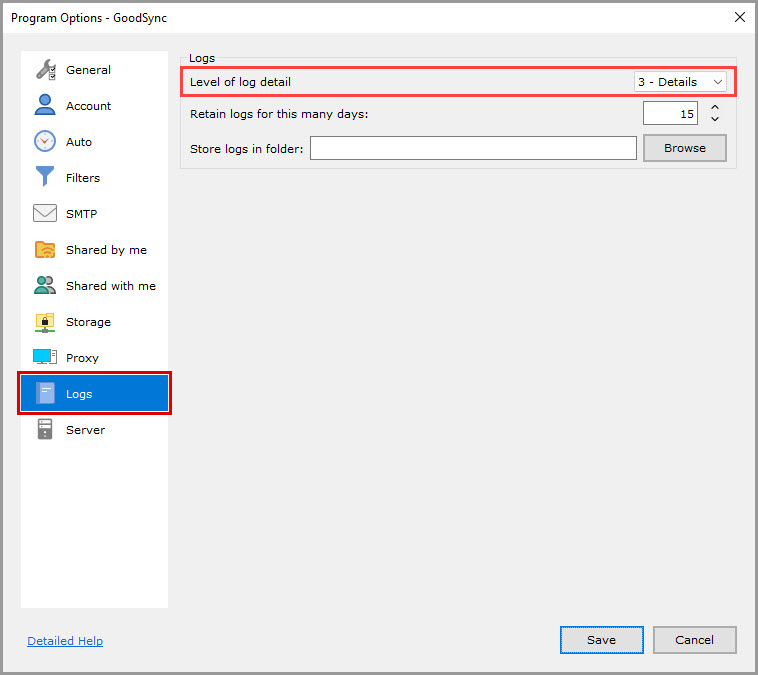
Level of log detail (Actions by default)
Set the level of detail for the logs shown in the Log Window. Logs saved to files always have the highest level of detail.
Possible levels: 0 – Critical, 1 – Errors, 2 – Actions, 3 – Details.
Retain logs for this many days (15 by default)
Keep the Job and Global logs for this many days. Delete older Global log files.
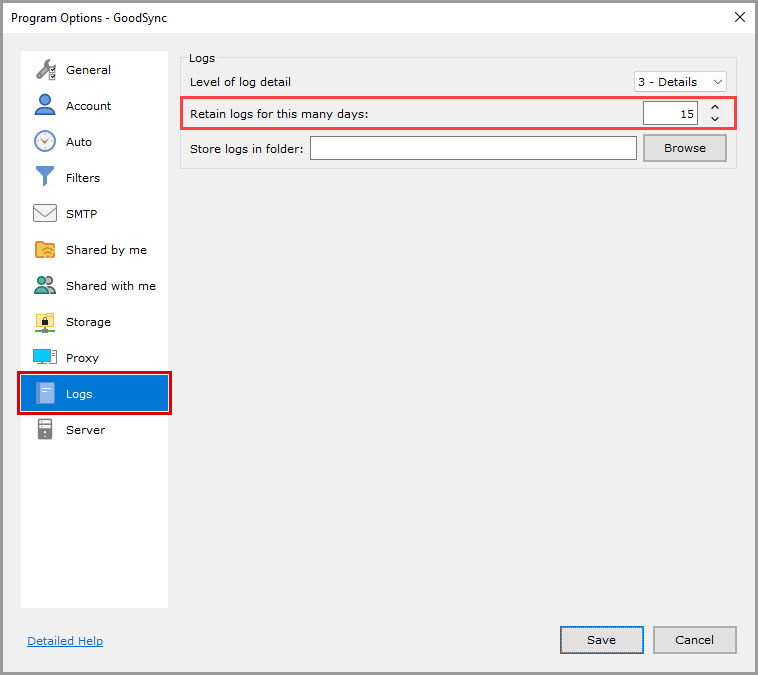
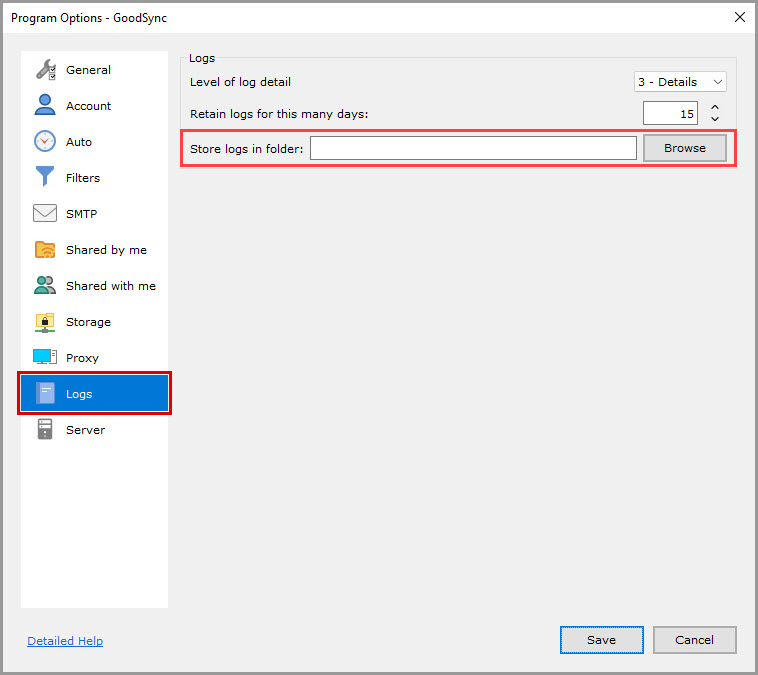
Store logs in folder (empty by default)
Allows to specify a custom folder to store GoodSync logs. If empty, store logs in the GoodSync Profile folder inside the system user application profile folder.