After onboarding, each device appears as a Runner under the Runners tab. A Runner represents a specific user account on a specific device.
Runner authorization is completed through GoodSync Control Center.
Example Runner name:
Test1@DESKTOP-749QQAP
- User account: Test1
- Device name: DESKTOP-749QQAP
Each user and device combination appears as a separate Runner. For example, the same user account on another device would appear as a different Runner.
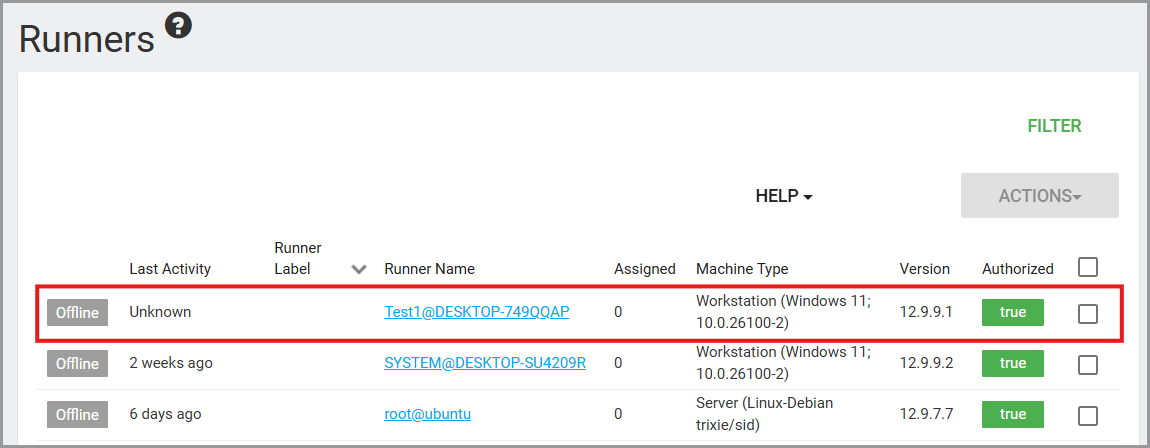
The Machine Type column identifies whether the device is a Workstation or Server. The detected machine type determines how the device is counted for licensing.

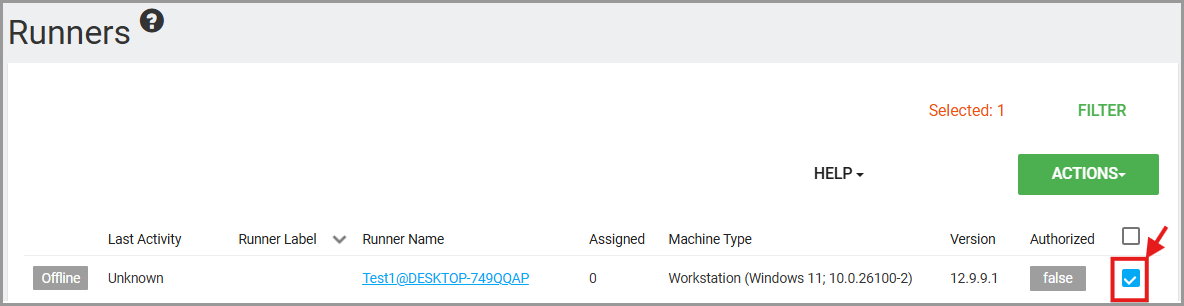
To authorize a Runner, select the checkbox next to the Runner.
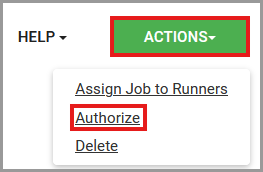
Click Actions, then select Authorize.
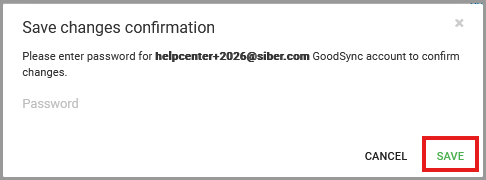
Enter the GoodSync Account password for the administrator currently signed in to Control Center.
Click Save to complete the Runner authorization.
After the Runner is authorized, it can communicate with the Control Center account and can be used for job assignments, job runs, reporting, and other management tasks.