The following guide will detail the steps to mass deploy GoodSync Control Center Runners to your environment using SCCM.

First, create a network share that will store the Runner installer and the gsrunner_startup.bat script.
You may download the latest installer here.
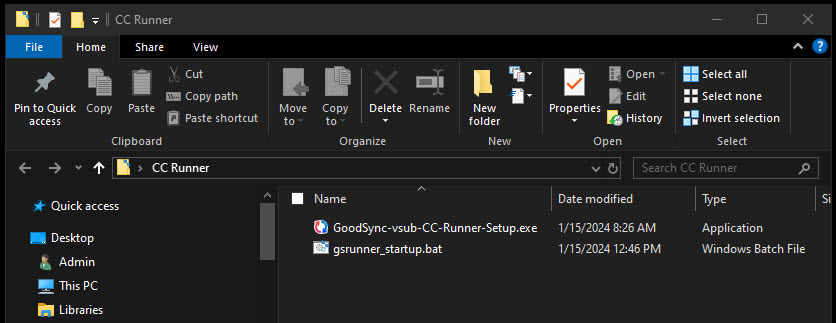
Create a batch script called gsrunner_startup.bat containing the following content:
@echo off
REG ADD hkcu\software\microsoft\windows\currentversion\run /v gsrunner /t REG_SZ /d "\"C:\Program Files\Siber Systems\GoodSync\gs-runner.exe\" /cc-runner" /f
cmd /c "C:\Program Files\Siber Systems\GoodSync\gs-runner.exe" /cc-runner

This will add startup logic to the registry for the Runner and allow it to connect to Control Center on installation.
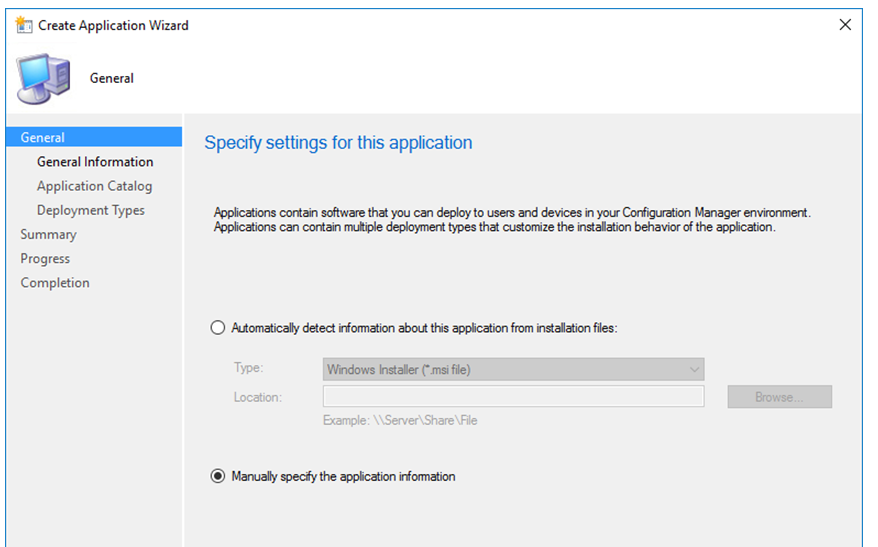
Create a new Application that will be used to deploy the Control Center executable. Click on “Manually specify the application information”. Click next through the “General Information” and “Application Catalog” sections.
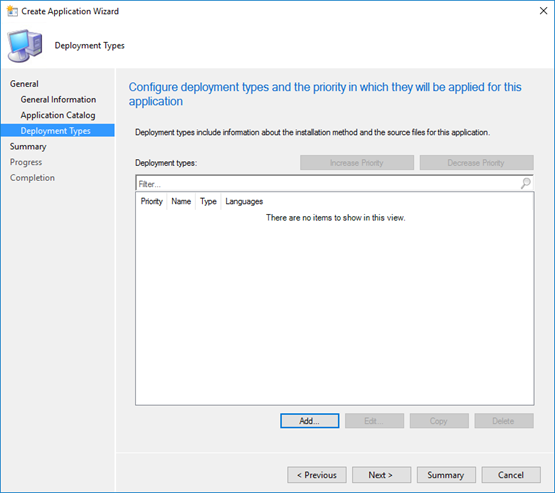
On Deployment Types click on “Add”. The deployment type will define how the Runner will be deployed in your environment.
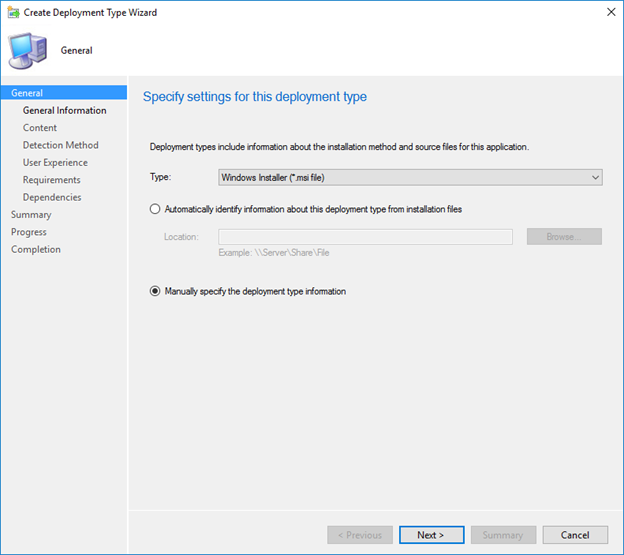
In the Deployment Type Wizard, click on “Manually specify the deployment type information” and click Next past the General Information section.
In Content, Browse to the location of the Network Share and select the Installation Program that will be deployed. Provide the desired flags for installation appended in the Installation Program field.
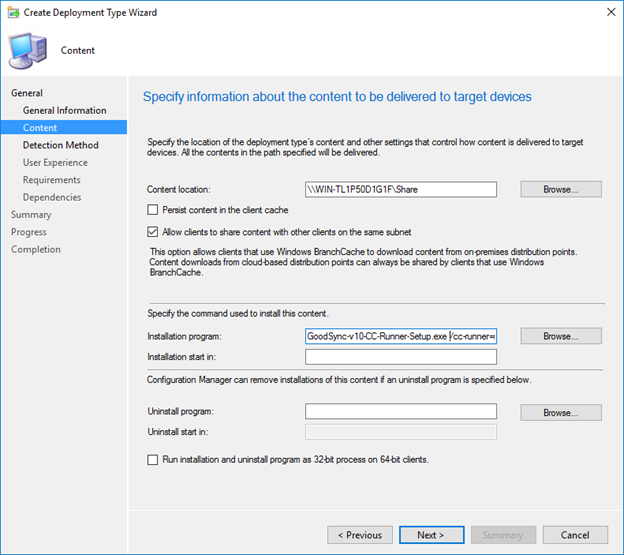
Example:
GoodSync-vsub-CC-Runner-Setup.exe /cc-runner=user /cc-coid=11 /S
The /cc-runner=user flag allows GoodSync to connect to the Control Center in the context of the installing user. Keep in mind that “user” specifies the mode of installation, it is not a placeholder for an actual username (i.e. /cc-runner=john is incorrect).
The /cc-coid flag points the installer to your particular instance of Control Center. Using “/cc-coid=11”, for example, connects the installer to the Control Center with company ID 11. You may obtain your company ID in the Settings tab of your console.

These flags will complete a standard install. For information on other optional flags like GUI visibility, click here.
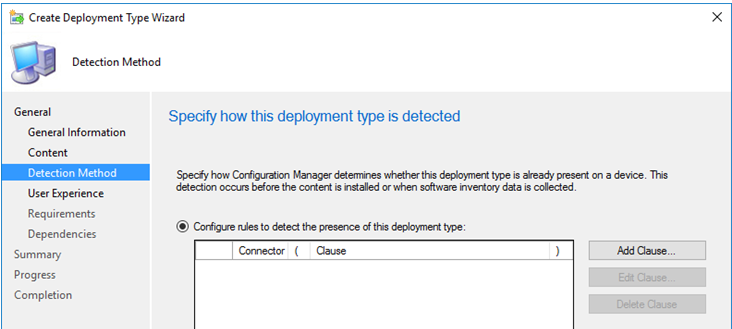
In the Detection Method section, click on Add Clause.
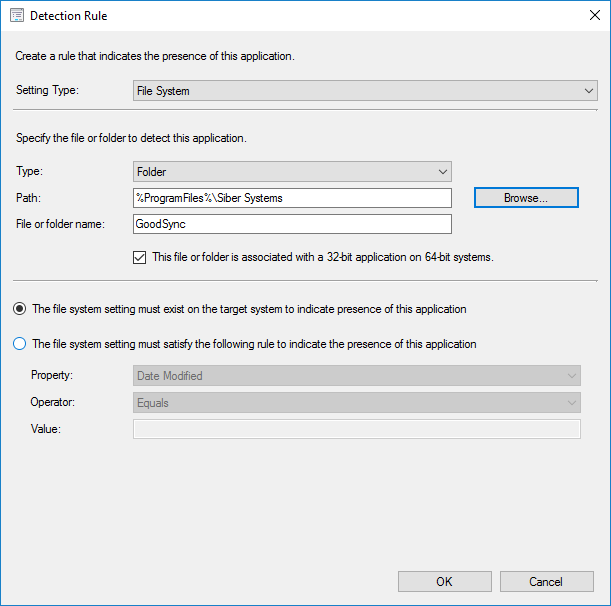
Select “File System” for Setting Type, “Folder” for Type, “%ProgramFiles%/Siber Systems” for Path, and “GoodSync” for folder name. Click Ok to create the Detection Rule, then Next to the User Experience section.
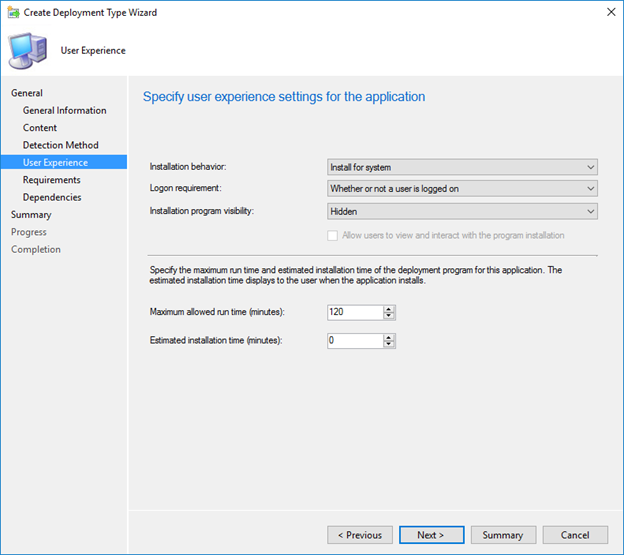
Select “Install for system” for Installation behavior, “Whether or not a user is logged on” for Logon requirement, and “Hidden” for Installation program visibility. Click Next until the Completion section to create the deployment type.
Click Next until the Completion section of the Application Wizard to finalize the process. This will create the Application for SCCM deployment of the GoodSync Runner.
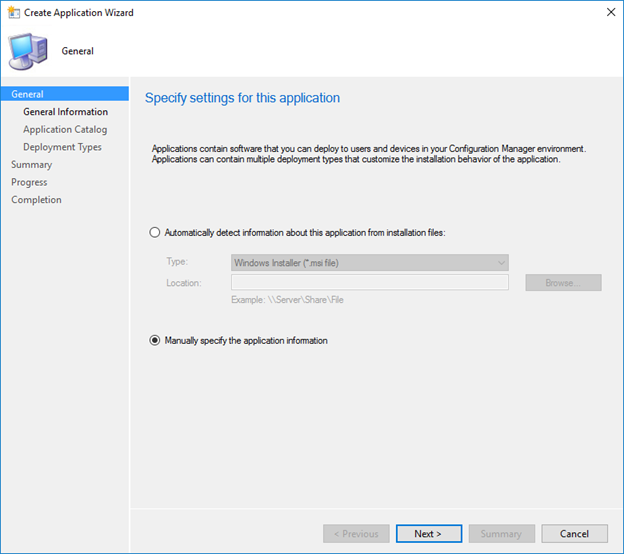
Next, we will create an Application for the gsrunner_startup.bat. Choose “Manually specify the application information” and click Next until the Deployment Types section.
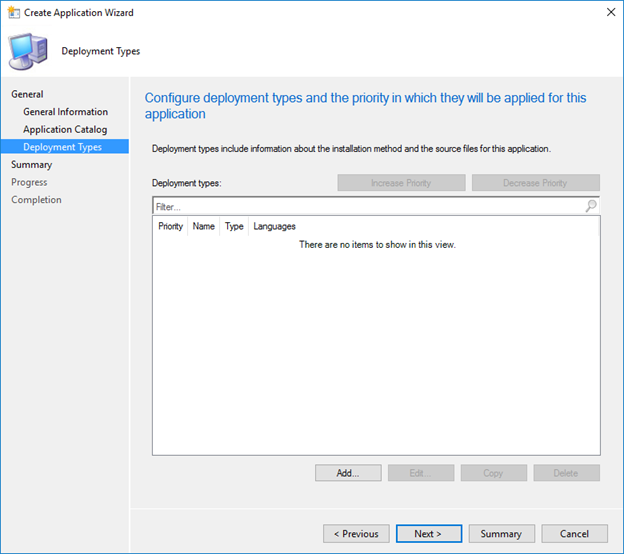
Click Add to create a new deployment type. The deployment type will define how the startup script will be deployed in your environment.
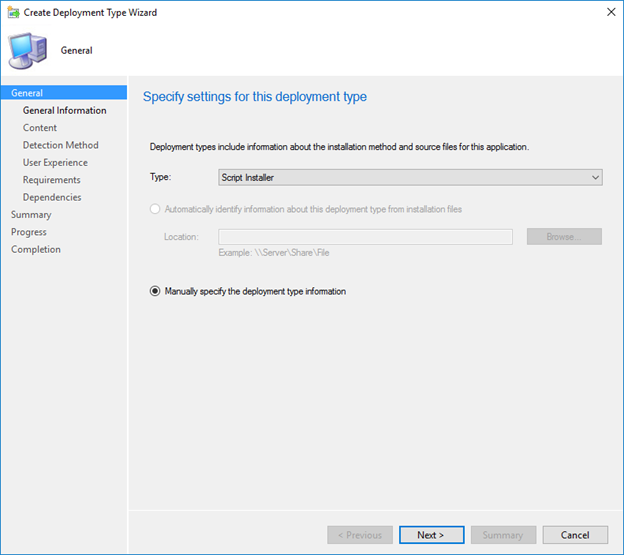
Choose “Script Installer” for Type and it should auto-select “Manually specify the deployment type information”. Click Next until the Content section.
In “Content location”, browse to the location of the network share containing the script. In “Installation program”, browse and select the script that will be deployed from the network share. Click Next.
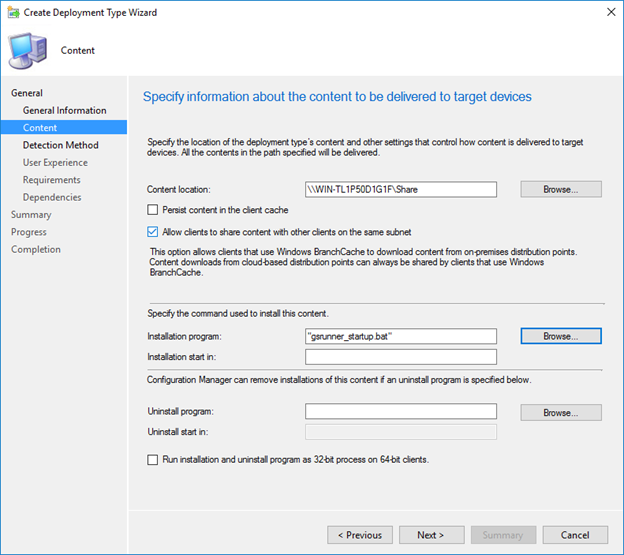
Click on Add Clause to create a detection clause for the script deployment.
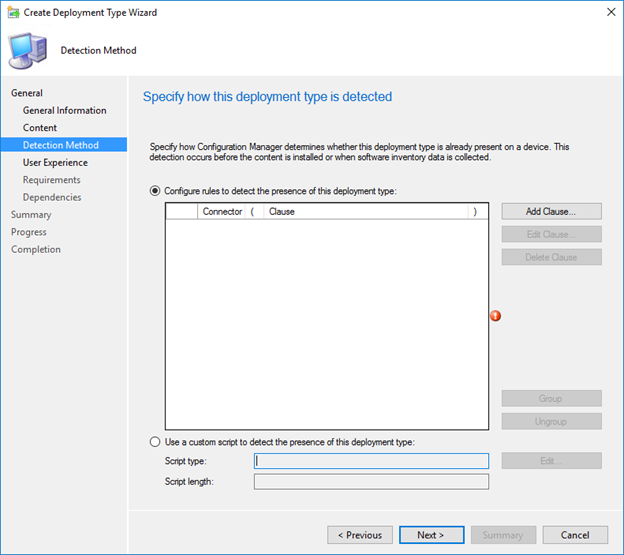
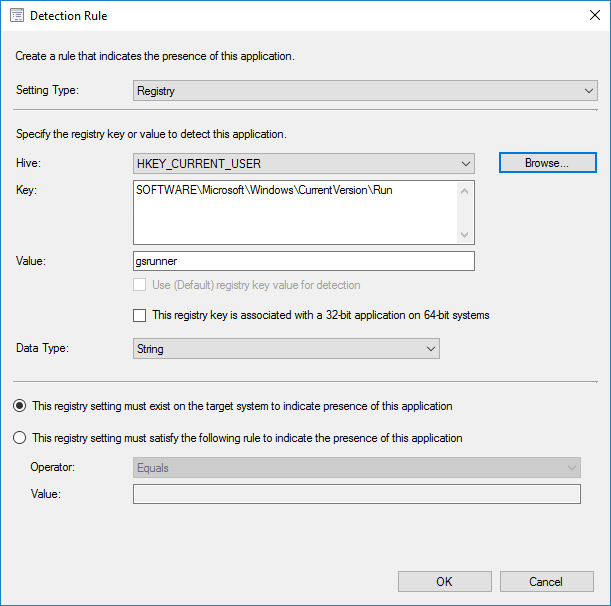
For “Setting Type” select Registry. Browse the “Hive” for HKEY_CURRENT_USER, select SOFTWARE\Microsoft\Windows\CurrentVersion\Run as the Key, and enter gsrunner as the “Value”. The “Data Type” should be set to String. Click Ok.
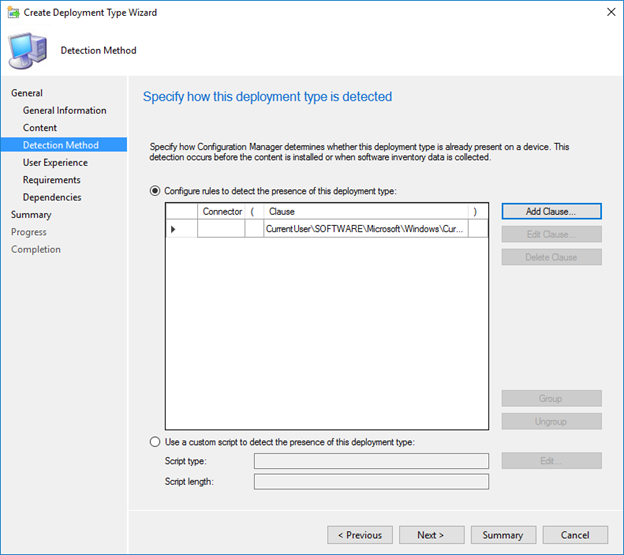
The detection clause has now been created. Click Next to the User Experience section.
Select “Install for user” as Installation behavior and “Hidden” for Installation program visibility.
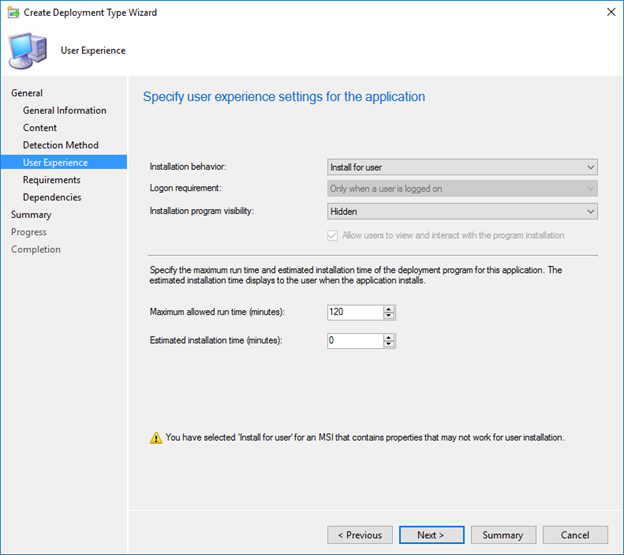
Click Next through Requirements and Dependencies until you reach the Completion section, then click the Close button.
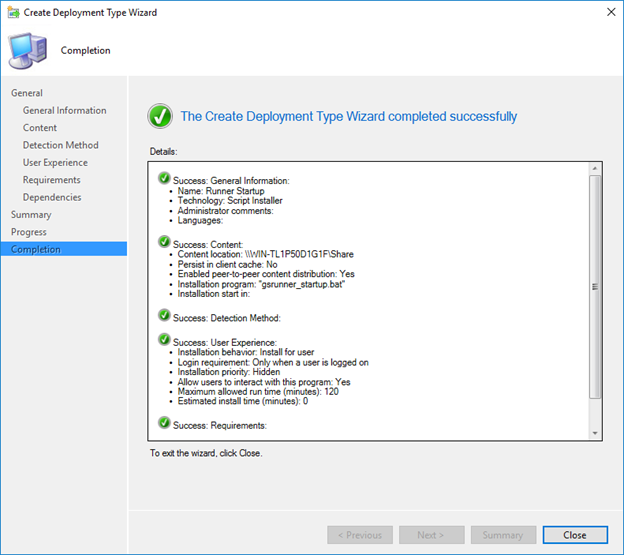
Once we are done creating our Deployment type, again click Next to the Completion section and click Close to finish.
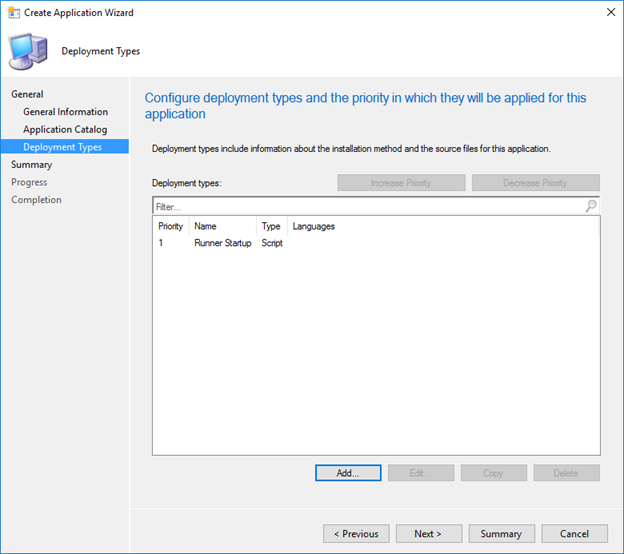
You should now have both the GoodSync Runner and the startup script created as Applications ready for deployment in SCCM. First, deploy the “GoodSync” Application. This will push the GoodSync Runner to the systems in your specified collection.
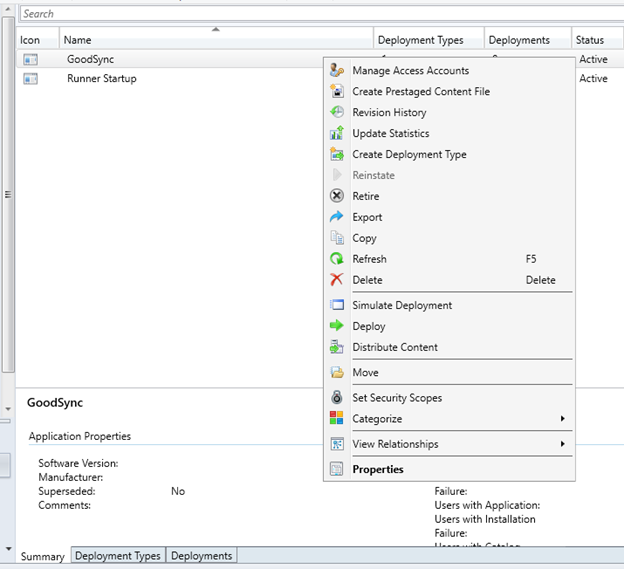
Next, deploy the "Runner Startup" Application to initiate the Runner and enable the startup logic on the deployed systems.
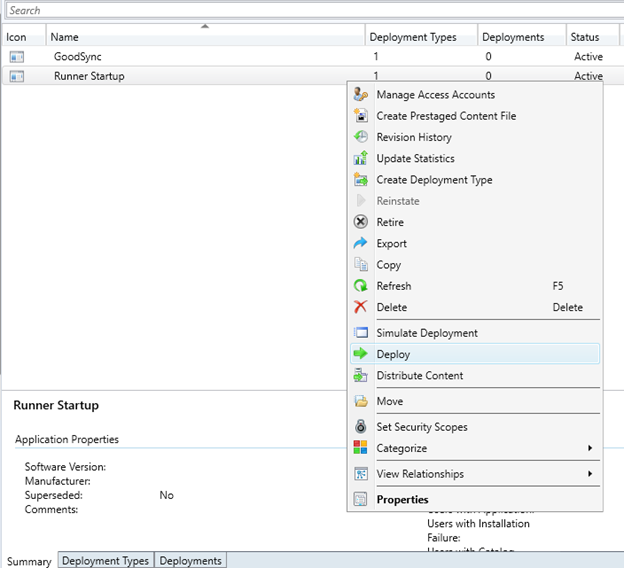
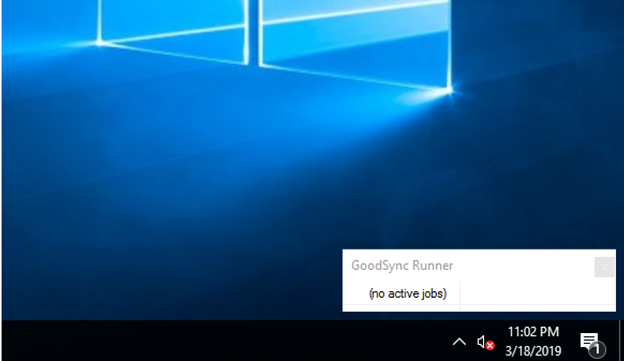
When both deployments are complete, you will see the Runners installed on the specified systems and communicating to Control Center.
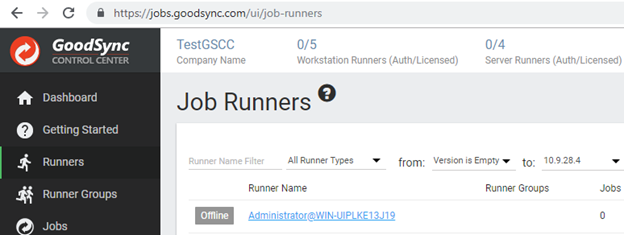
Runners will then begin to list in the "Runners" tab of your Control Center, confirming successful deployment. To manage, assign jobs, and monitor job runs for these Runners, they must first be authorized. For details regarding the authorization process, click here. Control Center deployment is now complete.
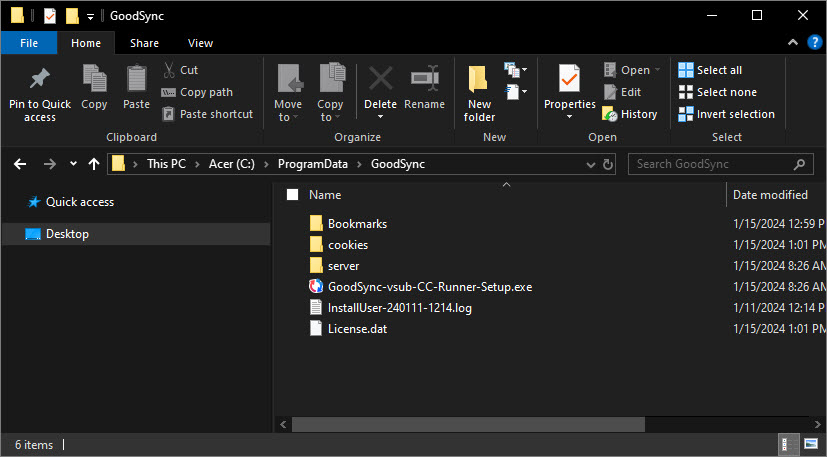
Troubleshooting Runner installation
During GoodSync Runner installation, logs are created for troubleshooting under C:/ProgramData/GoodSync. Any installation errors or failures will be detailed in these logs.
Troubleshooting Runner execution
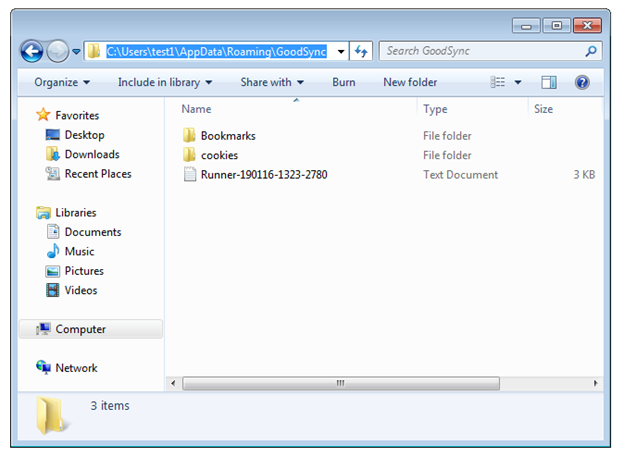
During Runner execution, all communication to the Control Center and job runs are written to Runner logs under C:/users/%username%/appdata/roaming/GoodSync. A log with a modified time matching the current time will confirm that the application is running.