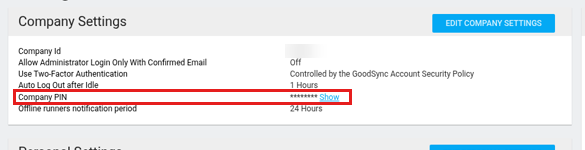
A Company PIN is a code of 8-20 letters or digits. Only Runners that have pin entered during install can join your GoodSync Control Center company.
This article shows how to set a Company PIN in Settings, shown above.
Steps
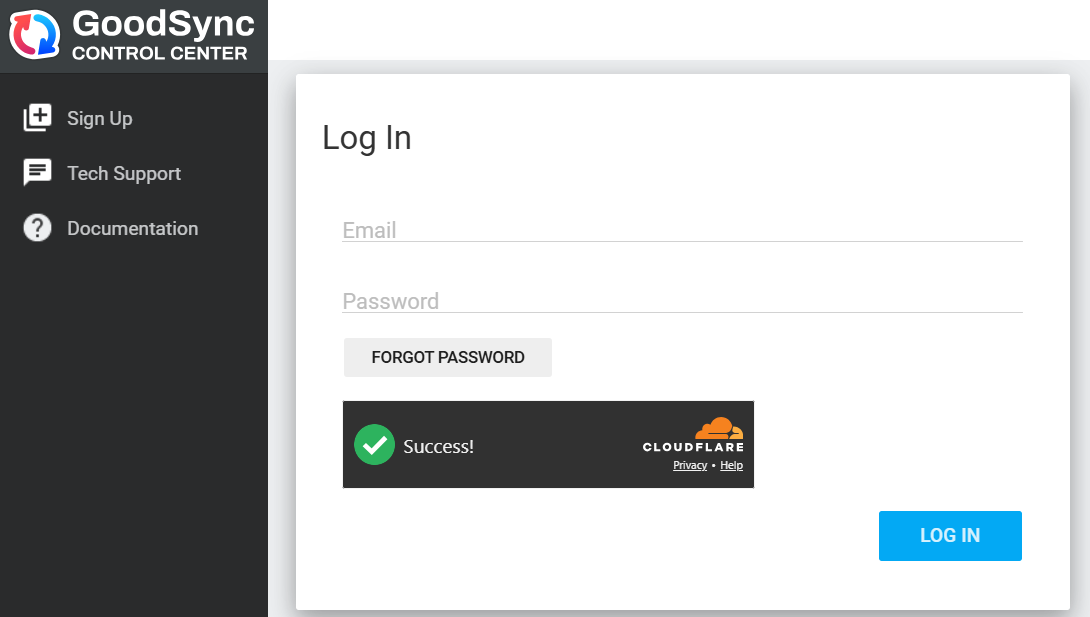
1: Go to https://jobs.goodsync.com/ui/user-login, enter your Email and Password, and click Log In.
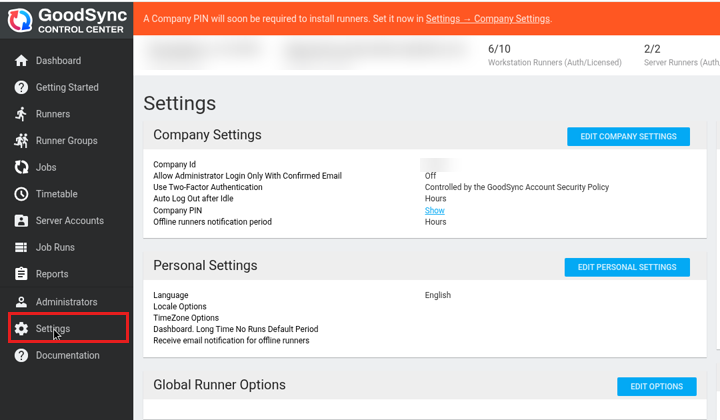
2: Click Settings in the left menu.
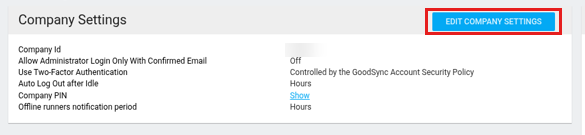
3: Click EDIT COMPANY SETTINGS.
4: Click the Company PIN field.
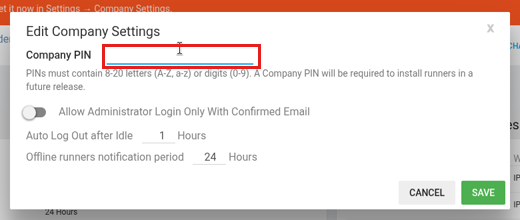
5: Type a PIN of 8-20 letters (A-Z, a-z) or digits (0-9). Click show to check what you typed.
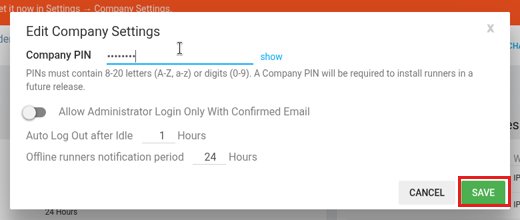
6: Click SAVE.
7: Check that Company PIN now shows ******** with a Show link.
Click Show at any time to see your PIN.
Result: Your Company PIN is set. New Runners must now use it when they install.
Note: Your Company PIN is separate from your GoodSync account password. When you install a Runner, add the PIN with the /cc-copin option, for example /cc-copin=YOUR_COMPANY_PIN.