The following guide will detail the steps to mass deploy GoodSync Control Center Runners to users on a domain.

- Deployment script
- Creating the GPO
- Adding the scheduled task
- Adding the registry value
- Successful deployment
- Troubleshooting scheduled tasks
- Troubleshooting Runner installation
- Troubleshooting Runner startup
- Troubleshooting Runner execution
Deployment Guide
First, you'll need to create a network share that will store the GoodSync Control Center installer and the deployment script. You may download the latest installer here.
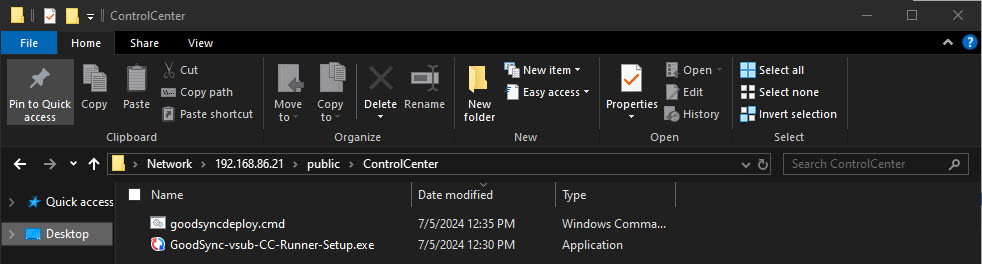
Create a script named goodsyncdeploy.cmd. The script should contain the following:
IF NOT EXIST "%programfiles%\Siber Systems\GoodSync\gs-runner.exe" \\ServerName\Share\GoodSync-vsub-CC-Runner-Setup.exe /cc-runner=user /cc-coid=YourCompanyID /S
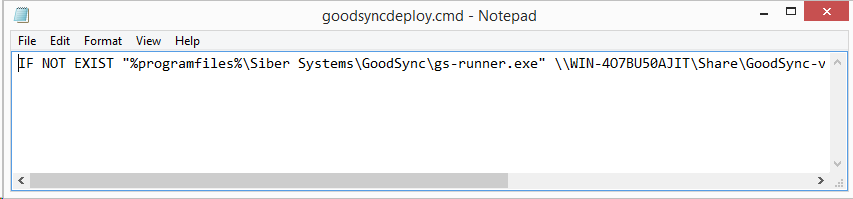
The script will check if the GoodSync Control Center Runner is already installed on the system. If it is not, it will install it with the specified flags.
The /cc-runner=user flag allows GoodSync to connect to the Control Center in the context of the installing user. Keep in mind that “user” specifies the mode of installation, it is not a placeholder for an actual username (i.e. /cc-runner=john is incorrect).
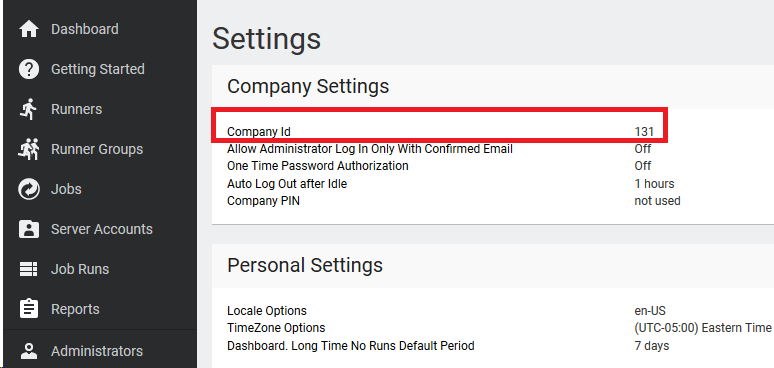
The /cc-coid flag points the installer to your particular instance of Control Center. Using “/cc-coid=131”, for example, connects the installer to the Control Center with company ID 131. You may obtain your company ID in the Settings tab of your console.
These flags will complete a standard install. For information on other optional flags like GUI visibility, click here.
For security purposes, it is very important that the network share has only read and execute permissions, but not write.
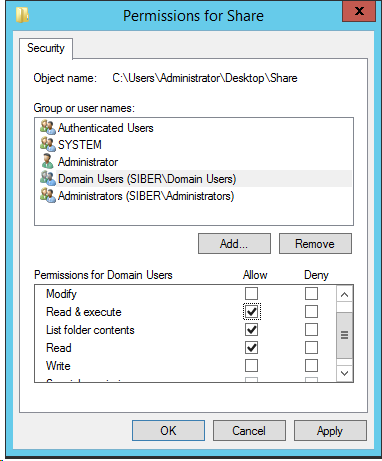
Any attempts to write and save changes to the script should give unprivileged users an access denied.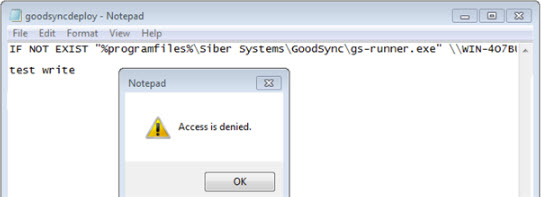
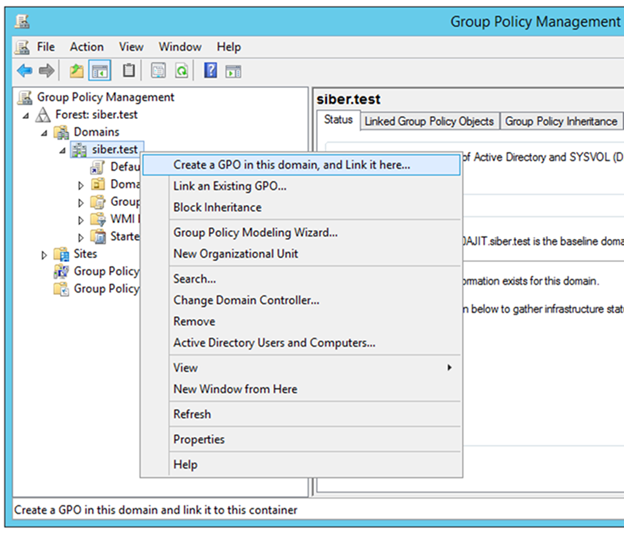
Create a new GPO in your domain that will be used to deploy GoodSync in your environment. Right-click your domain and select "Create a GPO in this domain, and Link it here...".
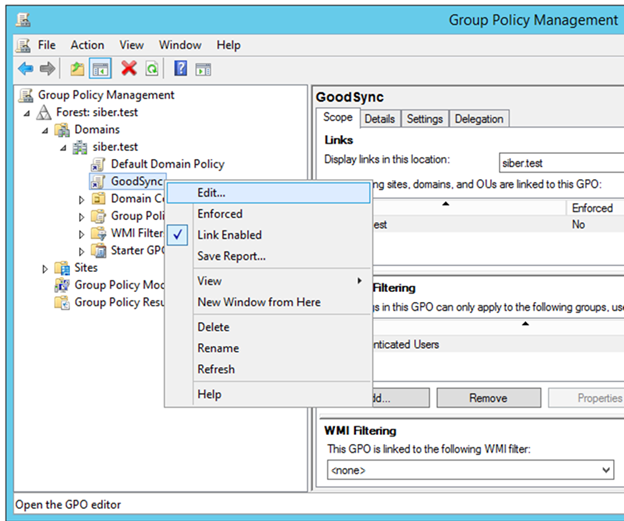
Right-click the created Group Policy Object and click on Edit to begin configuring deployment.
Click on User Configuration > Preferences > Control Panel Settings > Scheduled Tasks and create a new Scheduled Task.
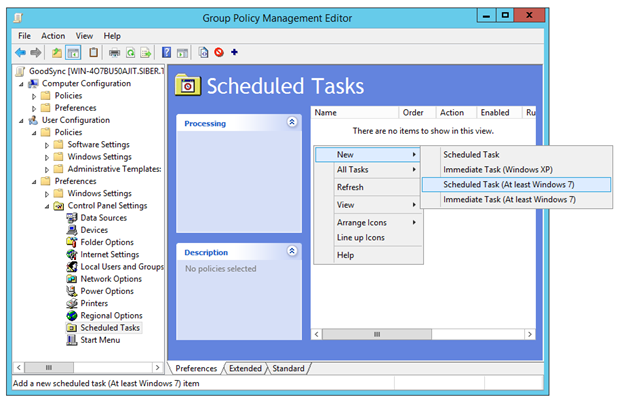
Select “Create” for the action, give the task a name, and specify NT AUTHORITY\System as the user account to run the task. Click on the radio button for “Run whether user is logged on or not” and click the Triggers tab to proceed to the next section.
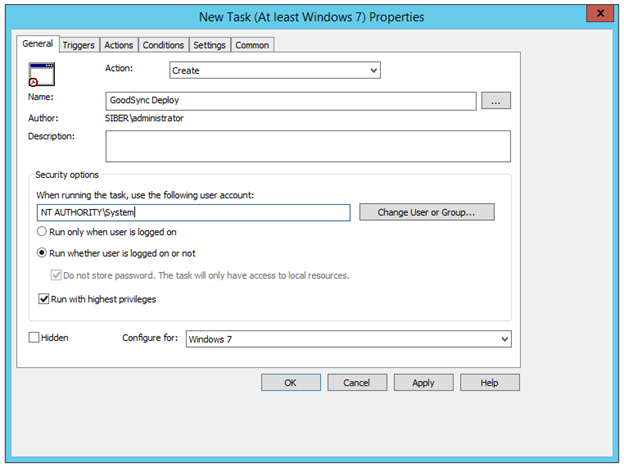
Create a new trigger for “At log on” that applies to “Any user”. Click on “OK” and click on “Actions” to proceed to the next section.
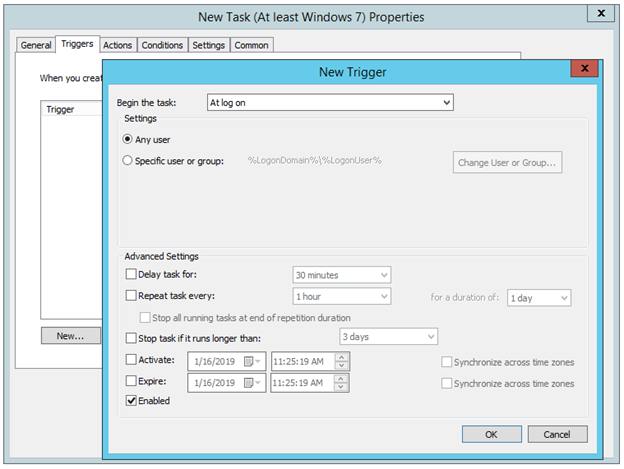
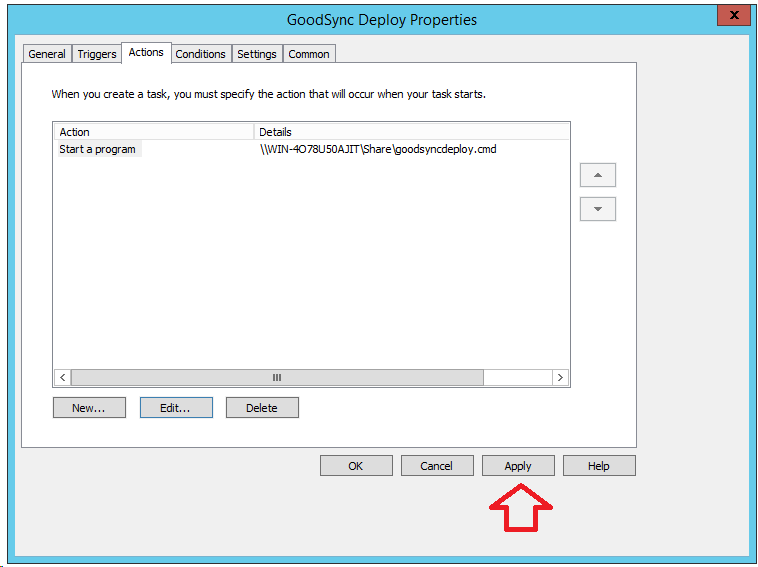
Create a new action to “Start a program” and enter the path to the script on the network share. On log on, the specified users will execute the script that will install GoodSync on their machines and connect to Control Center.
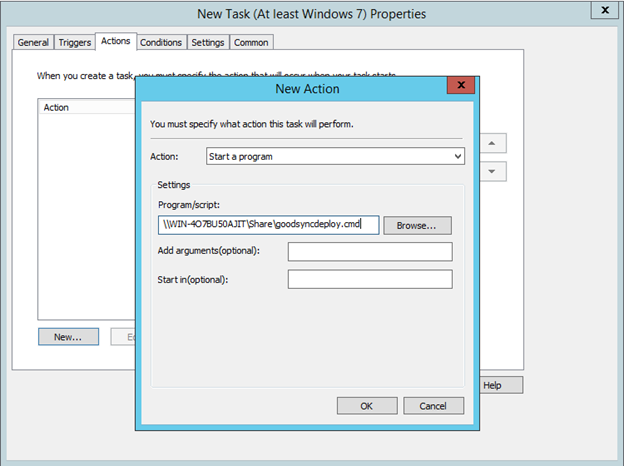
Click Apply to complete the creation of the scheduled task.
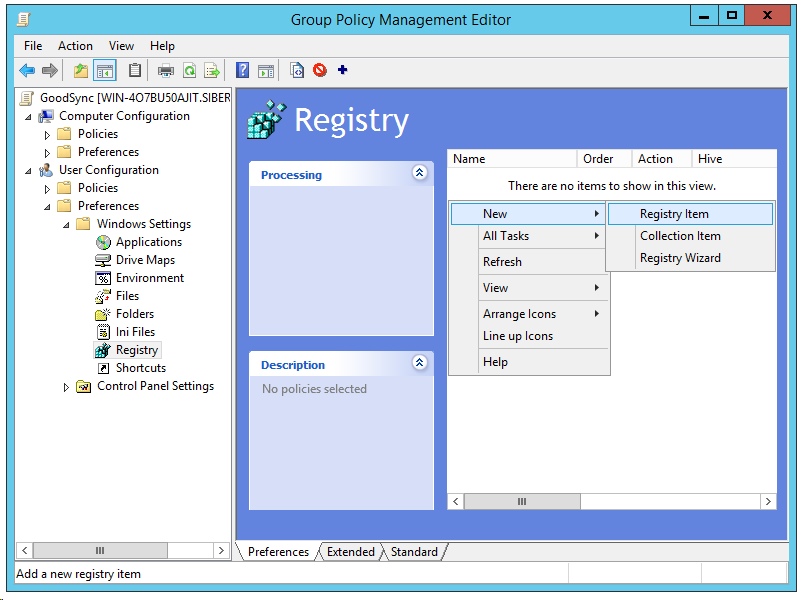
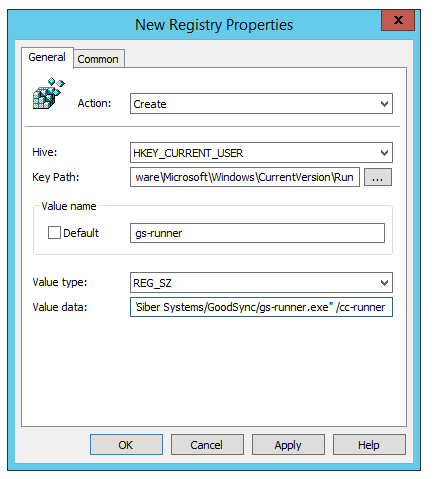
For the same GPO, navigate to User Configuration > Preferences > Windows Settings > Registry and create a new “Registry Item”. This will deploy a registry value to users that will allow the GoodSync Runner to start in the event of a reboot or logoff.
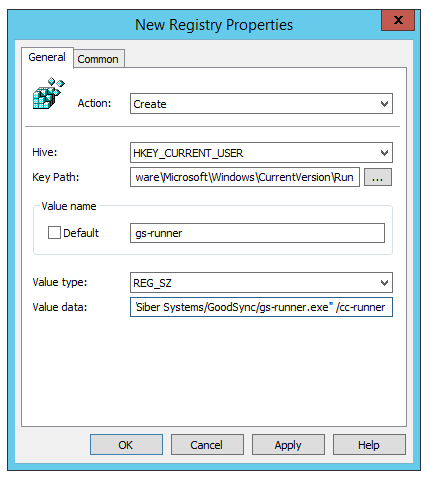
Select “Create” for the Action, “HKEY_CURRENT_USER” for Hive, and “Software\Microsoft\Windows\CurrentVersion\Run” for Key Path. Enter “gs-runner” for the Value name, “REG_SZ” for the Value type, and "C:/Program Files/Siber Systems/GoodSync/gs-runner.exe" /cc-runner” for the Value data. Click “Apply”.
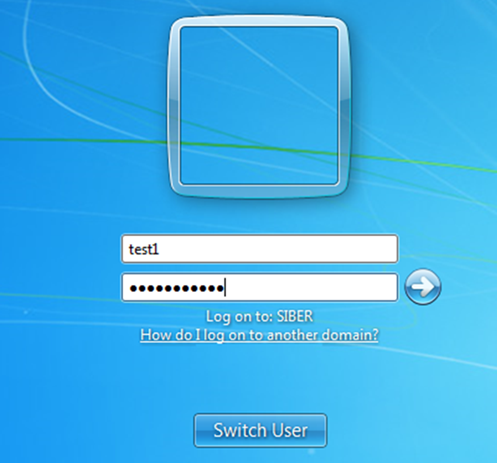
When a user logs on to their domain account, the scheduled task triggers and executes the deployment script.
The GoodSync Runner application will install for the user, and a value will be written to the registry so the Runner may start up on logon. This will allow the Runner to start automatically in the event of a system reboot.
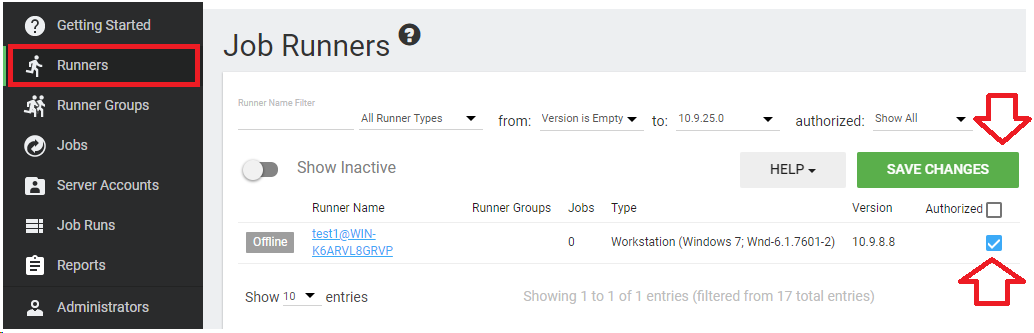
After your Runners have been successfully deployed, they will appear listed in the “Runners” tab of your Control Center. Click the checkbox of the listed Runner, click on “Authorize”, and Save Changes for the Runners that you would like to activate for use. Control Center deployment is now complete.
Troubleshooting scheduled tasks
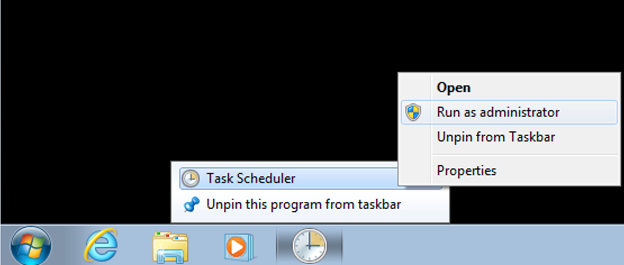
Scheduled tasks deployed by GPO will be pushed to users by the Domain Controller. To confirm if the scheduled task has been pushed to the user, you may open Task Scheduler with “Run as administrator”.
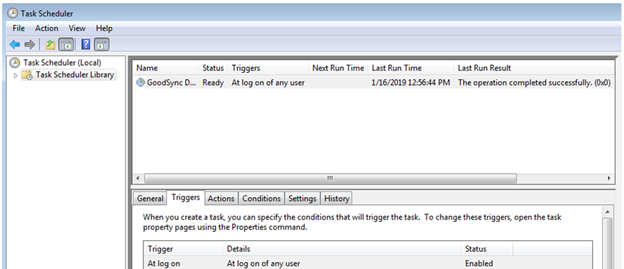
All scheduled tasks for that domain user will be listed, with details including name, triggers, last run time, and last run result. “Last run result” will state if the task was completed successfully.
Note that the initial GPO push creates the task but does not execute. On subsequent user logon, the task will then trigger for execution.
Troubleshooting Runner installation
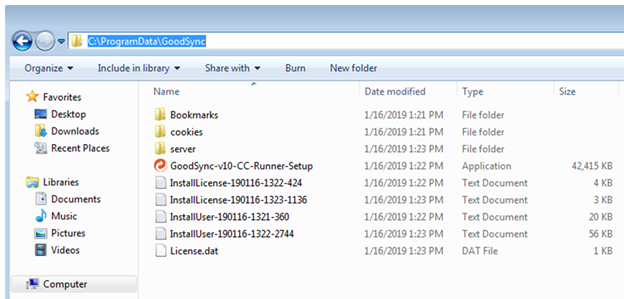
During GoodSync Runner installation, logs are created for troubleshooting under C:/ProgramData/GoodSync. Any installation errors or failures will be detailed in these logs.
Troubleshooting Runner Startup
Runner startup is performed by the registry value defined during GPO deployment. This value should be written under HKEY_CURRENT_USER/Software/Microsoft/Windows/CurrentVersion/Run.
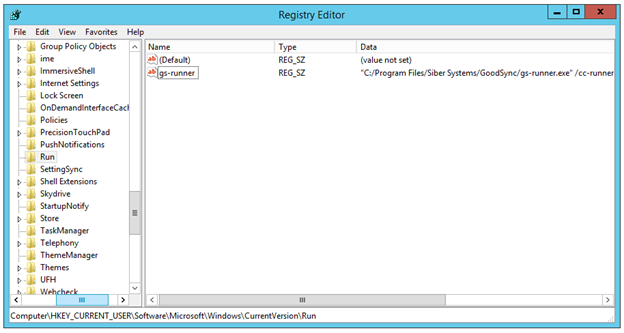
If the value does not exist, please review the registry deployment configuration of the GPO.
Troubleshooting Runner execution
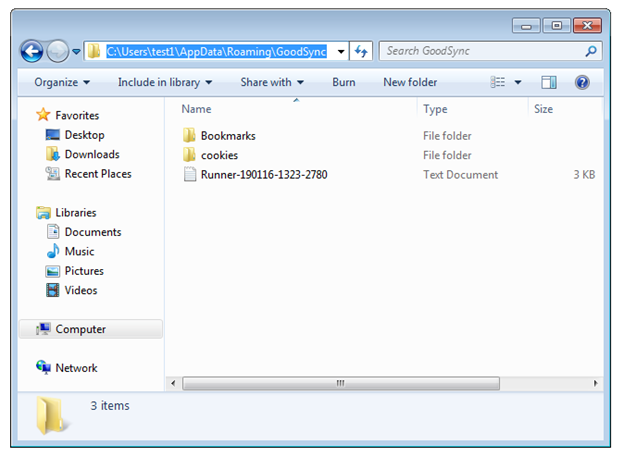
During Runner execution, all communication to Control Center and job runs are written to Runner logs under C:/users/%username%/appdata/roaming/GoodSync. A log with a modified time matching the current time will confirm that the application is running.