GoodSync supports multiple file systems and transfer protocols, giving you flexibility and control over where your data is backed up, synchronized, or replicated.
Local
Remote
Cloud with standard authentication
Other cloud services
- Google Drive
- Dropbox
- OneDrive Office 365 (OneDrive and SharePoint)
- Box.com
When selecting the left and right sides of a job, choose the file system or transfer protocol you want to use from the Account drop-down menu.
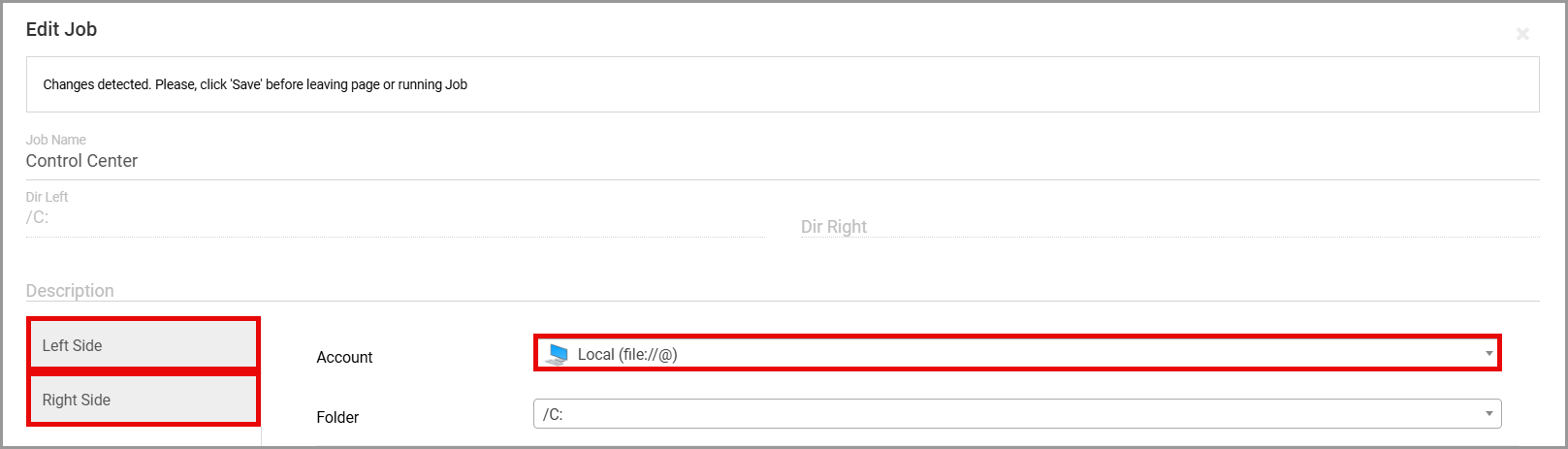
Local
My Computer
To use a folder on the local computer, select My Computer. Then, enter or browse to the folder you want to use as the job source or destination.
Windows example:

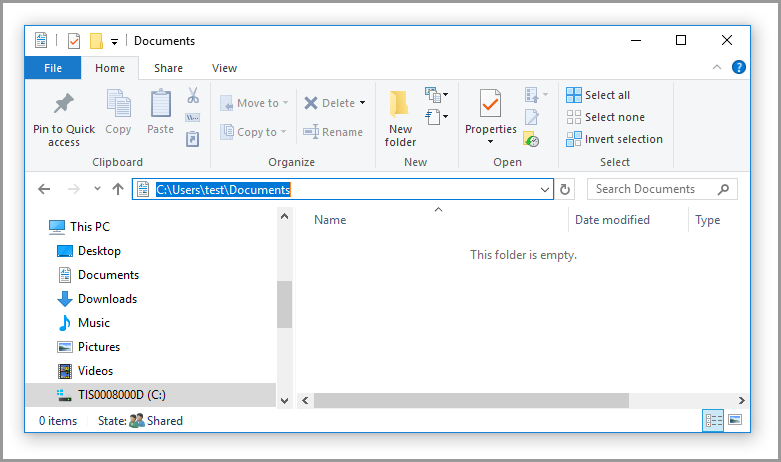
Mac example:


Linux example:


Network Shares
To use a network share, select Network Shares. In supported Mac environments, you may also select the Apple Filing Protocol option.
Enter or browse to the network share path you want to use as the source or destination.

Media Devices MTP
To use a mobile device or another MTP-compatible device, select Media Devices MTP.
Select the device and folder you want to use as the source or destination.
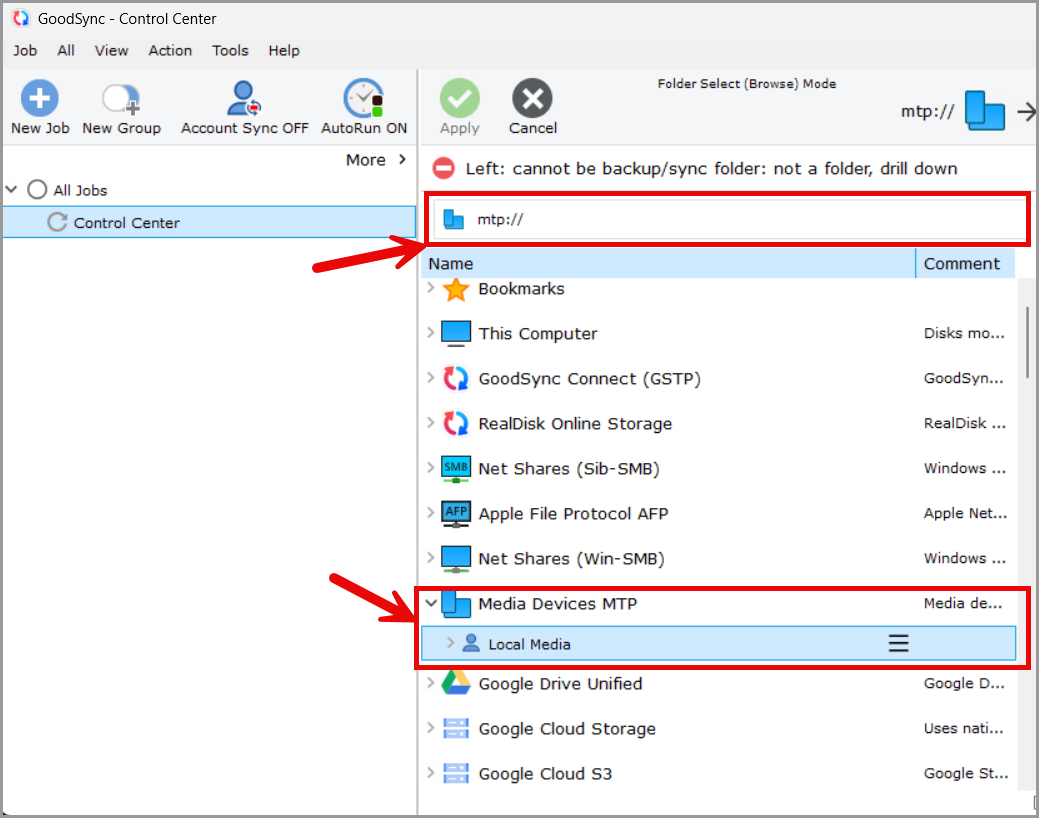
Remote
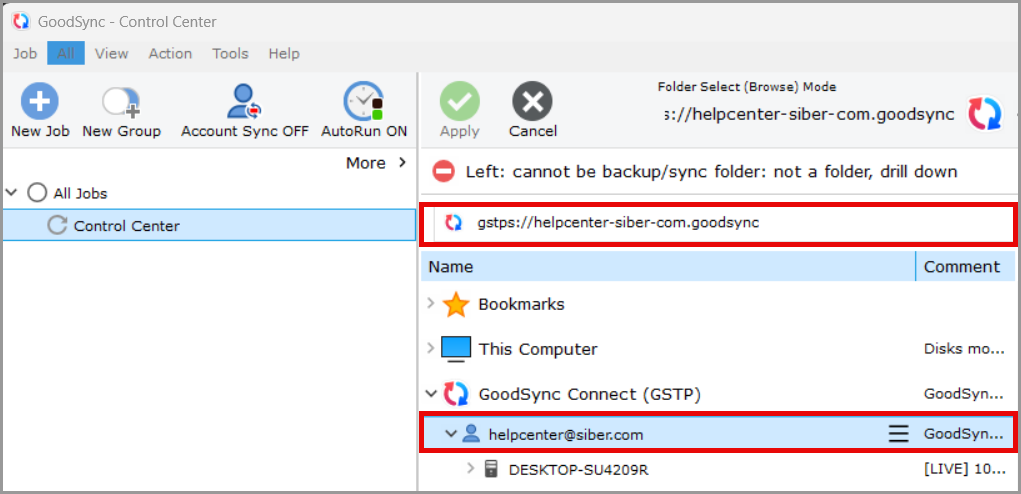
GoodSync Connect
To connect to another device running GoodSync, select GoodSync Connect.
By default, GoodSync uses the GoodSync account currently connected to the application.
To add another GoodSync account:
- Right-click GoodSync Connect.
- Select New.
- Enter the required GoodSync account credentials.
- Click Save.

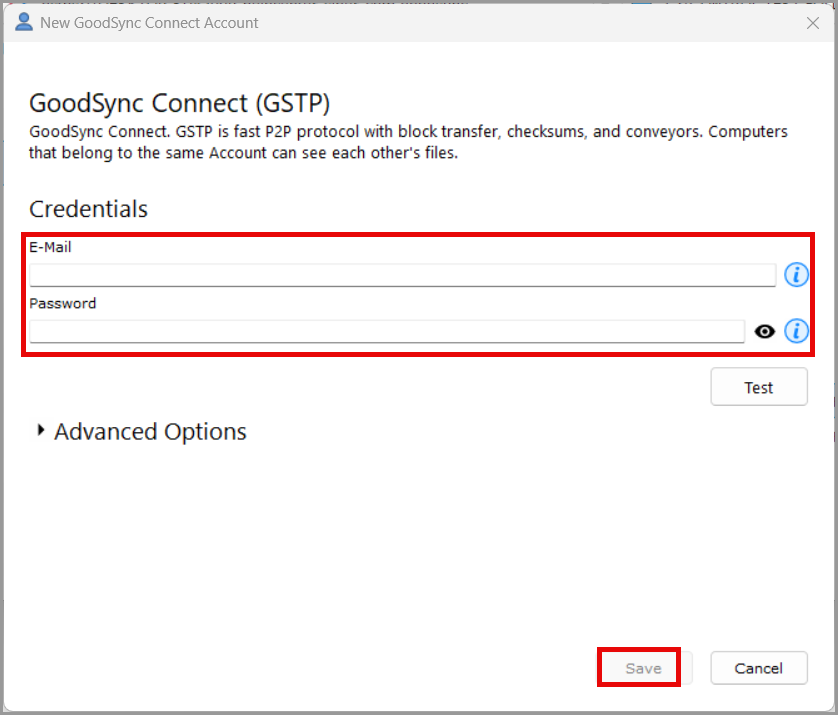
Select the device and folder path you want to use as the source or destination.
You may use GoodSync installed directly on the remote device to verify the correct folder path.
For more information about GoodSync Connect, see the GoodSync Connect documentation.
FTP
To connect to an FTP server, select FTP.
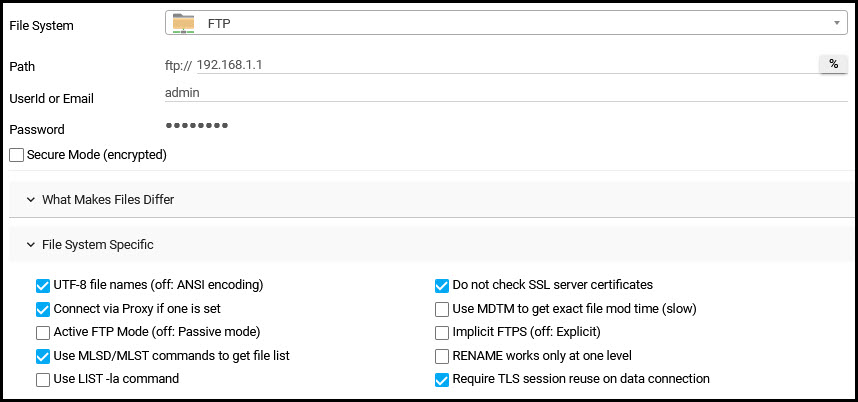
Enter the FTP server hostname or IP address, along with the required username and password.
Additional FTP settings can be configured under File System Specific.
SFTP
To connect to an SFTP server, select SFTP.

Enter the SFTP server hostname or IP address, along with the required username and authentication information.
WebDAV
To connect to a WebDAV server, select WebDAV.

Enter the WebDAV server address, along with the required username and password.
Cloud with standard authentication
Amazon S3
To connect to Amazon S3 storage, select Amazon S3.
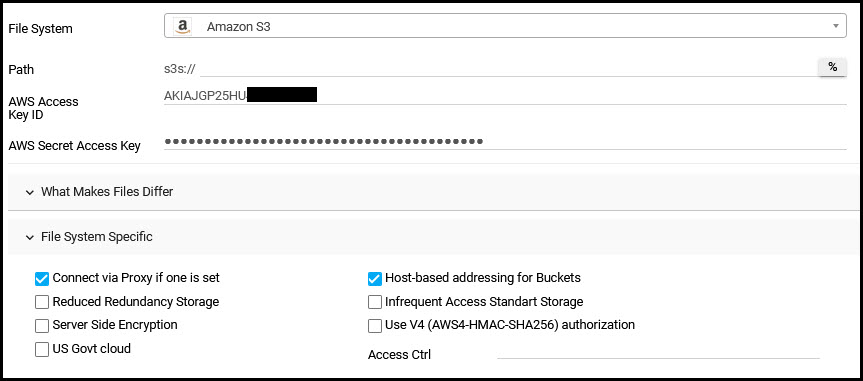
Enter your AWS Access Key ID and AWS Secret Access Key in the appropriate fields.
For help locating your AWS access keys, see the AWS access key documentation.
Additional Amazon S3 settings can be configured under File System Specific.
Windows Azure and Azure Files API
To connect to Azure Blob Storage, select Windows Azure.
To connect to an Azure file share, select Azure Files API.


Enter the Azure storage account name and access key in the appropriate fields.
For additional information about locating these values, see the following reference:
Where can I find my Azure account name and account key?
Backblaze B2
To connect to Backblaze B2 storage, select Backblaze B2.

Enter your Backblaze Key ID and Application Key in the appropriate fields.
For help locating this information, see the Backblaze application key documentation.
Other cloud services
GoodSync also supports services such as Google Drive, Dropbox, OneDrive, Office 365, SharePoint, Box.com, and Microsoft Graph for use with Control Center jobs.
For instructions on adding and configuring these accounts, see Uploading Accounts to Control Center.