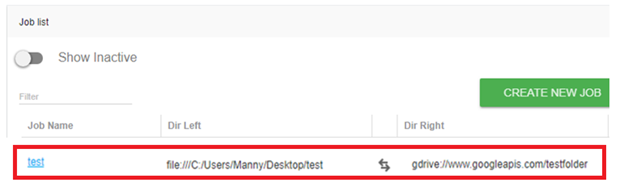
The following use case details the steps for migrating your existing local jobs from the GoodSync application into the Control Center.
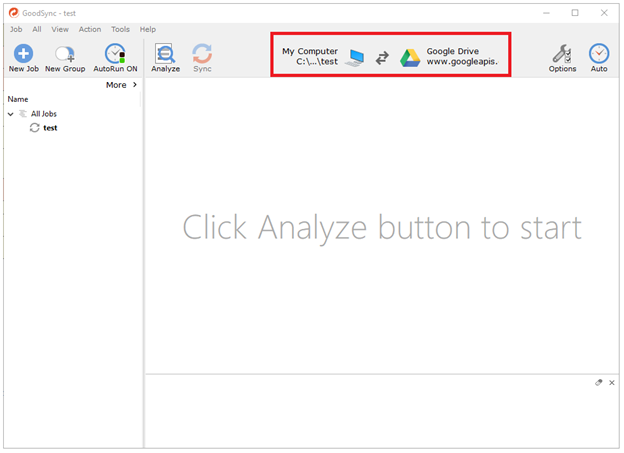
This example will use a job named "test" syncing a local folder with Google Drive.
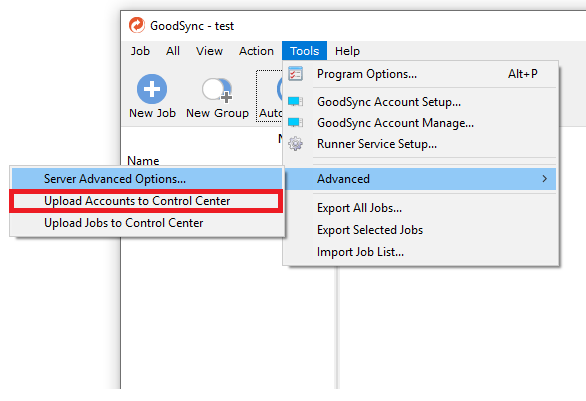
First, ensure that all accounts have been uploaded from the local GoodSync jobs. For more details about this process, click here.
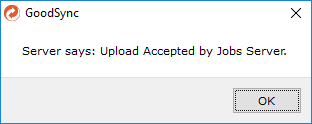
If the account upload is successful, a message box will appear in confirmation.
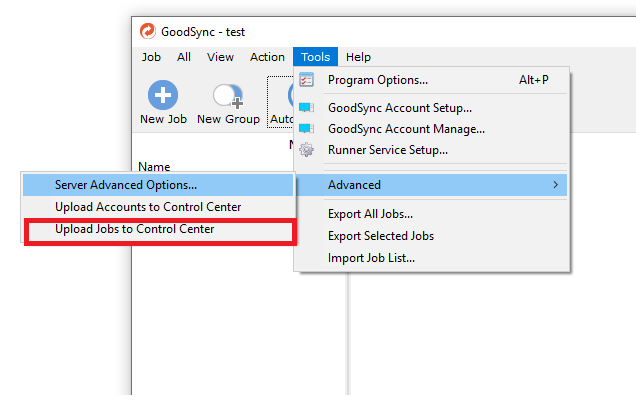
Next, ensure that both the left location and right location have been set for your job(s). When you are ready to upload your jobs, navigate to Tools and click "Upload Jobs to Control Center."
When viewing your list of jobs in the Control Center, you will now see the uploaded job(s) available for use.