Within the Settings tab, you can configure access management, enable two-factor authentication, adjust time zone preferences, and manage licensing.
Additionally, global settings are available for update management, global filters, and SMTP configuration for alert notifications.
Company Settings
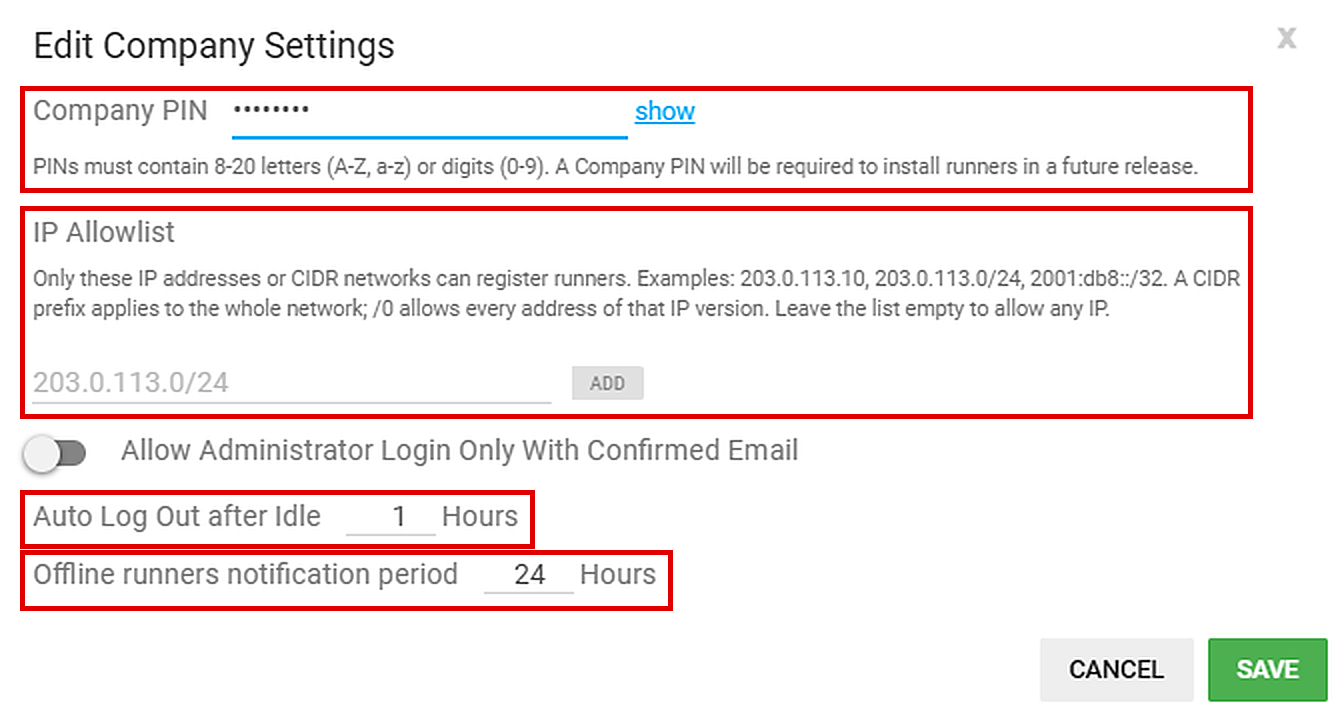
To change these settings, click Edit Company Settings. Click Save to apply your changes or Cancel to close without saving.
Company ID
This ID represents your particular instance of the Control Center. Refer to this ID when setting up runners to connect to your console.
Allow Administrator Login Only With Confirmed Email
When enabled, only administrators with confirmed email addresses can log in.
Use Two-Factor Authentication
Controlled by the GoodSync Account Security Policy.
Old Scheme only: Use Two-Factor Password Authorization turns two-factor authentication on or off. Enroll duration for devices is set in days (0 = never).
Auto Log Out after Idle
Set how many hours an administrator can be idle before being logged out automatically.
Company PIN
A Company PIN acts as an allow list for newly installed runners. When Company PIN is set, a runner must be installed with the /cc-copin flag and the correct PIN, or it will not connect to the Control Center.
PINs must contain 8–20 letters (A–Z, a–z) or digits (0–9). A Company PIN will be required to install runners in a future release.
See How to Set a Company PIN in Control Center.
IP Allowlist
Only the listed IP addresses or CIDR networks can register runners. Type an entry and click Add. Examples: 203.0.113.10, 203.0.113.0/24, 2001:db8::/32. A CIDR prefix applies to the whole network; /0 allows every address of that IP version. Leave the list empty to allow any IP.
Offline runners notification period
The number of hours a runner can be offline before a notification is created.
Personal Settings / Console Settings

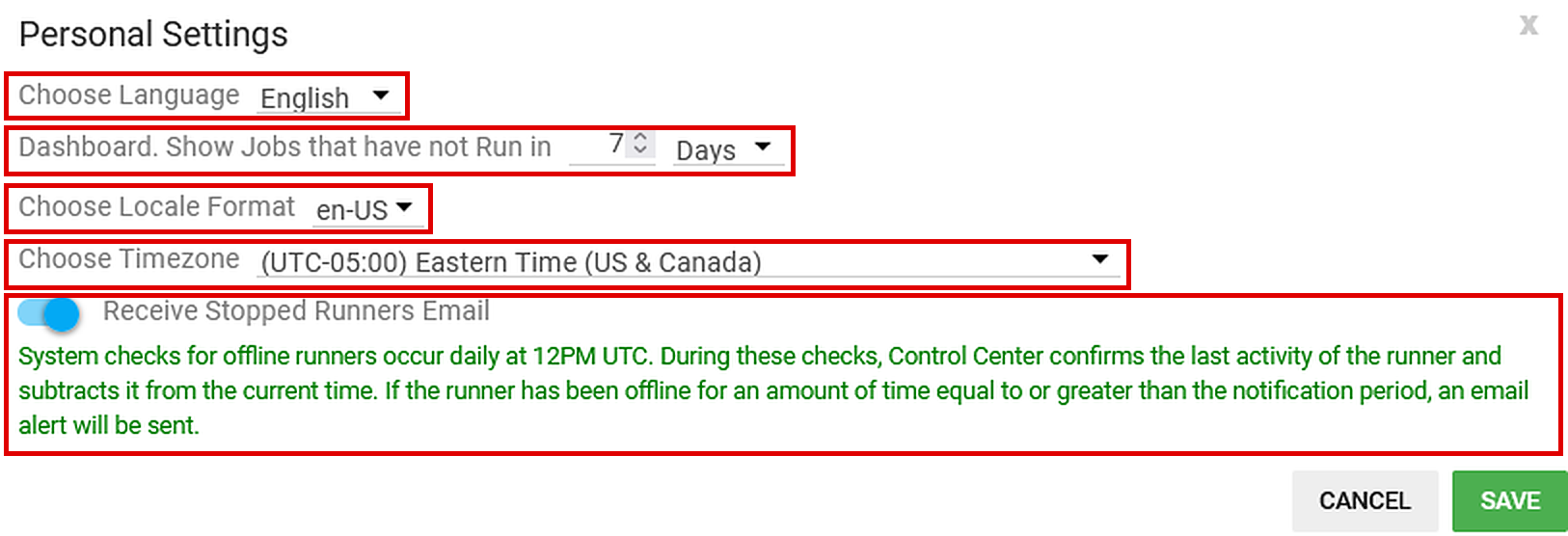
Locale Options
Configure date and time formatting for the job run display.
TimeZone Options
Specify your time zone for the job run display.
Dashboard: Long Time No Runs Default Period
If a scheduled job does not run for this many days for any reason, a notification is created in the Dashboard under “Long Time No Runs”.
Licenses
Additional licenses can be purchased for your Control Center by clicking Buy More.


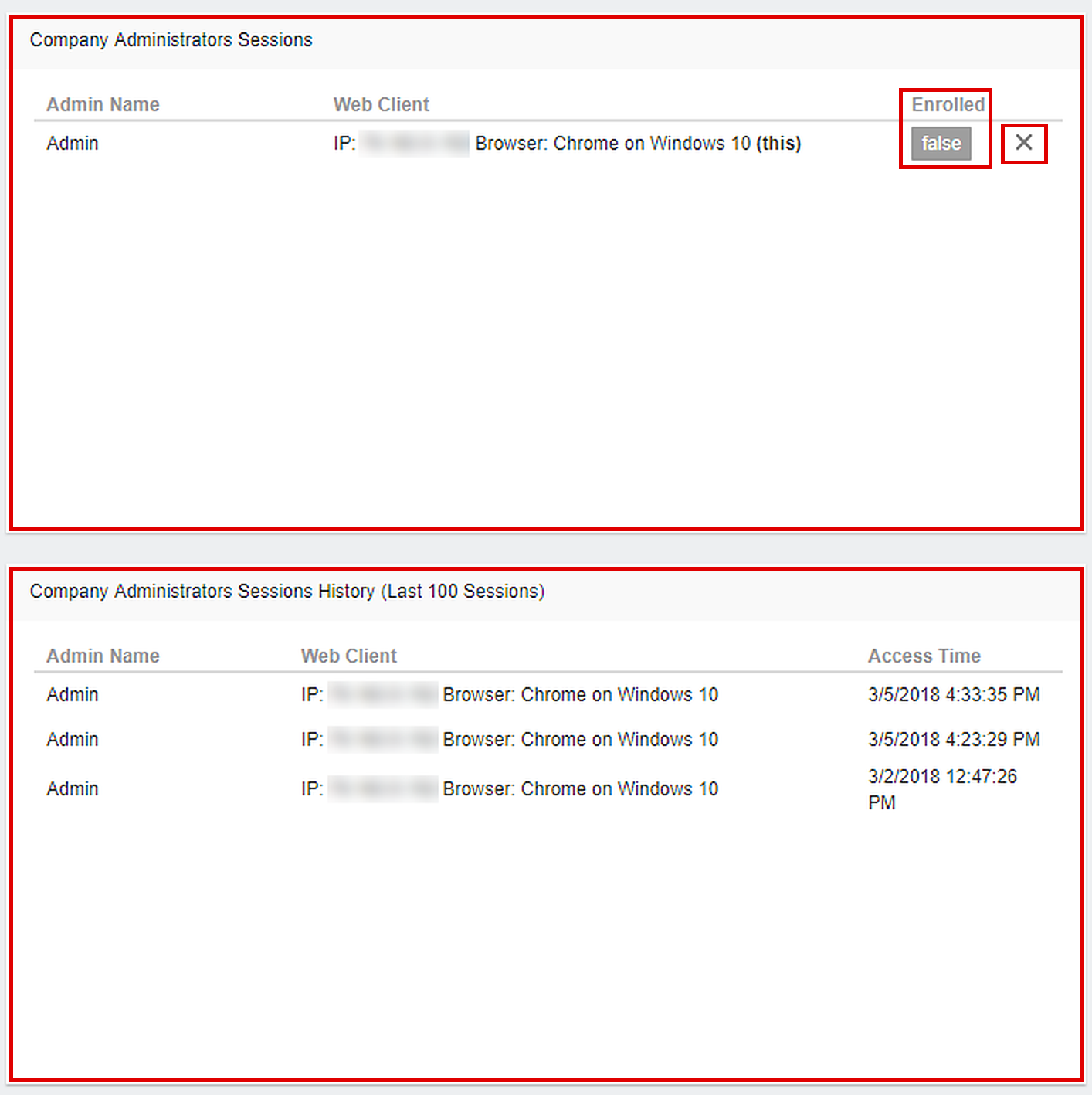
Administrator Sessions
All administrator sessions are recorded for reference and auditing. Each record includes the administrator’s username, IP address, browser type, operating system, and other session details.
To revoke a session, click the X icon next to it.
Global Runner Options
Program Options let you configure global settings for update management, global filters, and SMTP settings for alerting.
General
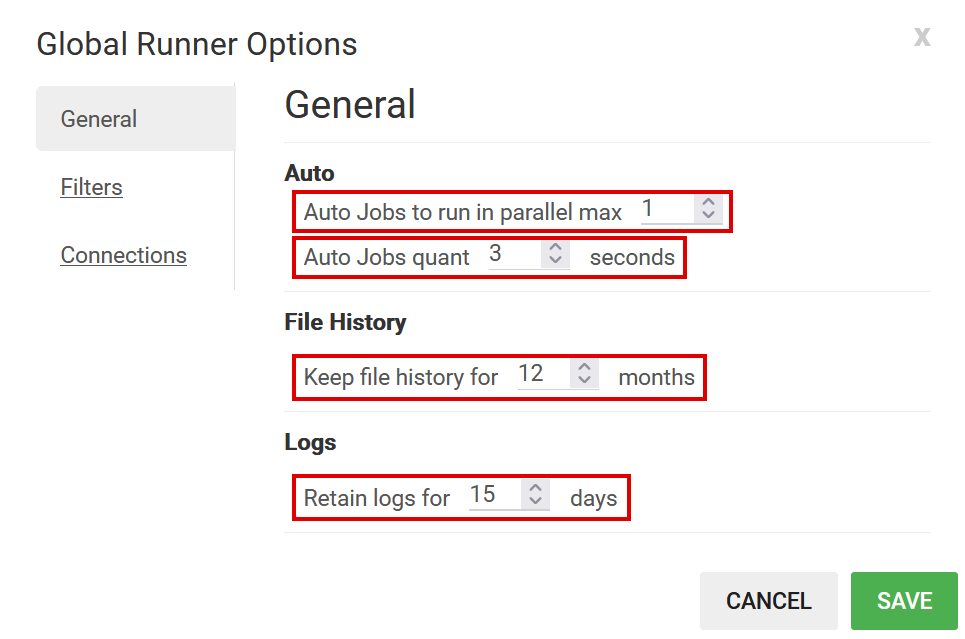
The General tab contains options for automatic updates, parallel job runs, and log retention.
Auto-install new version when found
Automatically updates installations when a new version is available. Updates are performed silently over secure HTTPS.
New Scheme: located under Runners > Edit JobRunner Options (Runners v12.9.5+).
Auto Jobs to run in parallel max
The maximum number of jobs a single runner runs in parallel. Jobs that share the same source and/or destination run one after another, regardless of this limit.
Auto Jobs quant
How often, in seconds, all jobs are checked to see which automatic jobs are ready to run.
Keep File History for months (12 by default)
After Analyze, GoodSync stores a history of file changes in its state file so the right changes are replicated. If Sync does not run within this many months, the file change history is discarded.
Retain logs for this many days (15 by default)
How many days runner logs are kept on client machines. Older log files are deleted. 0 days keeps logs for 2 hours.
Filters
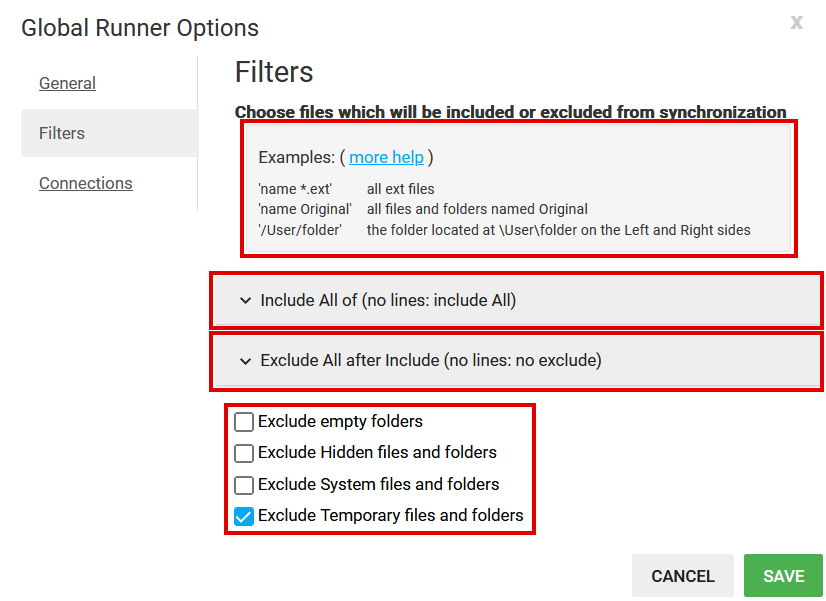
The Filters tab sets global filters that apply to all job runs. Any inclusions or exclusions set here affect every job.
For filter syntax and examples, see Filters.
Connections
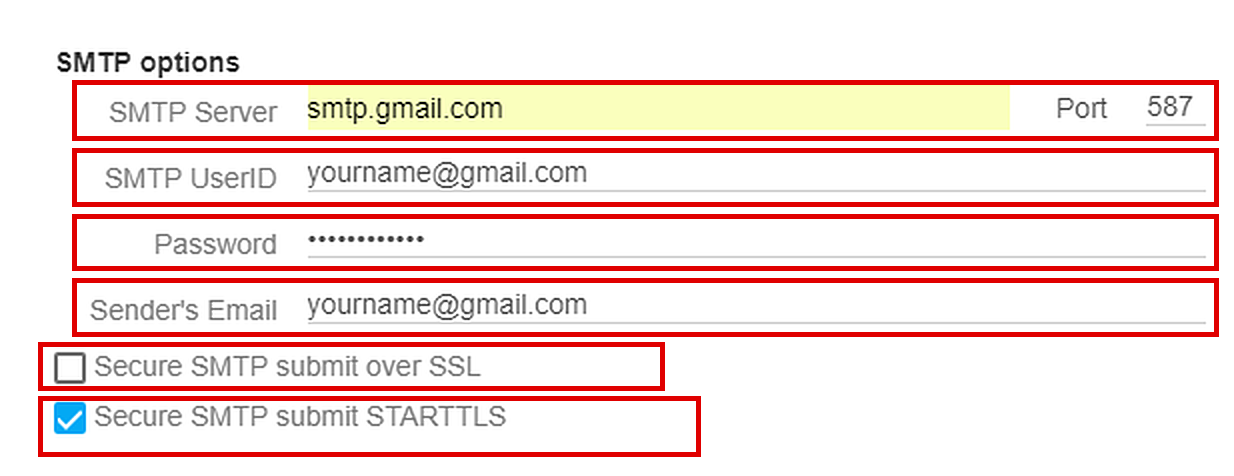
The Connection tab configures proxy settings and SMTP options for email alerts and notifications.
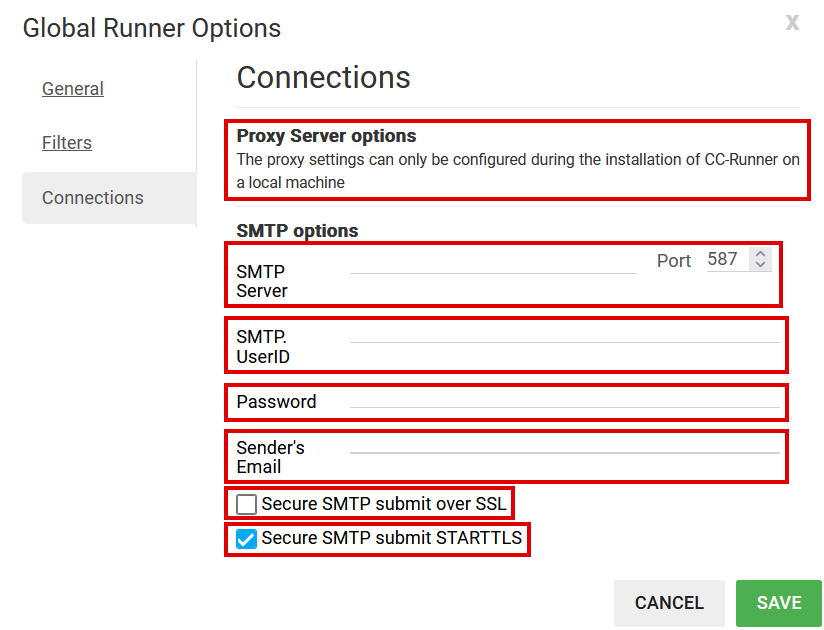
New Scheme: Proxy settings can only be configured when installing CC-Runner on the local machine (Tools > Program Options > Proxy).
Old Scheme only (proxy set in Control Center):
-
Use WinInet proxy (the one used by Internet Explorer) (checked by default)
Uses the same proxy server as Internet Explorer and WinINet. -
Use Custom Proxy Server (unchecked by default)
Uses the proxy server you specify. -
Proxy Server and Port (empty by default)
Host name and port of the proxy server. -
Proxy UserID and Password (empty by default)
If set, these credentials are used for the specified proxy.
SMTP Server (empty by default)
Host name or IP address of the SMTP server used to send email.
SMTP Port (empty by default)
Port on the SMTP server used to send email. Common values:
- SMTP over TLS: 587
- SMTP over SSL: 465
- Unsecured SMTP: 25
SMTP UserID and Password (empty by default)
If your SMTP server requires authentication, enter your credentials here.
Sender's Email (empty by default)
The email address GoodSync uses as the sender.
Secure SMTP submit over SSL (unchecked by default)
If checked, connects to the SMTP server and switches to SSL mode without negotiation. If unchecked, uses plain text.
Secure SMTP submit using STARTTLS (unchecked by default)
If checked, sends STARTTLS to request SSL/TLS and switches if the server agrees. If unchecked, uses plain text.
Example:
- SMTP server: smtp.gmail.com
- SMTP port: 587
- User name: yourname@gmail.com
- Password: yourpassword
- Sender's email: yourname@gmail.com
- Secure SMTP submit using STARTTLS: checked