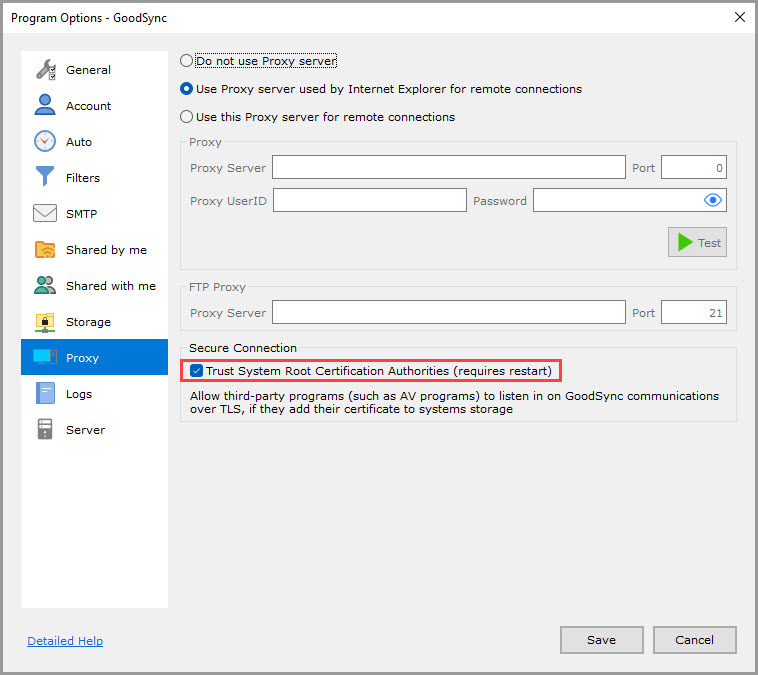
GoodSync can connect through a proxy server. Follow the steps below to configure your proxy options.
GoodSync for Windows
- Open GoodSync.
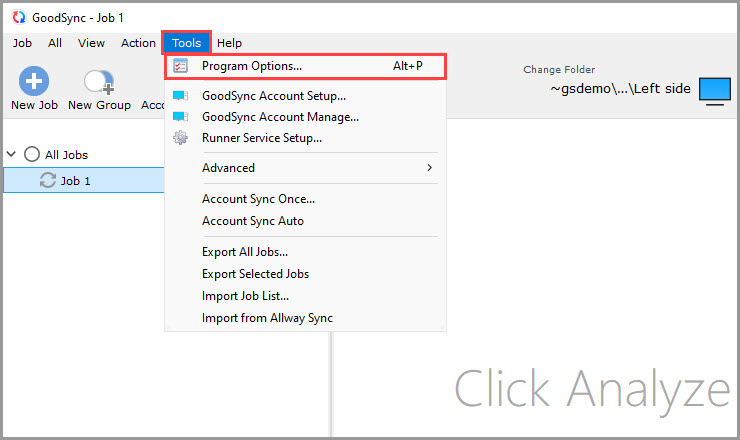
- From the main menu, select Tools > Program Options.
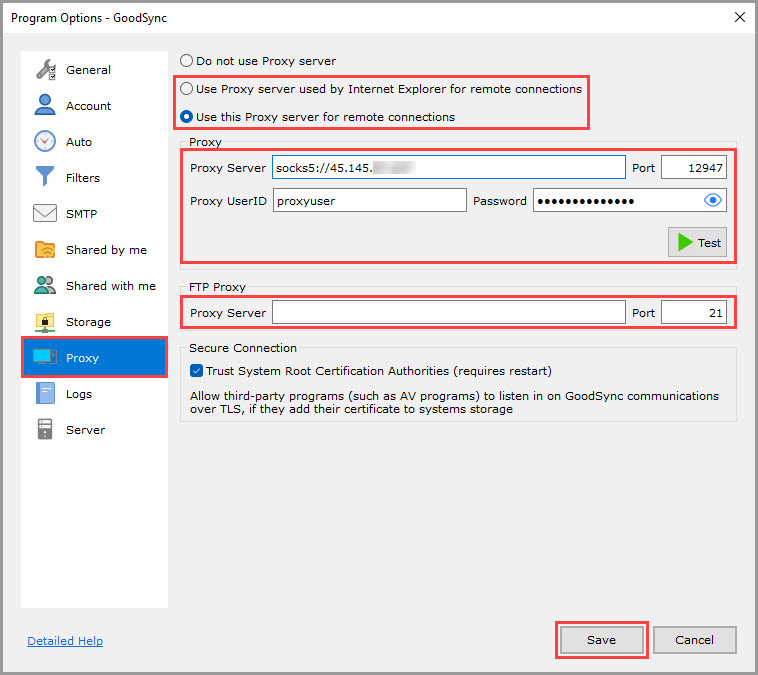
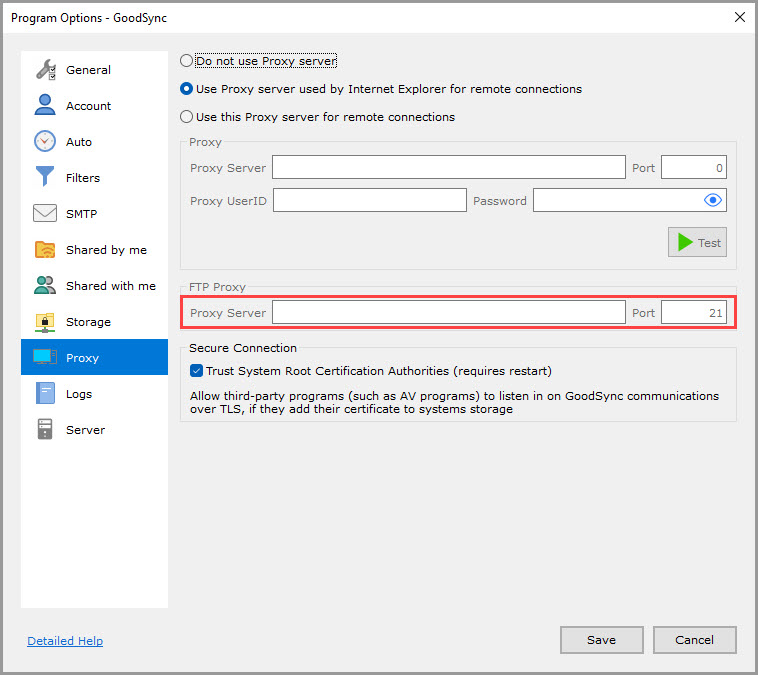
- In the left column, select Proxy.
-
Select a proxy mode:
- Use Proxy server used by Internet Explorer for remote connections uses the Windows system proxy.
- Use this Proxy server for remote connections uses the server, port, User ID and password you enter in the Proxy section.
See Overview of the proxy settings for details on each option.
- Optionally, enter an FTP proxy server and port in the FTP Proxy section.
- Click Test to check the proxy connection.
- Click Save to apply the changes.
GoodSync for Mac
- Open GoodSync.
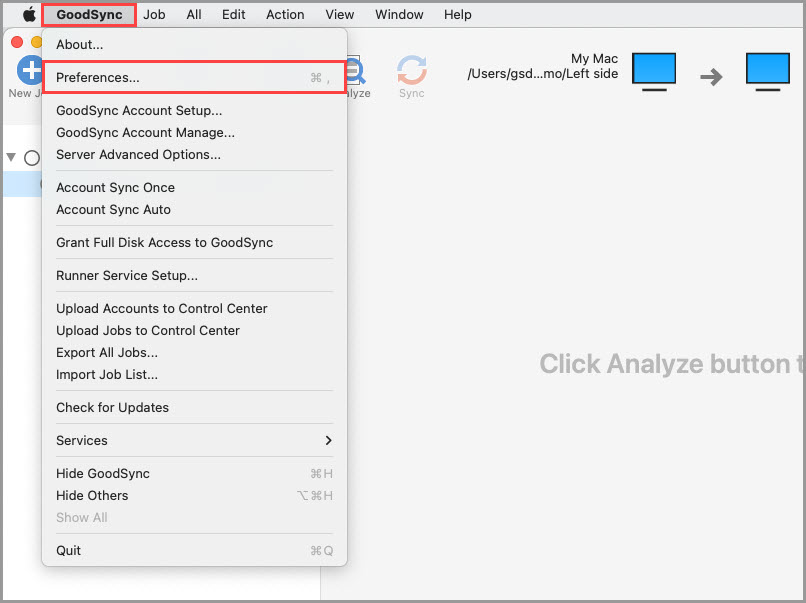
- From the menu bar, select GoodSync > Preferences.
- In the left column, select Proxy.
-
Select a proxy mode:
- Use Proxy server used by Internet Explorer for remote connections uses your Mac's system proxy settings.
- Use this Proxy server for remote connections uses the server, port, User ID and password you enter in the Proxy section.
See Overview of the proxy settings for details on each option.
- Optionally, enter an FTP proxy server and port in the FTP Proxy section.
- Click Test to check the proxy connection.
- Click Save to apply the changes.
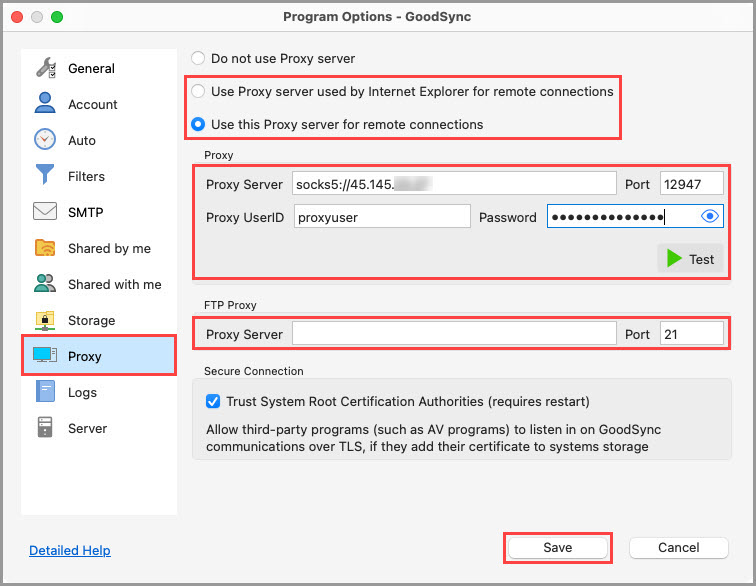
Overview of the proxy settings
These options apply to both GoodSync for Windows and GoodSync for Mac unless noted otherwise.
Proxy mode
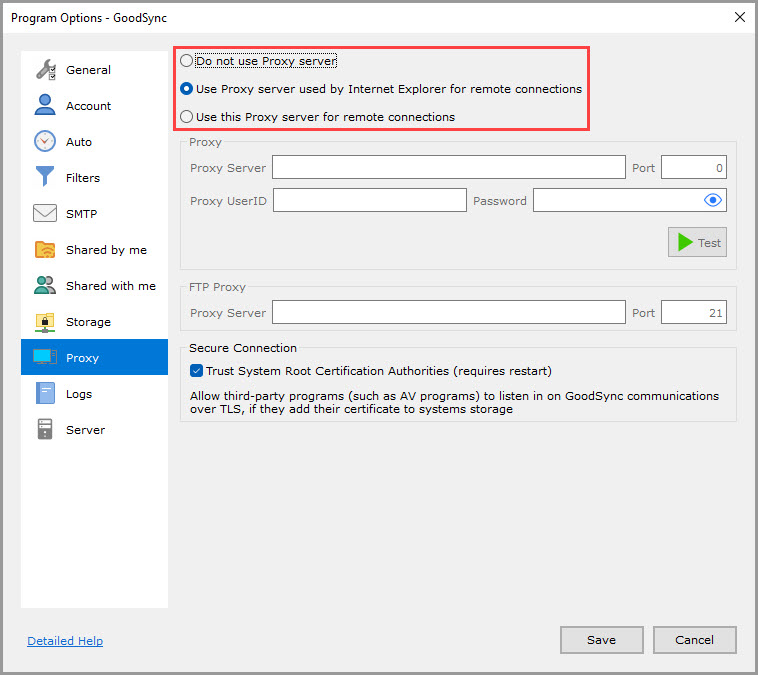
- Do not use Proxy server: GoodSync connects directly, without a proxy.
-
Use Proxy server used by Internet Explorer for remote connections (selected by default): GoodSync uses the system proxy settings.
- Windows: the proxy used by Internet Explorer and WinINET, set in Control Panel > Network and Internet > Internet Options > Connections > LAN settings.
- Mac: the proxy set in System Settings > Network > [your network service] > Details > Proxies.
- Use this Proxy server for remote connections: GoodSync uses the proxy defined in the Proxy section below.
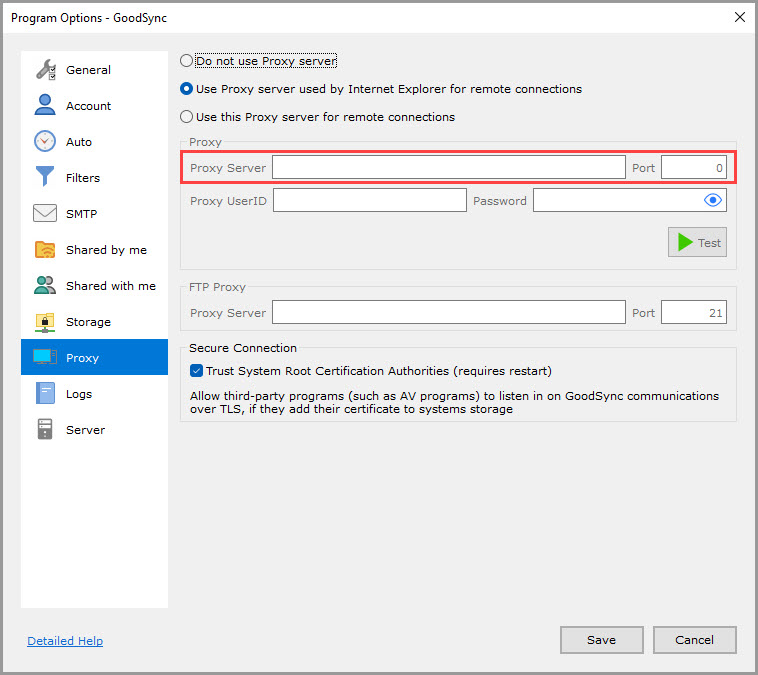
Proxy Server and Port (empty by default)
- Server: the IP address or host name of the proxy server.
- Port: the port on the proxy server.
NOTE: For a SOCKS5 proxy, add socks5:// before the server address, for example socks5://proxy.example.com.
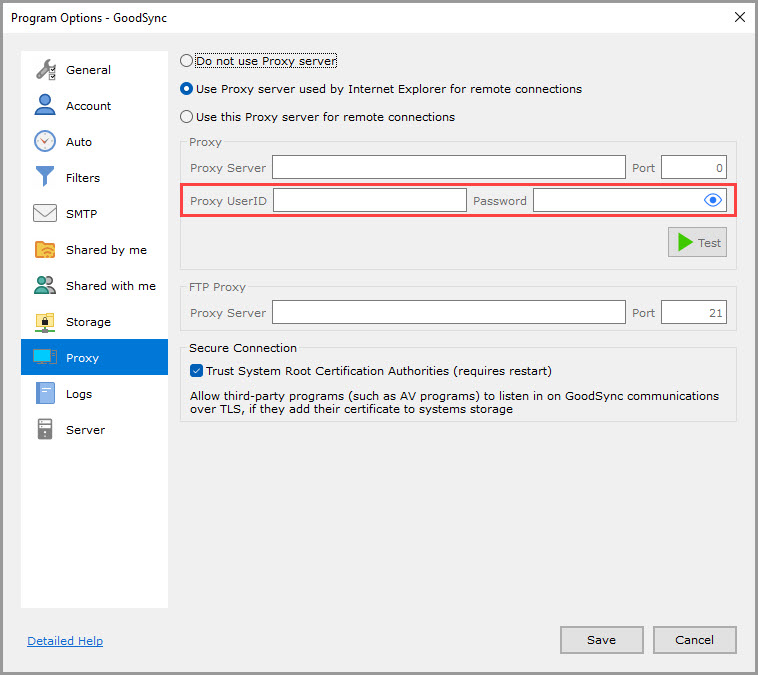
Proxy UserID and Password (empty by default)
If your proxy server requires authentication, enter your credentials here.
FTP Proxy Server and Port (empty by default)
To route FTP connections through a proxy, enter the FTP proxy server address or name and its port here.
Trust System Root Certification Authorities (checked by default)
When checked, GoodSync trusts certificates added to the system certificate store. This lets third-party programs, such as antivirus software, inspect GoodSync's TLS traffic if they add their own certificate to that store.