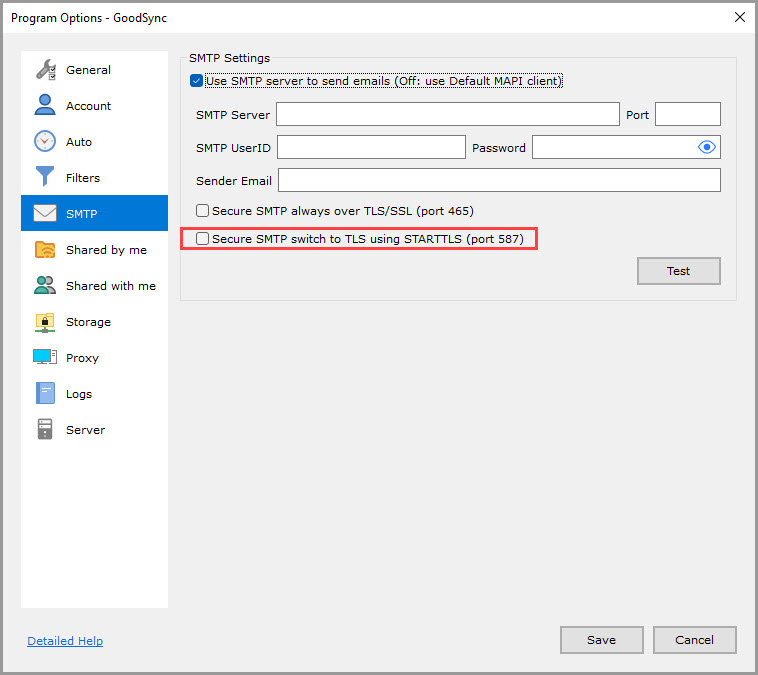
GoodSync can be configured to send email alerts and reports. To do so, you must first configure your SMTP options by following the steps below.
NOTE: For more information on setting up email notifications, click here.
GoodSync for Windows
1) Open the GoodSync application.
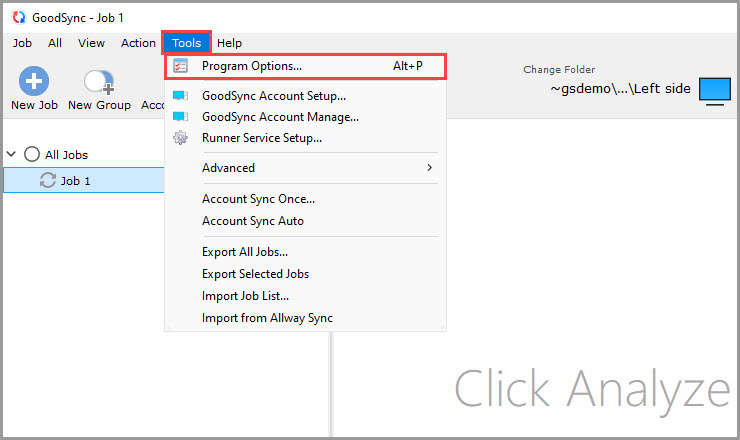
2) Select "Tools" >> "Program Options…" from the main menu.
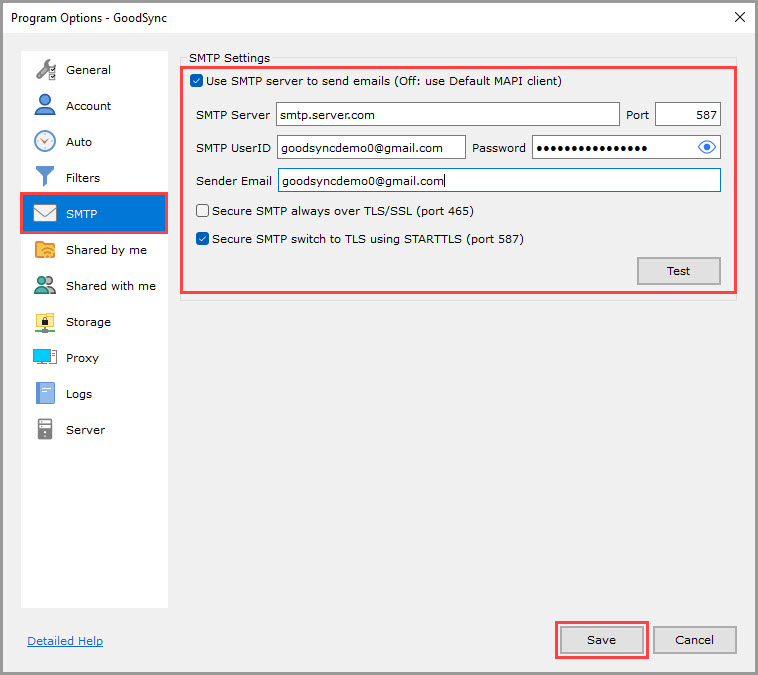
3) Select "SMTP" from the column on the left.
4) On the "SMTP" page, specify your SMTP server address and port, User ID and Password, Sender Email, and authentication method.
NOTE: An overview of the SMTP settings can be found below.
After specifying the settings, you may wish to test the sending of emails by clicking the "Test" button.
Finally, click "Save" to apply the changes.
GoodSync for Mac
1) Open the GoodSync application.
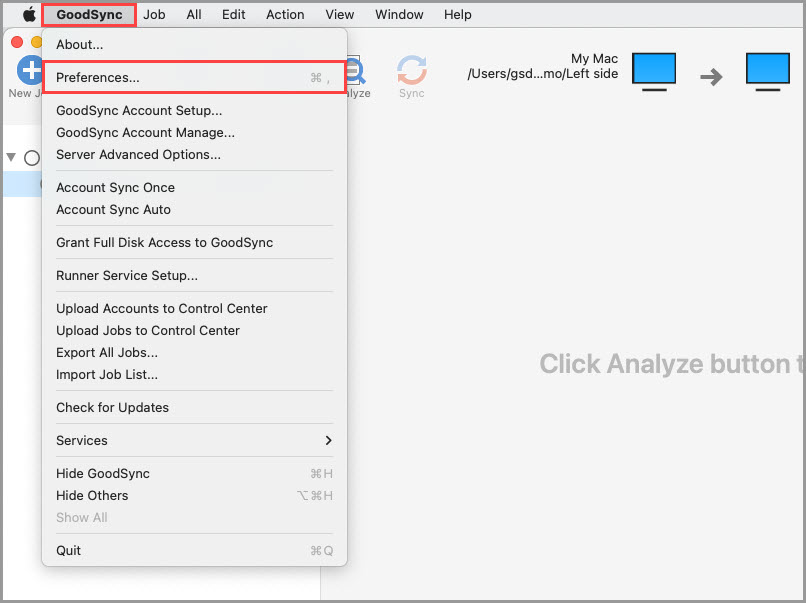
2) Select "GoodSync" >> "Preferences…" from the Menu Bar.
3) Select "SMTP" from the column on the left.
4) On the "SMTP" page, specify your SMTP server address and port, User ID and Password, Sender Email, and authentication method.
NOTE: An overview of the SMTP settings can be found below.
After specifying the settings, you may wish to test the sending of emails by clicking the "Test" button.
Finally, click "Save" to apply the changes.
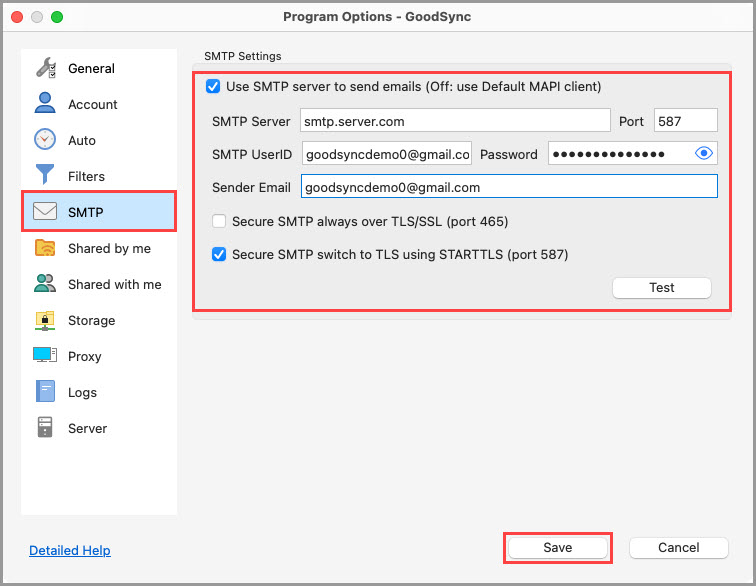
Overview of the SMTP settings
The following settings apply to both GoodSync for Windows and GoodSync for Mac unless noted otherwise.
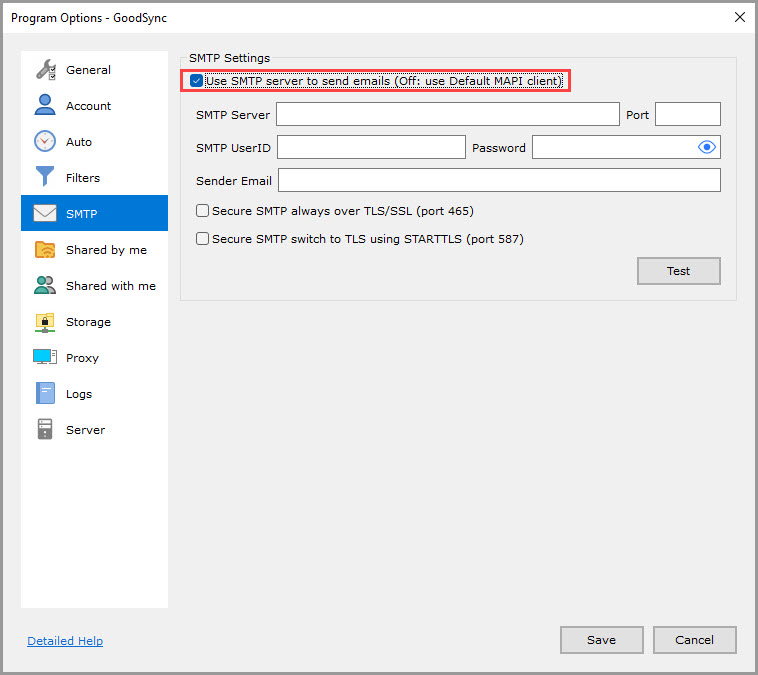
Use SMTP server to send emails (checked by default)
If this option is checked, GoodSync will use the SMTP server specified below.
If this option is unchecked, GoodSync will use the default MAPI client of your computer to send these emails.
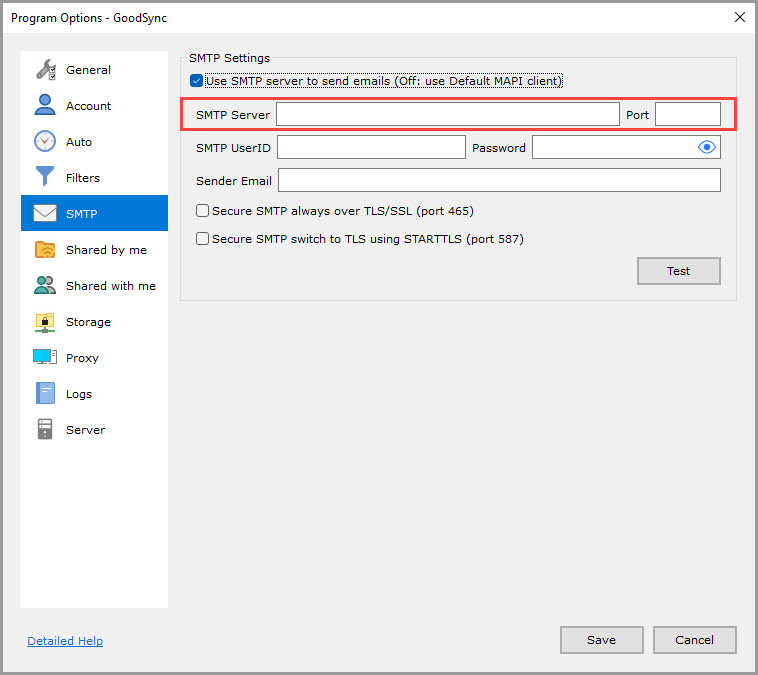
SMTP Server and Port (empty by default)
Server: The IP address or name of the SMTP server used to send emails.
Port: The port on the SMTP server used to send emails.
Default port values:
- SMTP over TLS - 587
- SMTP over SSL - 465
- Unsecured SMTP -25
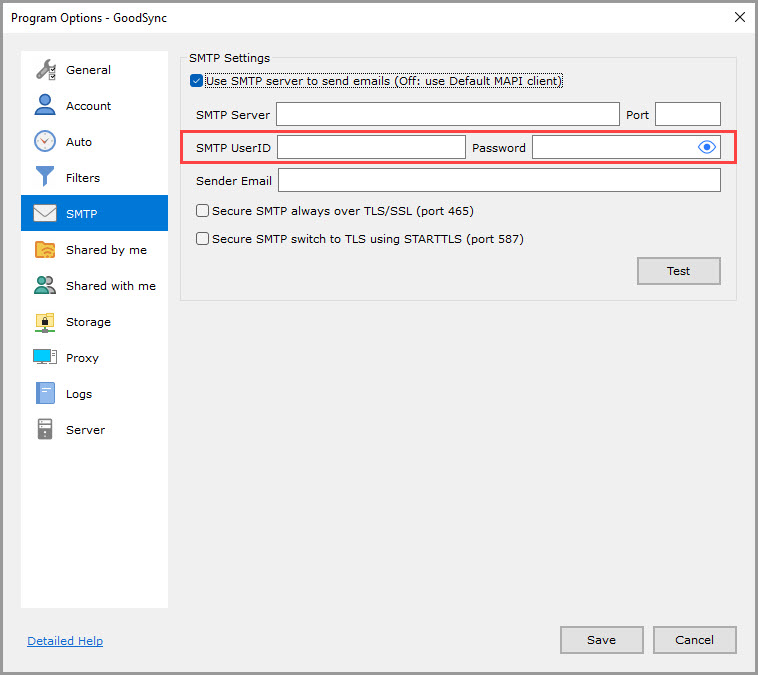
SMTP UserID and Password (empty by default)
If your SMTP server requires authentication, specify your credentials here.
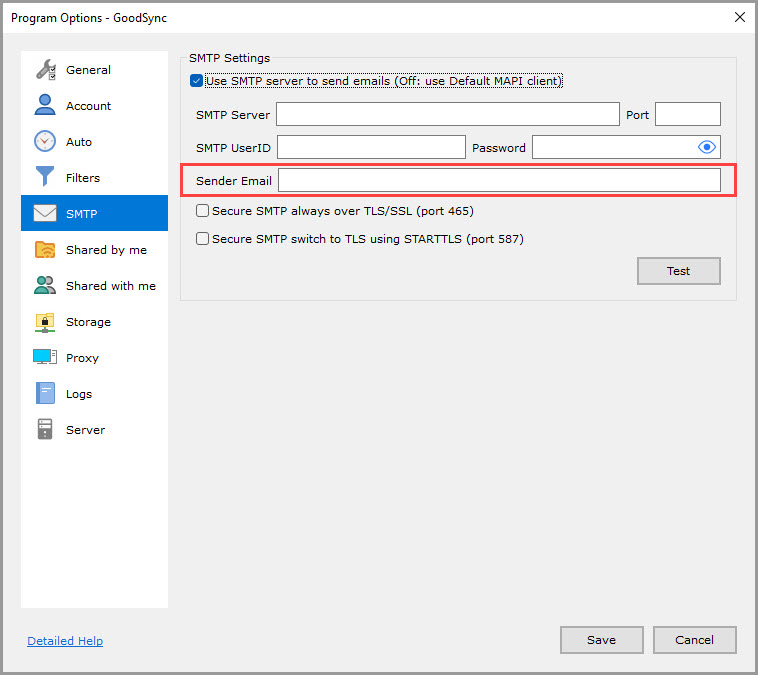
Sender Email (empty by default)
E-mail address of the sender that GoodSync will use when sending an email.
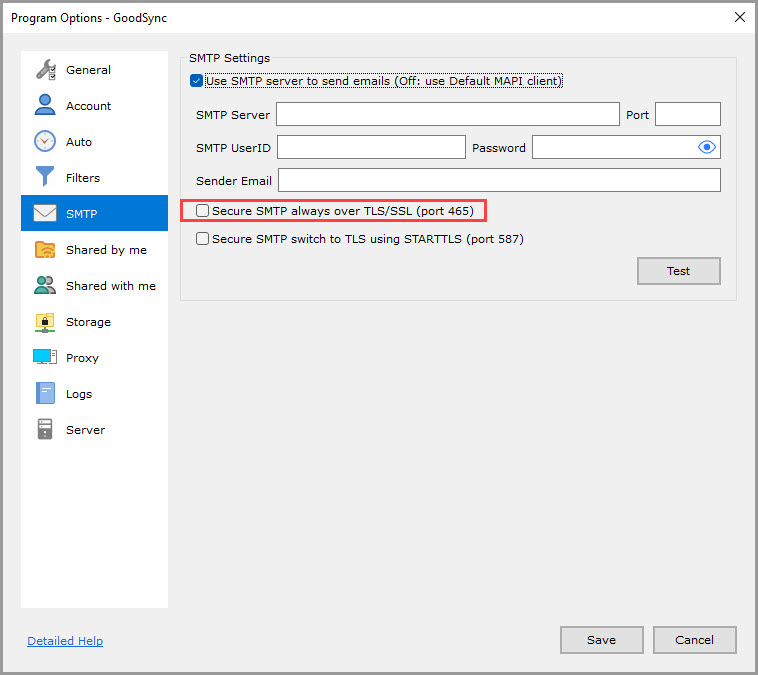
Secure SMTP always over TLS/SSL (port 465) (unchecked by default)
If this option is checked, GoodSync will connect to the SMTP server and switch to Secure SSL mode without negotiation.
If this option is unchecked, GoodSync will use plain text communication.
Secure SMTP switch to TLS using STARTTLS (port 587) (unchecked by default)
If this option is checked, GoodSync will issue STARTTLS to request a switch to Secure SSL mode, then switch to SSL/TLS mode if the server agrees.
If this option is unchecked, GoodSync will use plain text communication.