- What is block-level delta copy?
- How block-level delta copy works
- Benefits
- How to use block-level delta copy with GoodSync
What is block-level delta copy?
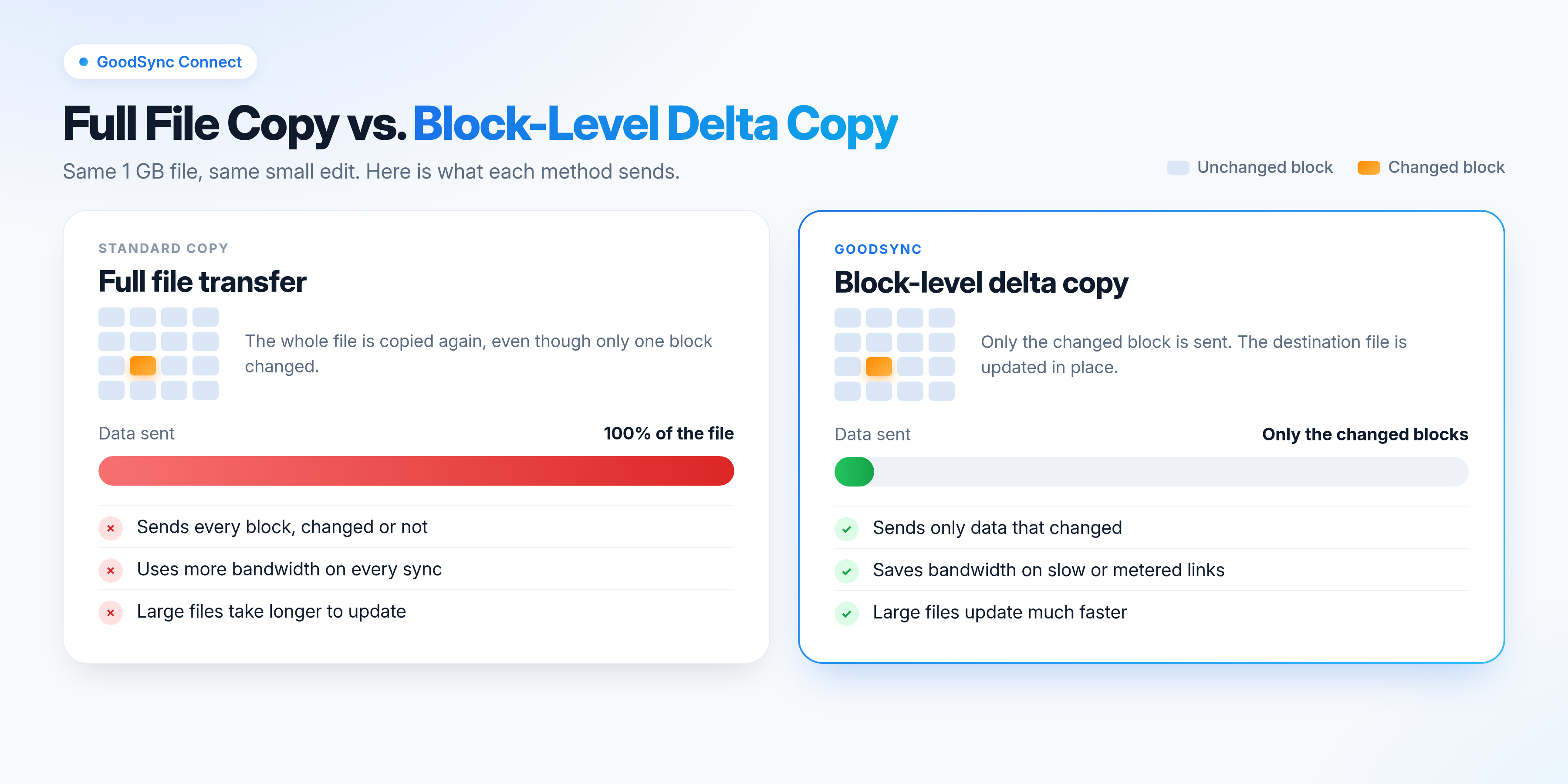
Block-level delta copy is an optimized transfer method that sends only the parts of a file that have changed, instead of copying the entire file again. It works over GoodSync Connect.
GoodSync Connect connects two computers directly, peer to peer, without storing files on intermediate servers. This speeds up transfers and keeps your files private because they are never stored on third-party servers.
How block-level delta copy works
- GoodSync detects that a file has changed since the last sync.
- It compares the binary data in the source file with the destination copy to find exactly which parts are different.
- Only those changed parts are sent over GoodSync Connect.
- The destination file is updated with the changed data, so both copies match.
A normal file transfer sends the whole file again, even when only a small part of it changed.
Benefits
- Faster syncs: Less data to send means updated files reach the other device sooner.
- Lower bandwidth use: Only changed data crosses the network, which helps on slower or metered connections.
- Ideal for large files: Large files that change a little at a time, such as databases, virtual machine images, mailbox files, and large documents, sync without being copied in full each time.
- Private, direct transfers: Data moves directly between your devices and is not stored on third-party servers.
- Automatic: No setting to turn on. Block-level delta copy is used whenever the conditions below are met.
How to use block-level delta copy with GoodSync
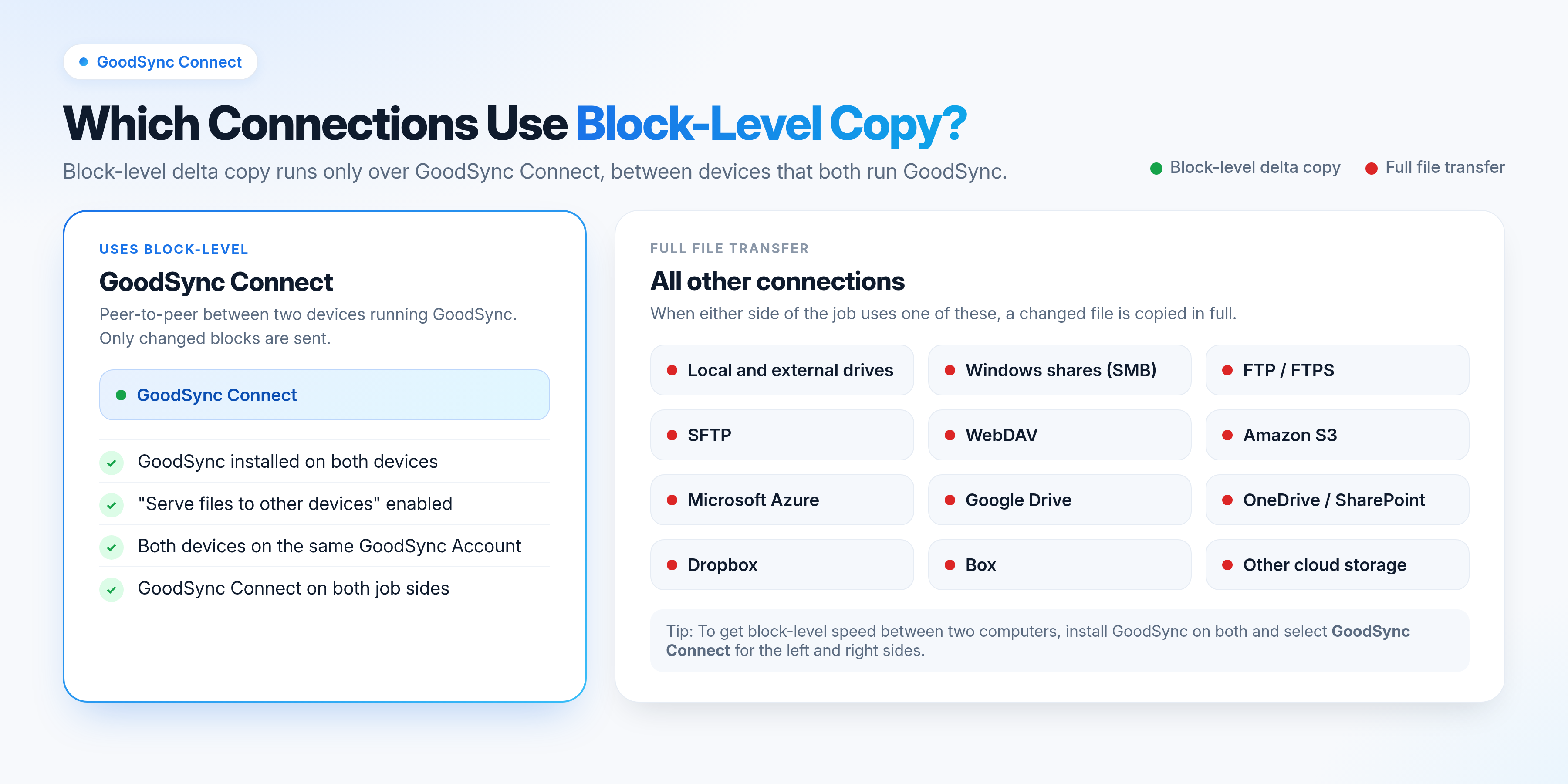
Block-level delta copy works on backup and sync jobs between two devices that both have GoodSync installed, for example two laptops. It is not available for jobs between a computer and a cloud storage service.
There is no setting to enable it. Any backup or sync job that meets all four conditions below uses block-level delta copy automatically:
- GoodSync is installed on both devices.
- Both devices have Serve files to other devices enabled.
- Both devices are registered with the same GoodSync Account.
- The job uses GoodSync Connect on both the left and right sides.
Enable "Serve files to other devices"
If you didn't select this option during account setup, turn it on as follows.
Windows
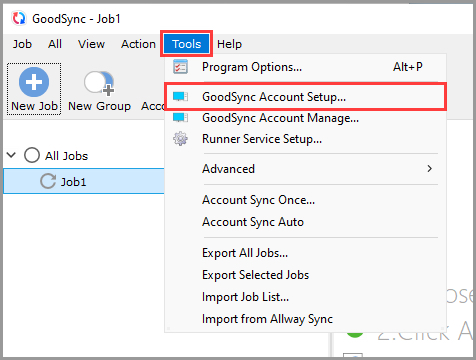
- Go to Tools > GoodSync Account Setup.
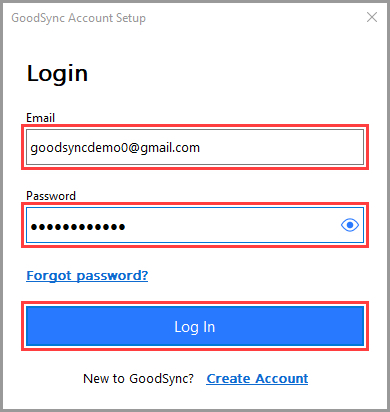
- Enter your login credentials, then click Log In.
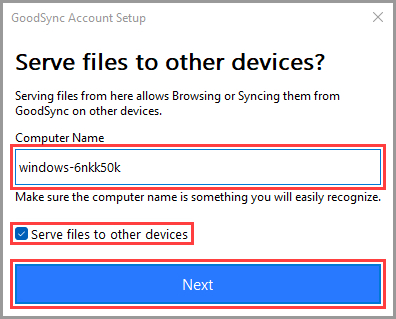
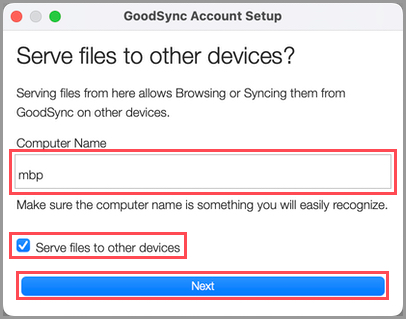
- Name your device, select Serve files to other devices, then click Next.
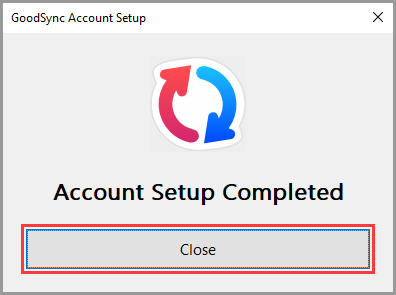
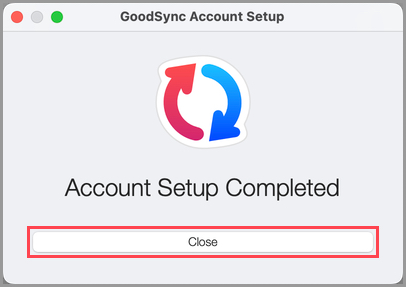
- When GoodSync confirms that Account Setup is complete, click Close.
macOS
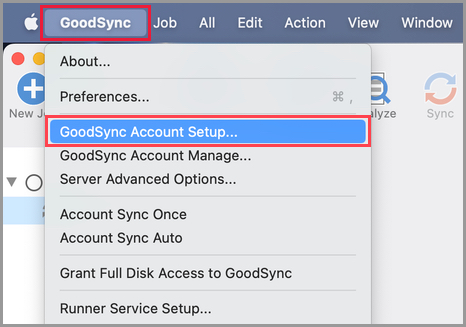
- Go to GoodSync > GoodSync Account Setup.
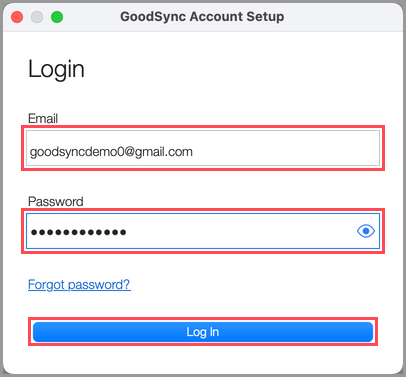
- Enter your login credentials, then click Log In.
- Name your device, select Serve files to other devices, then click Next.
- When GoodSync confirms that Account Setup is complete, click Close.
Set up the job with GoodSync Connect
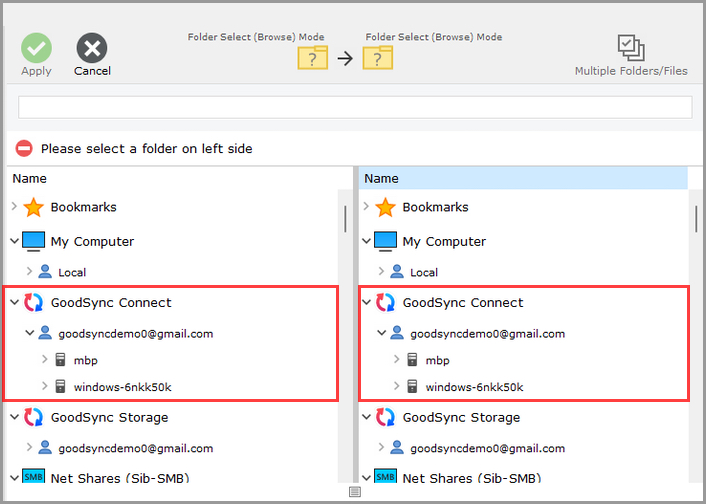
- In the job's left and right browse menus, select GoodSync Connect. If conditions 1–3 are met, your account email appears.
- Click your account email to see the devices registered to your account.
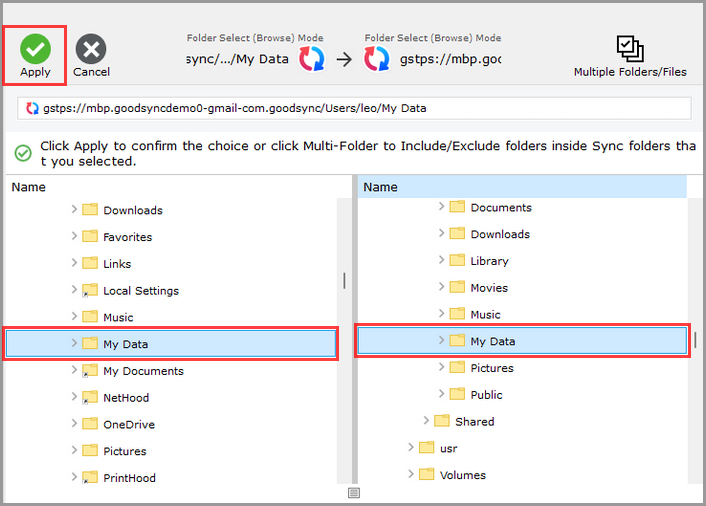
- Select the folders for the left and right sides, then click Apply in the upper left.
Your job is now ready to Analyze and Sync. Block-level delta copy is used automatically for changed files.
Note: For more about GoodSync Connect, see the GoodSync Connect manual.