Export your GoodSync jobs to a file, then import that file on another device to copy your jobs and job settings.
Before you start: Install GoodSync on the new device, and save the export file somewhere you can reach from it, such as a USB drive, network share, or cloud folder.
Export Jobs
Windows
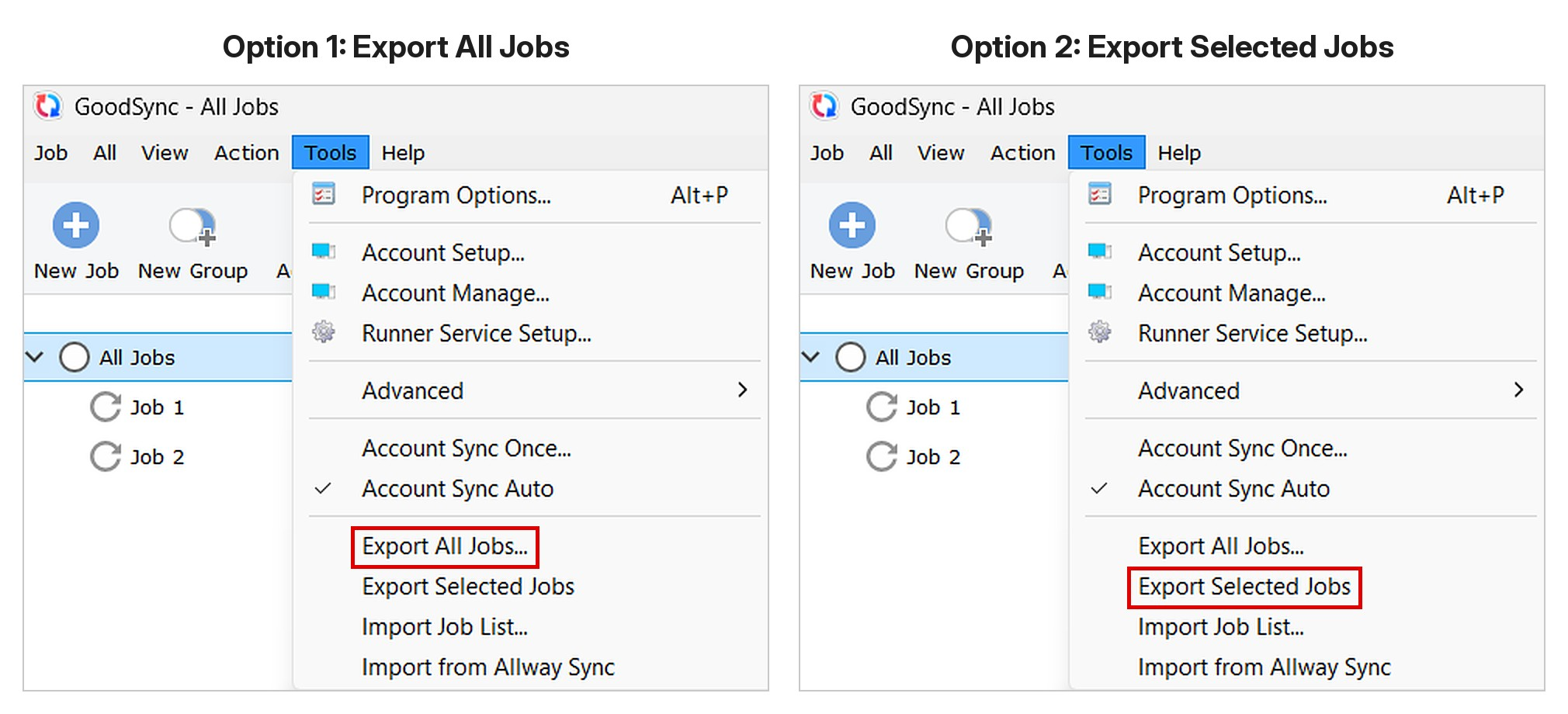
- Open GoodSync. To export only some jobs, select them in the job list first.
- Go to Tools > Export All Jobs, or Tools > Export Selected Jobs.
- Choose a location, enter a file name, then click Save.
macOS
- Open GoodSync.
- Go to GoodSync > Export All Jobs.
- Choose a location, enter a file name, then click Save.
Import Jobs
Windows
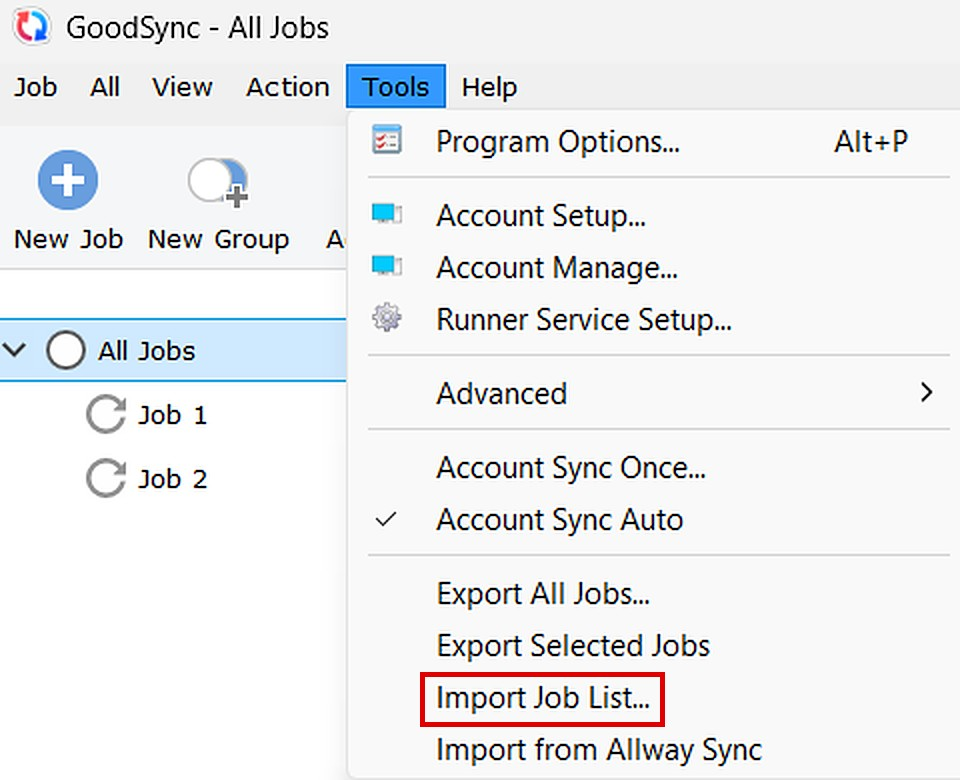
- Go to Tools > Import Job List.
- Select the exported jobs file .tix, then click Open.
- Click OK when the import finishes.
macOS
- Go to GoodSync > Import Job List.
- Select the exported jobs file .tix then click Open.
- Click OK when the import finishes.
Verify the Import
Confirm the imported jobs appear in the job list.
Click Analyze on each job before running Sync to make sure the folder paths are valid on the new device.
Note: Confirm whether saved passwords and server logins carry over.