GoodSync offers the Account Sync feature, allowing you to back up your Jobs, Groups, Program Options, and Server Accounts to your GoodSync Account. The backups are stored in encrypted form and may be synchronized across all devices connected to the Account, eliminating the need to configure them individually on each device. Additionally, Account Sync enables you to restore your GoodSync configuration in case of settings file corruption or computer failure.
To transfer your Jobs, Groups, and Program Options to another computer, follow these steps:
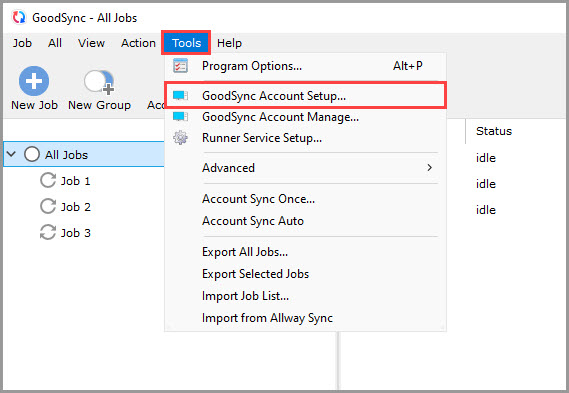
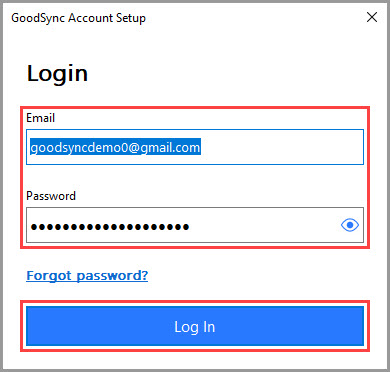
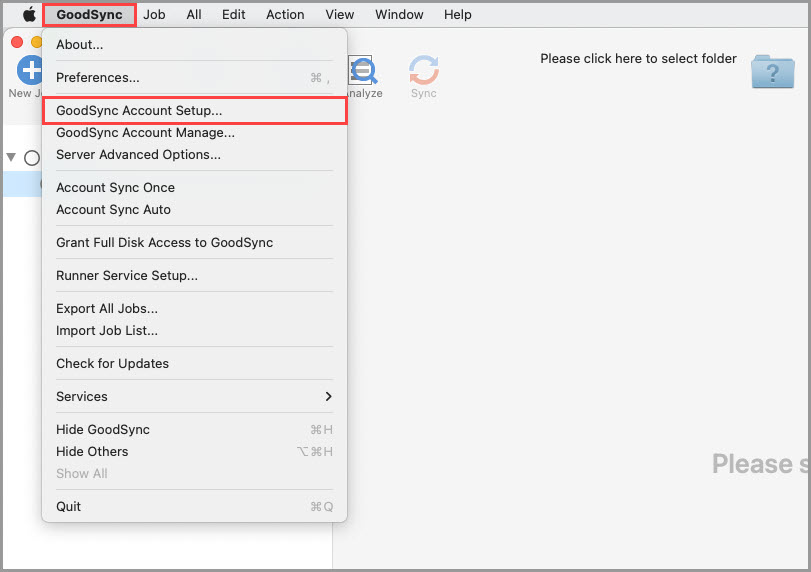
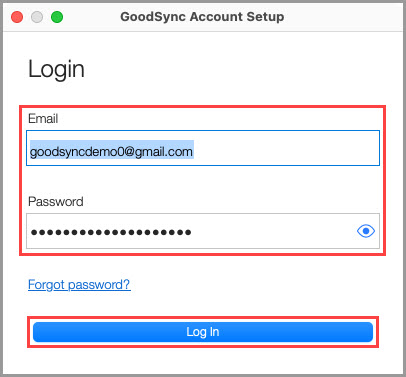
1) On the first computer, open GoodSync and log in with your GoodSync Account by navigating to "Tools" >> "GoodSync Account Setup" ("GoodSync" >> "GoodSync Account Setup" on Mac).
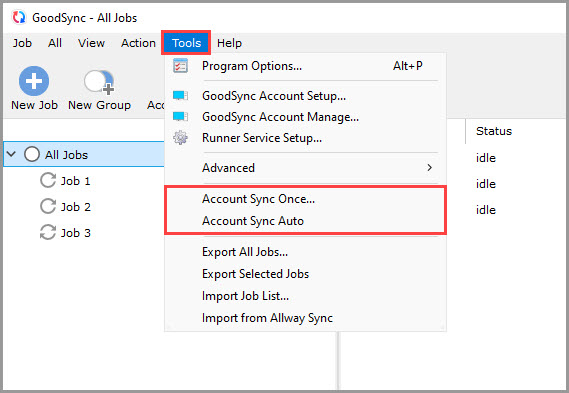
2) Once GoodSync Account Setup is completed, click the "Tools" menu ("GoodSync" menu on Mac) and select "Account Sync Once" or "Account Sync Auto." The latter option enables automatic sync of your Jobs, Groups, Program Options, and Server Accounts with your GoodSync Account whenever any changes occur.
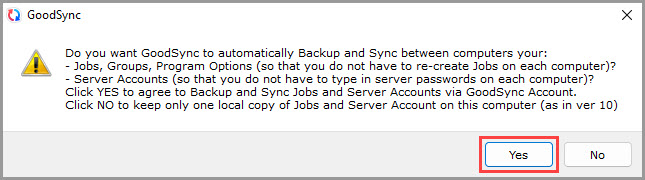
3) If in the previous step, you selected "Account Sync Auto," GoodSync will present you with a prompt window. Click "Yes" to initiate automatic Account Sync.
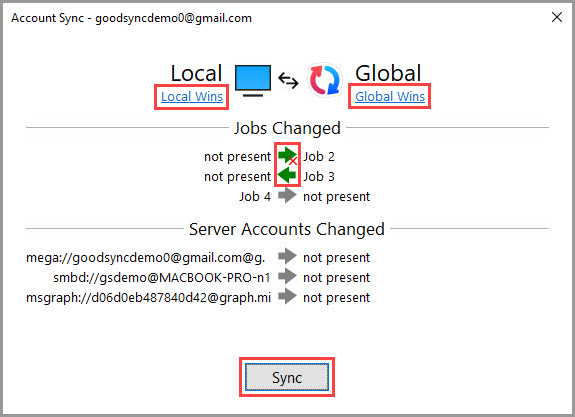
If you opted for "Account Sync Once," a window will appear, displaying a list of changes, if any. You can adjust the direction for all items simultaneously by clicking "Local Wins" or "Global Wins," or for individual items by clicking the corresponding green arrows in the middle column. After you have reviewed the changes, click the "Sync" button to initiate Account Sync.
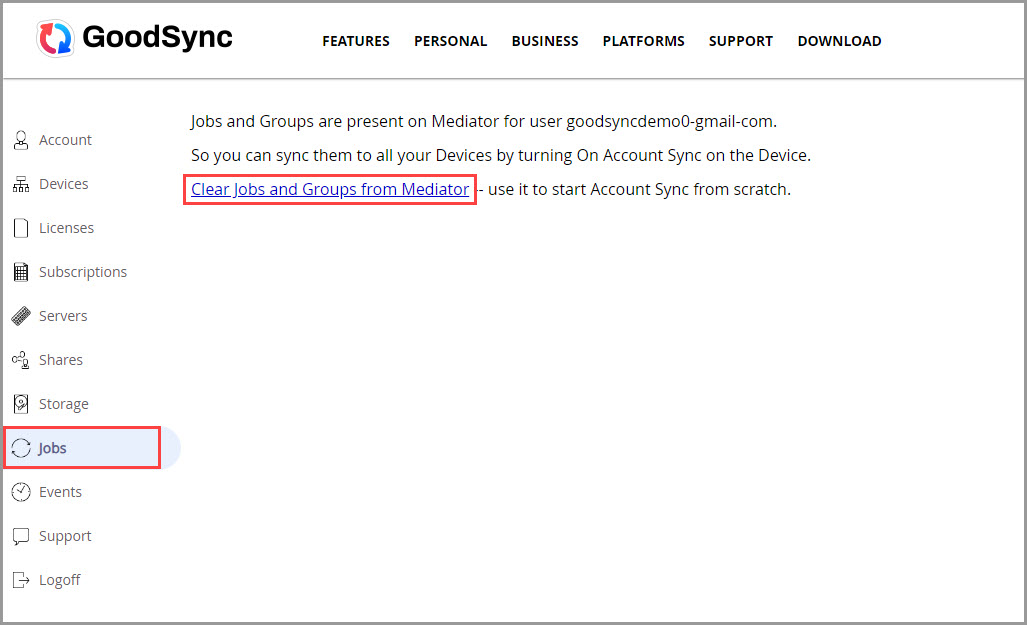
NOTE: If you have previously synced items in your GoodSync Account and wish to remove them, you can do so by logging into your Account, going to the "Jobs" section, and clicking "Clear Jobs and Groups from Mediator."
4) On your second computer, open GoodSync and verify you are logged in with the same GoodSync Account you used in Step 1 by navigating to "Tools" >> "GoodSync Account Setup" ("GoodSync" >> "GoodSync Account Setup" on Mac).
5) Repeat Steps 2 and 3 on the second computer to transfer your Jobs, Groups, Program Options, and Server Accounts to it.