This tutorial focuses on configuring Jobs to run in Unattended mode within the GoodSync application. Unattended mode enables GoodSync to execute scheduled Jobs, even when the user is logged off.
GoodSync for Windows
Step 1: Set up the Runner Service
1) Open the GoodSync application.
2) Select "Tools" > "Runner Service Setup…" from the main menu.
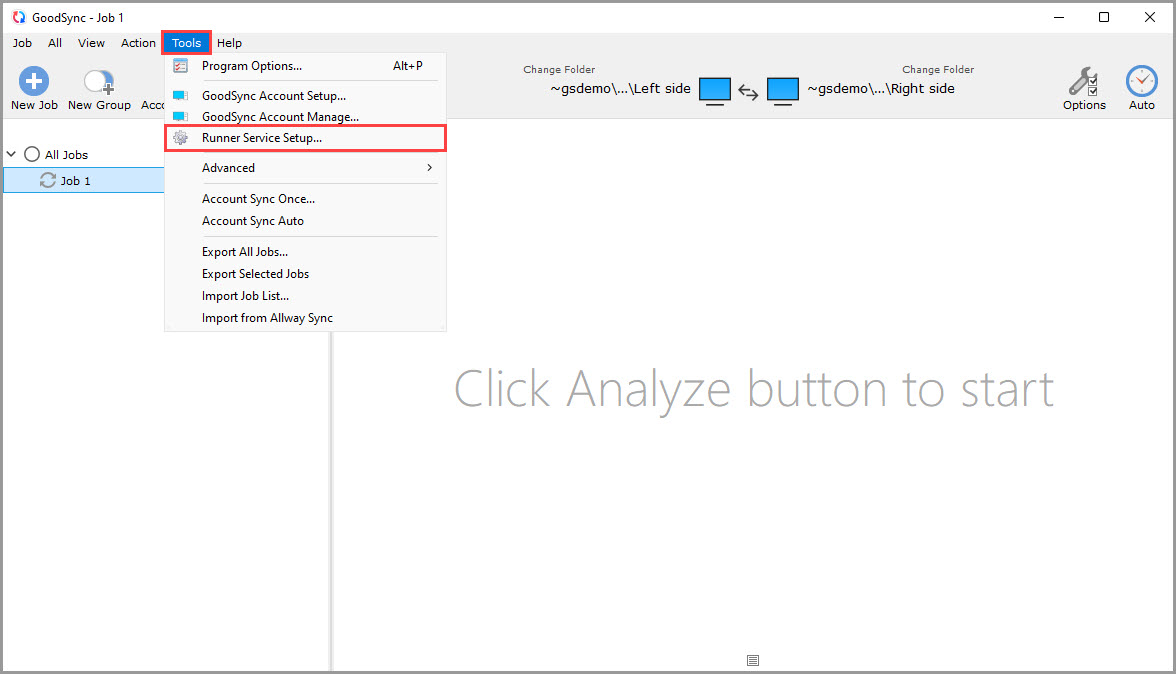
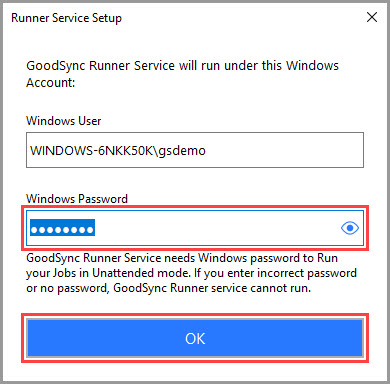
3) Within the dialog window that appears, enter the password for the currently logged-in user and click "OK."
NOTE: Configure the Runner Service to operate under the same account that initially created the GoodSync Jobs.
4) GoodSync will confirm that the Runner Service has been configured. The window will close after the setup is complete.
Step 2: Enable Unattended mode
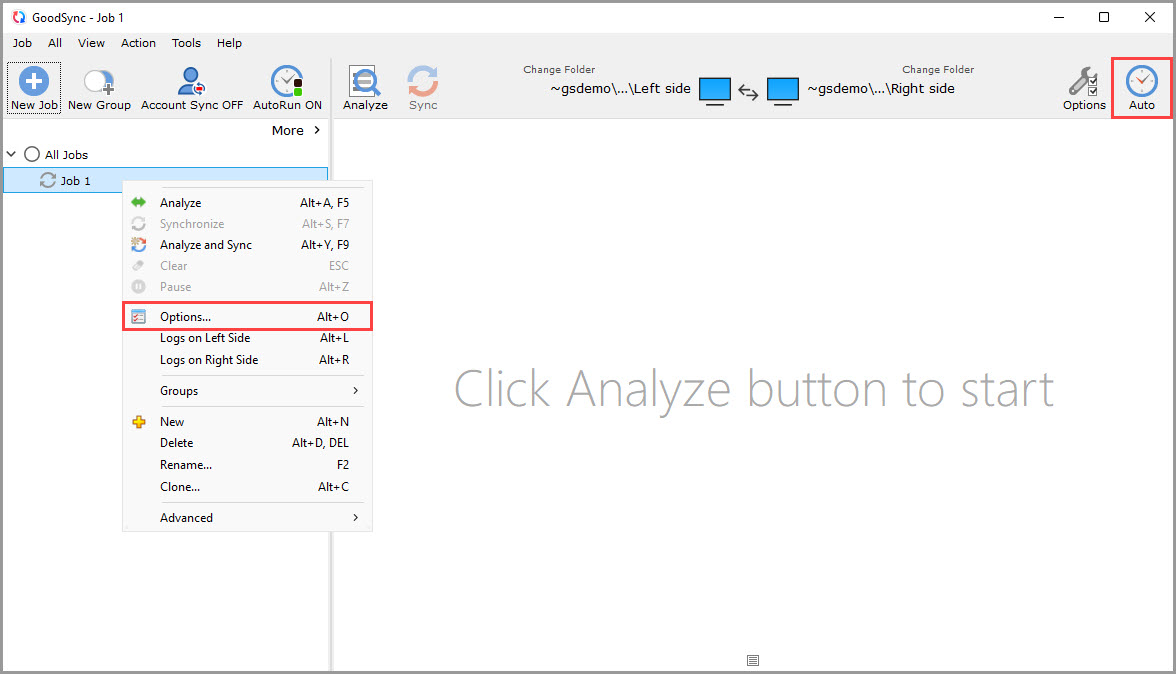
1) Select the Job you would like to run in Unattended mode and click the "Auto" button in the upper right-hand corner, or right-click the Job, select "Options," and switch to the "Auto" tab.
2) Check the box next to "Run without User Interface (Unattended)" and then click "Save" to save your changes.
NOTE: You must configure this for each Job you would like to run in Unattended mode.
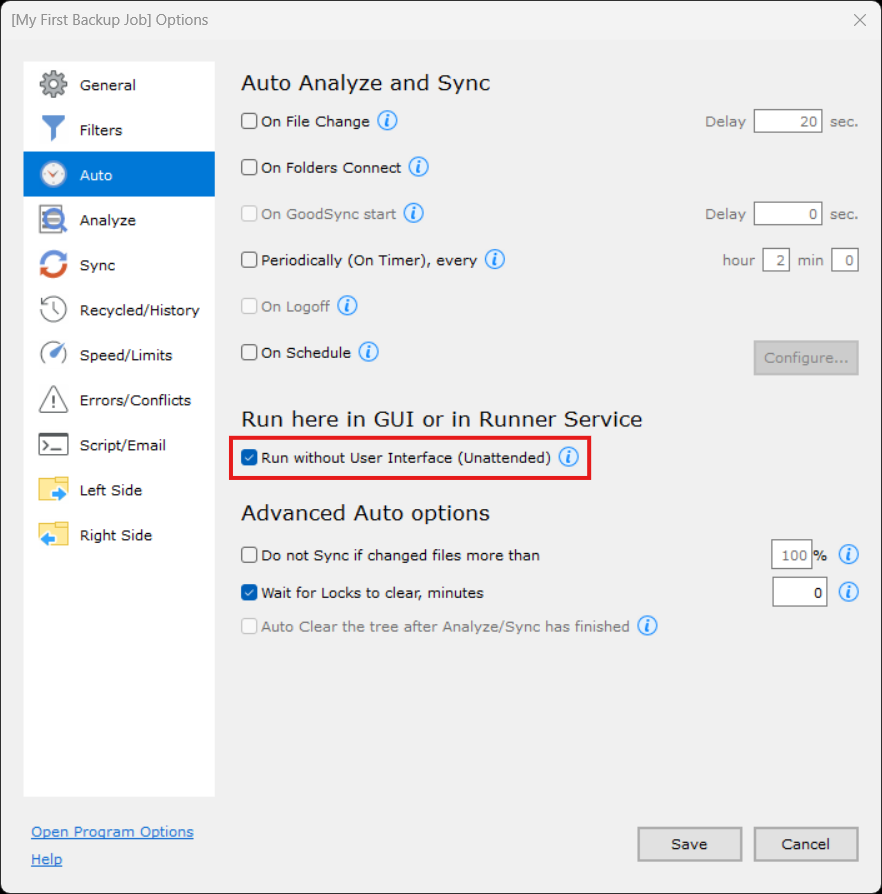
You have now configured Unattended mode for these GoodSync Jobs. GoodSync will no longer require a user to be logged in for the particular scheduled Jobs you have configured.
NOTE: For more information about running a Job automatically, click here.
GoodSync for Mac
Step 1: Set up the Runner Service
1) Open the GoodSync application.
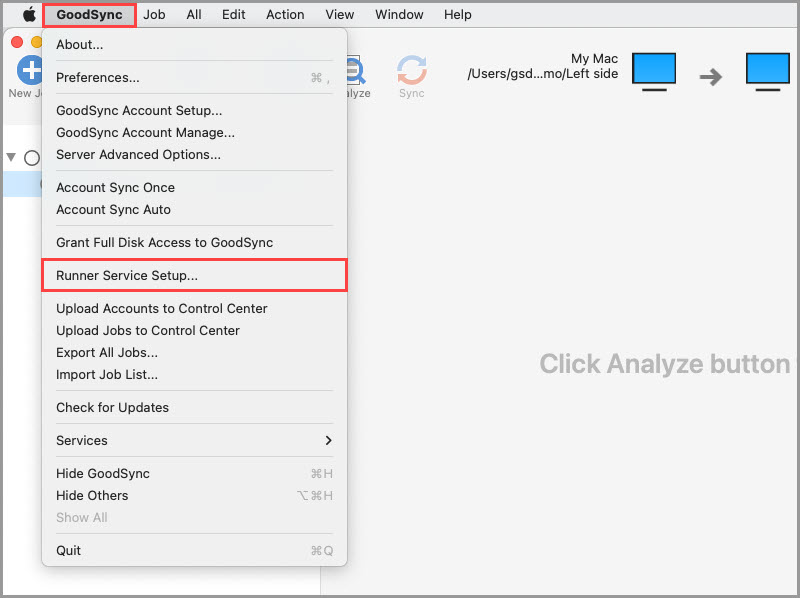
2) Select "GoodSync" > "Runner Service Setup…" from the Menu Bar.
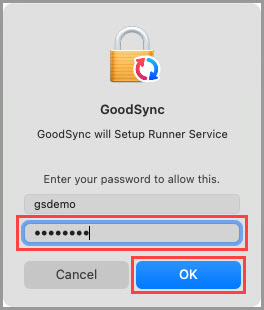
3) Within the dialog window that appears, enter the password for the currently logged-in user and click "OK."
NOTE: Configure the Runner Service to operate under the same account that initially created the GoodSync Jobs.
4) GoodSync will confirm that the Runner Service has been configured. The window will close after the setup is complete.
Step 2: Enable Unattended mode
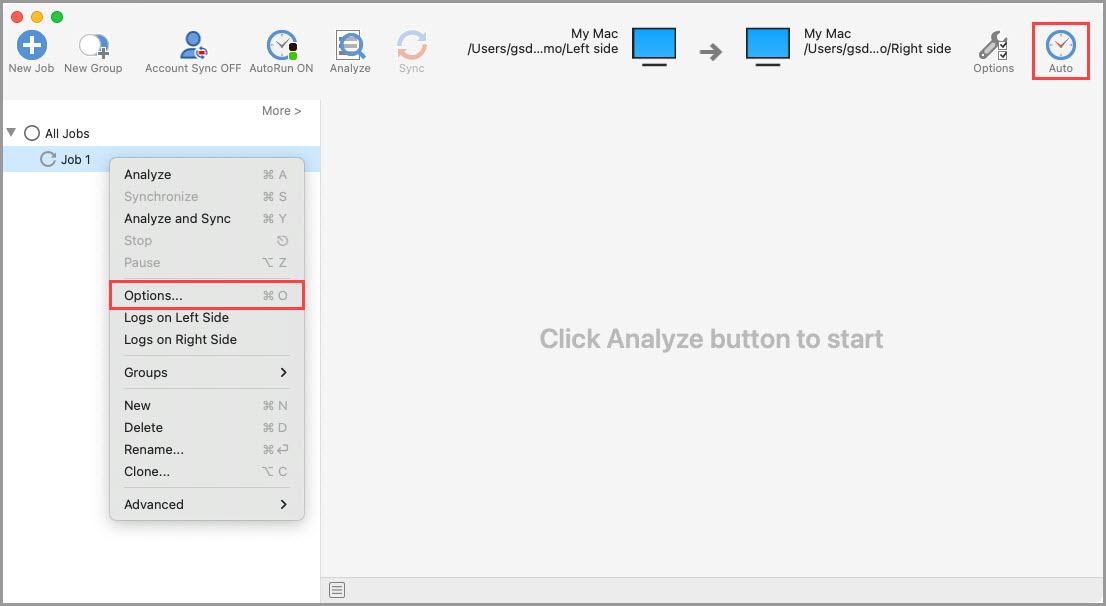
1) Select the Job you would like to run in Unattended mode and click the "Auto" button in the upper right-hand corner, or right-click the Job, select "Options," and switch to the "Auto" tab.
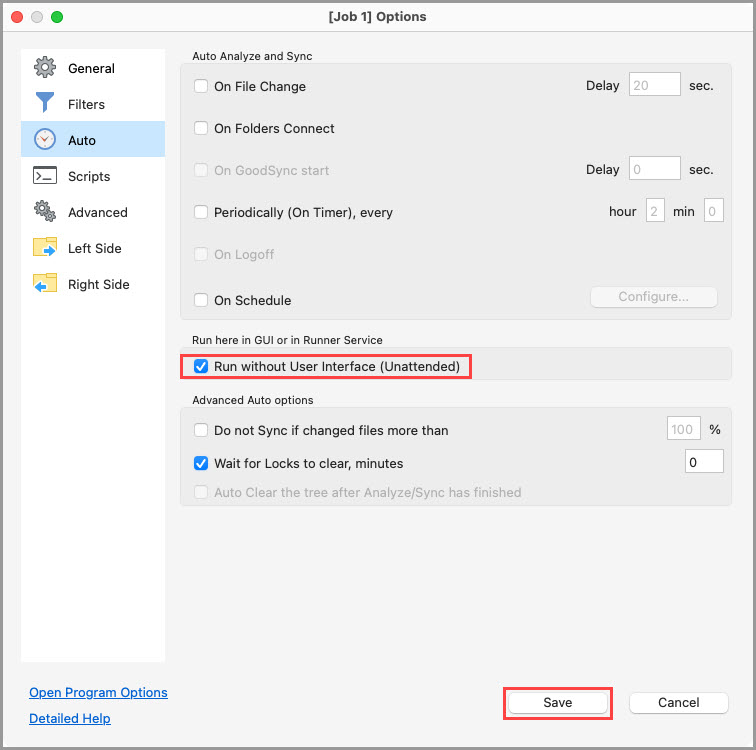
2) Check the box next to "Run without User Interface (Unattended)" and then click "Save" to save your changes.
NOTE: You must configure this for each Job you would like to run in Unattended mode.
You have now configured Unattended mode for these GoodSync Jobs. GoodSync will no longer require a user to be logged in for the particular scheduled Jobs you have configured.
NOTE: For more information about running a Job automatically, click here.