- Symbolic links and Junctions
- Detect File and Folder Moves and Renames
- Use Recursive ListDir where available
- Estimate disk space required for Sync
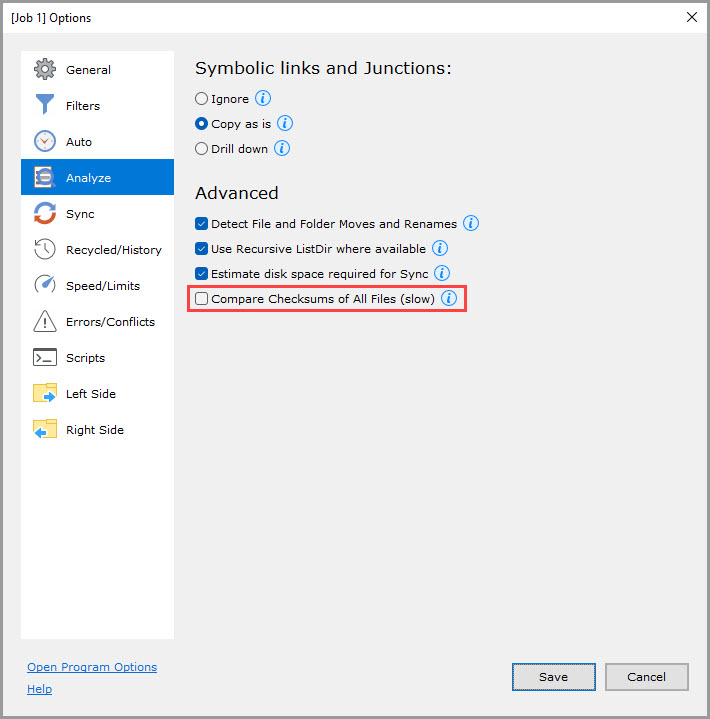
- Compare Checksums of All Files
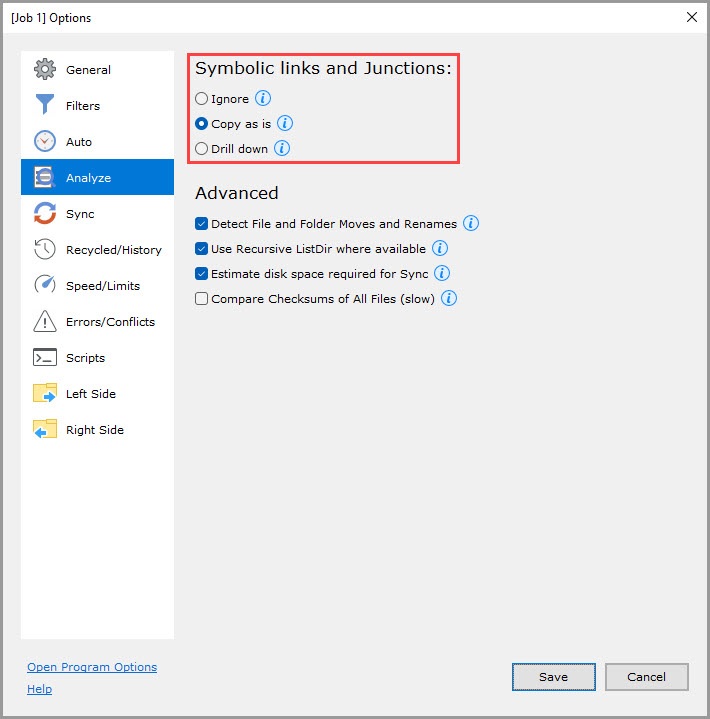
Symbolic links and Junctions
This option determines how symbolic links to files and folders are processed.
Possible values:
- Ignore: Symlinks are ignored and not copied in any way.
- Copy as is (default): Symlink to file/folder is copied as the same symlink in the destination folder.
- Drill down: The target file/folder of the symbolic link is copied to the destination folder.
Platform compatibility:
Windows: A symbolic link itself knows whether it is to a file or folder.
*nix/Mac: A symbolic link does not know whether it is to a file or folder, so drilling to the target is required to find out.
Advanced
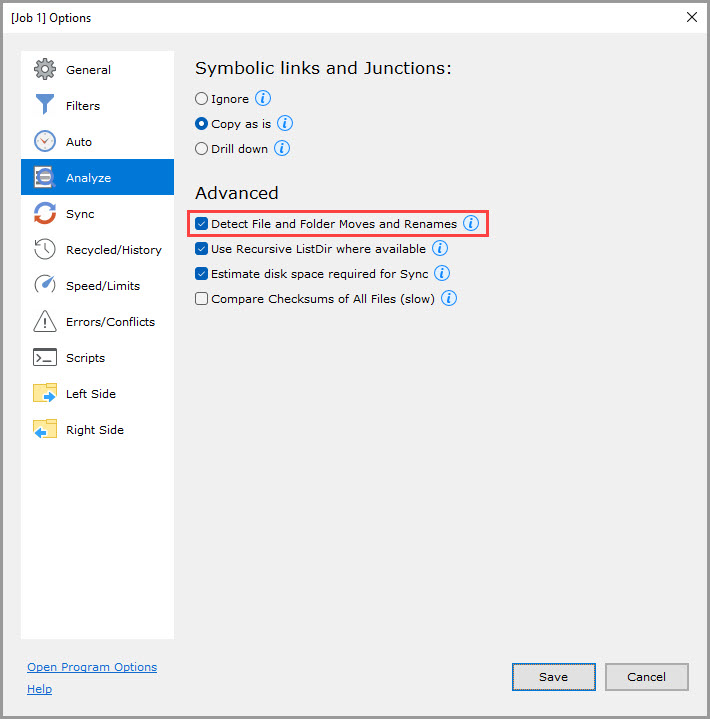
Detect File and Folder Moves and Renames (checked by default)
If checked, detect file and folder move or rename and execute them as such, not as a deletion and recreation.
Folder moves are detected when all files inside a folder are moved to the same destination folder.
NOTE: If a folder contains two or more files that are the same per file size and file mod time, rename/move of such files or their parent folders cannot be detected.
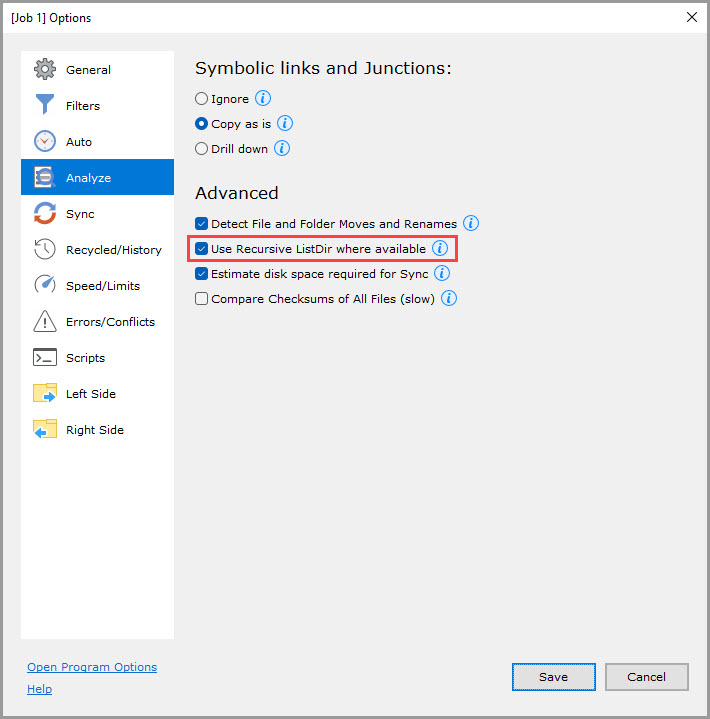
Use Recursive ListDir where available (checked by default)
If checked, use the recursive directory listing for higher Analyze speed.
If unchecked, use a non-recursive folder-by-folder directory listing, which is slower but may be more reliable.
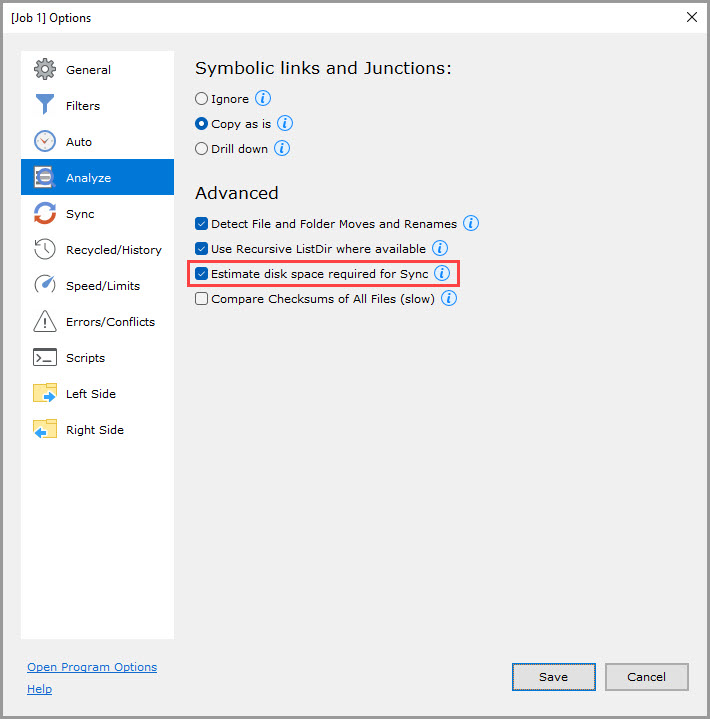
Estimate disk space required for Sync (checked by default)
If checked, compute how much free disk space is needed to complete the sync.
Compare Checksums of All Files (slow) (unchecked by default)
If checked, compare the MD5 checksum of all files on the Left and Right.
If the MD5 checksum of the file differs where file size and file modification time are the same, declare a conflict.
After sync, verify that the checksum of the copied file is the same on both sides.
If unchecked, a file is considered to be changed if its file size or file modification time has changed.