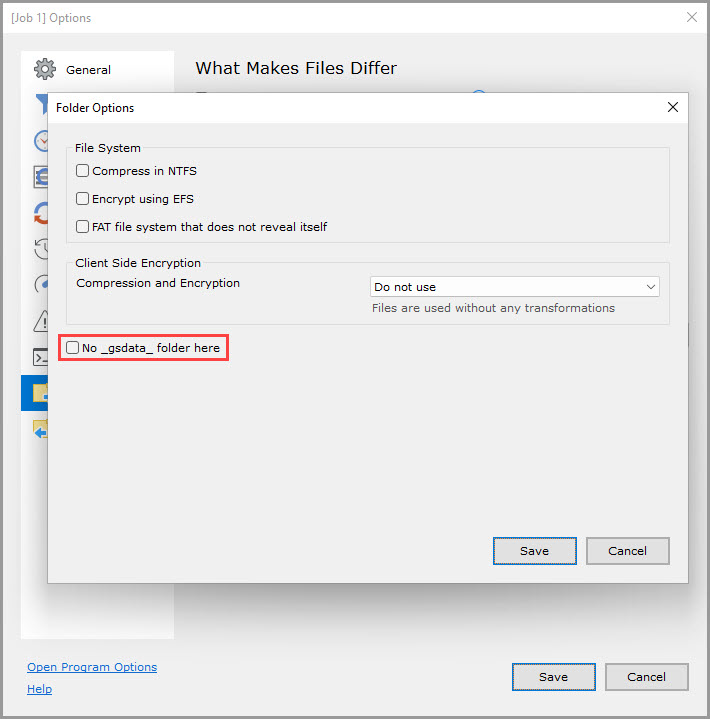
These options are specific to the Left and Right sync folders, not to the job as a whole.
NOTE: Both the Left and Right Side contain the same set of available options. The screenshots below are all from the Left Side menu, but the explanation of each option applies to both the Left and Right Sides.
- Compare Checksums when needed (slower)
- Compare Attributes
- Compare Permissions
- Compare Owner
- Compare ACL (slow)
- Compare Extended Attributes
- Do not List Folders during Analyze
- Safe Copy using temporary files
- Compress in NTFS
- Encrypt using EFS
- FAT file system that does not reveal itself
- Client Side Encryption
- No _gsdata_ folder here
What Makes Files Differ
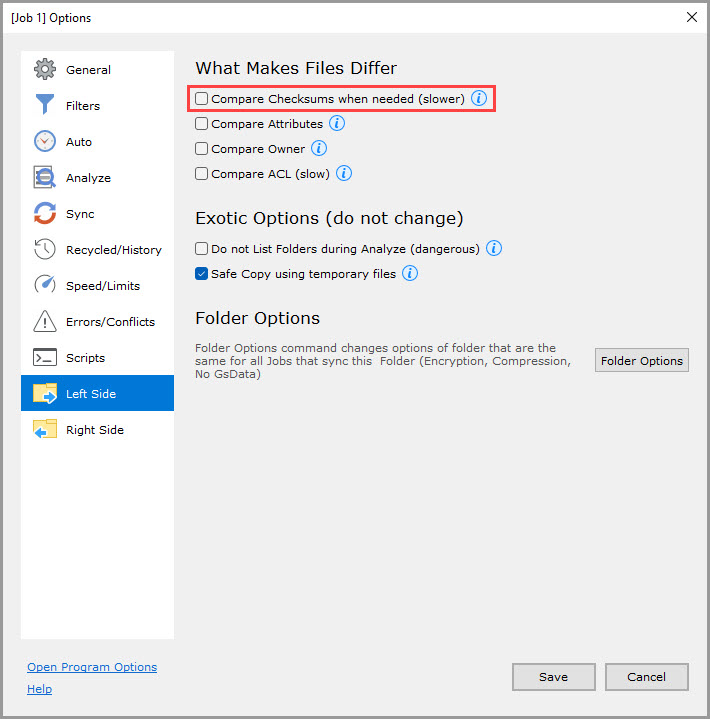
Compare Checksums when needed (slower) (unchecked by default)
If checked, compare the MD5 checksum of the old to the new file if the file size has not changed but the file modification time has.
If the MD5 checksum of the file differs but the file size and the file modification time are the same, declare a conflict.
After sync, verify that the checksum of the copied file is the same on both sides.
If unchecked, the file is only considered to be changed if the file size or the file modification time has changed.
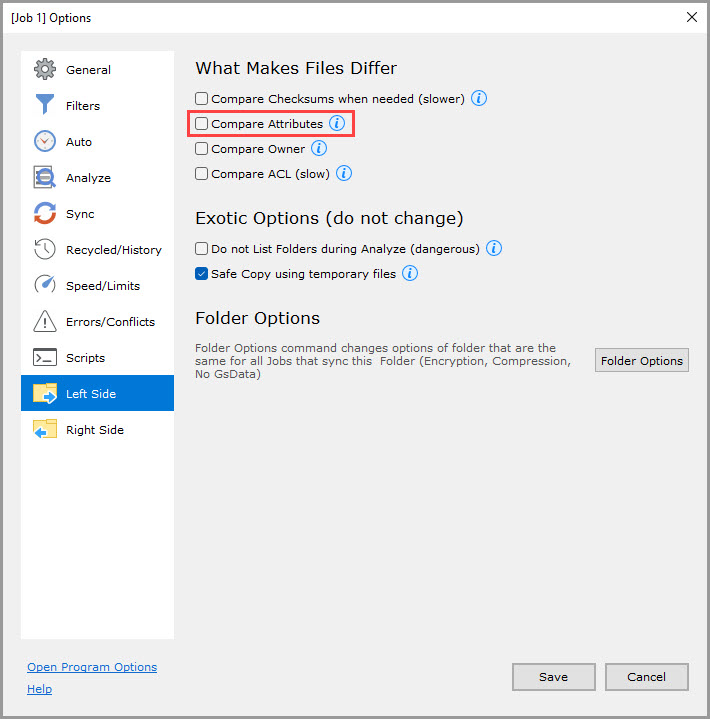
Compare Attributes (Windows only, unchecked by default)
If checked, changes in file/folder attributes are detected even when the file body does not change.
If unchecked, attributes are copied only when the changed file is copied.
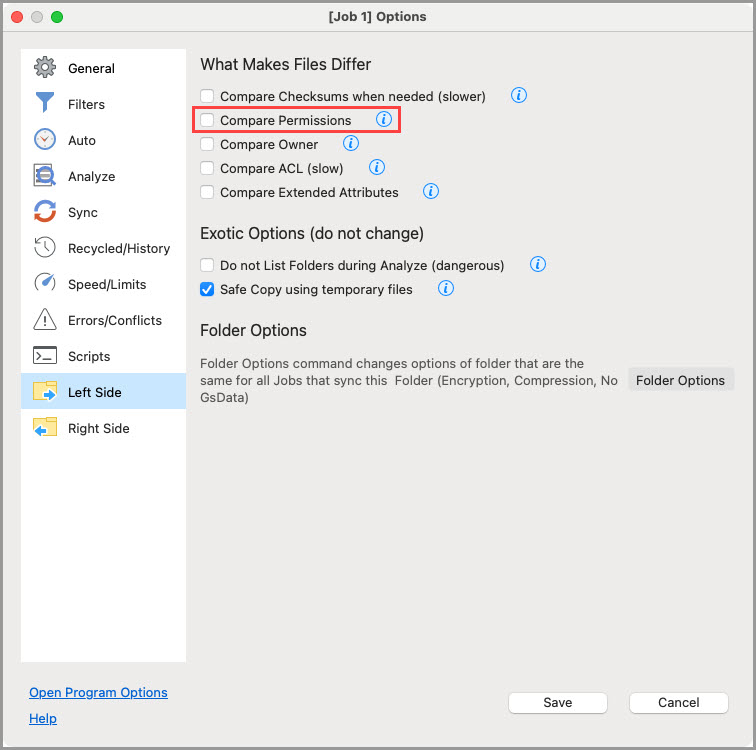
Compare Permissions (Mac and Unix only, unchecked by default)
If checked, changes in file/folder permissions are detected even when the file body does not change.
If unchecked, permissions are copied only when the changed file is copied.
Compare Owner (unchecked by default)
If checked, changes in the file owner are detected even when the file body does not change.
If unchecked, the file owner is copied only when the file body has changed.
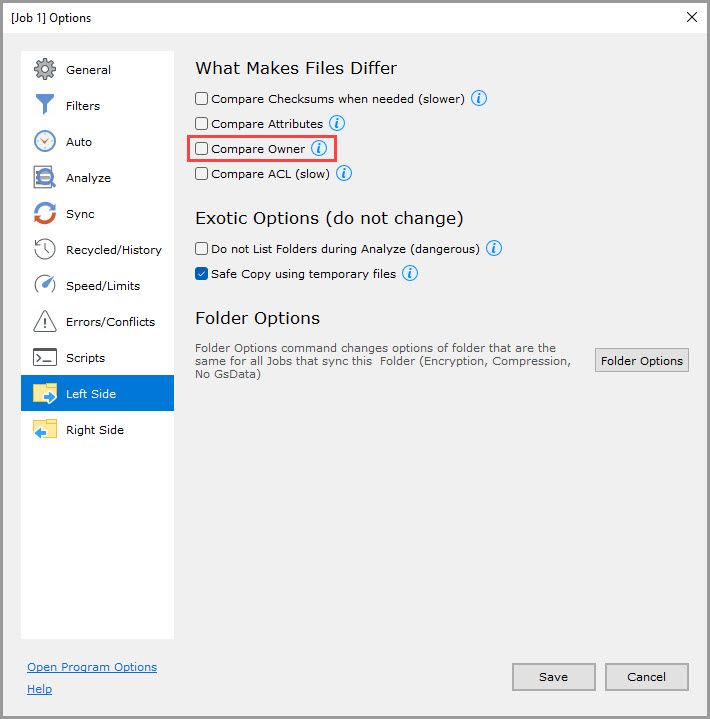
Compare ACL (slow) (unchecked by default)
If checked, changes in ACL are detected even when the file body does not change.
If unchecked, ACL is copied only when the file body has changed.
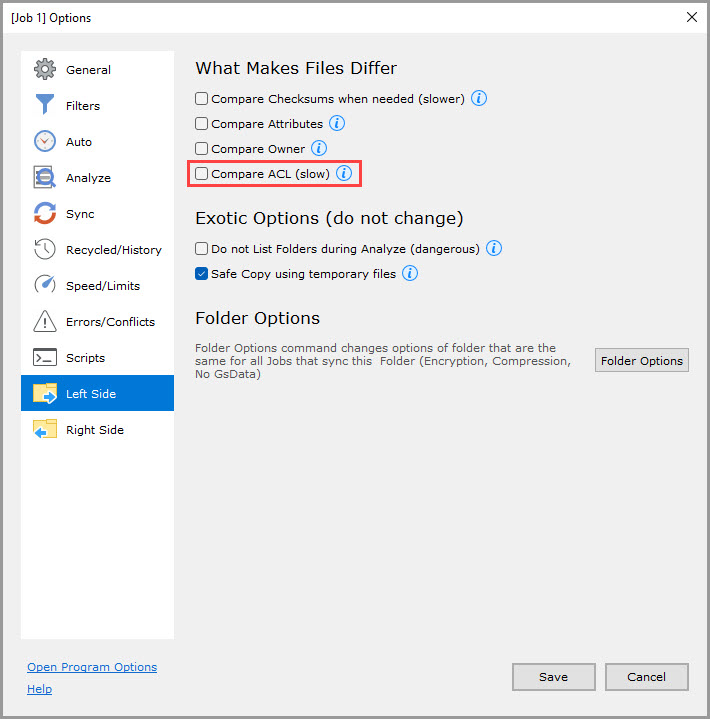
Compare Extended Attributes (Mac only, unchecked by default)
If checked, changes in extended attributes are detected even when the file body does not change.
If unchecked, extended attributes are copied only when the changed file is copied.
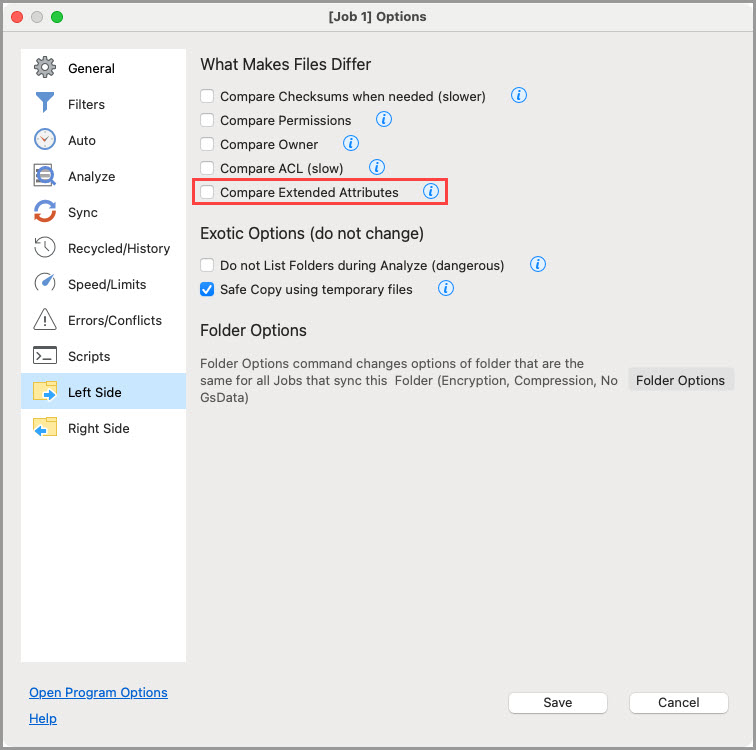
Exotic Options (do not change)
Do not List Folders during Analyze (unchecked by default)
If checked, do not list folders to see what's in them during Analyze. Instead, trust the GoodSync state file to provide file listings.
If unchecked, perform a full Analyze.
This option can be used only if GoodSync (not the user or another program) changes files in the folder and sub-folders on this side.
NOTE: To be used by advanced users only. Misuse of this option can result in data corruption or loss.
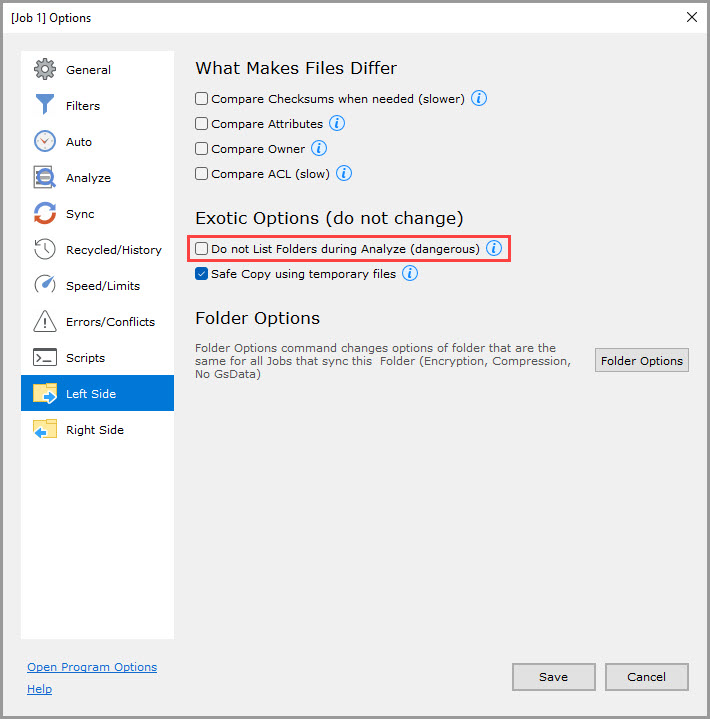
Safe Copy using temporary files (checked by default)
If checked, Sync does not copy the source file directly to the destination file on this side, as an interrupt mid-sync would corrupt the file. Instead, Sync copies the source file to a temporary file in the destination folder, and once the copy operation is finished, the temporary file is renamed to the destination file.
You may uncheck this option if you are doing 1-way backups and destination volume has limited free space.
This option is available only for file systems that do not have atomic upload (atomic upload means that until upload is complete, interrupting will revert to the previous version of the file).
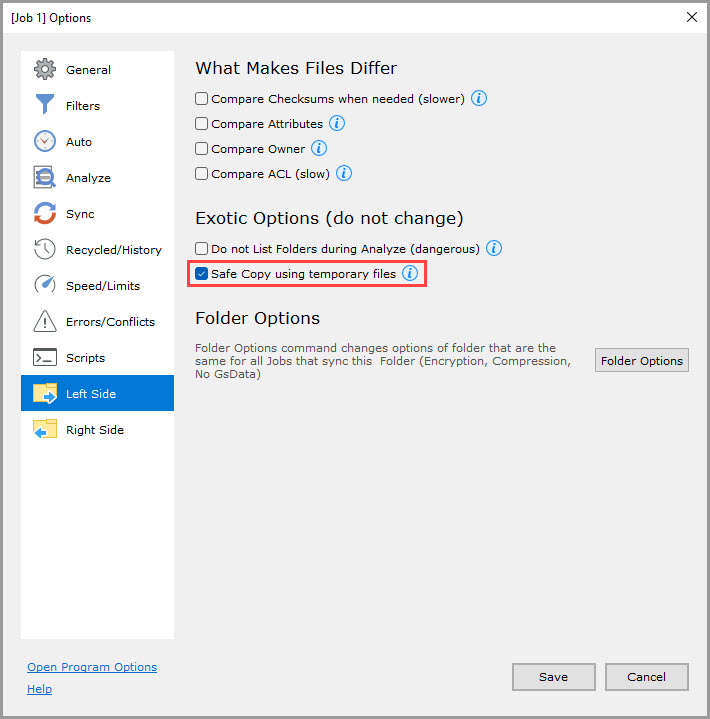
Folder Options
The Folder Options commands modify settings for the Folder, such as encryption and compression, which apply to all Jobs that sync this Folder.
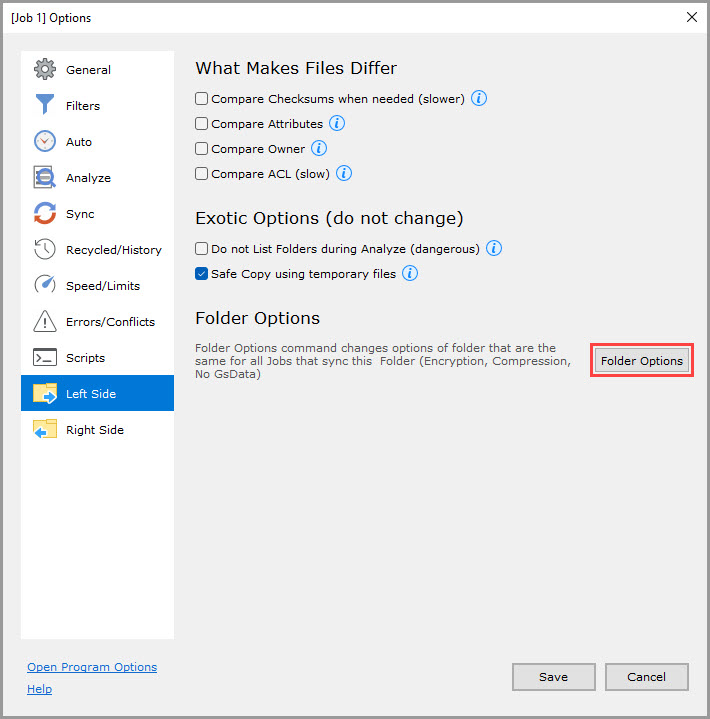
File System
Compress in NTFS (Windows only, unchecked by default)
If checked, compress file bodies using native file system functionality.
NOTE: Works only in NTFS volumes. Compression will be done by Windows. A "Compressed" file attribute will be set.
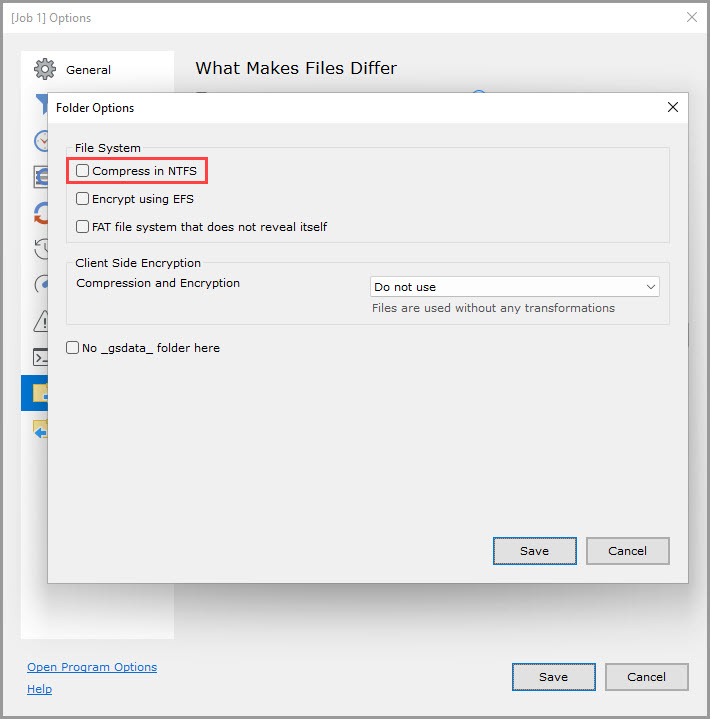
Encrypt using EFS (Windows only, unchecked by default)
If checked, encrypt files at this side using EFS (Encrypting File System).
NOTE: Works only on NTFS volumes. Requires at least Windows XP Pro or Vista Business.
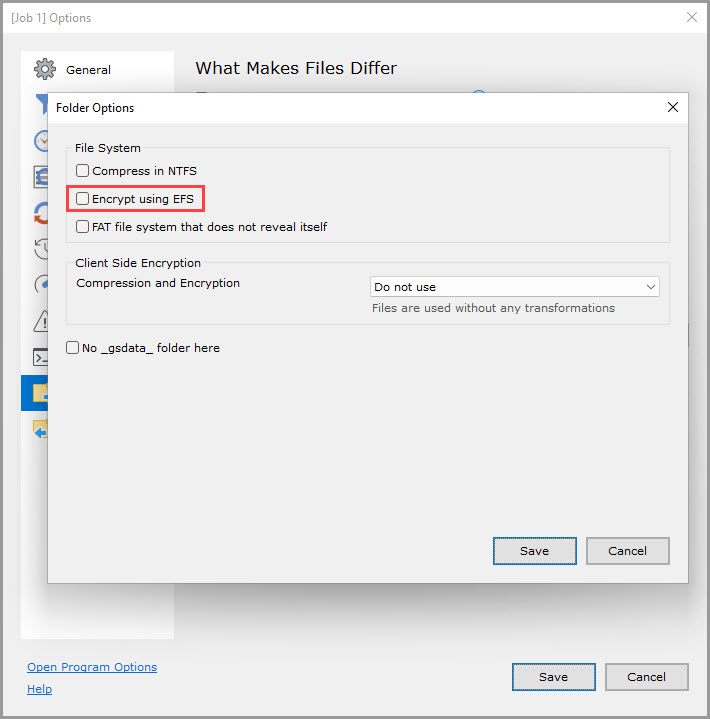
FAT file system that does not reveal itself (unchecked by default)
If checked, use the special time adjustment designed to neutralize FAT time storage problems.
If unchecked and if FAT is not reported by the file system, assume that the file system stores file modification time in UTC.
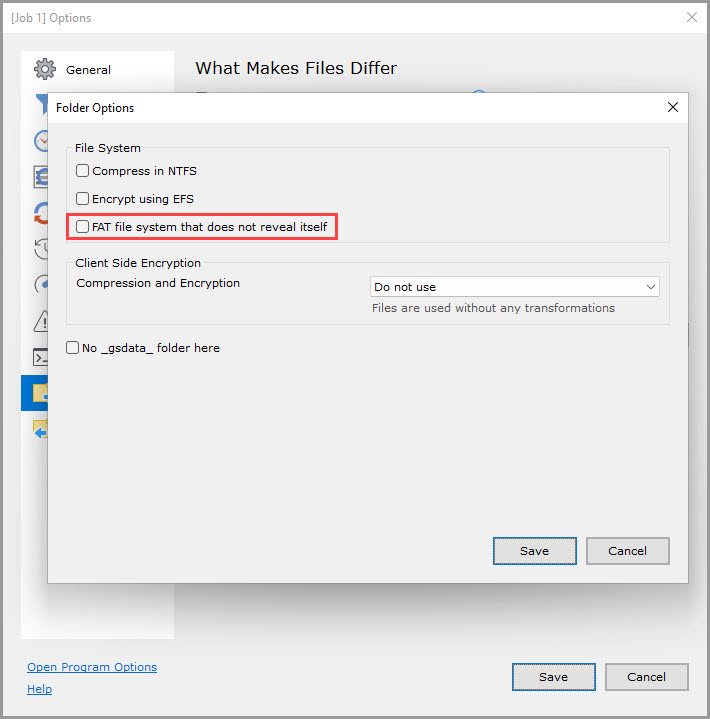
Client Side Encryption
These options control file name and file body encryption that GoodSync can perform on the client side.
Do not use (default option)
If selected, GoodSync will not compress and encrypt files in this folder.
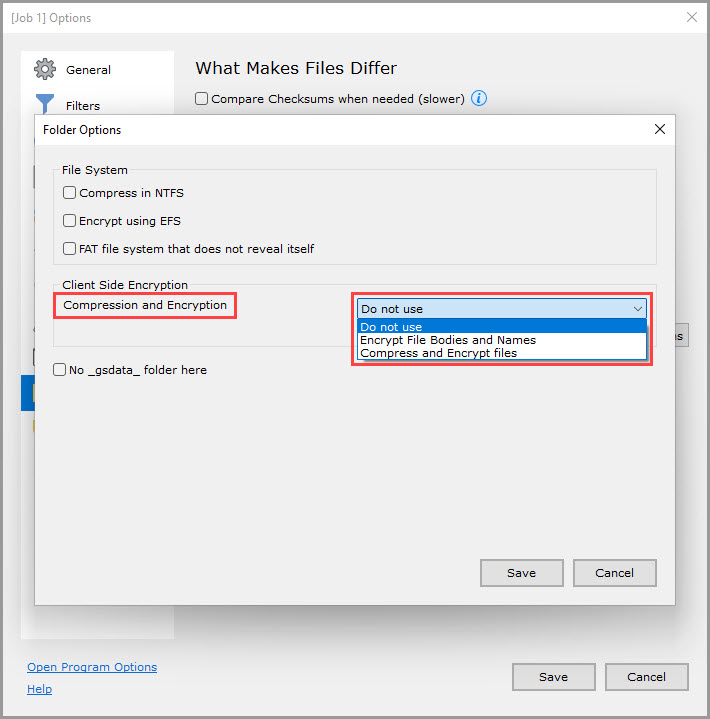
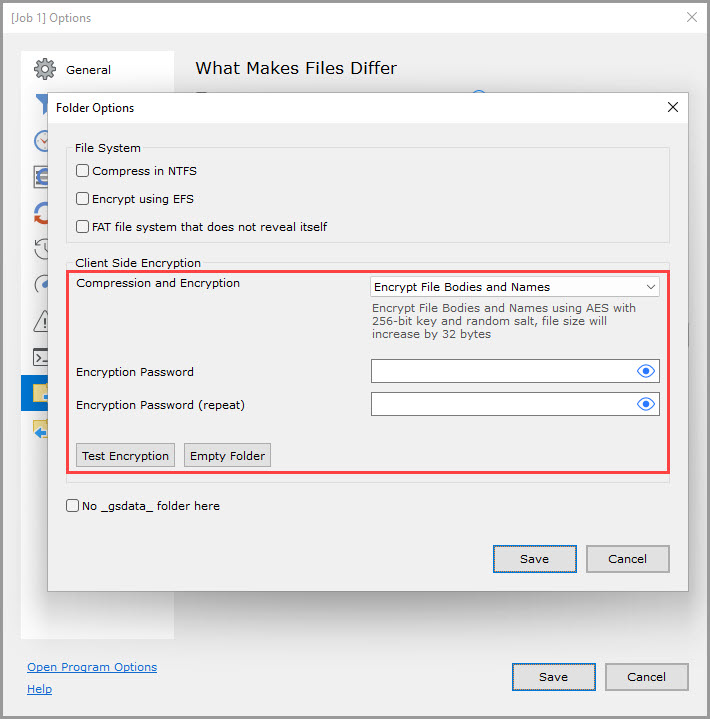
Encrypt File Bodies and Names
If selected, encrypt file bodies and names before uploading them to this folder.
AES encryption algorithm with a 256-bit key is used for encryption, with all file blocks chained.
Random salt is applied, so different encryptions of the same file will produce different results. The file size will increase by exactly 32 bytes.
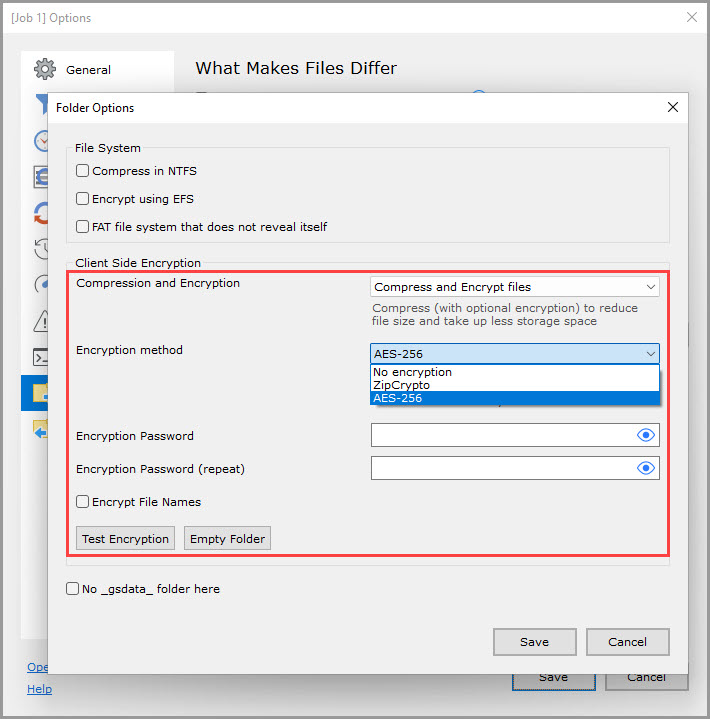
Compress and Encrypt files
If selected, compress and optionally encrypt the files before uploading them to this folder.
The encryption options include:
- No encryption: Do not encrypt the files, only compress them.
- ZipCrypto: Encrypt compressed files using ZipCrypto algorithm that is less secure but has native Windows support.
- AES-256: Encrypt compressed files using a stronger AES encryption algorithm with a 256-bit key.
If "Encrypt File Names" is checked, GoodSync will additionally encrypt the names of the compressed files.
NOTE: You must memorize the encryption password if used with the above options or use RoboForm to store it in a SafeNote. If you lose this password, encrypted data may be lost.
No _gsdata_ folder here (unchecked by default)
If checked, do not create the "_gsdata_" folder in the sync folder on the Left/Right side of the job. Instead, create the "_gsdata_" folder in the GoodSync profile folder on this computer.
If unchecked, create the "_gsdata_" folder in the sync folder.
This option should be used only in situations where writing to the sync folder is not possible or undesirable (read-only source side of the 1-way job).
Use this option only for sync folders not synced with any other folder (by any other job on this or another computer).
NOTE: If this option is checked, these other options cannot be used: "Save deleted/replaced files to Recycle Bin," "Save deleted/replaced files to History folder."