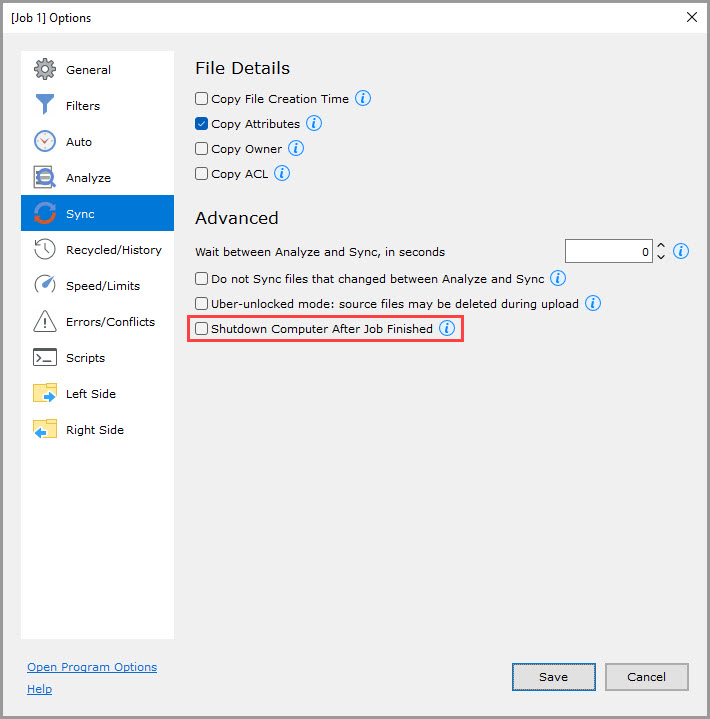
- Copy original filesystem names
- Copy Permissions
- Copy File Creation Time
- Copy Attributes
- Copy Owner
- Copy ACL
- Wait between Analyze and Sync, in seconds
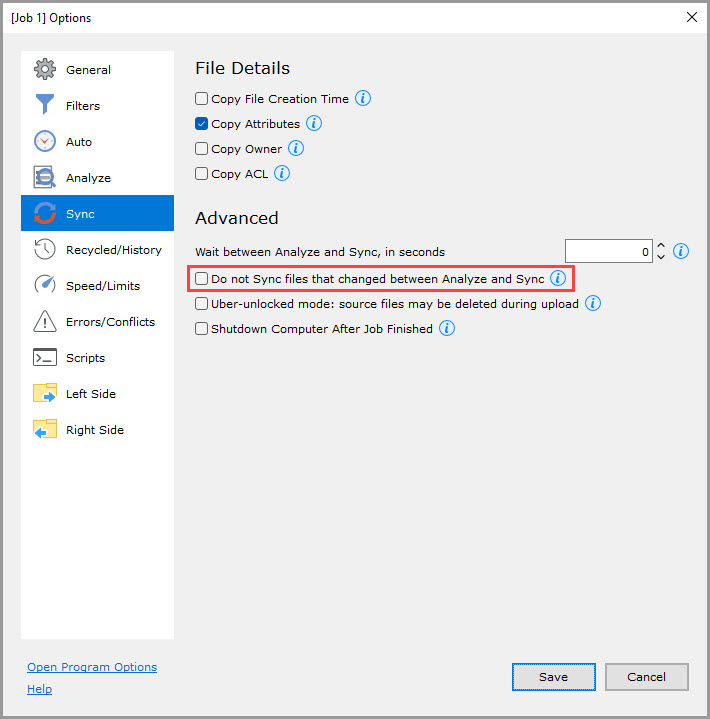
- Do not Sync files that changed between Analyze and Sync
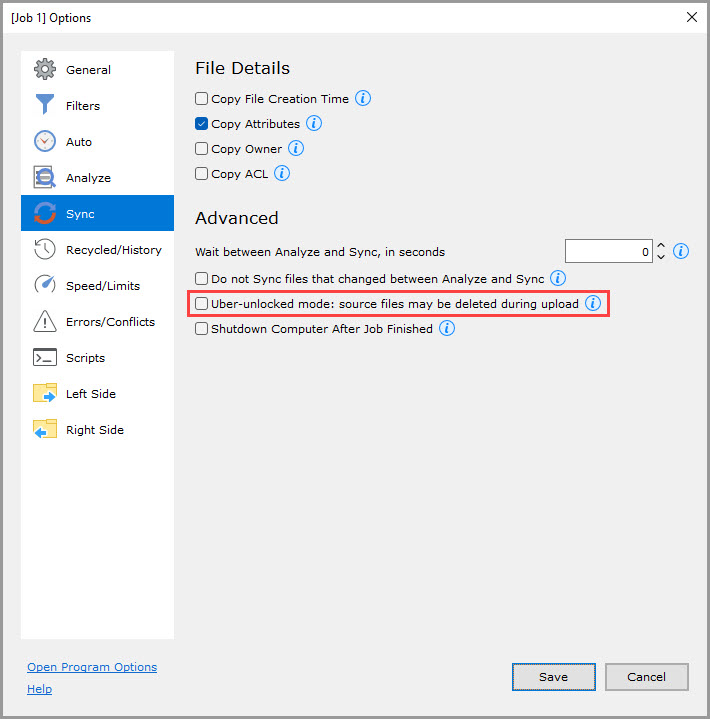
- Uber-unlocked mode
- Shutdown Computer After Job Finished
File details
Copy original filesystem names (Mac only, checked by default)
If checked, GoodSync will not replace prohibited symbols (?\<>|*") in file names. This option works well on Mac to Mac jobs only.
NOTE: To be used by advanced users only.
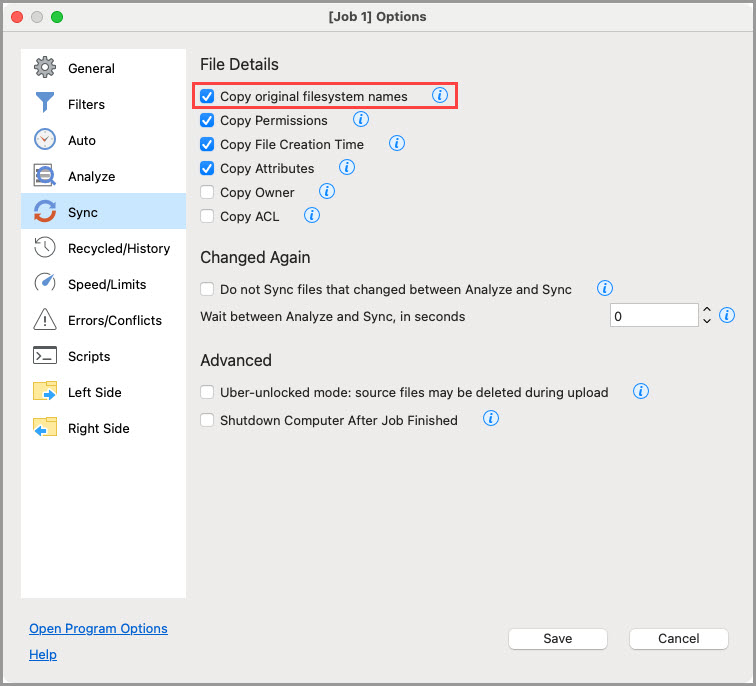
Copy Permissions (Mac and Unix only, checked by default)
If checked, GoodSync will copy Unix file system permissions (rwxrwxrwx). Works on Mac to Mac and Unix to Unix jobs only.
NOTE: To be used by advanced users only.
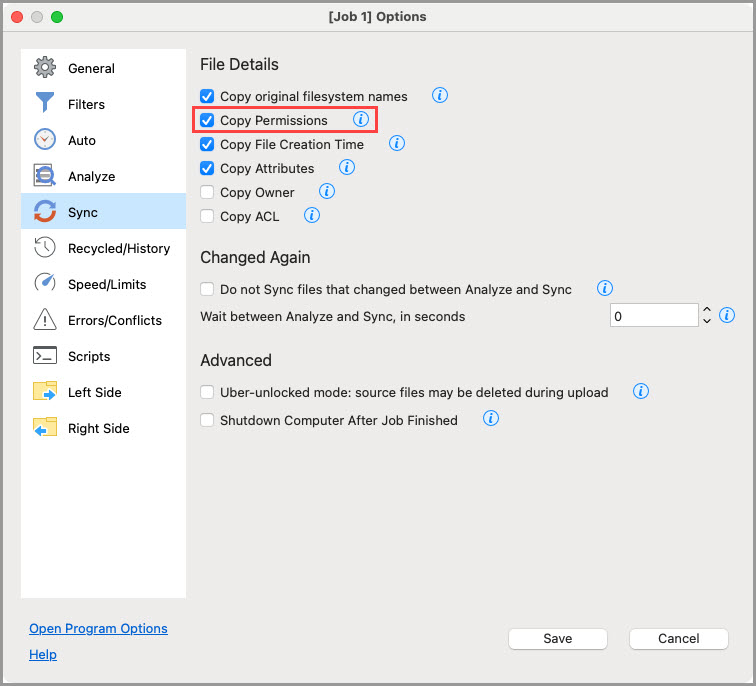
Copy File Creation Time (unchecked by default)
If checked, copy the creation time of the file or folder, in addition to copying the modification time.
If unchecked, copy only file/folder modification time.
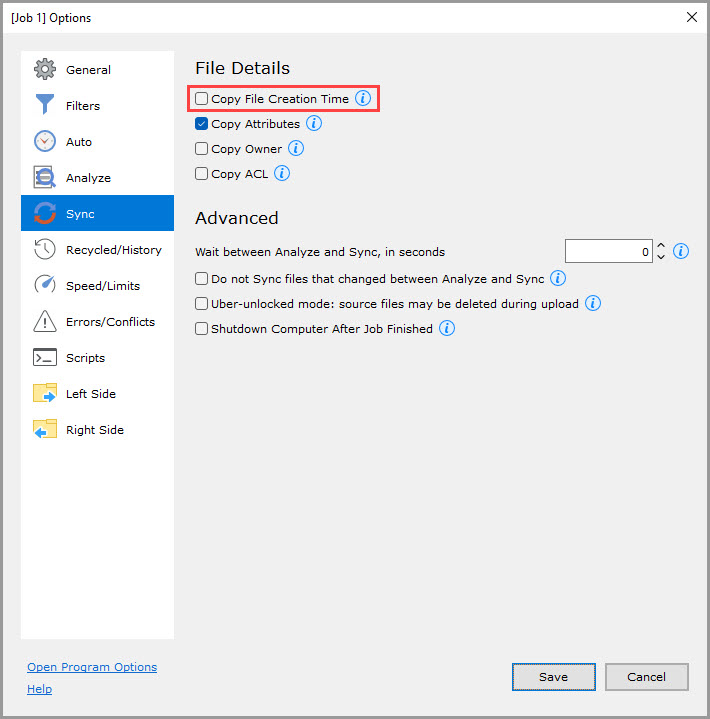
Copy Attributes (checked by default)
If checked, copy the file/folder attributes (Read-only, Hidden, System) while it is being copied by GoodSync.
If unchecked, a "Normal" attribute is assigned to the copied files.
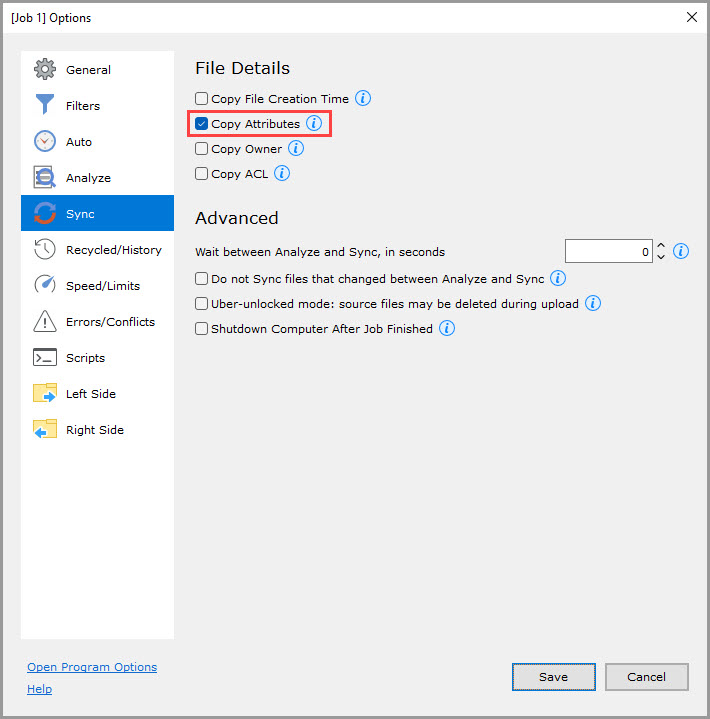
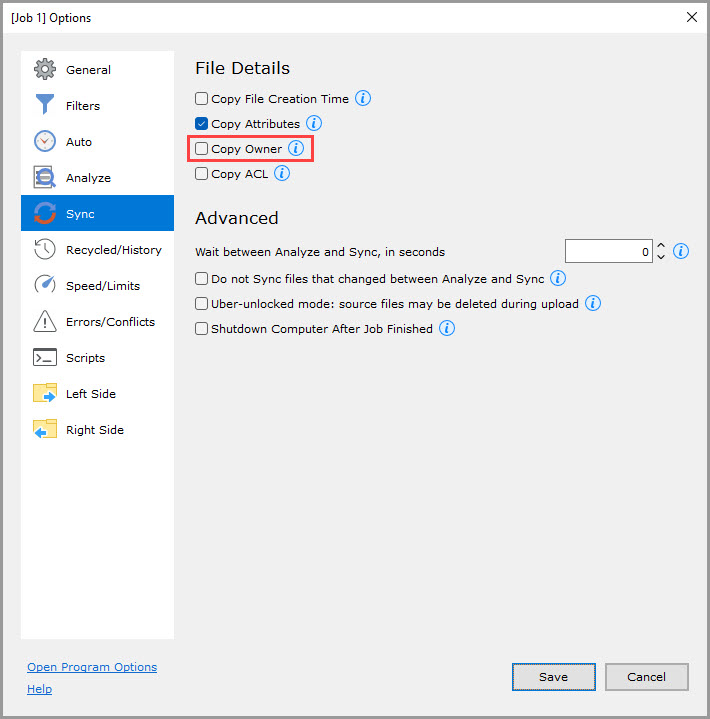
Copy Owner (unchecked by default)
If checked, copy the file/folder owner, while the file is being copied.
If unchecked, the current owner is assigned to the copied files.
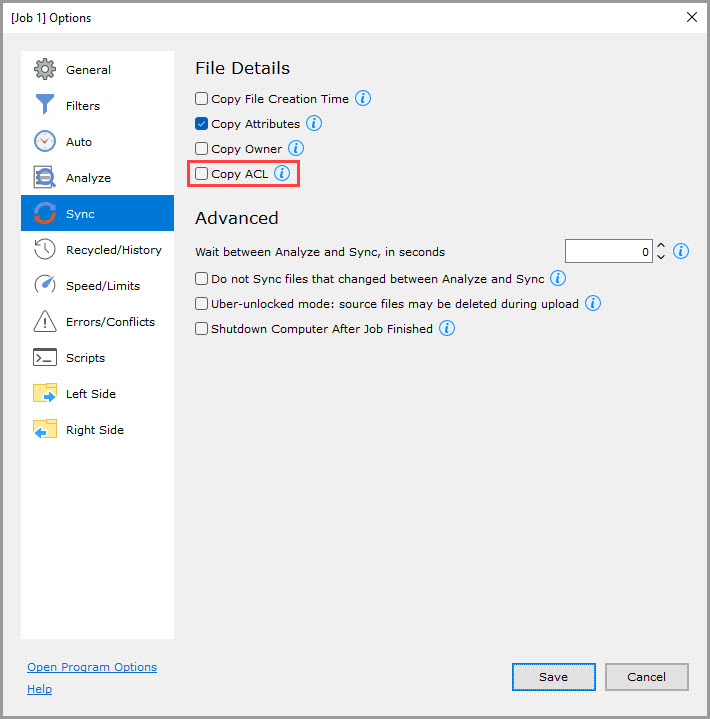
Copy ACL (unchecked by default)
If checked, copy the file/folder Access Control List (ACL) while the file is being copied.
If unchecked, an empty ACL is assigned to the copied files.
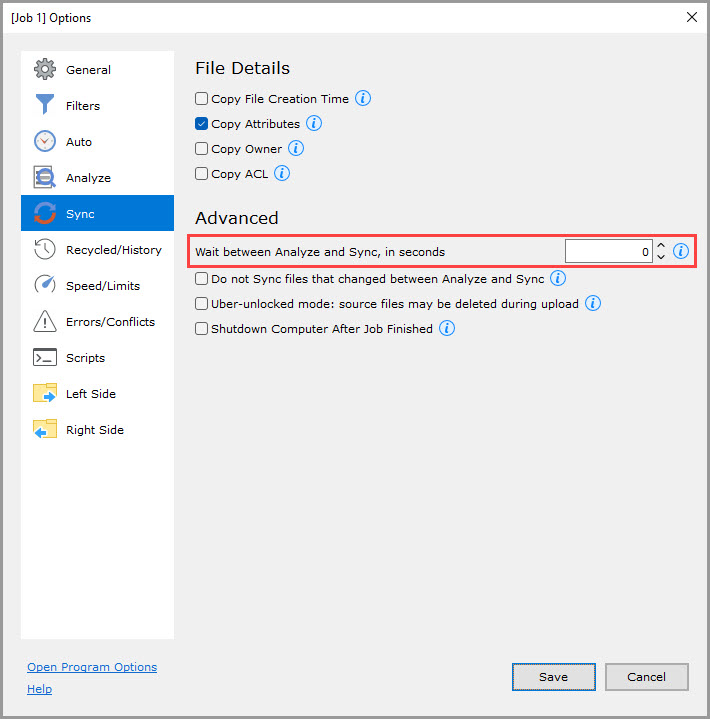
Wait between Analyze and Sync, in seconds (0 by default)
If not set to zero, this feature will wait for the specified number of seconds after Analyze before starting Sync.
This option works in conjunction with "Do not Sync files that changed between Analyze and Sync," helping to extend the detection window for changes and ensuring greater file stability.
Do not Sync files that changed between Analyze and Sync (unchecked by default)
If checked, files that change between Analyze and Sync will not be synced; they will wait until the next Analyze.
If unchecked, such files will be synced, reflecting their changed state on both the source and destination.
Uber-unlocked mode (unchecked by default)
If checked, source files may be deleted or moved during upload, as GoodSync does not lock them.
GoodSync will notice right away that the deletion/move occurred and it will not continue uploading.
NOTE: To be used by advanced users only.
Shutdown Computer After Job Finished (unchecked by default)
If checked, GoodSync will shut down this computer after the Job has finished syncing with no errors. Both Manual and Auto job modes are subject to this option if specified.