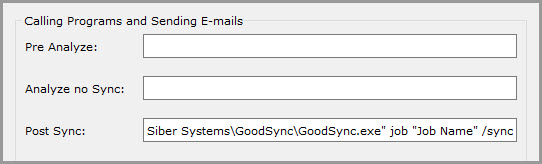
The "Scripts/Email" section is used to call a program, script, or email alert during a certain phase of a job run.
Pre Analyze
If the field is not empty, then take the action specified just before Analyze begins.
If the called program returns a non-zero return code or fails, do not start analyzing.
If the called program succeeds and returns a zero return code, proceed with the analysis.
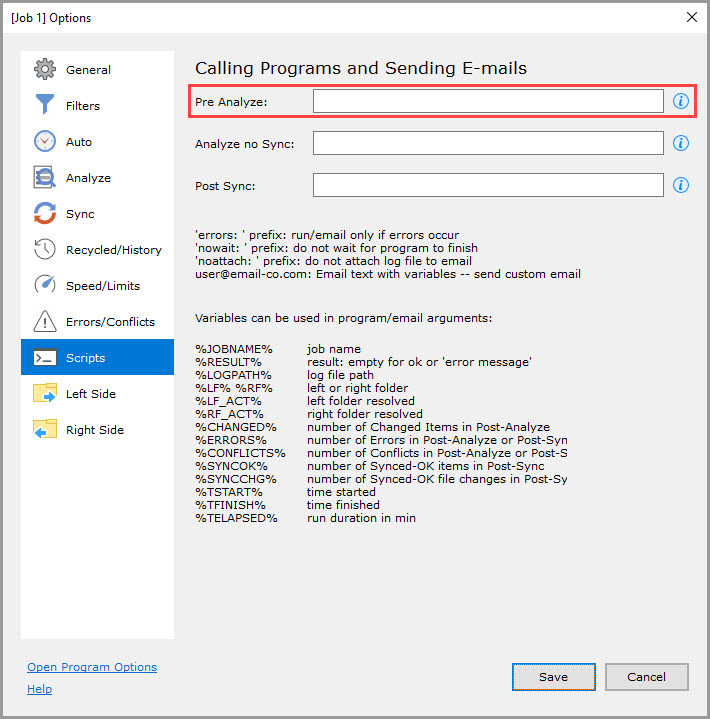
Analyze no Sync
If the field is not empty, take the action specified just after Analyze finishes.
NOTE: The action is taken only if Analyze finishes with no changes.
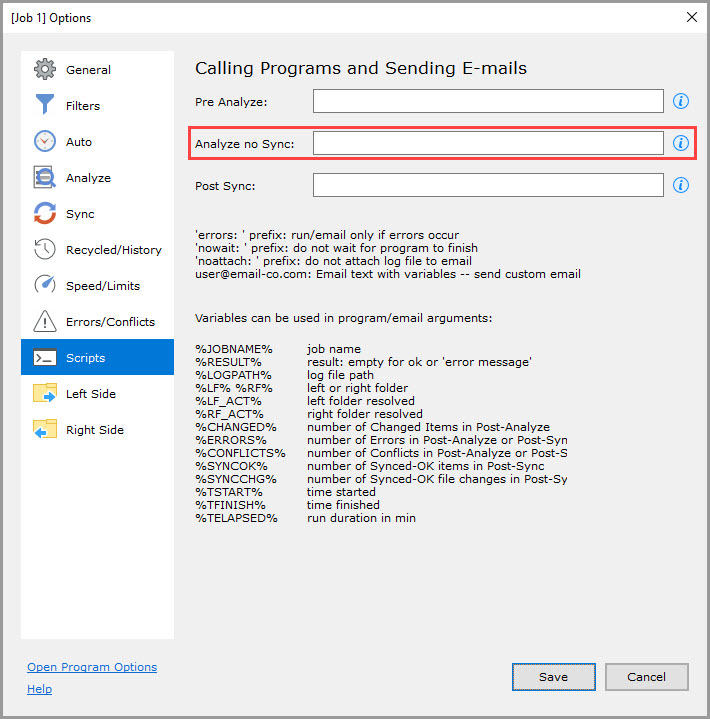
Post Sync
If the field is not empty, take the action specified just after Sync finishes.
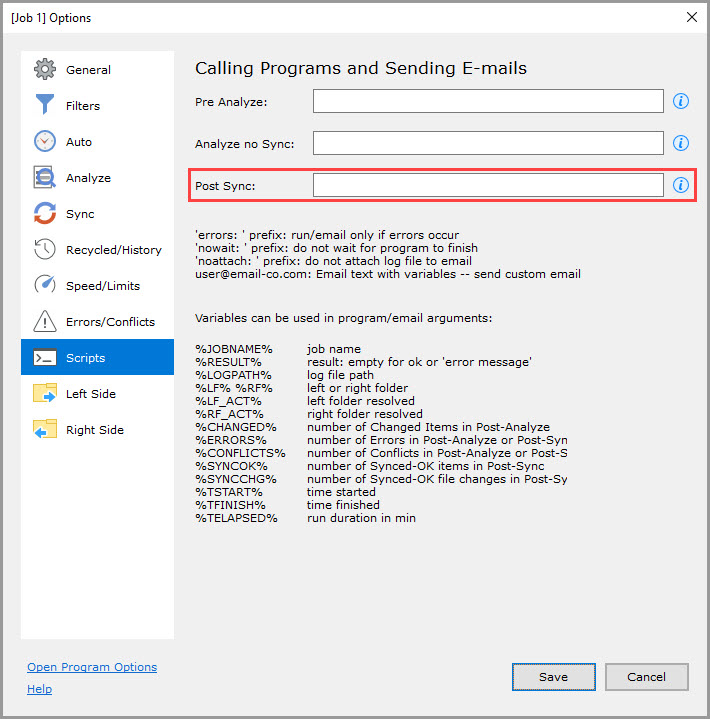
Sending emails
If the value of a script field contains the "@" symbol, GoodSync sends an e-mail to the address(es) specified in the option.
Multiple email addresses must be separated by a comma or semicolon:
user1@server.com; user2@hotmail.com
If only email addresses are specified in the field(s), a default email text is sent. To specify custom emails, you may prepend command(s) with some of the following options:

Example:
noattach: user@example.com: Synced %SYNCOK% items, changed items were %CHANGED%
Here, "noattach" specifies that a sync log will not be attached to the email. The email will be sent to user@example.com and contain parameters %SYNCOK% (number of files/folders synced OK) and %CHANGED% (number of changed items synced OK).
NOTE: Before sending emails using Scripts, ensure your SMTP server settings are properly configured.
Calling programs
If the value of a script field contains no "@", GoodSync runs the program specified in the option and arguments passed to this program:
program-name %ARG1% %ARG2% %ARG3% ...
where arguments can be one of the following (all variable names are case-sensitive):
| %JOBNAME% | Job name |
| %RESULT% | Result: "" for OK or "terminal error message" |
| %LOGPATH% | Log file path in "..." |
| %LF% | Left folder path in "..." |
| %LF_ACT% | Resolved (=VolumeName\folder -> f:\folder) Left folder path in "..." |
| %RF% | Right folder path in "..." |
| %RF_ACT% | Resolved (=VolumeName\folder -> f:\folder) Right folder path in "..." |
| %CHANGED% | Number of Changed Items in Post-Analyze |
| %ERRORS% | Number of Errors in Post-Analyze or Post-Sync |
| %CONFLICTS% | Number of Conflicts in Post-Analyze or Post-Sync |
| %SYNCOK% | Number of Synced-OK items in Post-Sync |
| %TSTART% | The time when the Job started |
| %TFINISH% | The time when the Job finished |
| %TELAPSED% | Elapsed Job time, in minutes, from Start to Finish |
NOTE: Please use absolute paths to point to the location of the program or script. If the program name contains spaces, it must be enclosed in double quotes like so:
"C:\Documents and Settings\John Smith\My Documents\myscript.vbs"
If a script or email alert is prefixed with "errors:", it is started only if:
- Terminal errors occurred in Analyze or Sync, OR
- Non-terminal errors occurred in Analyze or sync, OR
- Conflicts occurred in Analyze.
Script examples
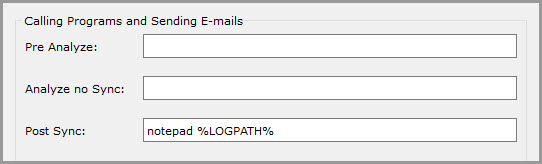
Call Notepad to show the log file after Sync completes:
notepad %LOGPATH%
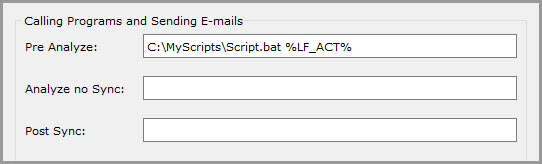
Execute a batch script and pass the Left sync folder path to it as an argument before Analyze:
C:\MyScripts\Script.bat %LF_ACT%
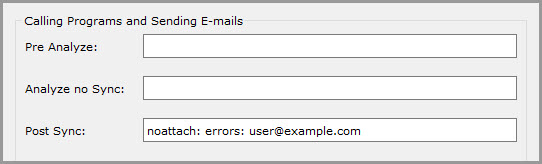
Send an email alert to user@example.com if any errors occur during synchronization. Do not attach the log file:
noattach: errors: user@example.com
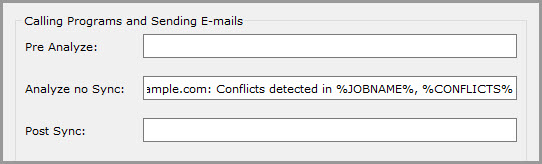
Send an email containing the Job name and any conflicts detected during Analyze to user@example.com. Additionally, attach the log file to the email:
errors: user@example.com: Conflicts detected in %JOBNAME%, %CONFLICTS%
Run the Job named "Job Name" after the current Job is finished:
"C:\Program Files\Siber Systems\GoodSync\GoodSync.exe" job "Job Name" /sync
You can use this script to run Jobs sequentially.