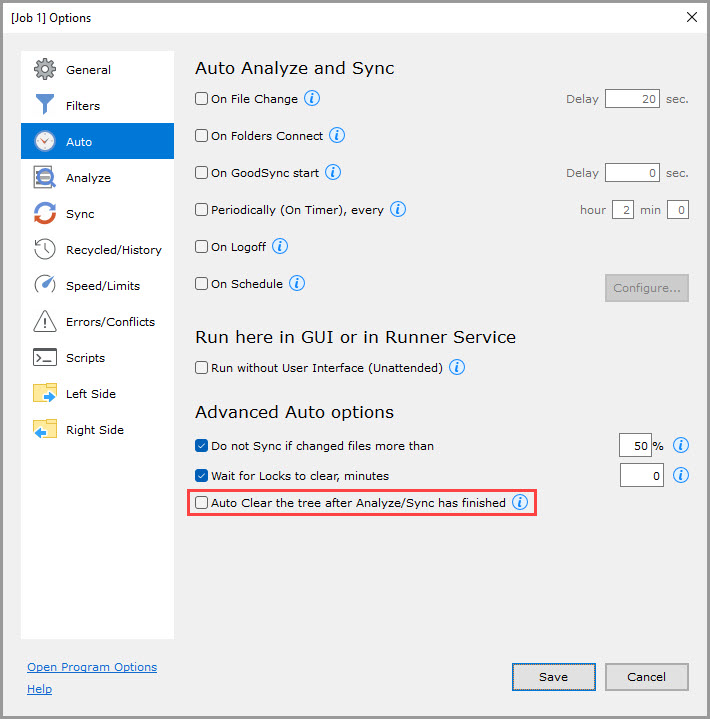
- On File Change
- On Folders Connect
- On GoodSync start
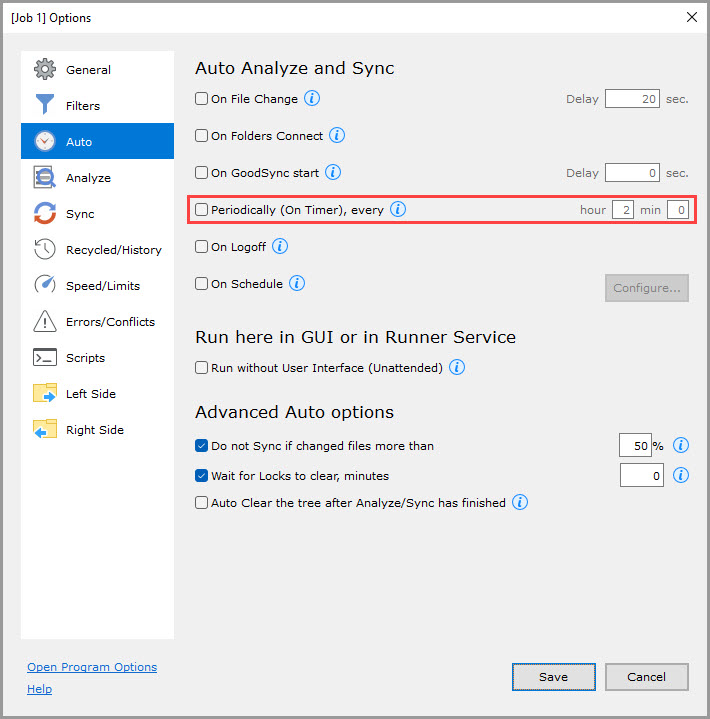
- Periodically (On Timer)
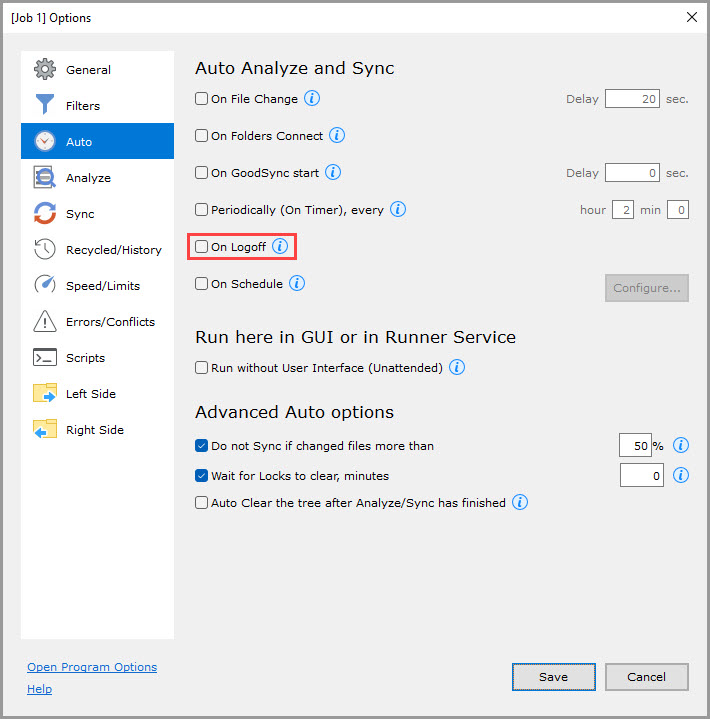
- On Logoff
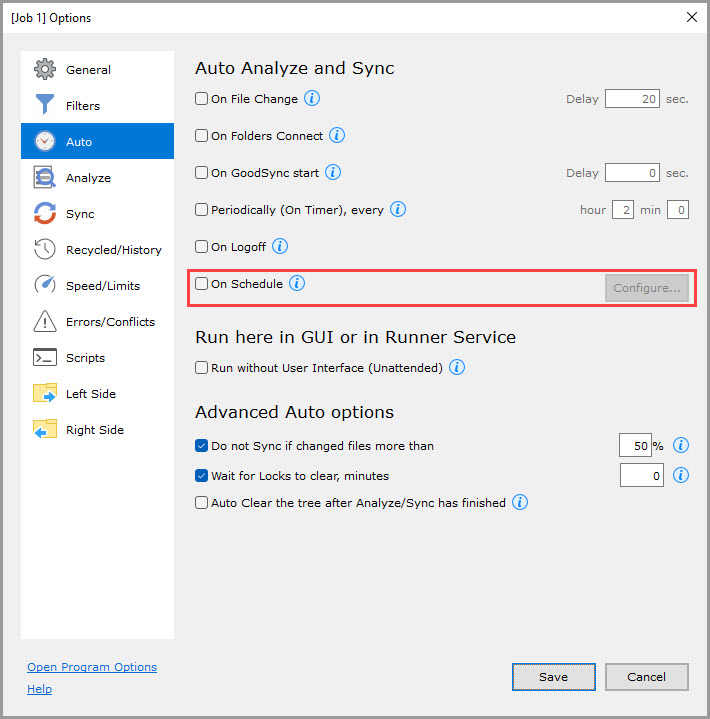
- On Schedule
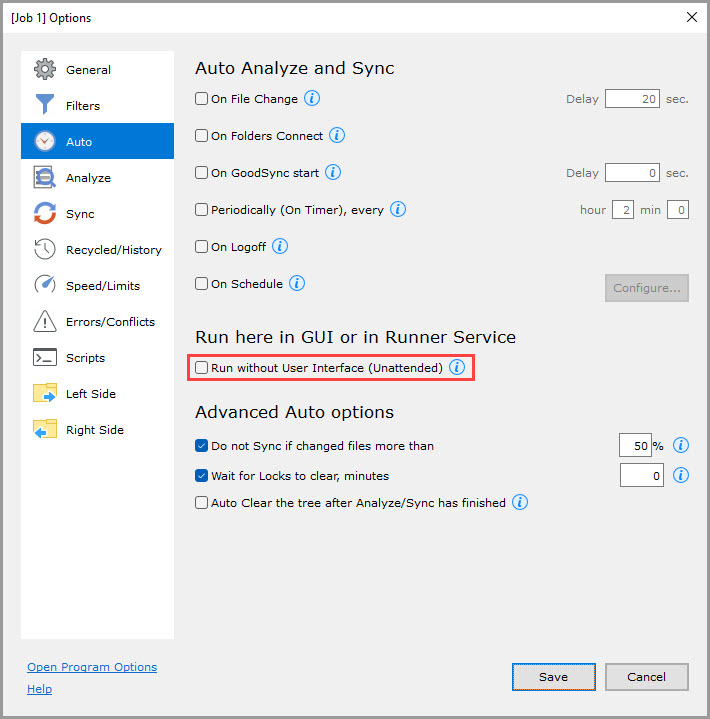
- Run without User Interface (Unattended)
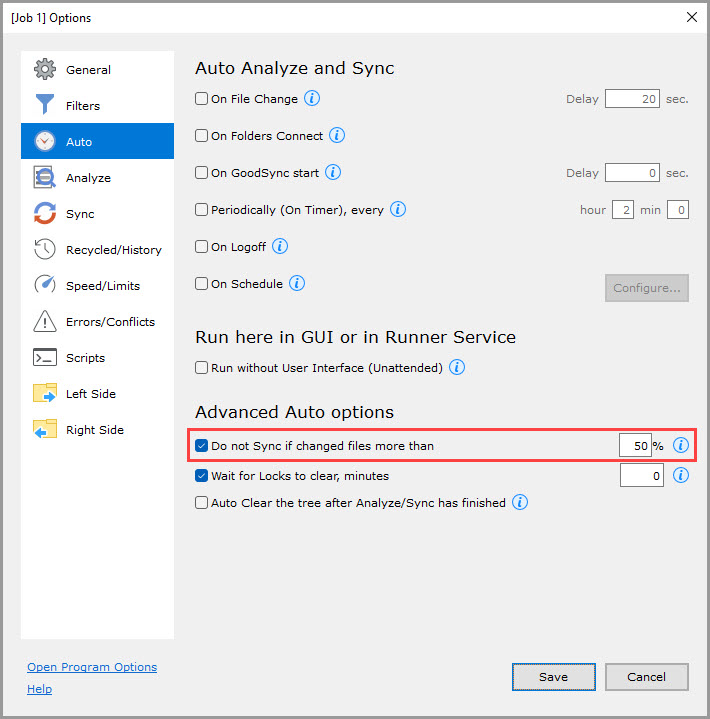
- Do Not Sync if changed files more than
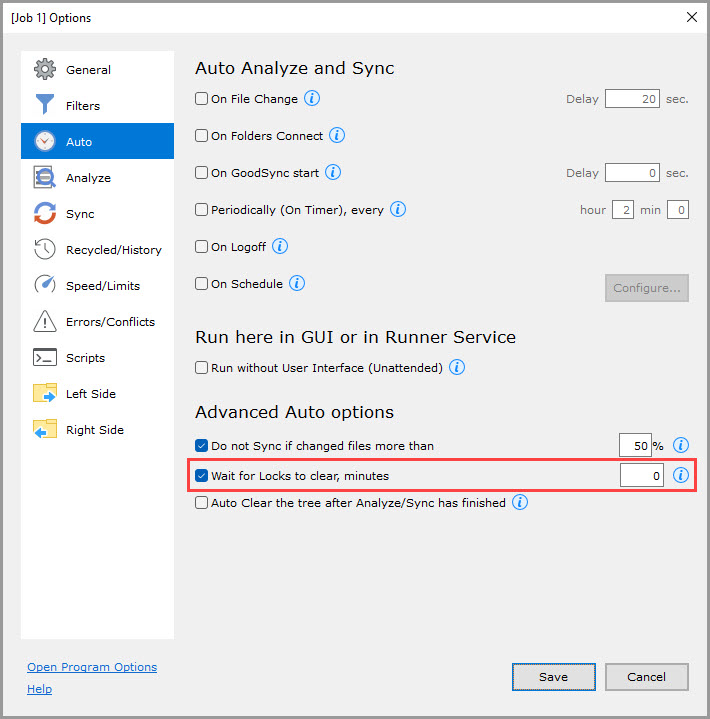
- Wait for Locks to clear
- Auto Clear the tree after Analyze/Sync has finished
Auto Analyze and Sync
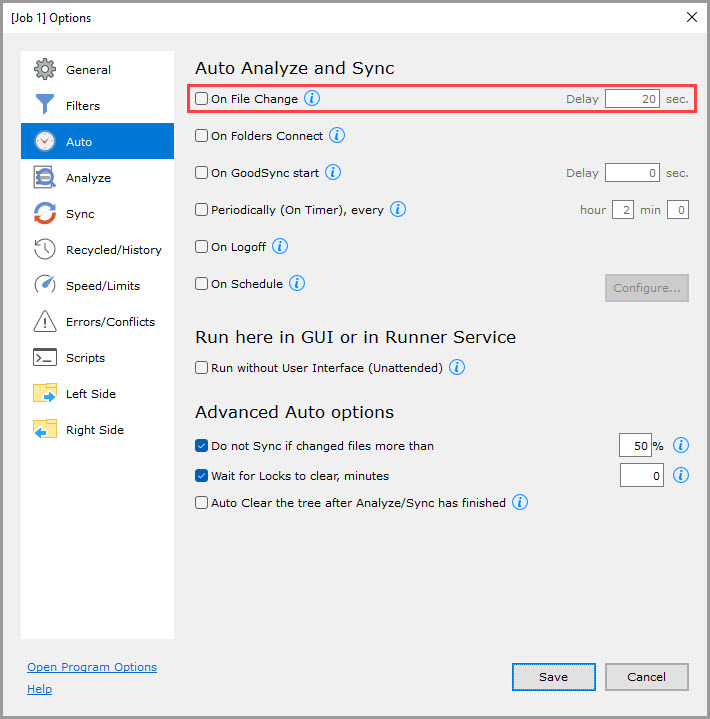
On File Change (default delay: 20 sec)
Monitors source and/or destination for changes and replicates them in real-time.
The Delay value specifies the number of seconds to wait since the last detected change before starting the analysis and sync.
"On File Change" supports the following file systems:
- Windows File System and local disks (except root folder).
- Windows shares (except for some faulty NAS shares that do not report changes).
- Mac file system and local disks.
- Any of the above file systems remotely accessed via the GSTP protocol using GoodSync Connect.
NOTE: If changes occur during analysis/sync, they are still detected and sent to the next analysis interval.
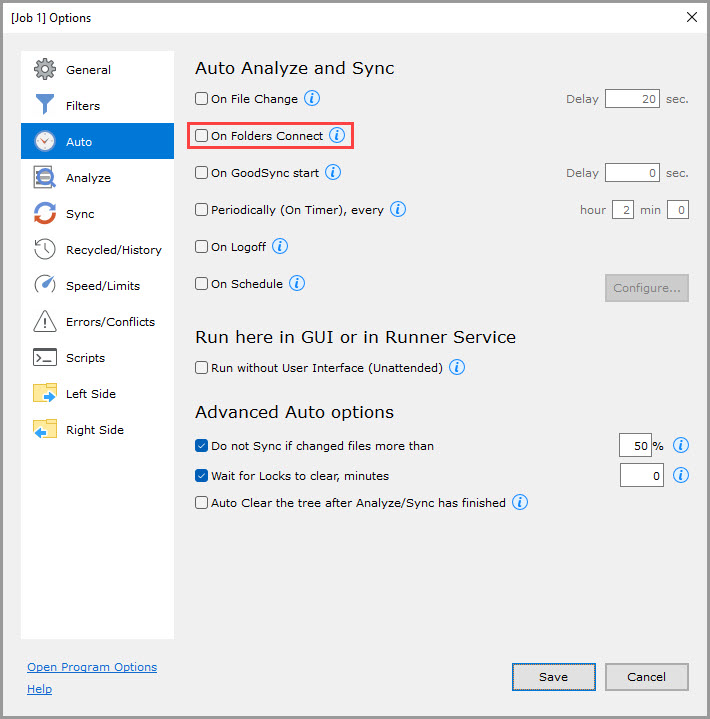
On Folders Connect
Analyze and sync this job when a specified location is made available.
By design, GoodSync checks every 3 minutes for the status of the left and right folders to determine availability.
The following events speed up the detection of a connected/disconnected status:
- Insertion or ejection of a portable volume: detachable folders may connect or disconnect.
- Network connect or disconnect: FTP, SFTP, and DAV folders may connect or disconnect.
Should not be used together with the "On File Change" feature as the former overrides it.
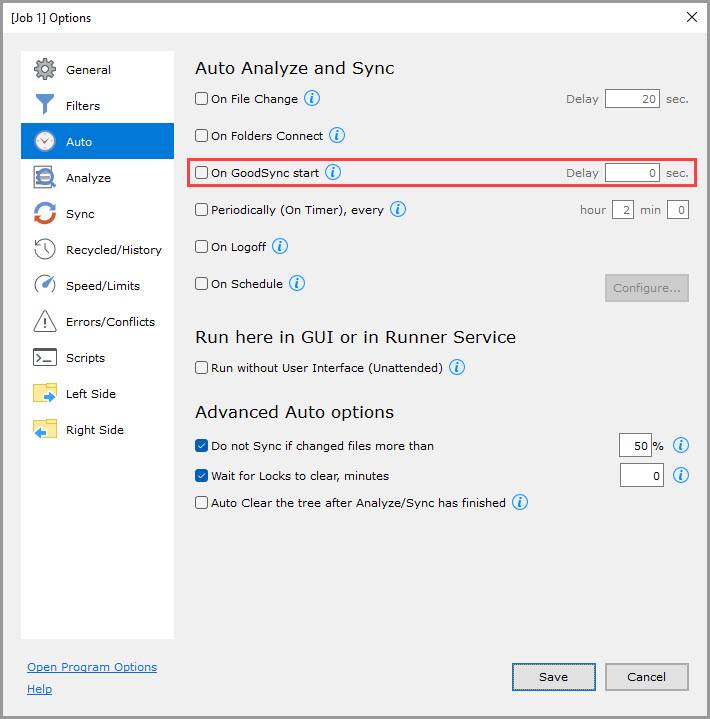
On GoodSync start (default delay: 0 sec)
Analyze and sync this job when GoodSync starts up.
The Delay value specifies the number of seconds to wait since the GoodSync application started.
Should not be used together with the "On File Change" feature as the former overrides it.
NOTE: This feature does not work in Unattended mode as the GoodSync Runner service always runs.
Periodically (On Timer), every (default period: 2 hours 0 minutes)
Analyze and sync this job periodically, every HH hours and MM minutes.
On Logoff
Analyze and sync this job just before logging off from a Windows or a Mac user account.
Note that Windows may try to close GoodSync on Logoff. Normally Windows sees that GoodSync is performing file operations and allows completion, but results may vary.
NOTE: Does not work in Unattended mode as the GoodSync Runner service always runs.
On Schedule
Analyze and sync this job on a specified schedule.
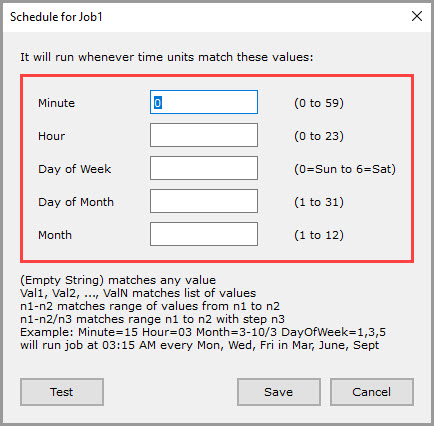
These time unit values can be set:
- Minute (0 to 59)
- Hour (0 to 23)
- Day of Month (1 to 31)
- Month (1 to 12)
- Day of Week (0=Sun to 6=Sat)
NOTE: If a field is left empty, it will run for every unit value of its range.
If your computer goes to Sleep/Standby, GoodSync can wake it up for the "On Schedule" job. Ensure that Control Panel >> "Power Options" >> "Change Plan Settings" >> "Change Advanced Power Settings" >> "Sleep" >> "Allow Wake Timers" is enabled on Windows.
Run here in GUI or in Runner Service
Run without User Interface (Unattended) (unchecked by default)
This option applies to all Auto modes except for "On GoodSync start" and "On Logoff."
If checked, jobs will run through the GoodSync Runner Service. This will allow scheduled jobs to execute even if the user is logged off or the application is closed.
When checked, GoodSync will initiate the Runner Service Setup (which can also be run through "Tools" >> "Runner Service Setup" on Windows or "GoodSync" >> "Runner Service Setup" on Mac) and request the password for the currently logged-in system user. This will ensure that the runner may impersonate the user account and have appropriate access to the data.
For step-by-step instructions on configuring a job to run unattended, please refer to the relevant Help Center article.
NOTE: To edit a job running in Unattended mode, you must disable this setting first.
Advanced Auto options
Do Not Sync if changed files more than (checked, 50% by default)
Automated sync (2-way mode only) is not performed if more than the specified (in percent) fraction of files in the job has changed.
An unusually high number of changed files typically indicates an event that requires user attention (e.g., ransomware).
Wait for Locks to clear (checked by default)
If checked, automated jobs wait for lock files to clear instead of producing an error.
Auto Clear the tree after Analyze/Sync has finished (unchecked by default)
If checked, GoodSync automatically deletes the changes tree after a Job run.