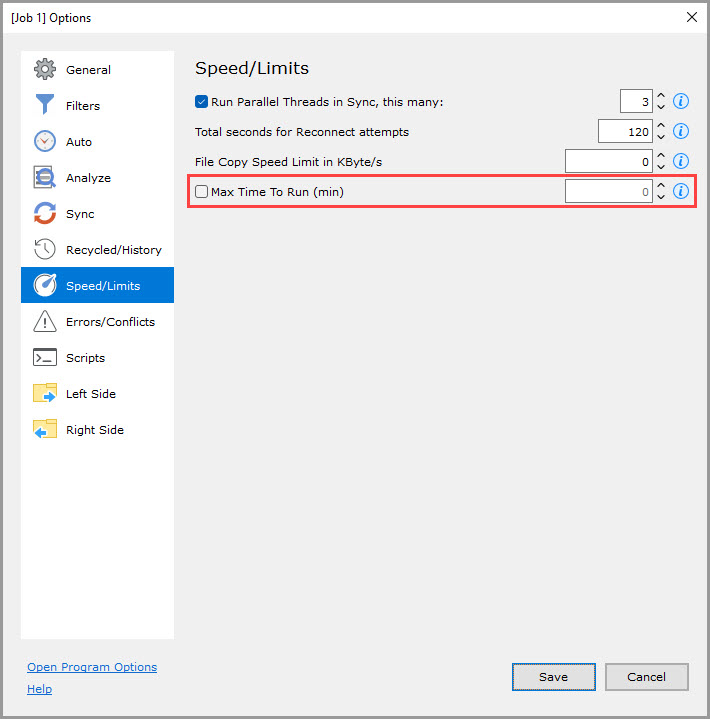
- Run Parallel Threads in Sync, this many
- Total seconds for Reconnect attempts
- File Copy Speed Limit in KByte/sec
- Max Time to Run (min)
Run Parallel Threads in Sync, this many (checked by default, 3 threads)
If checked, then Sync will be run using the specified number of parallel threads. Using this option speeds up file transfer for remote servers with high latency. It does not increase speed, however, if your bandwidth is used up by a single-thread sync.
If unchecked or 0, then run Sync in one sequential thread.
When it helps: uploading many small files to an FTP, GSTP, SFTP, WebDAV, or another remote server.
When it does not help: uploading several large files to an FTP, GSTP, SFTP, WebDAV, or another remote server.
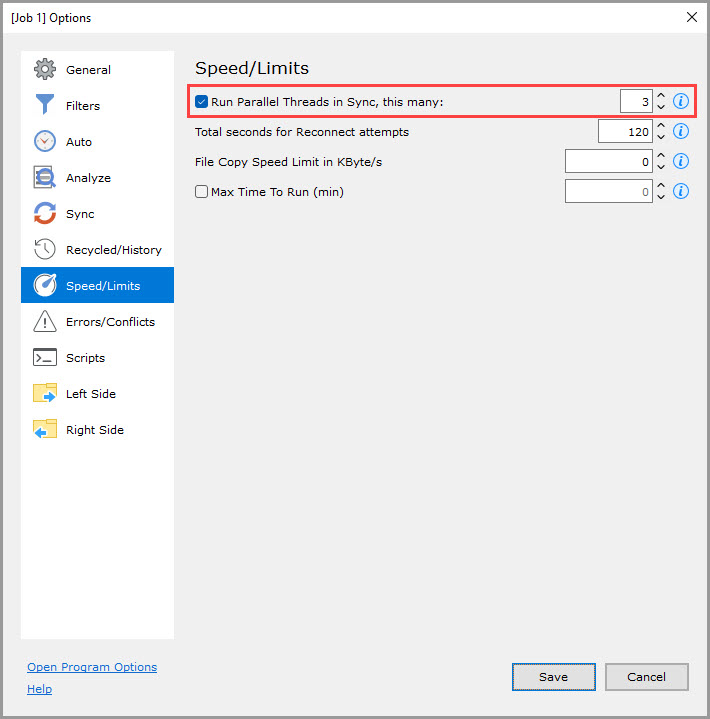
Total seconds for Reconnect attempts (120 by default)
Total seconds allowed for reconnect attempts when the file system disconnects or returns connection errors.
If the file operation fails after this many seconds of retries, the file system is declared disconnected, and the entire job fails.
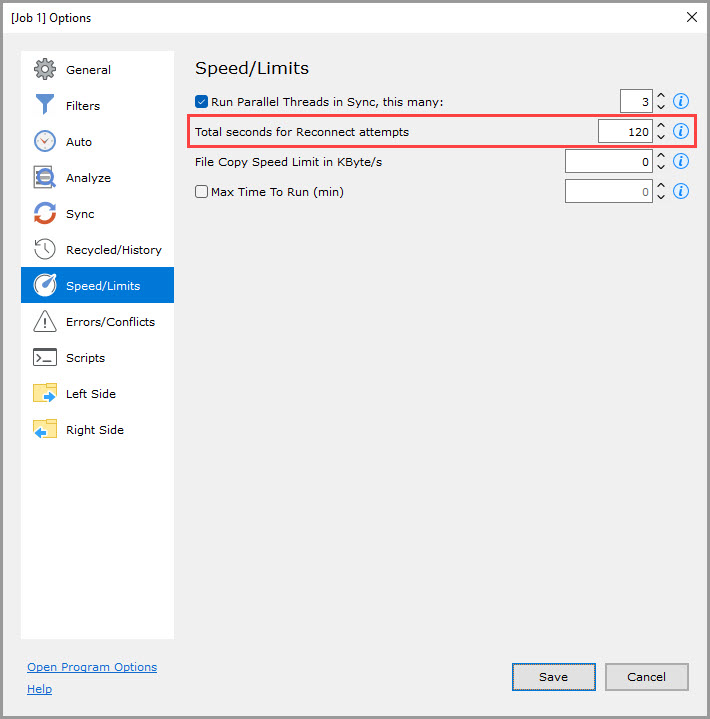
File Copy Speed Limit in KByte/sec (0 by default)
If not zero, limit the file copy speed by the specified value in KBytes/sec.
When the average file copy speed in sync exceeds the specified threshold, GoodSync suspends jobs for 1 second until the effective average speed falls below the limit.
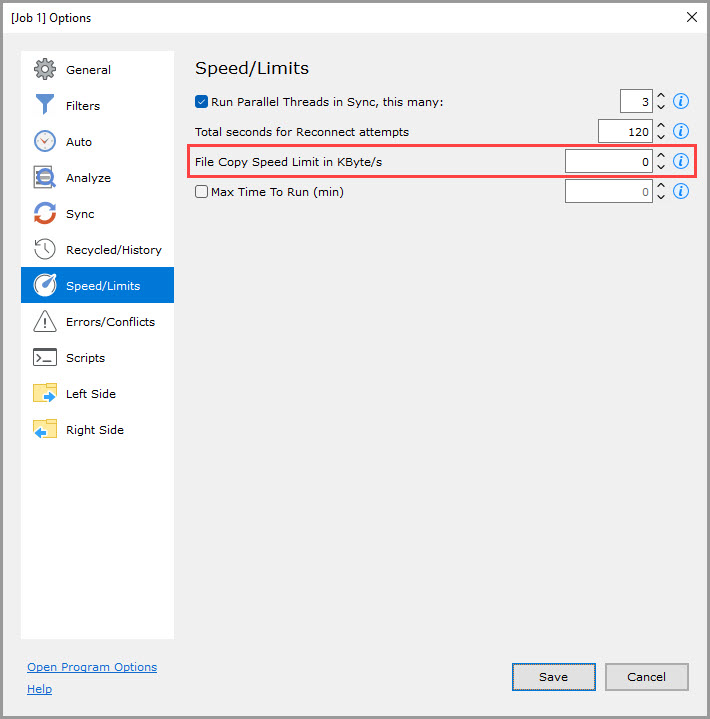
Max Time to Run (min) (unchecked by default)
If checked and not zero, the limit duration of this job will run to the specified number of minutes. Analyze, Sync, or Analyze + Sync are limited by the specified number of minutes. Both Manual and Auto job modes are subject to this limit if specified.