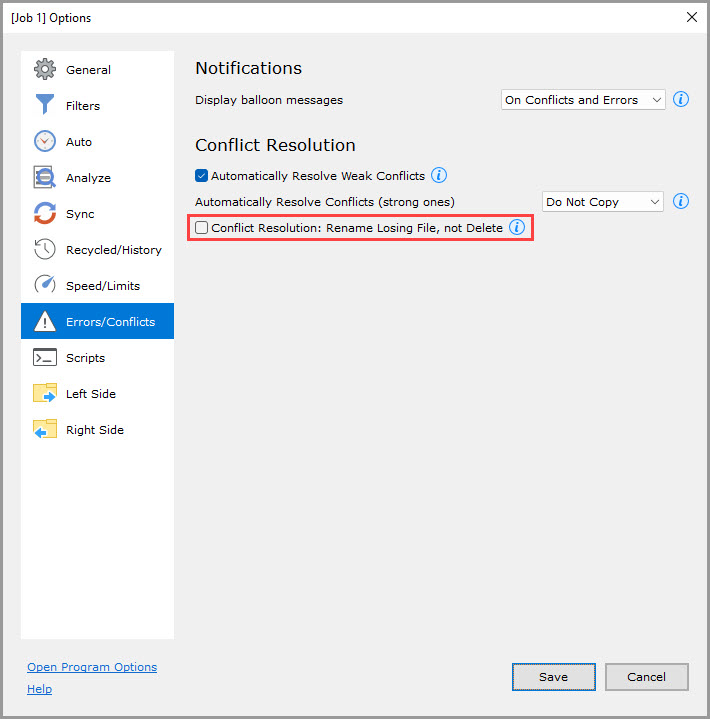
- Display balloon messages
- Automatically Resolve Weak Conflicts
- Automatically Resolve Conflicts (strong ones)
- Rename Losing File, not Delete
Notifications
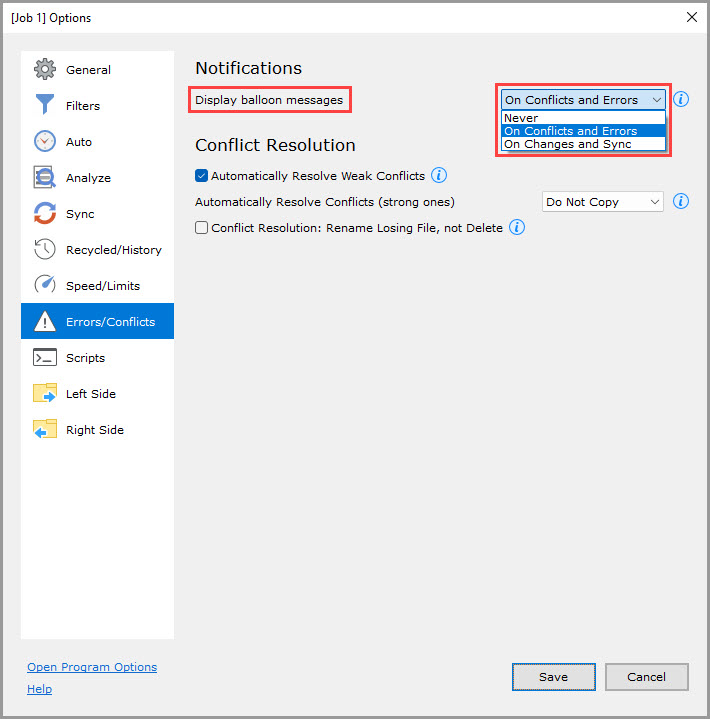
Display balloon messages
This option controls if and when balloon (System Tray) messages are displayed.
- Never: Do not display balloon messages.
- On Conflicts and Errors (default): Display balloon messages only when conflicts or errors are detected during Analyze or Sync.
- On Changes and Sync: Display balloon messages when changes, conflicts, or errors are detected during Analyze or Sync.
Conflict Resolution
If a file is changed on both sides of a 2-way sync before a scheduled run, this will create a Conflict.
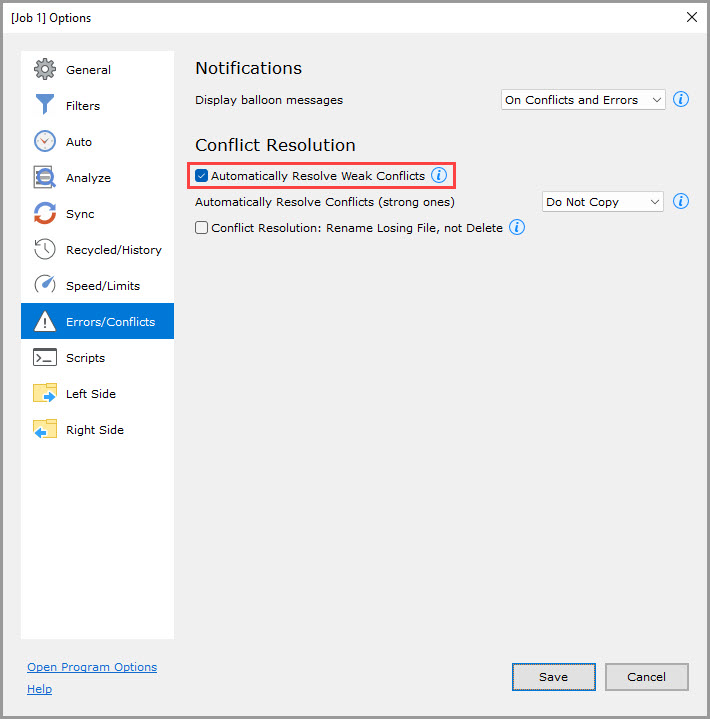
Automatically Resolve Weak Conflicts (checked by default)
A weak conflict happens when files on different sides have equal file size but no file modification time, and one side has no generations.
If checked, GoodSync will resolve such conflicts by letting the side with generations or a file having a file modification time win.
If not checked, weak conflicts are presented to the user.
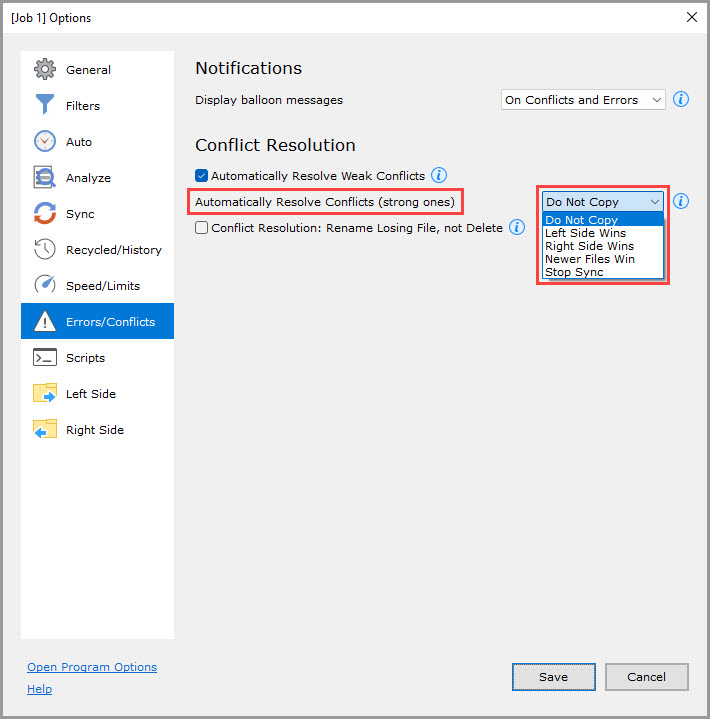
Automatically Resolve Conflicts (strong ones) ("Do Not Copy" by default)
A strong conflict happens when GoodSync cannot detect a winning file on its own. These conflicts may be resolved automatically with the following options:
- Do Not Copy (default): Leave conflicts in an unresolved (Do Not Copy) state.
- Left Side Wins: Resolve to Left to Right propagation.
- Right Side Wins: Resolve to Right to Left propagation.
- Newer Files Win: Files with the most recent modification date win.
- Stop Sync: Stop sync when conflict is detected.
Rename Losing File, not Delete (unchecked by default)
If the "Automatically Resolve Conflicts (strong ones)" option is enabled then do not delete the file that loses as a result of the conflict resolution. Instead, rename it to "FileName (Conflicted Copy from COMPUTER on DATE).ext."