If GoodSync is not already installed, download and install GoodSync before continuing.
GoodSync makes it easy to back up and synchronize files between your computer and Amazon S3 storage. Follow the steps below to connect your Amazon S3 account and create a GoodSync job.
NOTE: GoodSync requires an AWS access key pair to connect to your Amazon S3 storage. For instructions on creating an access key pair, go to the access key section at the bottom of this page.
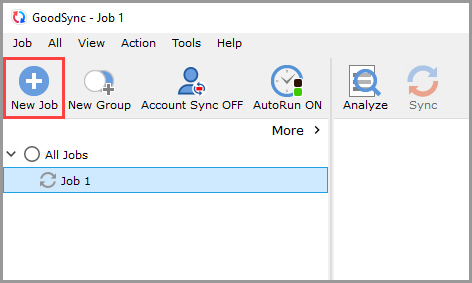
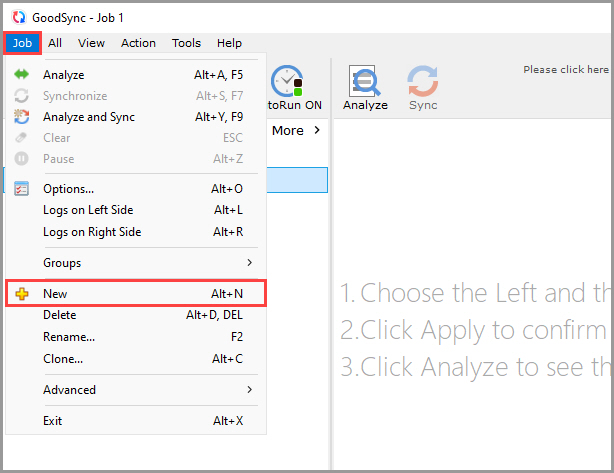
1) Create a new GoodSync job. Open GoodSync and click the "New Job" button in the toolbar. You can also select "Job" > "New" from the menu.
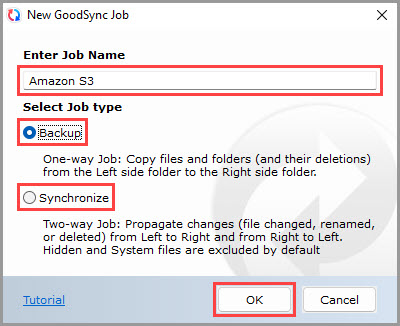
2) Name the job and select the job type. In the "New GoodSync Job" window, enter a name for the job and select either "Backup" or "Synchronize."
Click "OK" to create the job.
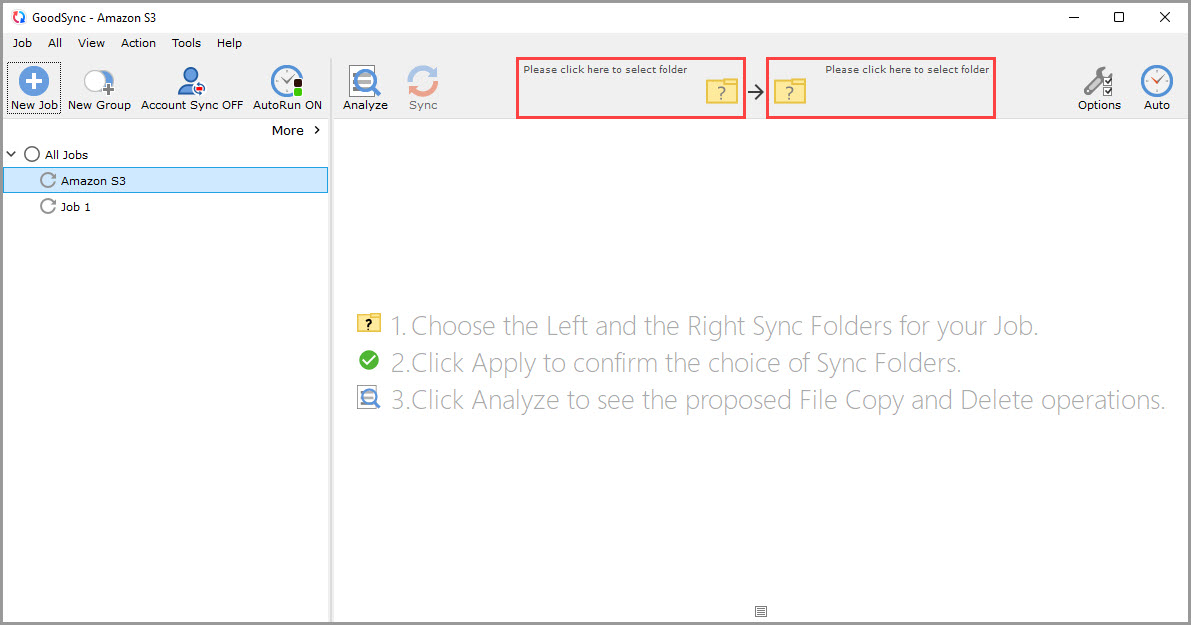
3) Select a job side. Click the folder selection control on the left or right side of the job to view the available files, folders, and supported services.
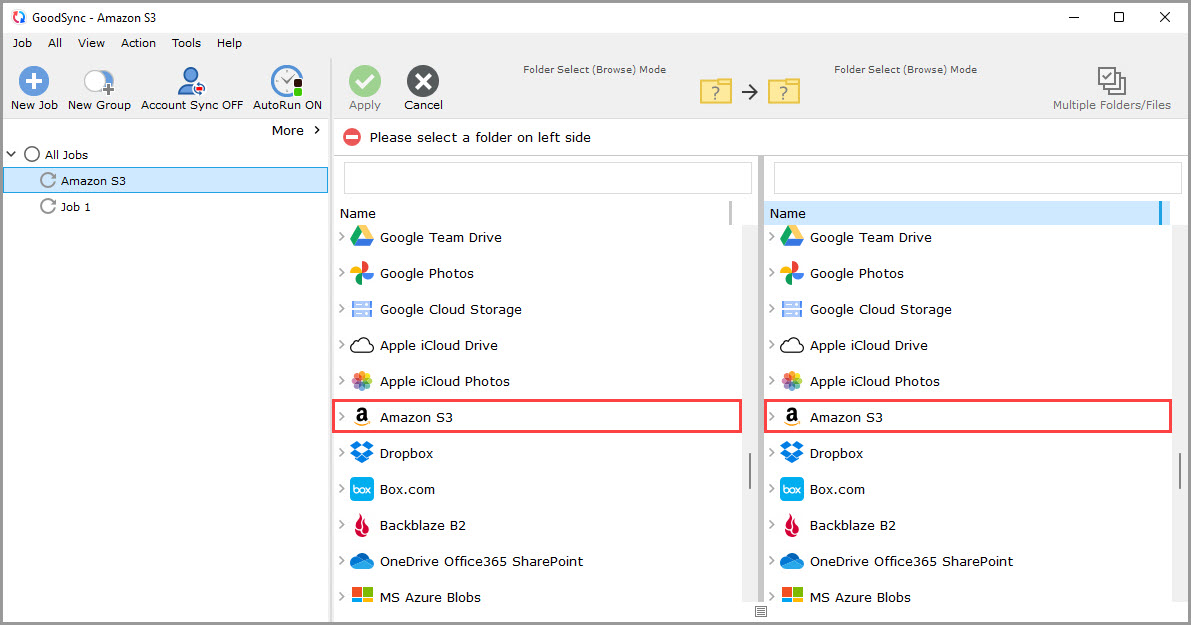
4) Select Amazon S3. Scroll through the list of supported services and select "Amazon S3" on the desired side of the job.
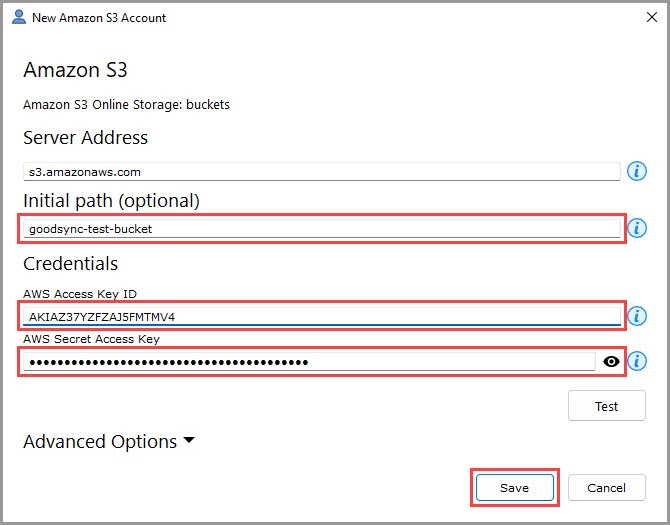
5) Enter your Amazon S3 connection information. The Amazon S3 connection window will appear.
Leave the "Server Address" field unchanged.
In the "Initial path" field, you may optionally enter the name of the Amazon S3 bucket you want GoodSync to open.
Under "Credentials," enter your AWS access key in the "AWS Access Key ID" field.
Enter the corresponding secret access key in the "AWS Secret Access Key" field.
For instructions on generating these credentials, see How to obtain an Amazon S3 access key pair.
Click "Save" after entering the required information.
6) Select your Amazon S3 folder. After the credentials are saved, the available buckets and folders from your Amazon S3 account will appear in GoodSync.
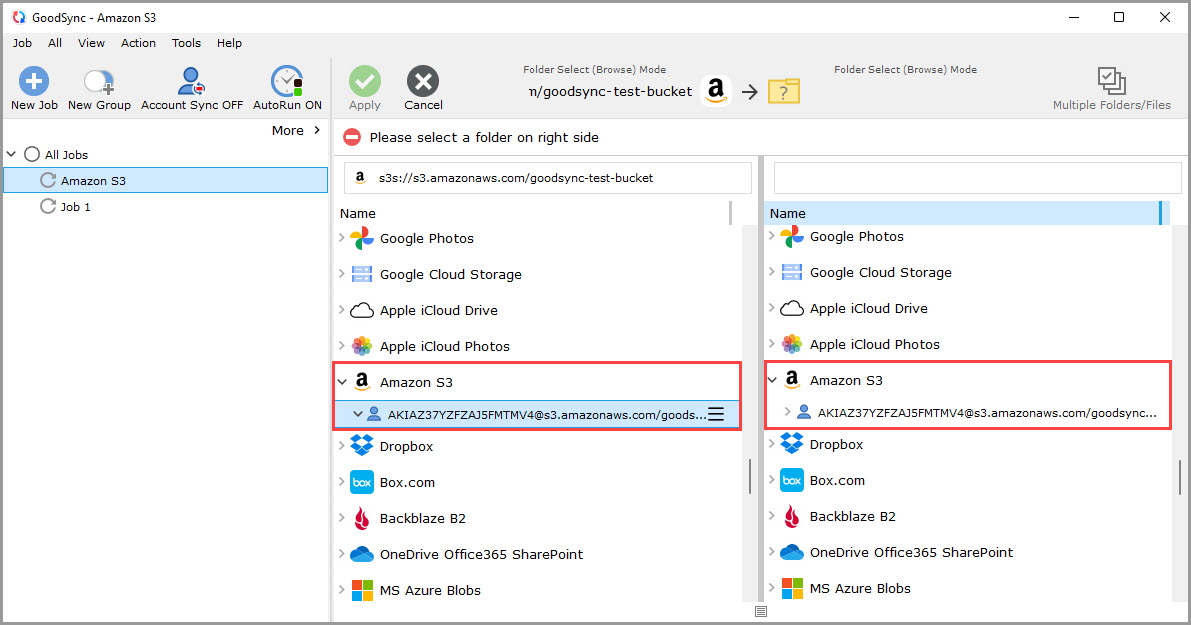
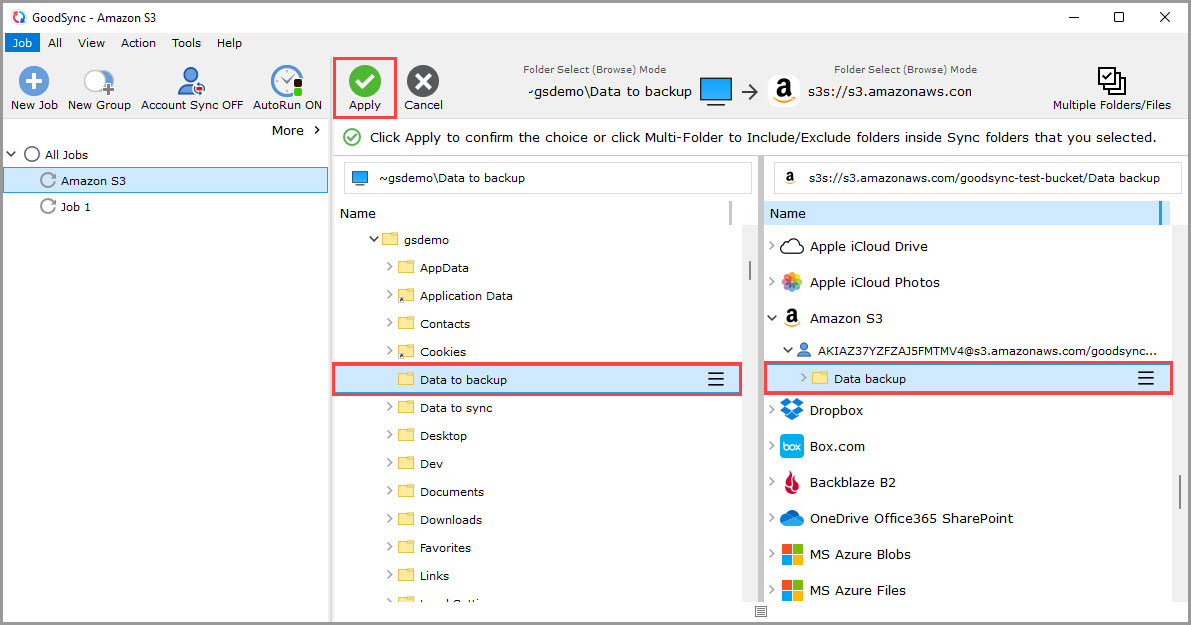
7) Select the source and destination folders. On the left side, select the folder containing the data you want to back up or synchronize.
On the right side, select "Amazon S3," and then select or create the destination folder in your Amazon S3 storage.
Click the green "Apply" button after selecting the folder.
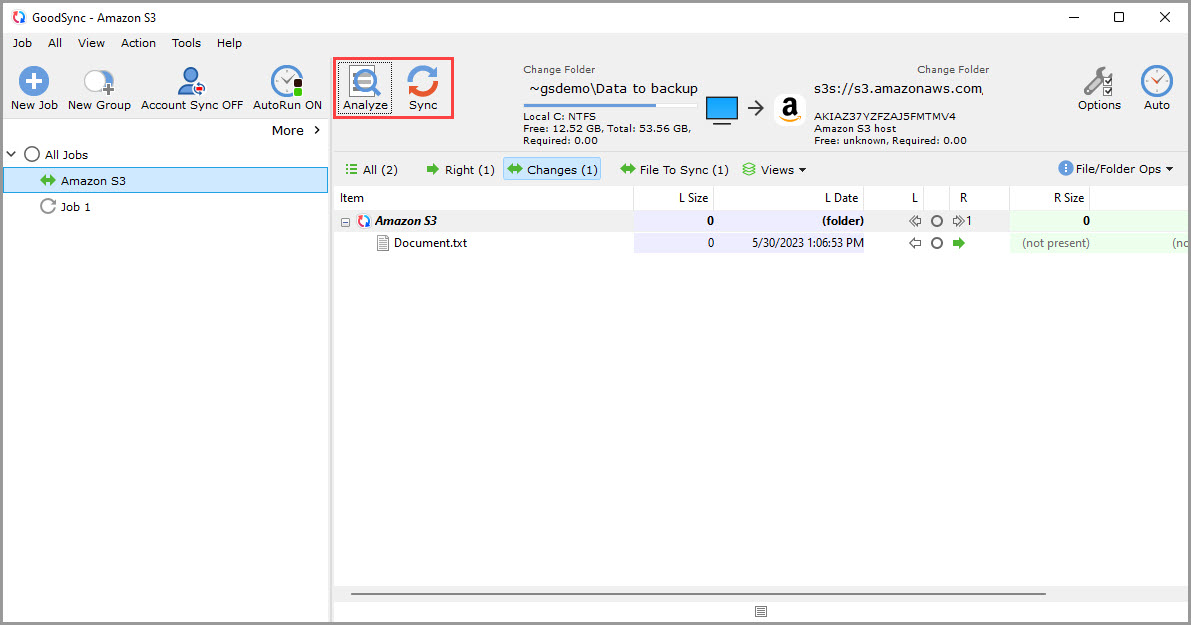
8) Analyze and run the job. The job is now ready. Click "Analyze" to review the proposed changes, and then click "Sync" to process them.
NOTE: To configure automatic job triggers, filters, conflict handling, or other job settings, see GoodSync Job Options.
How to obtain an Amazon S3 access key pair
1) Sign in to your AWS account.
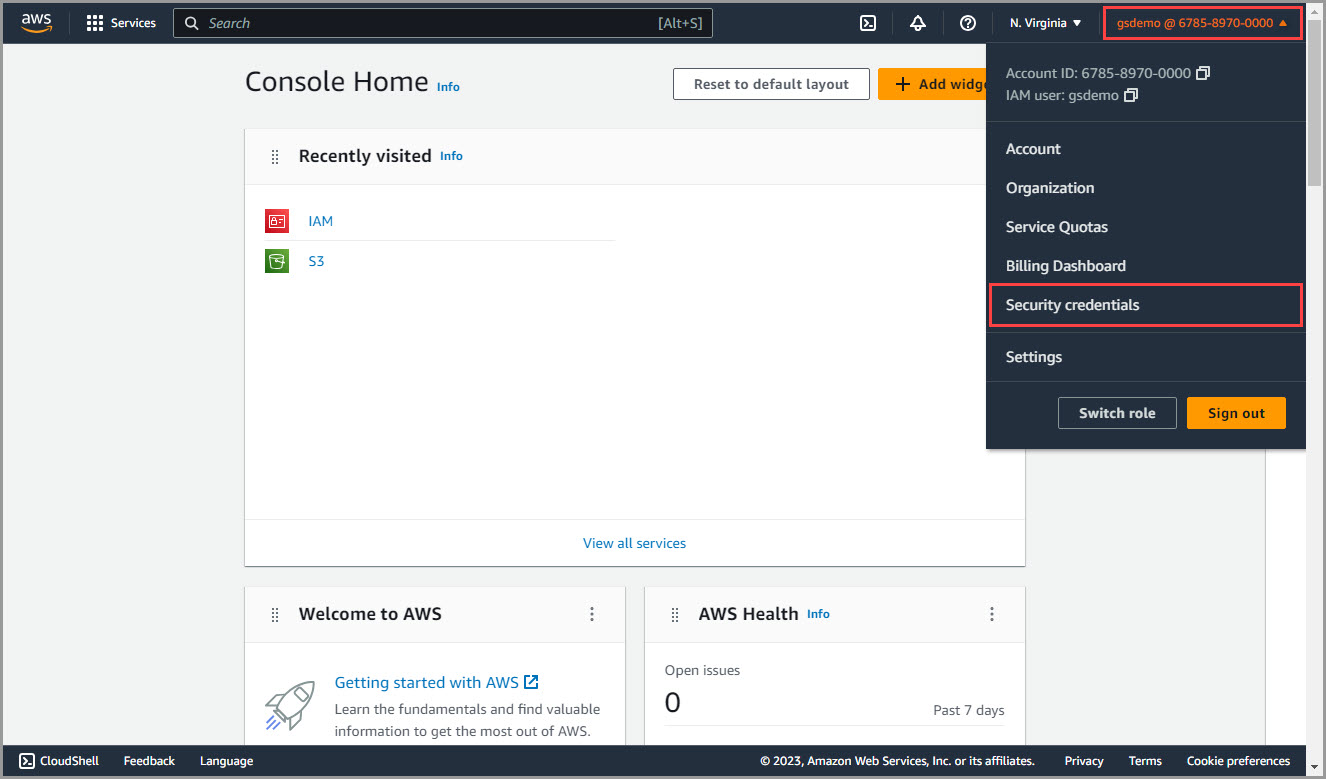
2) Open the Security credentials page. Click your account name in the upper-right corner, and then select "Security credentials" from the menu.
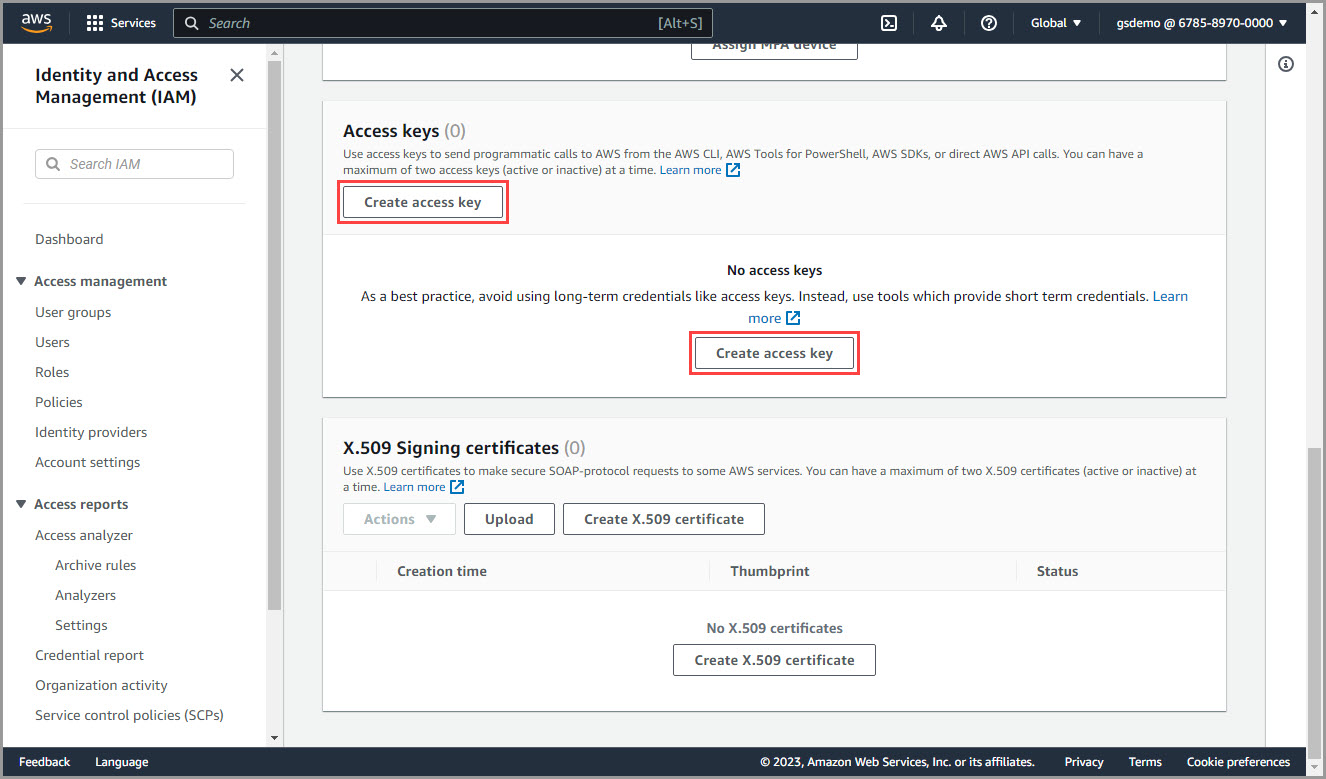
3) Create a new access key. Scroll to the "Access keys" section, and then click "Create access key."
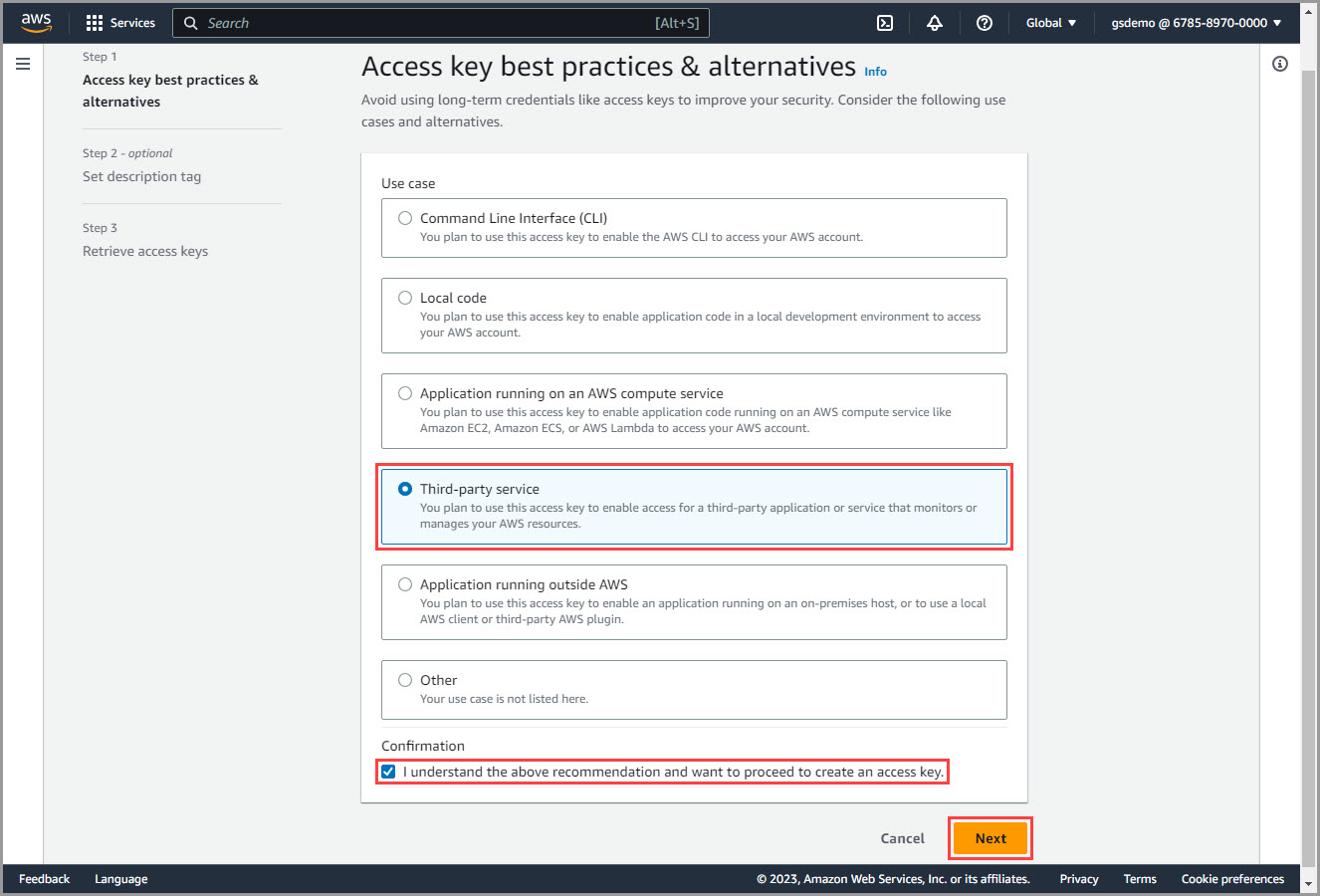
4) Select the access key use case. Select "Third-party service."
Check the "I understand the above recommendation and want to proceed to create an access key" box, and then click "Next."
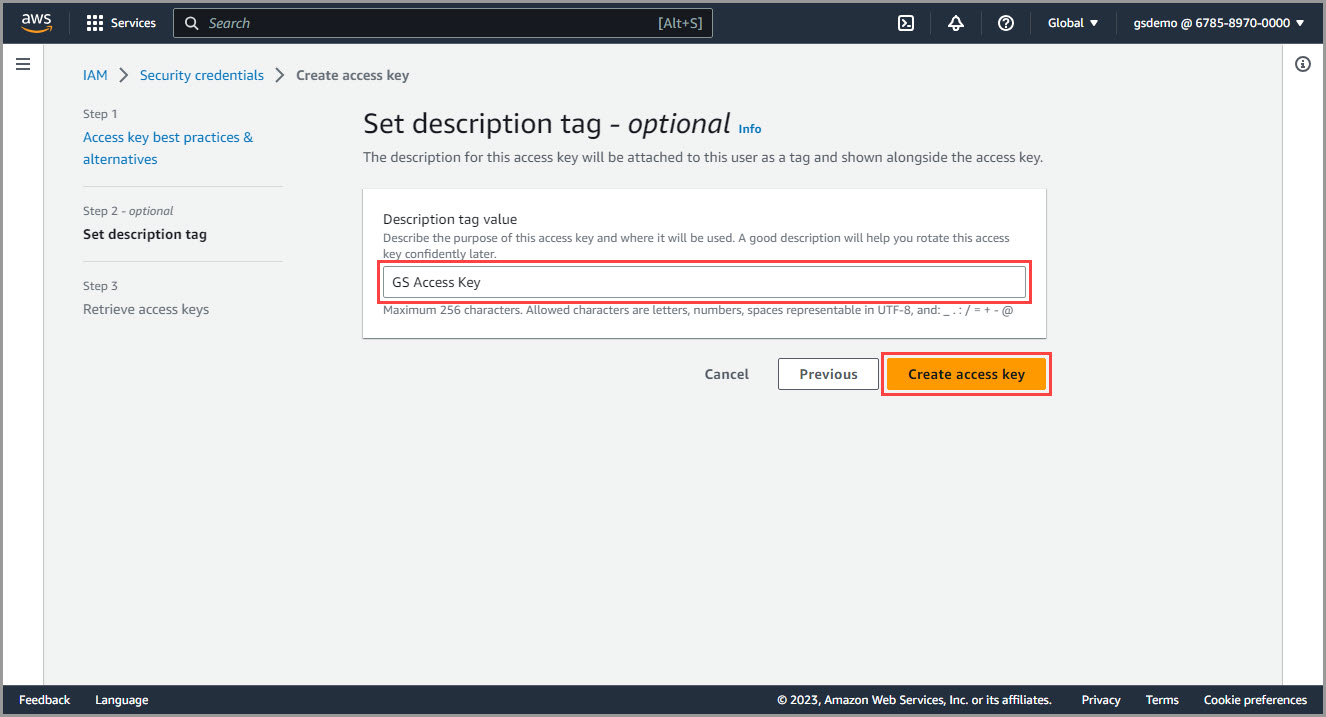
5) Create the access key. Optionally, enter a description tag to identify what the access key will be used for.
Click "Create access key."
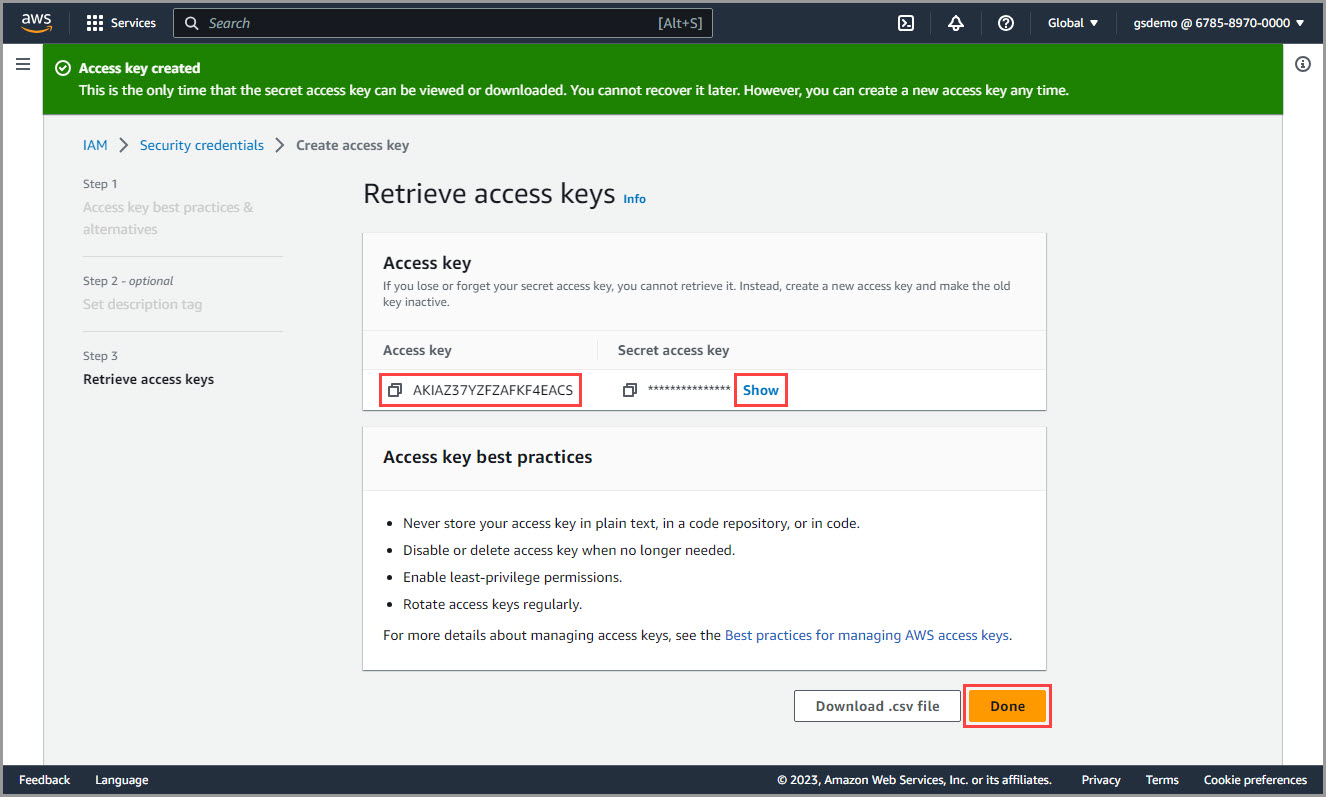
6) Save the access key information. AWS will display the "Access key" and "Secret access key" needed to connect GoodSync to Amazon S3.
Click "Show" to display the secret access key.
IMPORTANT: Save both values in a secure location. The secret access key may not be available to view again after you leave this page.
You may store the credentials in a secure password manager, such as a RoboForm SafeNote.
Click "Done" after securely saving the access key pair.