If you haven't already, download and install GoodSync.
NOTE: Before using iCloud Drive in GoodSync, you must sign in with your Apple ID on an Apple device or in iCloud Web at least once.
With GoodSync, you can back up and sync to and from your Apple iCloud Drive storage. To do so, follow these steps:
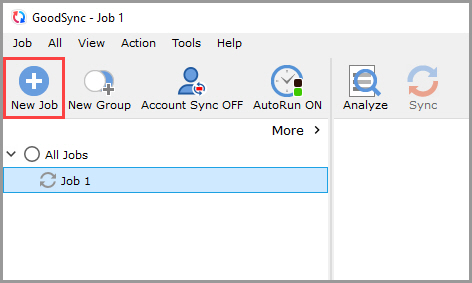
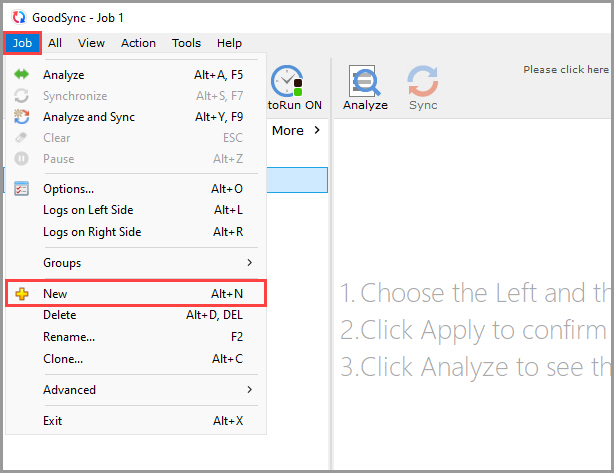
1) Open GoodSync and click the "New Job" button in the toolbar, or, in the "Job" menu, select "New."
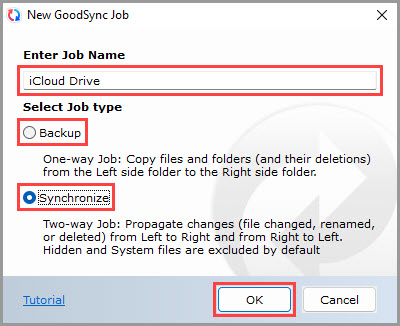
2) In the New GoodSync Job prompt, enter the name of your new Job. Then, select "Backup" or "Synchronize" as your Job type.
Click the "OK" button when done.
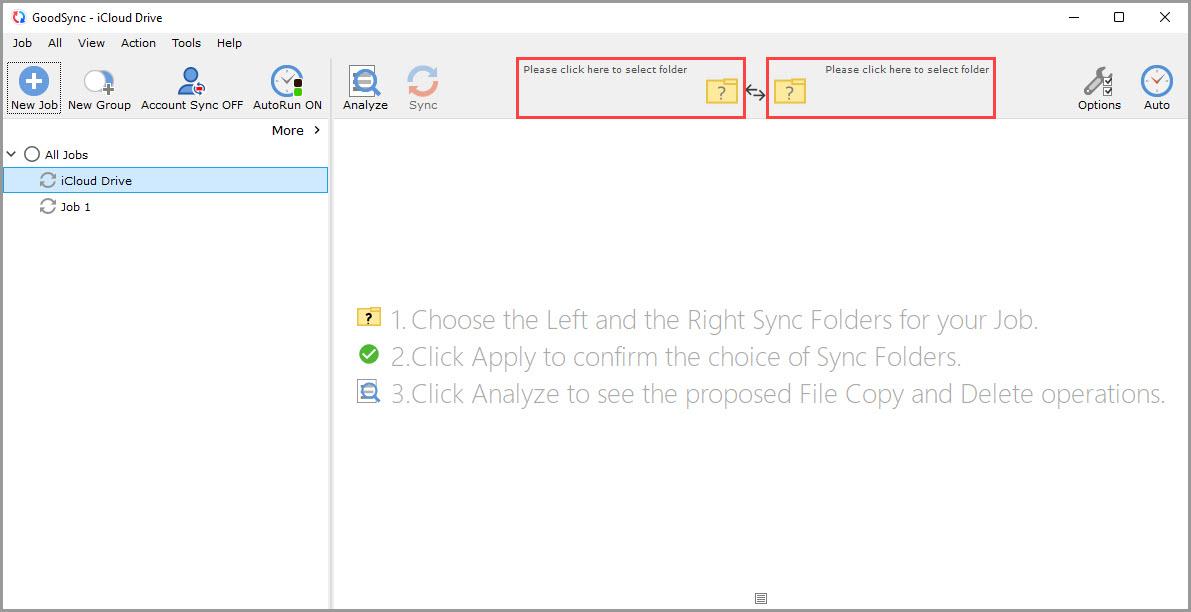
3) Click the left or right sync folder controls to view the files and folders available for selection.
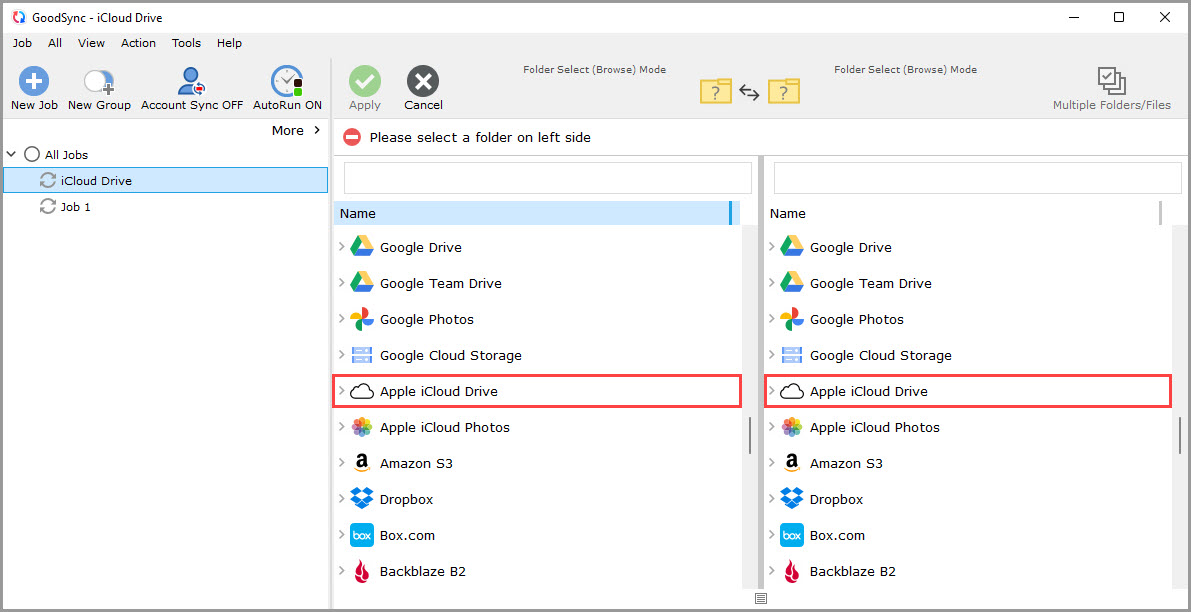
4) Scroll down, and select "Apple iCloud Drive" from the list of supported services on either side.
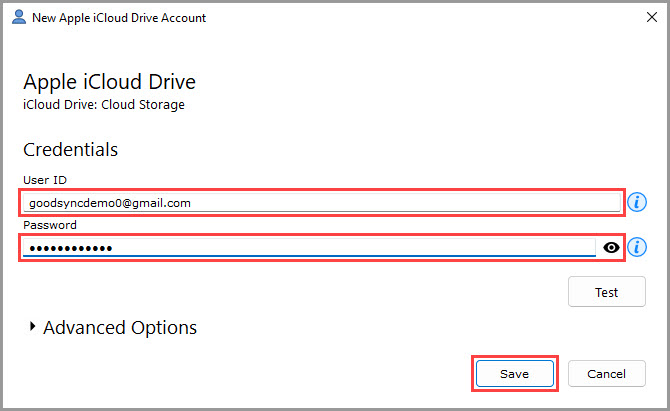
5) A window will appear prompting you to authorize GoodSync to access your iCloud Drive storage.
In the "UserId or Email" field under "Credentials," enter the name of your Apple ID.
In the "Password" field under "Credentials," enter the password of your Apple ID.
Then, click the "Save" button.
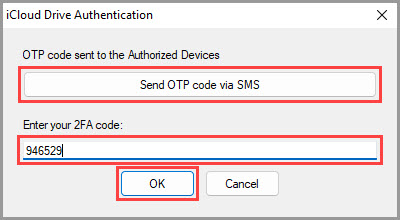
6) You will next receive an OTP (2FA) code on the devices authorized with your Apple ID.
Alternatively, you can receive the OTP code via SMS by clicking "Send OTP code via SMS."
Enter the code you received in the "Enter your 2FA code" field, and click "OK."
7) After permission is given to GoodSync, your iCloud Drive content will be shown within the GoodSync interface.
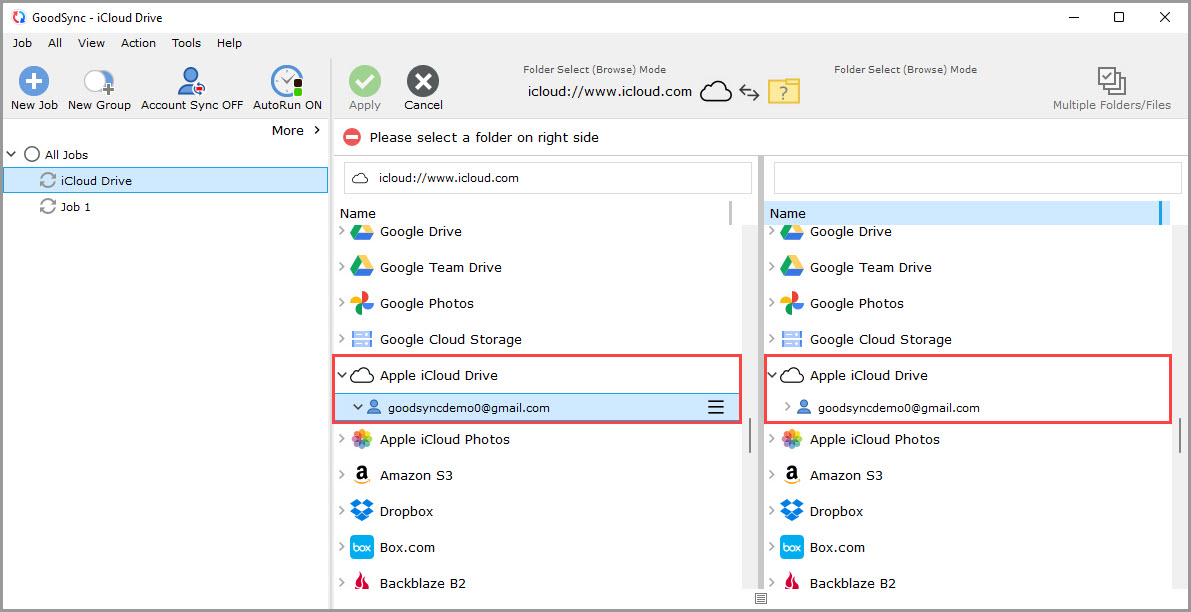
8) Select a folder that contains the data you wish to back up or sync on the left side.
On the right side, click "Apple iCloud Drive" and select or create a folder on your iCloud Drive storage that you wish to back up or sync to.
Then, click the green "Apply" button.
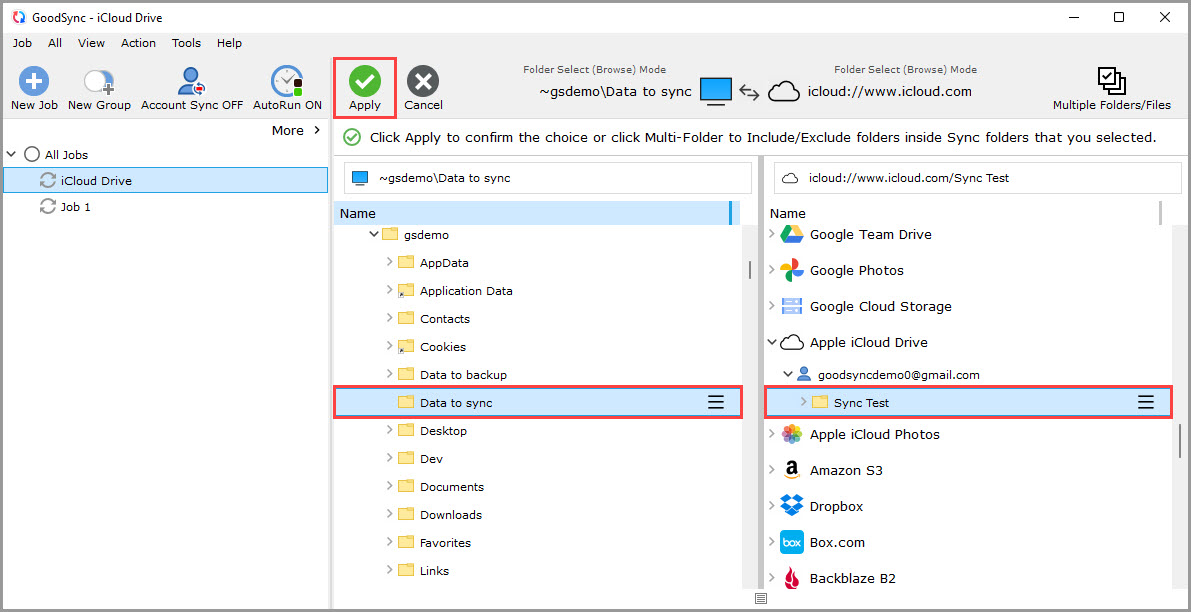
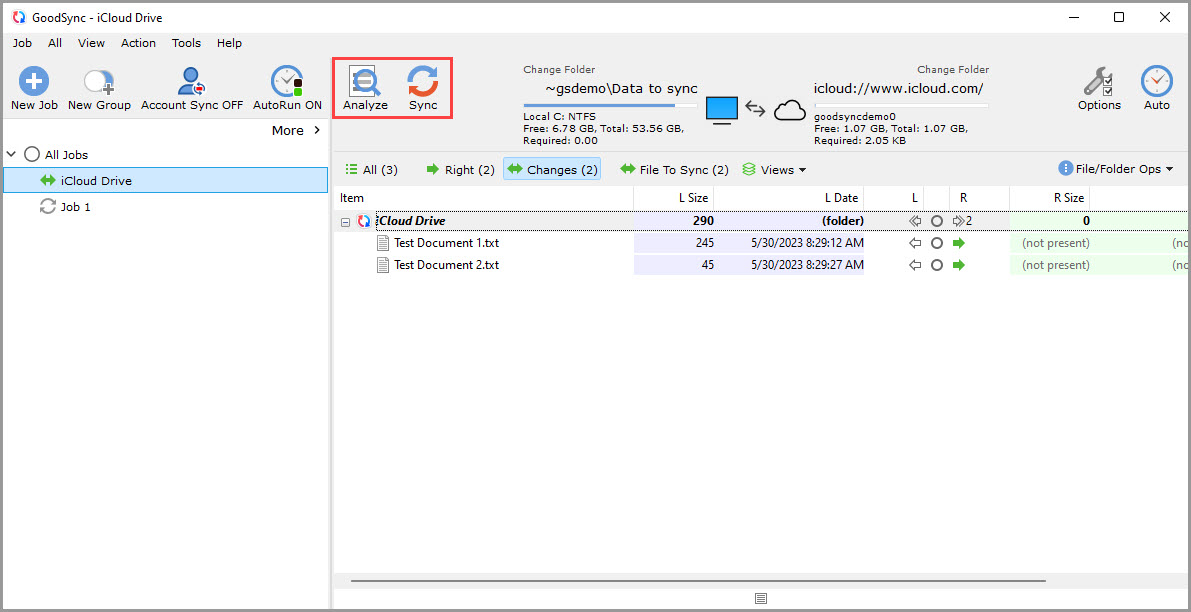
9) Your Job is now ready to Analyze and Sync.