If you haven't already, download and install GoodSync.
With GoodSync, you can back up and sync to and from your Google Drive cloud storage.
The Google Drive Unified file system combines Google Drive, Google Team Drive, and Google Docs into a single interface, allowing you to synchronize and back up files to and from all these file systems in one place.
- How to set up a GoodSync job with Google Drive
- How to re-authorize with a different Google Drive account in GoodSync
How to set up a GoodSync job with Google Drive
Follow these steps to set up a job with Google Drive:
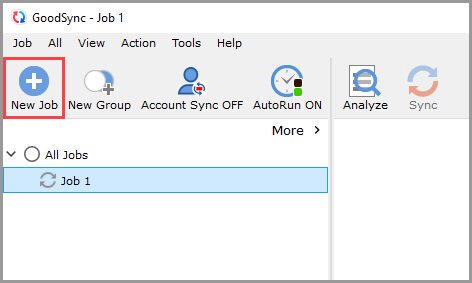
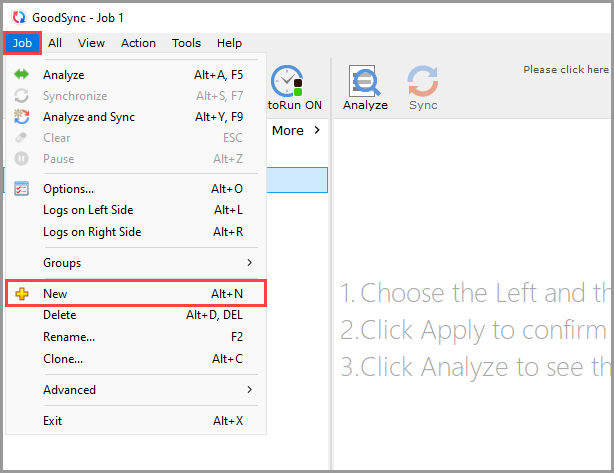
1) Open GoodSync and click the "New Job" button in the toolbar, or, in the "Job" menu, select "New."
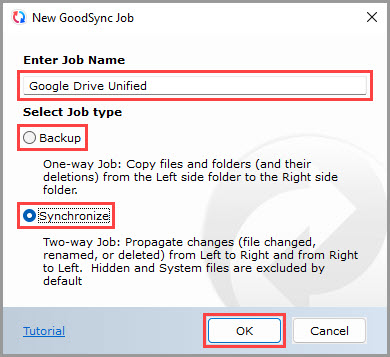
2) In the New GoodSync Job prompt, enter the name of your new Job. Then, select "Backup" or "Synchronize" as your Job type.
Click the "OK" button when done.
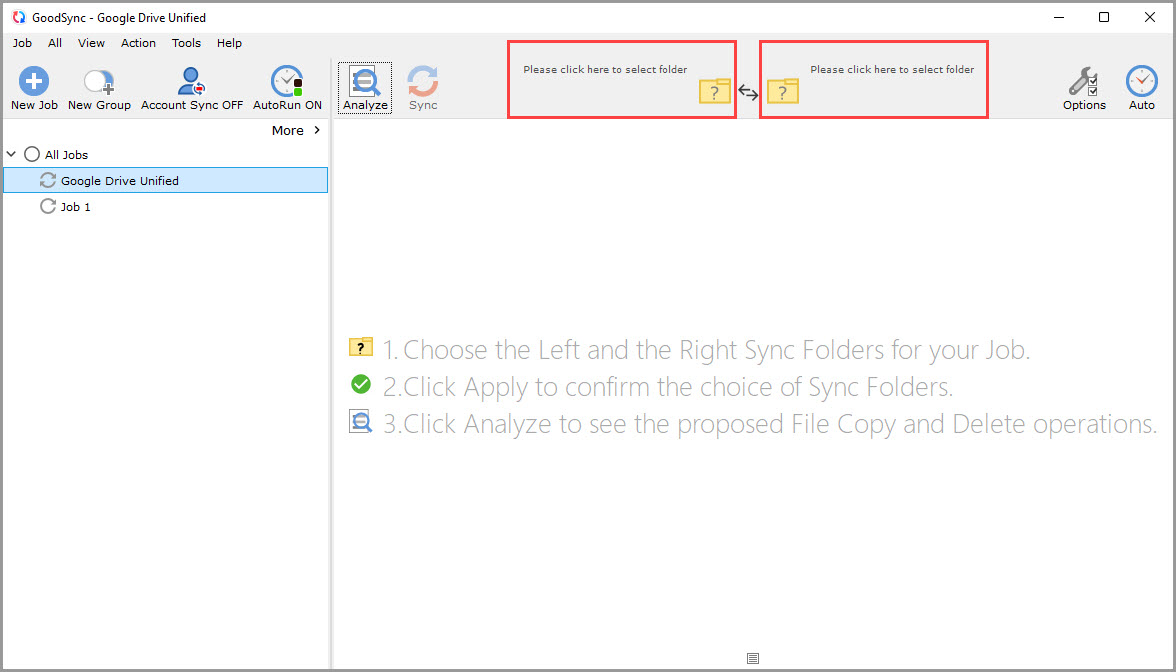
3) Click the left or right sync folder controls to view the files and folders available for selection.
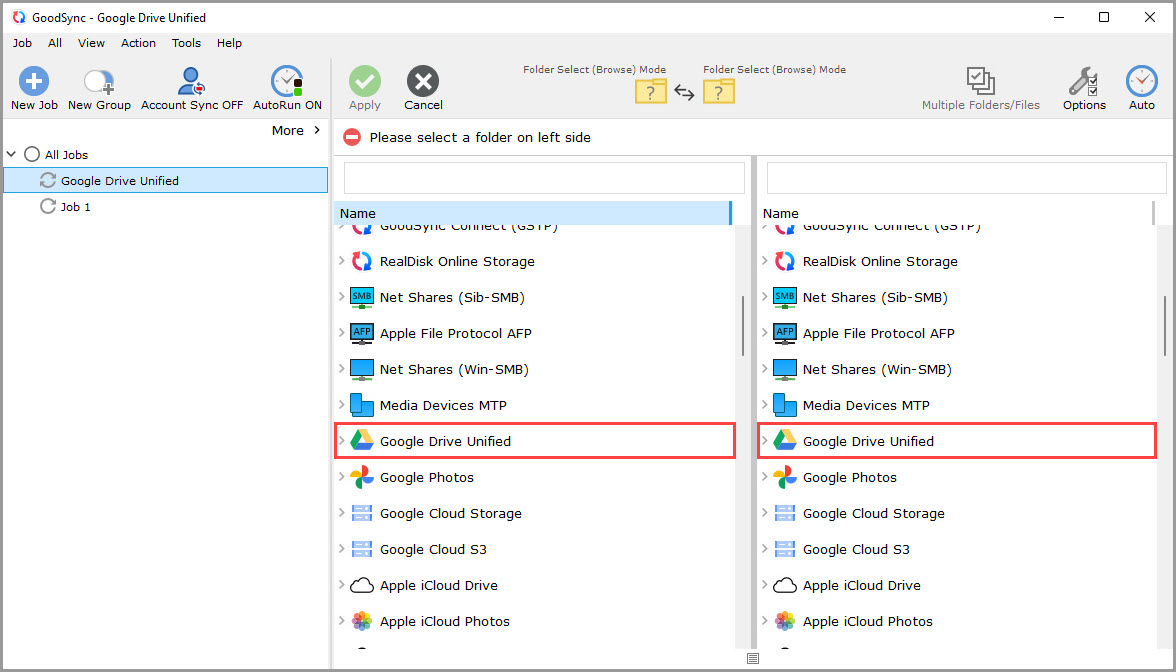
4) Scroll down, and select "Google Drive" from the list of supported services on either side.
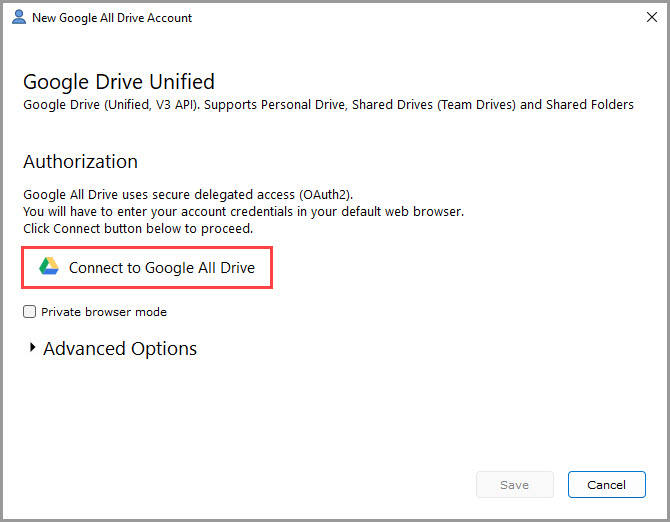
5) A window will appear prompting you to authorize GoodSync to access your Google Drive account. Click on the "Connect to Google Drive" button.
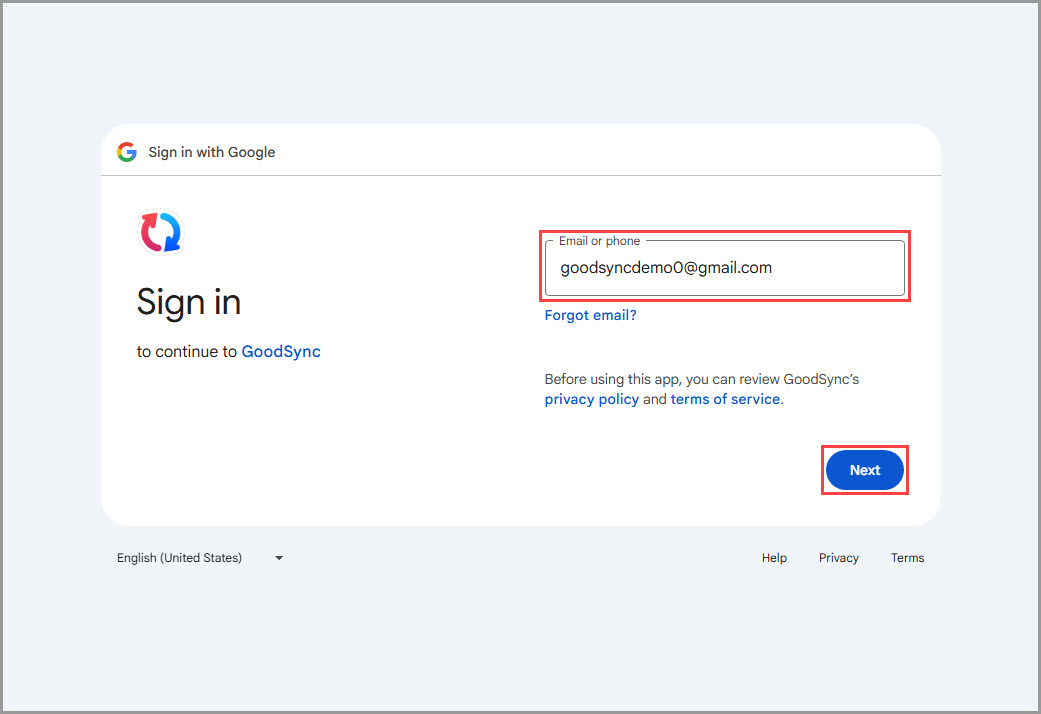
6) A Google authentication page will open in your default browser. Enter the name of your Google account. Then click the blue "Next" button.
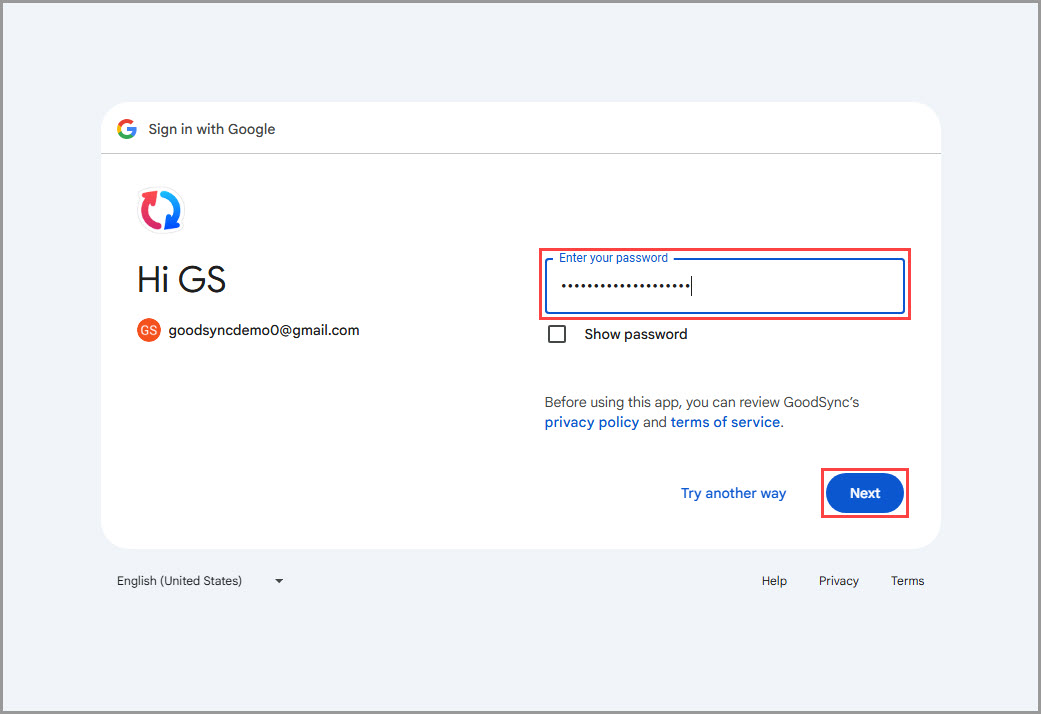
7) On the next step, enter the password of your Google account, and click the "Next" button.
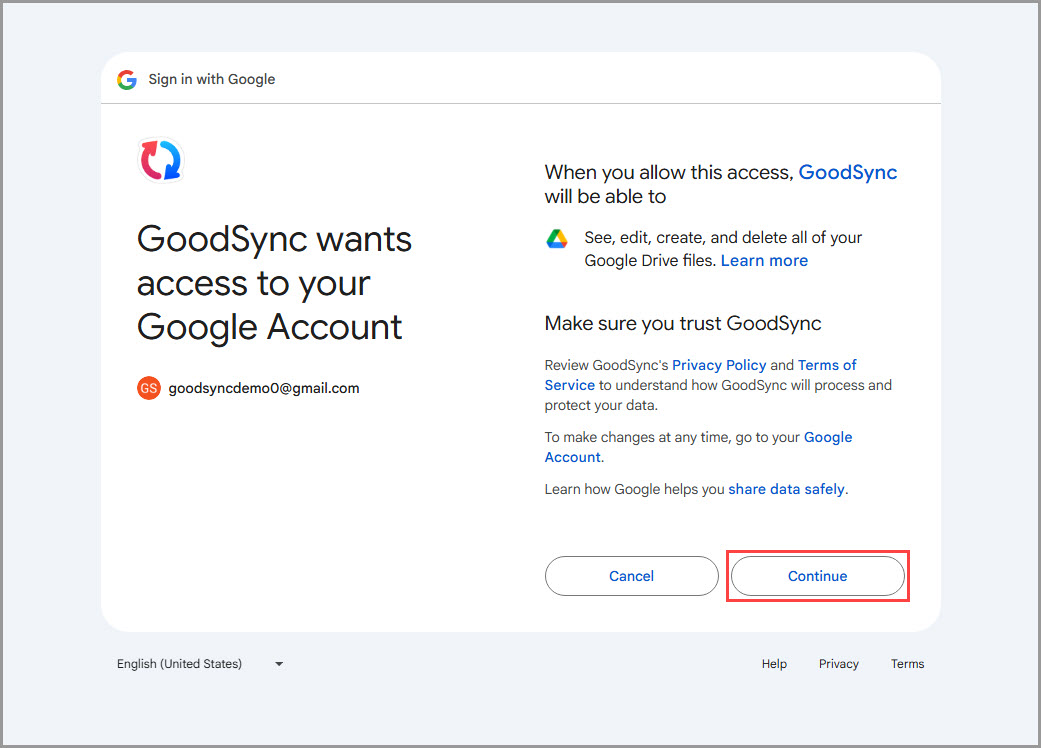
8) Click the "Allow" button to grant GoodSync access to the Google Drive file system. You will then be taken to a page confirming that you granted access to GoodSync.
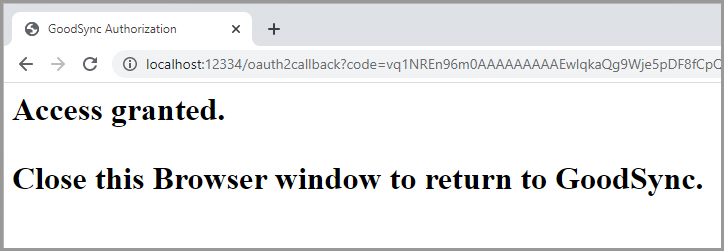
9) After permission is given to GoodSync, your Google Drive account content will be shown within the GoodSync interface.
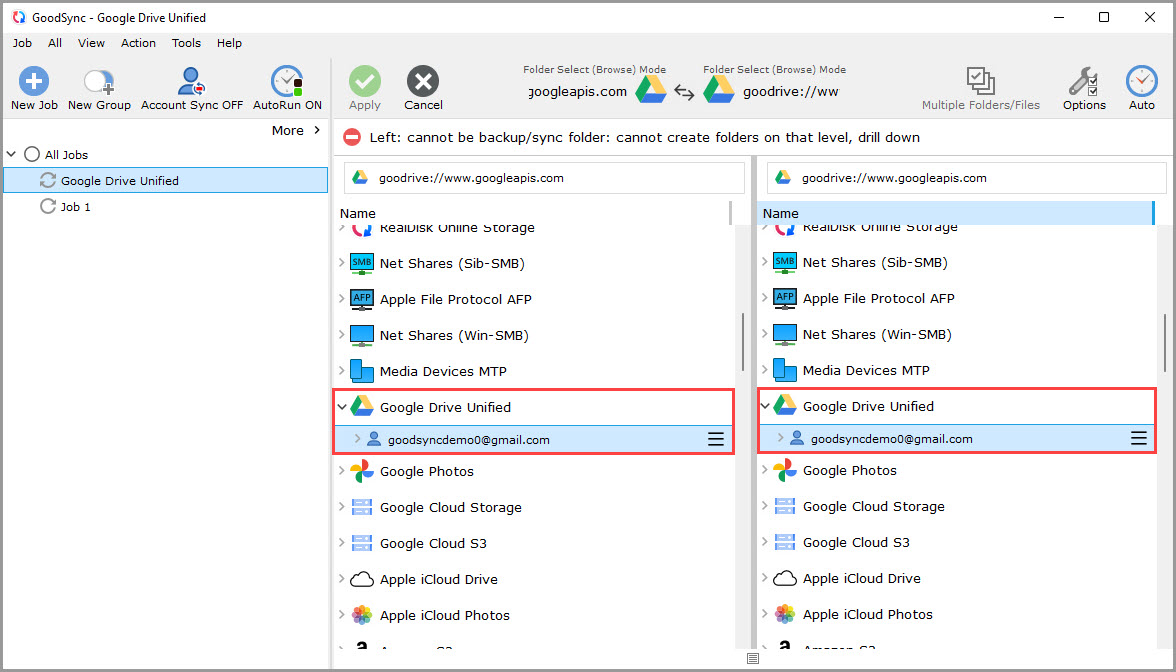
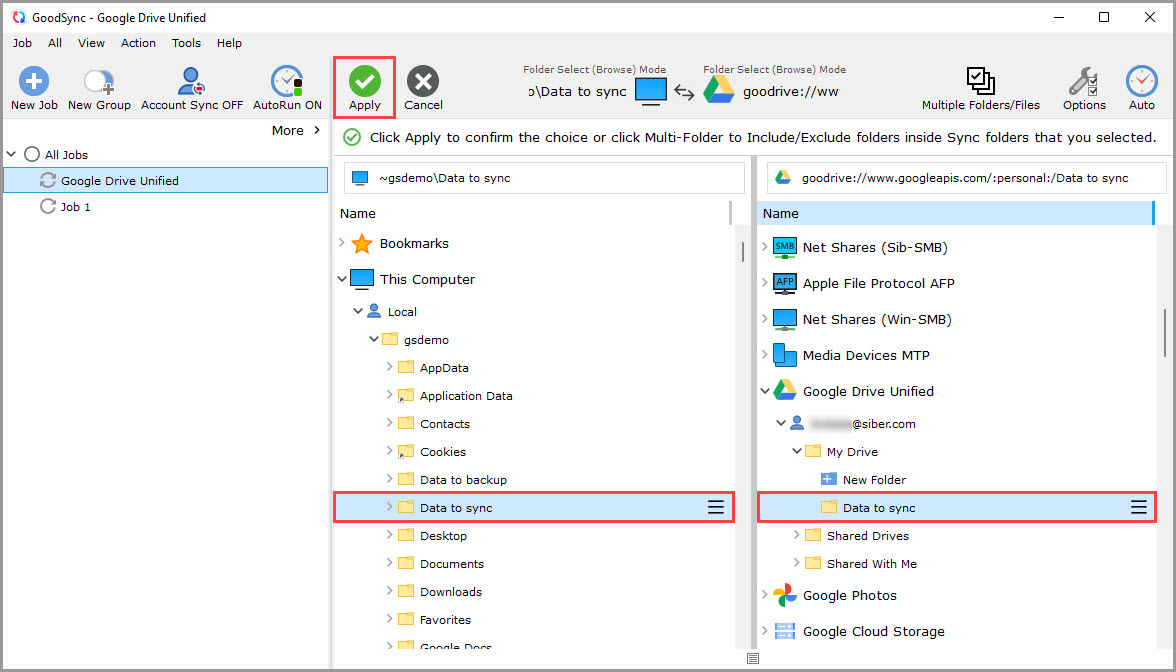
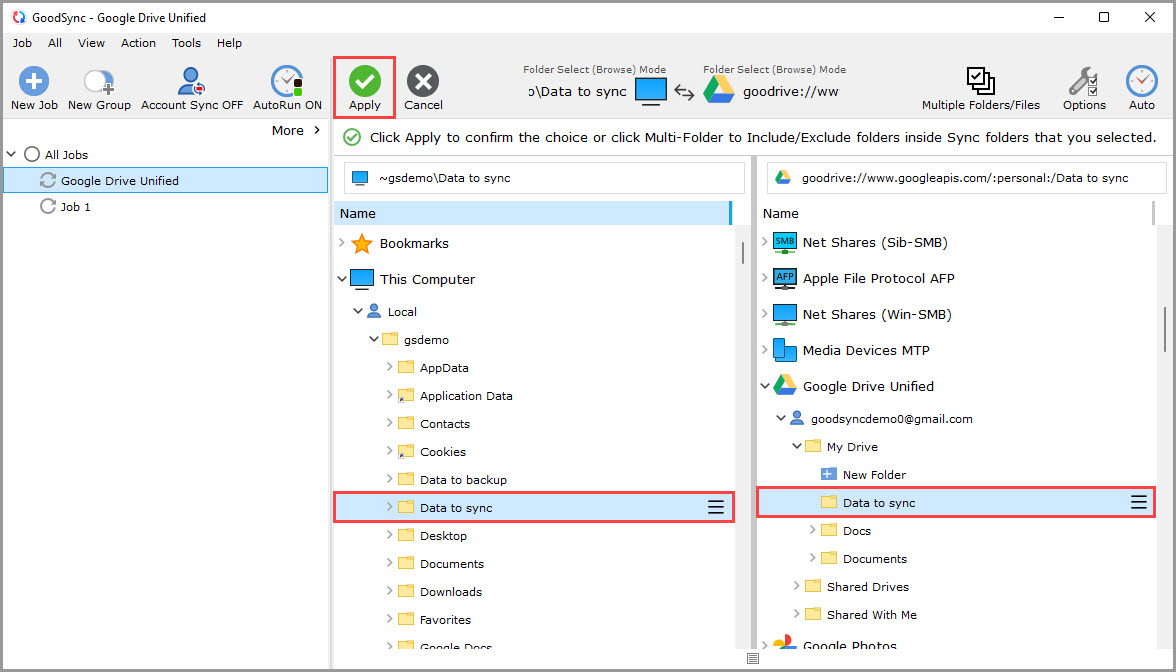
10) Select a folder that contains the data you wish to back up or sync on the left side.
On the right side, click "Google Drive" and select or create a folder you wish to back up or sync to.
Then, click the green "Apply" button.
11) Your Job is now ready to Analyze and Sync.
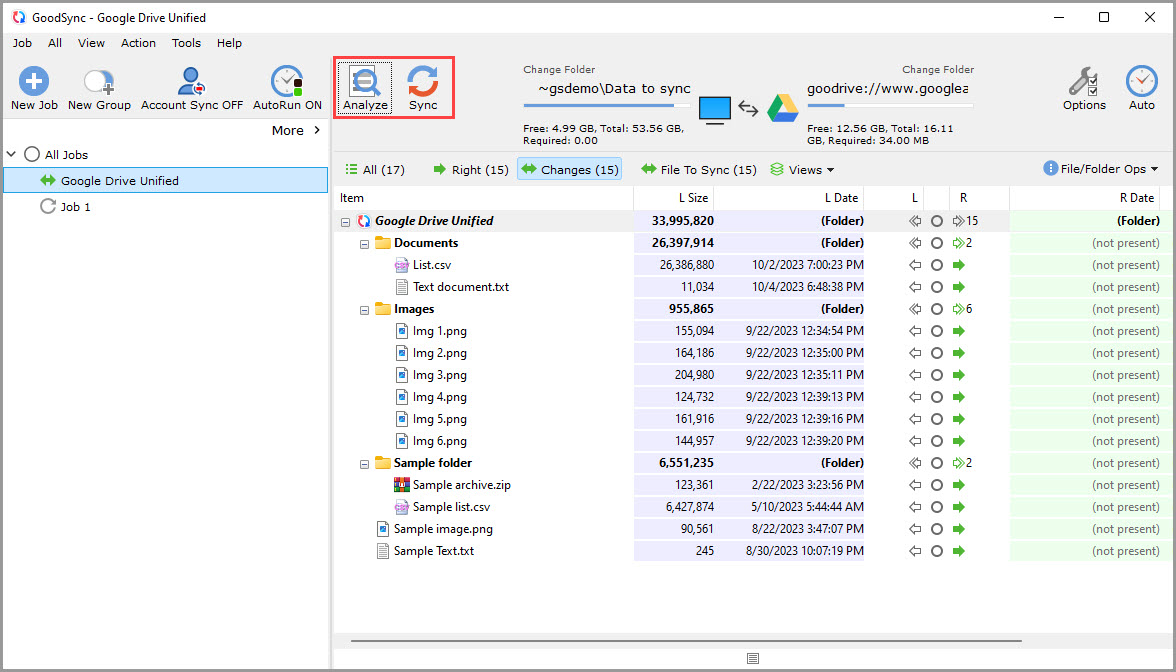
NOTE: To configure the job with automation or other settings, click here.
How to re-authorize with a different Google Drive account in GoodSync
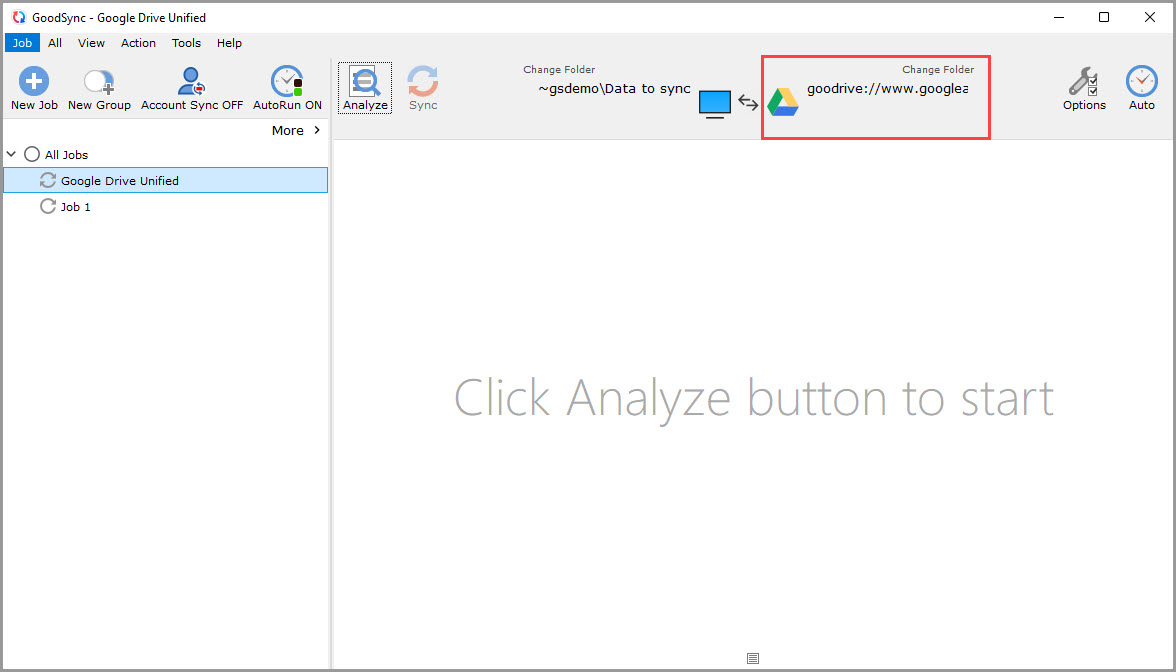
1) Open GoodSync and click your Google Drive sync or backup folder at the top where it says "Change Folder."
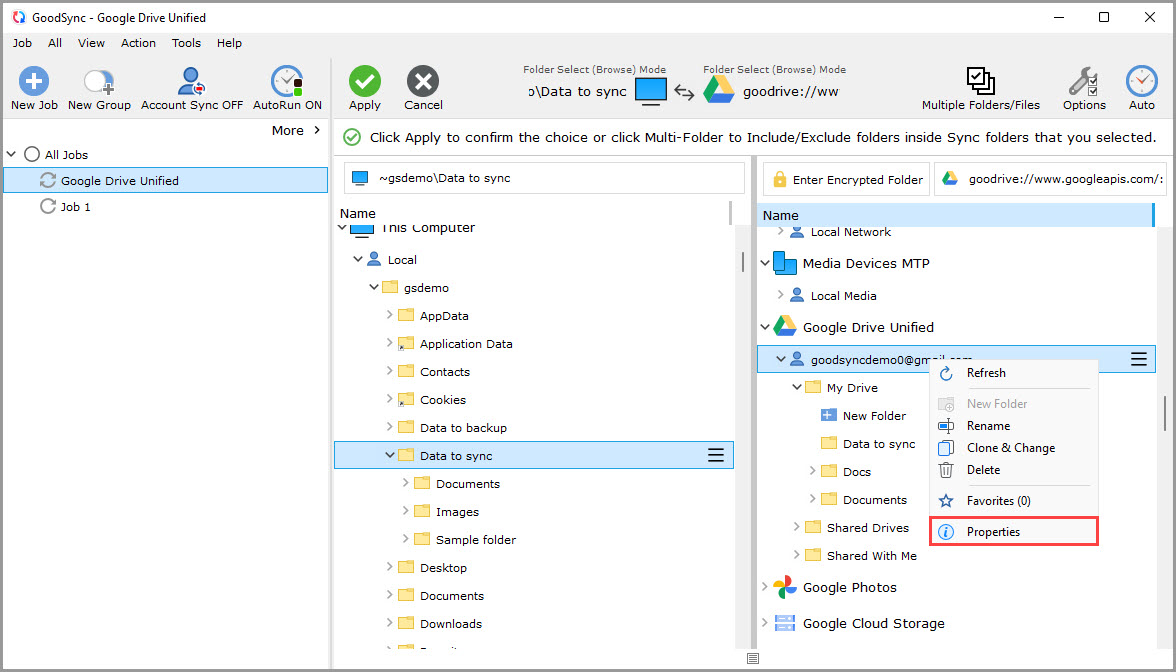
2) Locate your current Google Drive account under "Google Drive Unified," right-click it, and select "Properties."
3) In the window that appears, click the "Re-authorize to Google All Drive" button.
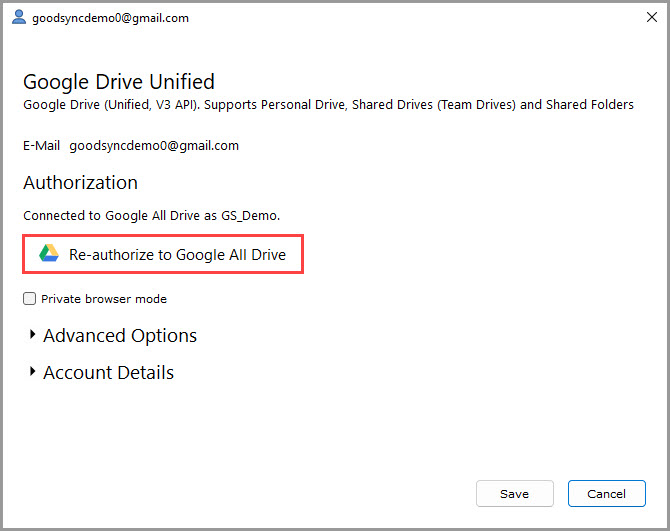
4) Authenticate using a different Google account, as described in Steps 6–8 of the previous section of this guide.
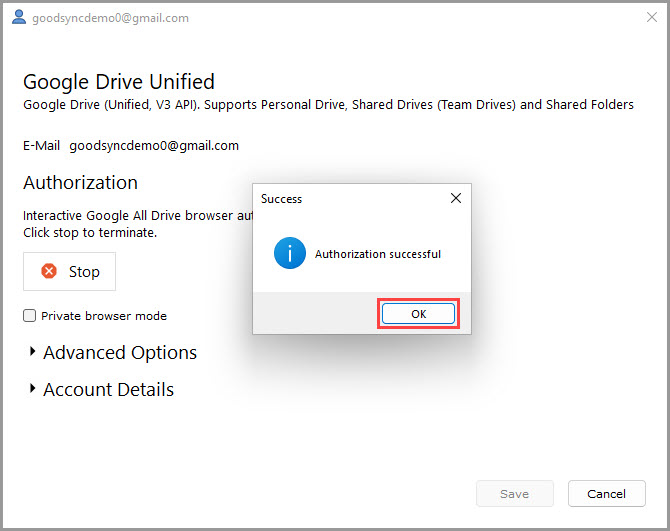
After successful authentication, a confirmation message saying "Authorization successful" will appear. Click "OK" in it.
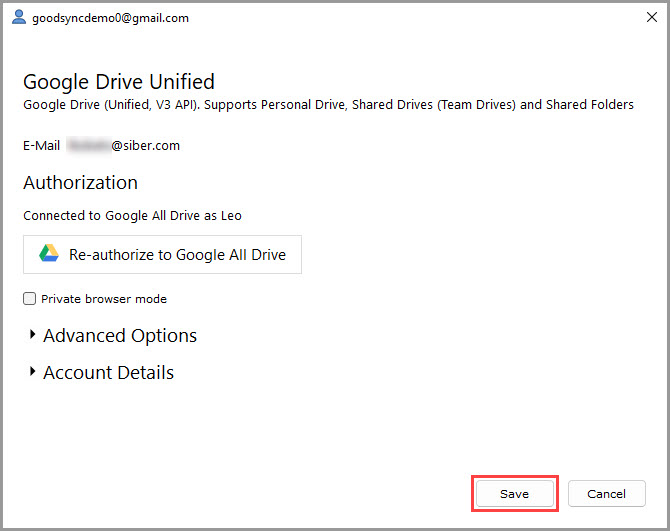
Next, click "Save" to save the updated authentication details and proceed.
5) Make sure both the Left and Right folder paths are correct, then click the green "Apply" button to save your changes.