If you haven't already, download and install GoodSync.
With GoodSync, you can back up and sync to and from your Backblaze B2 cloud storage. This article provides step-by-step instructions for setting up a job with Backblaze B2, updating access keys for an existing B2 connection, and obtaining access keys from your B2 console.
- Setting up a GoodSync job with Backblaze B2 storage
- How to update access keys for an existing Backblaze B2 connection in GoodSync
- How to obtain a Backblaze B2 application key pair
Setting up a GoodSync job with Backblaze B2 storage
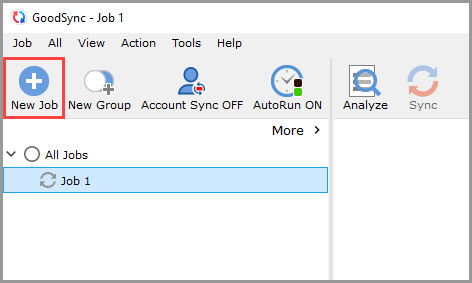
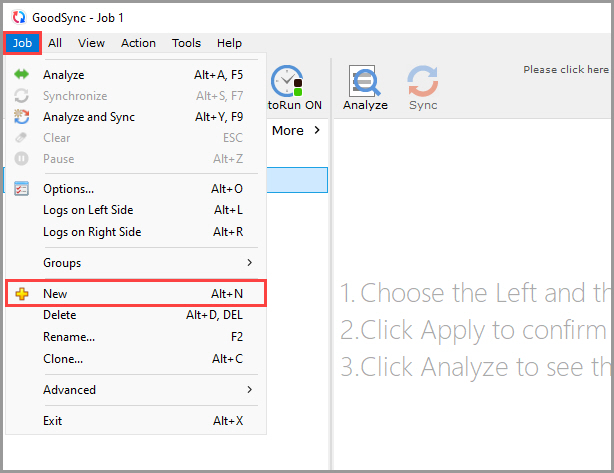
1) Open GoodSync and click the "New Job" button in the toolbar, or, in the "Job" menu, select "New."
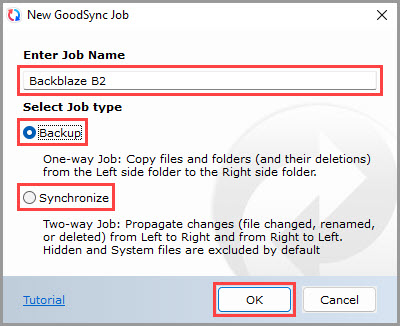
2) In the New GoodSync Job prompt, enter the name of your new Job. Then, select "Backup" or "Synchronize" as your Job type.
Click the "OK" button when done.
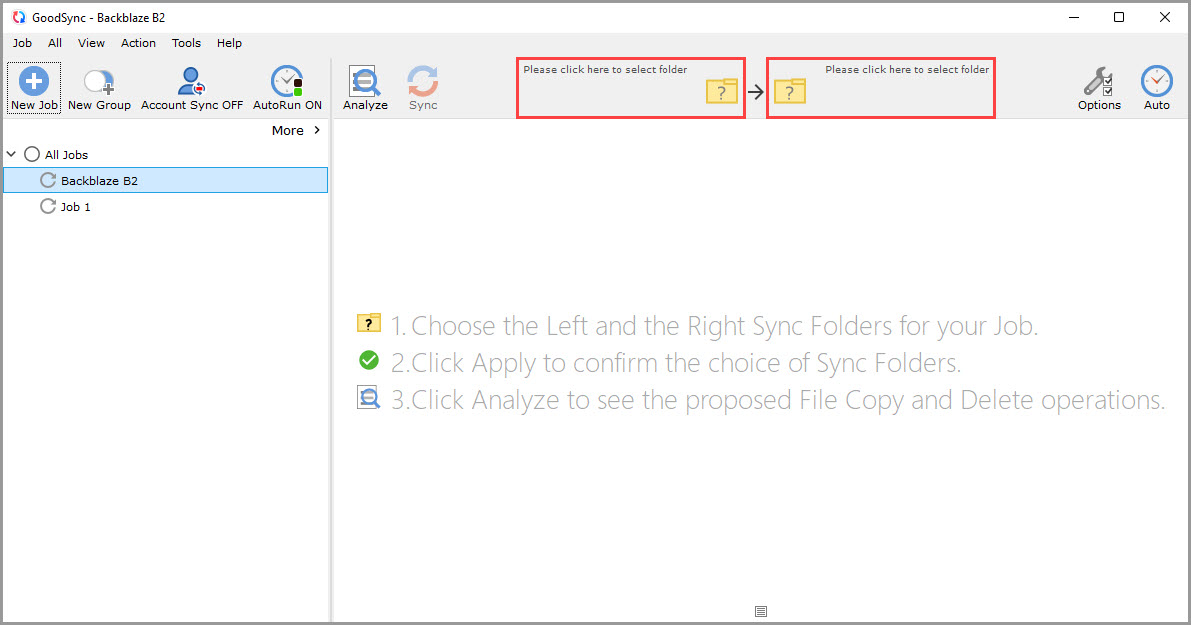
3) Click the left or right sync folder controls to view the files and folders available for selection.
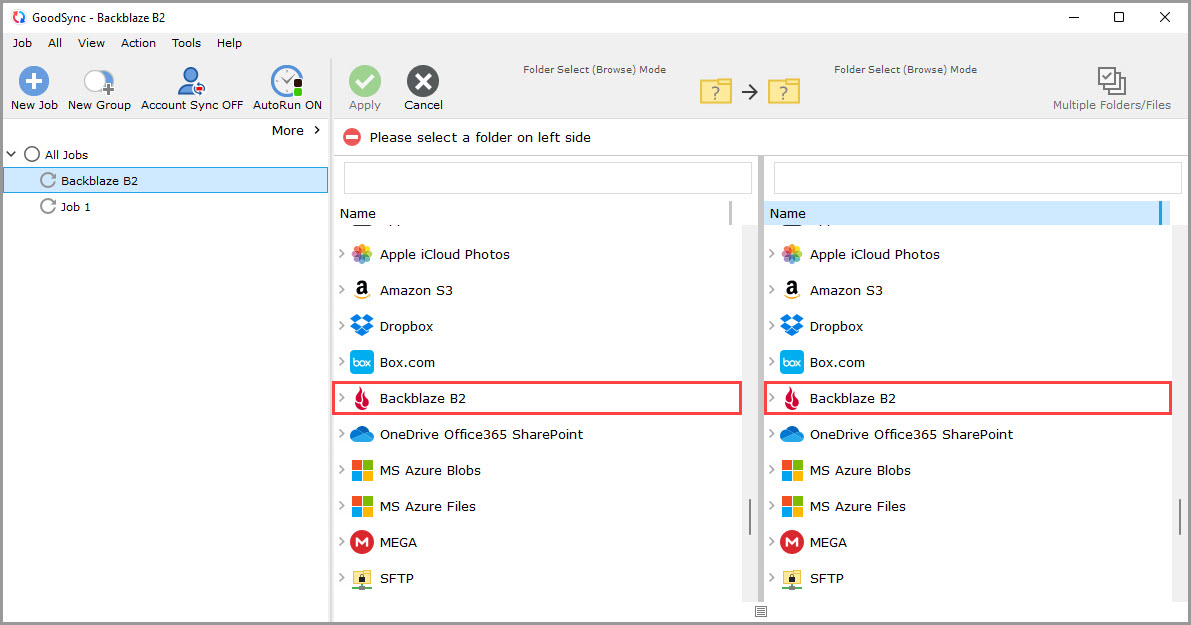
4) Scroll down, and select "Backblaze B2" from the list of supported services on either side.
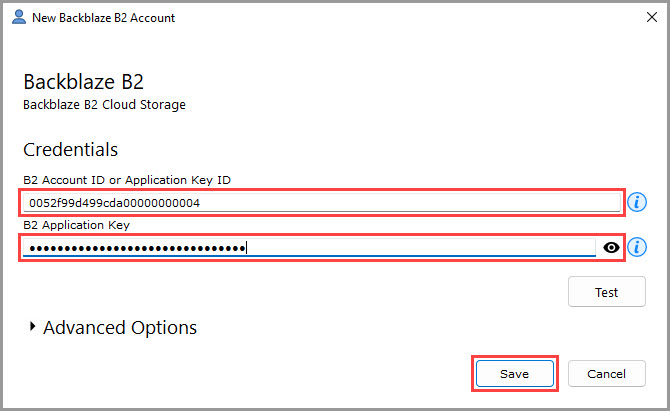
5) A window will appear, prompting you to authorize GoodSync to access your Backblaze B2 account.
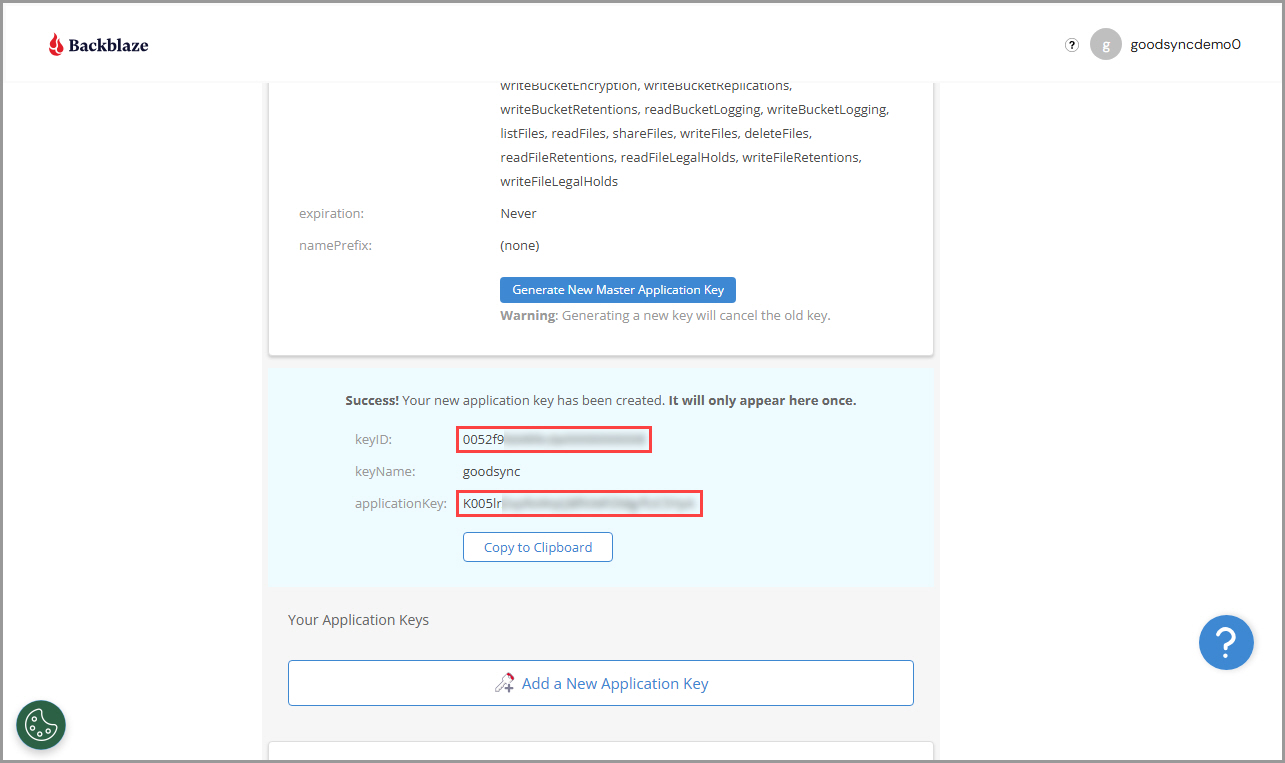
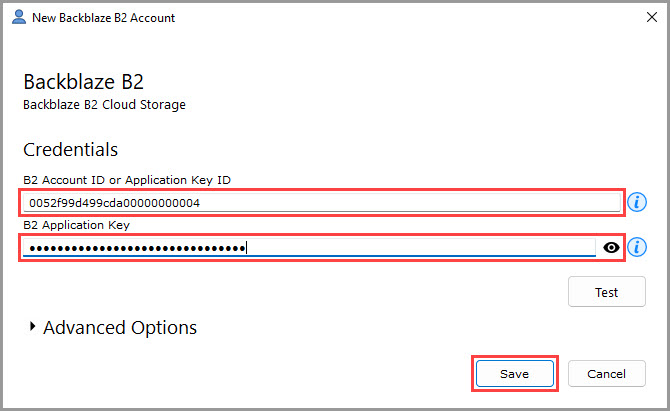
In the "B2 Account ID or Application Key ID" field under "Credentials," enter the "keyID" as it appears in your Backblaze B2 account when generated.
In the "B2 Application Key" field under "Credentials," enter the "applicationKey" as it appears in your Backblaze B2 account when generated.
Then, click the "Save" button.
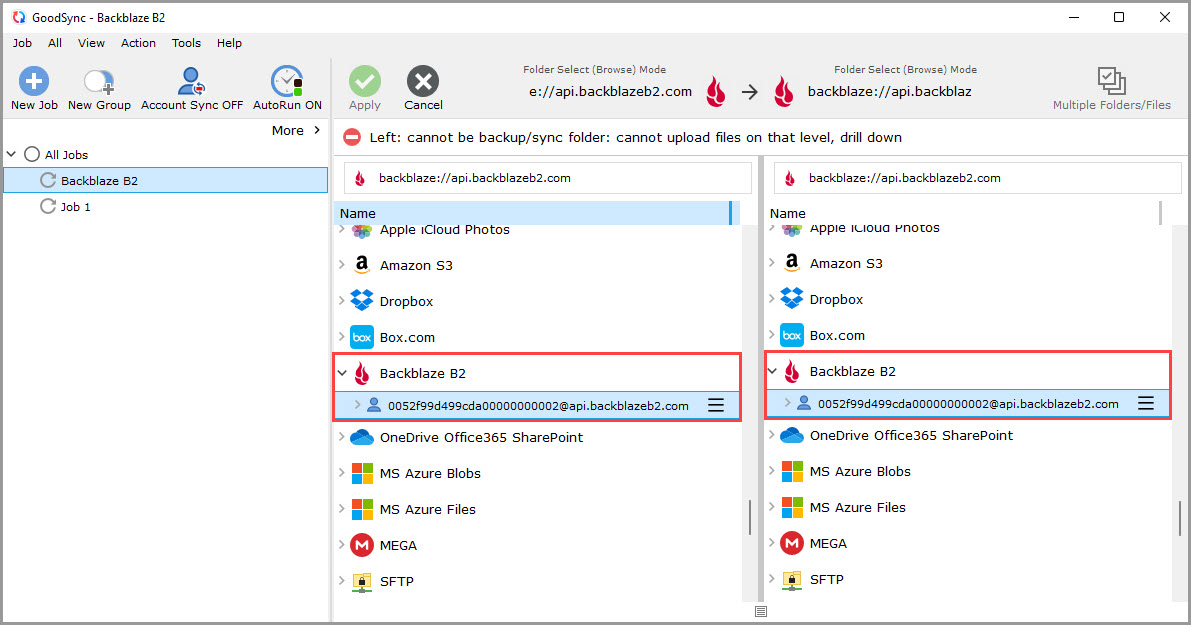
6) After permission is given to GoodSync, your Backblaze B2 storage content will be shown within the GoodSync interface.
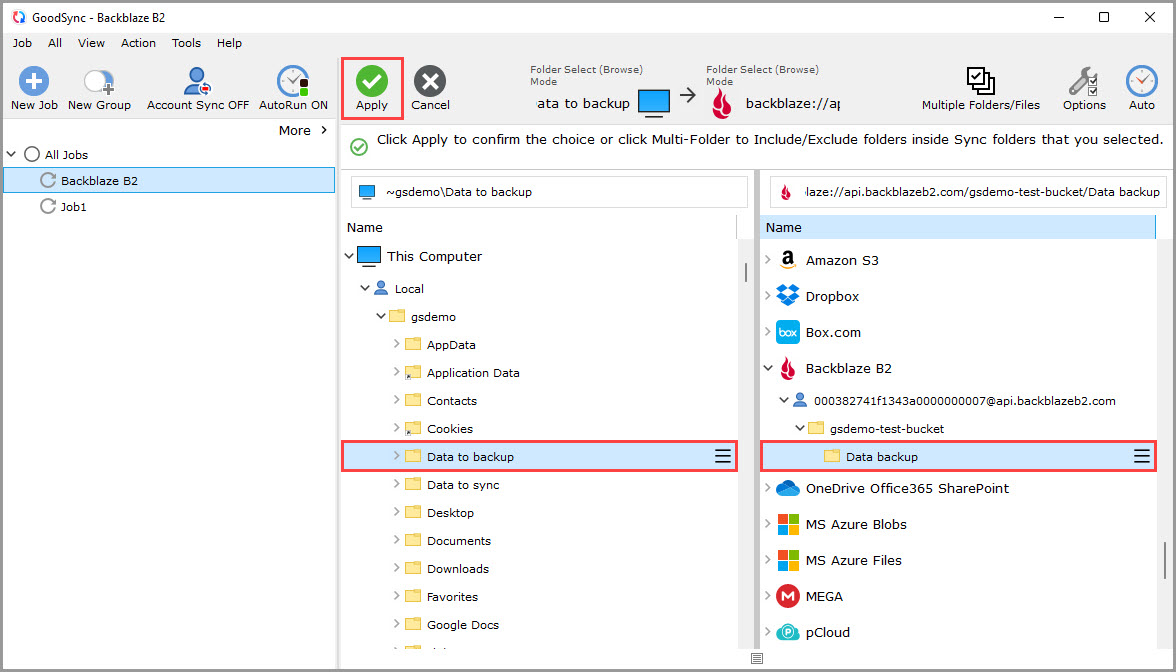
7) Select a folder that contains the data you wish to back up or sync on the left side.
On the right side, click "Backblaze B2" and select or create a bucket, then select or create a folder within the bucket that you wish to back up or sync to.
Then, click the green "Apply" button.
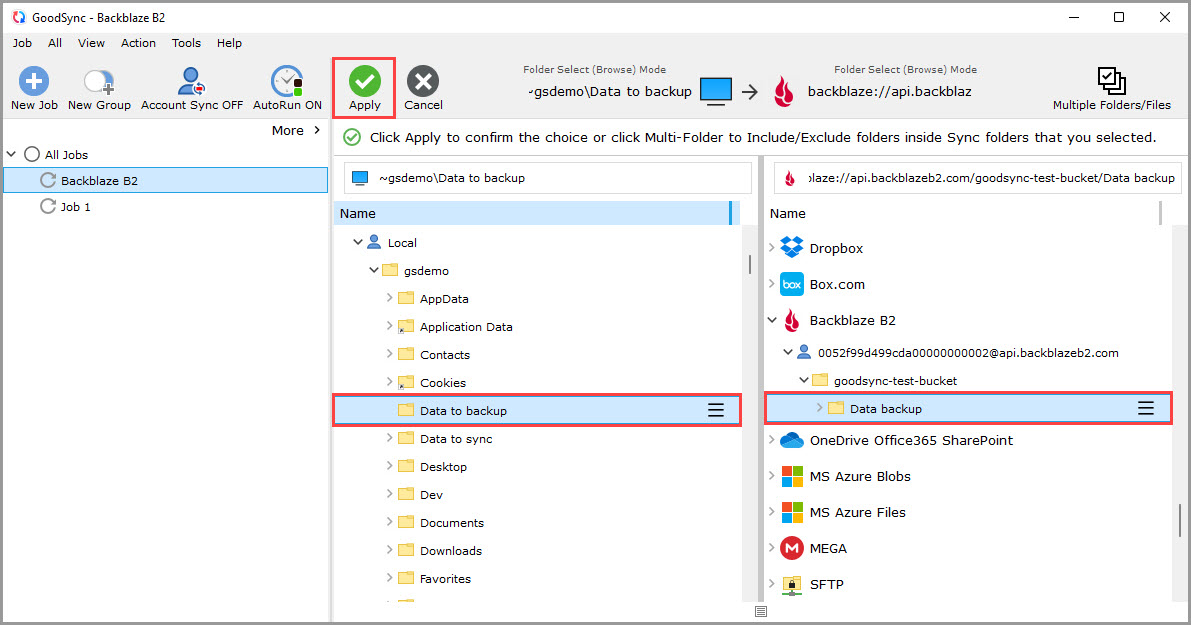
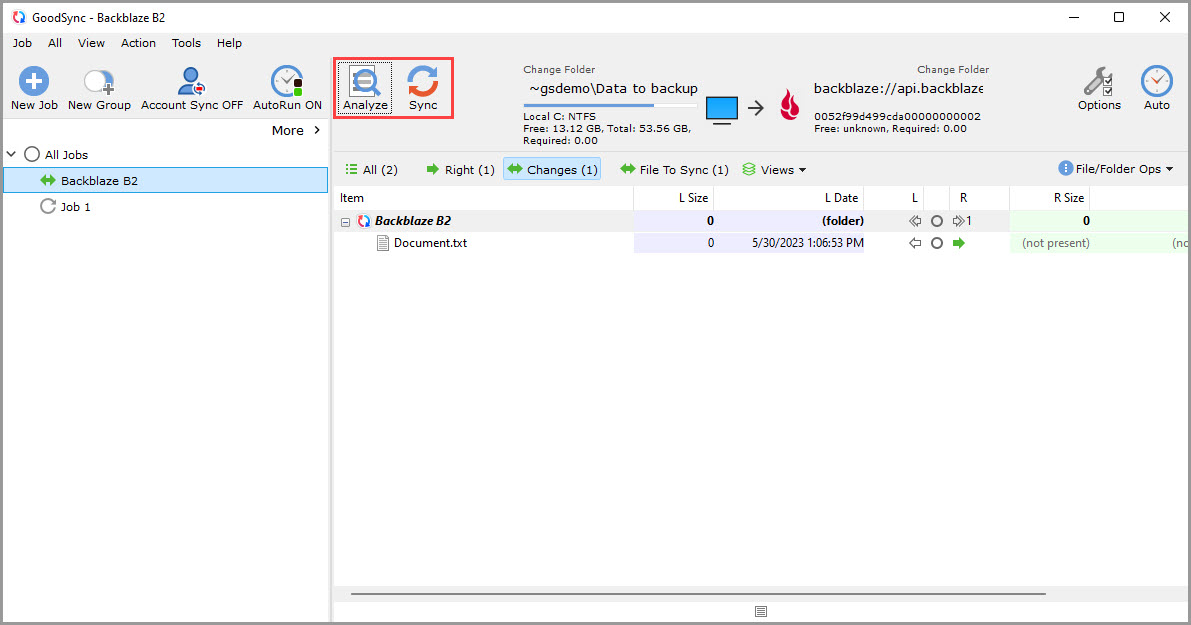
8) Your Job is now ready to Analyze and Sync.
How to update access keys for an existing Backblaze B2 connection in GoodSync
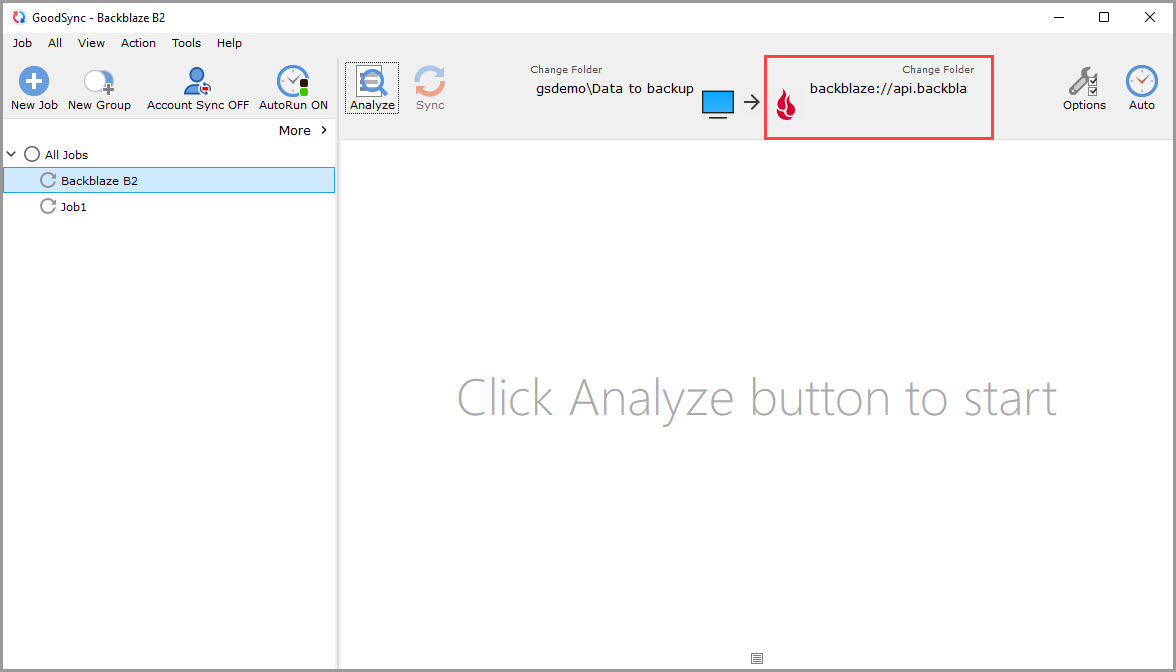
1) Open GoodSync and click your Backblaze B2 folder path at the top where it says "Change Folder."
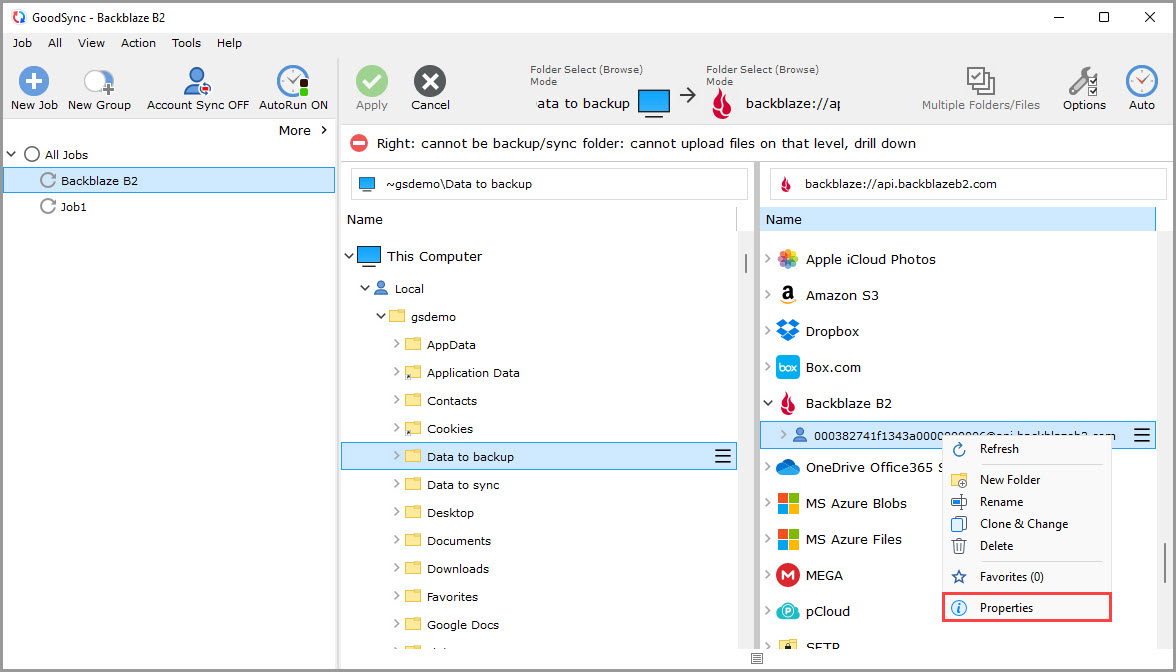
2) Locate your current B2 account specified by "application_key@api.backblazeb2.com" under "Backblaze B2," right-click it, and select "Properties."
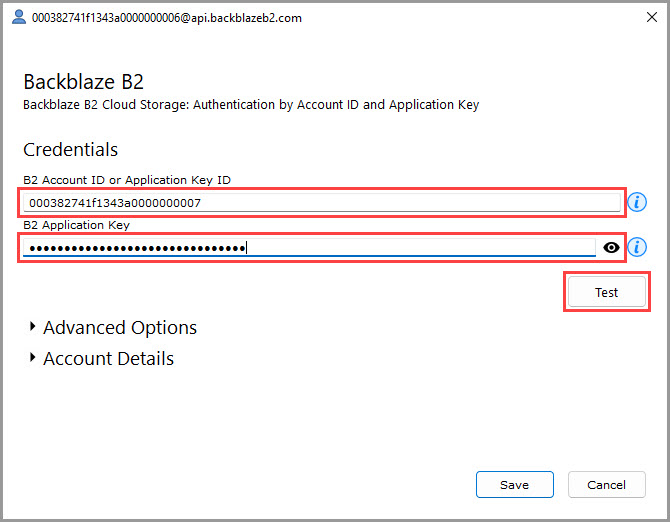
3) In the window that appears, enter the new access key pair for your B2 account in the appropriate fields, then click "Test" to verify the connection.
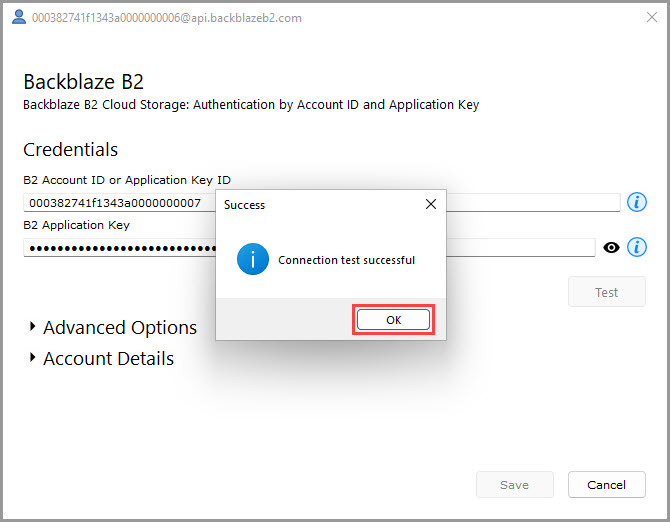
4) If the connection is successful, a confirmation message saying "Connection test successful" will appear. Click "OK" to continue.
Next, click "Save" to save the updated authentication details and proceed.
5) Make sure both the Left and Right folder paths are correct, then click the green "Apply" button to save your changes.
How to obtain a Backblaze B2 application key
1) Log in to your Backblaze B2 account.
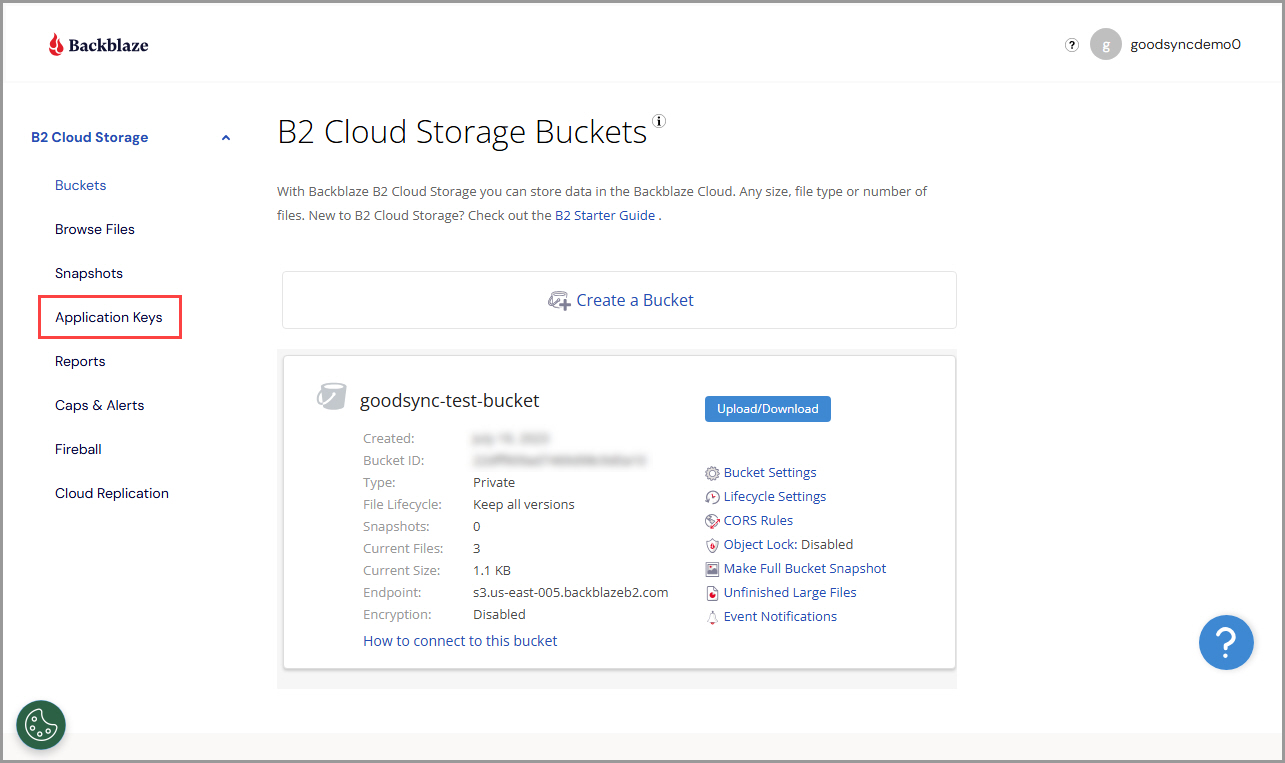
2) Click "Application Keys" from the left menu.
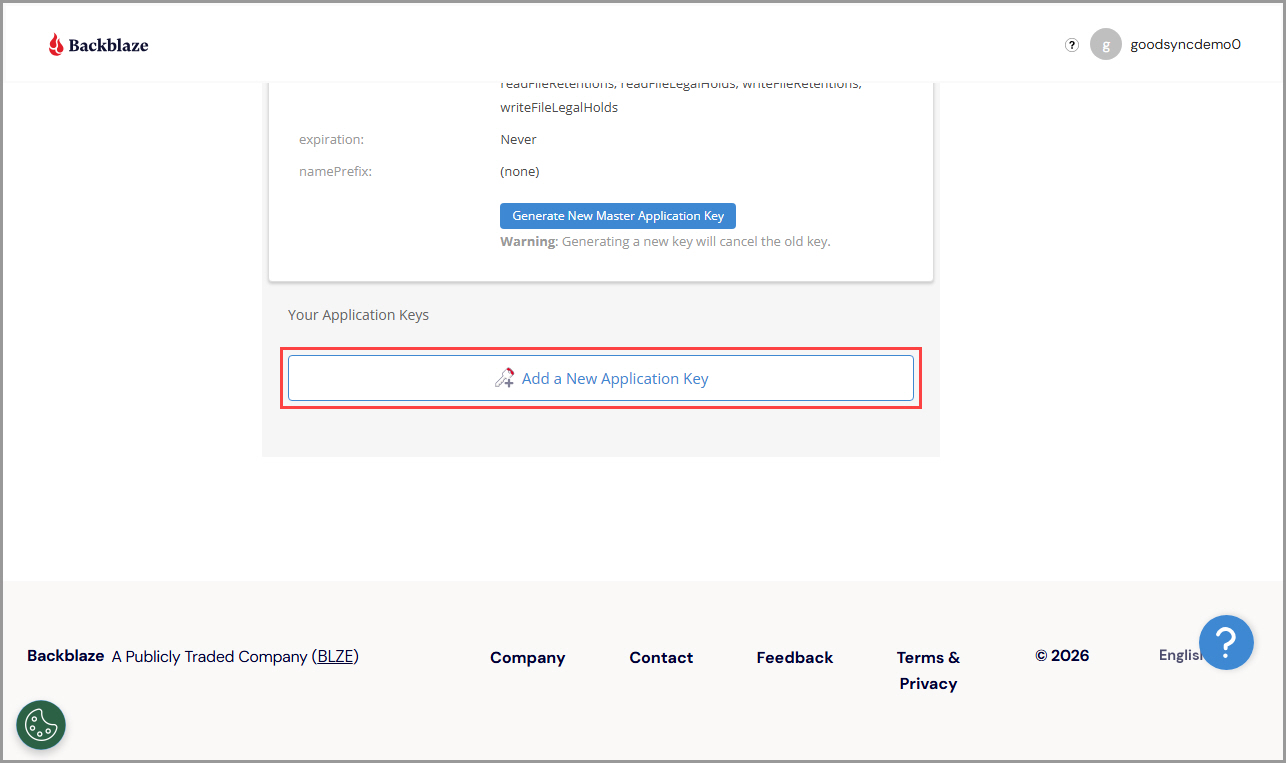
3) Scroll down, and click "Add a New Application Key."
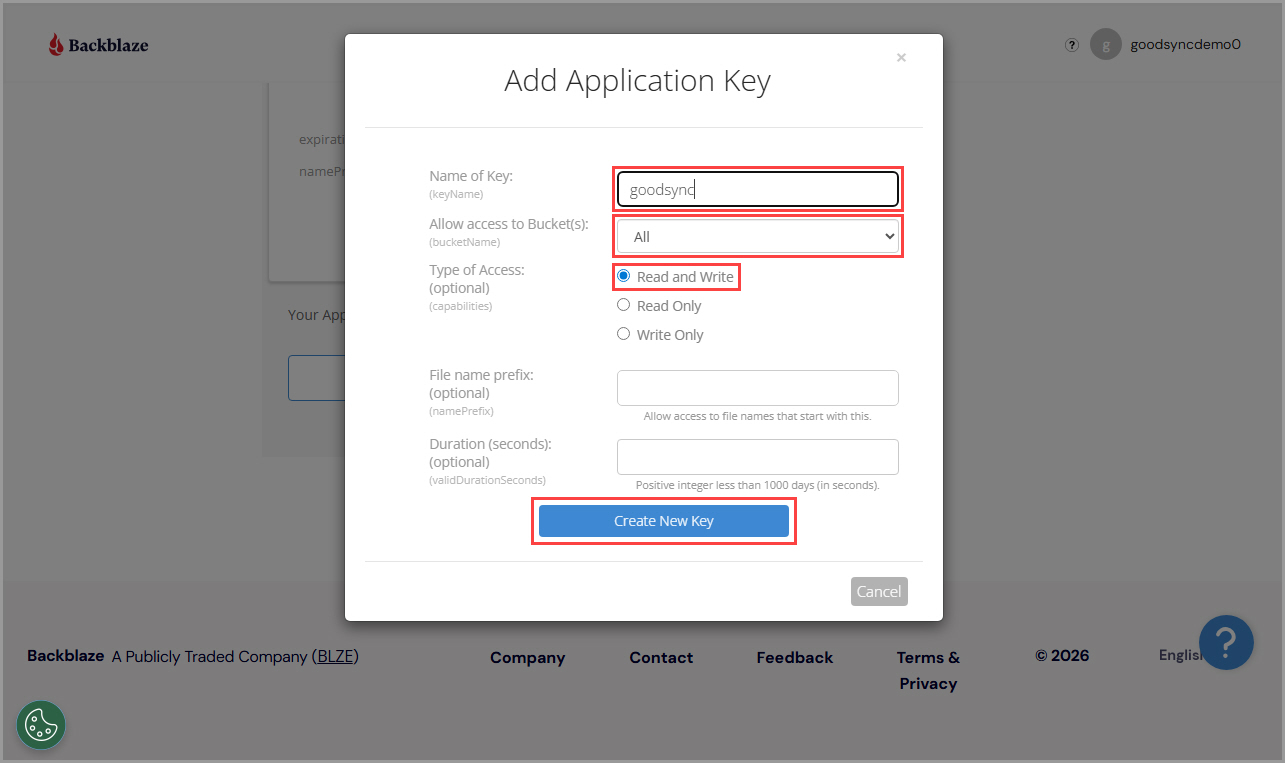
4) In the "Name of Key" field, input the name of your new application key.
Select the bucket you wish to use with the key from the "Allow access to Bucket(s)" list.
Next, select the "Type of Access" you wish to set for the application key. "Read and Write" is recommended.
Finally, click the "Create New Key" button.
5) You will see your new application key. The "keyID" and "applicationKey" for use in GoodSync will be listed.