Wasabi cloud storage can be used as a source or destination for a GoodSync synchronization or backup job.
GoodSync provides a dedicated Wasabi S3 connection option, allowing you to connect directly to your Wasabi account using your Wasabi Access Key and Secret Key.
Before starting, you will need:
- Your Wasabi Access Key.
- Your Wasabi Secret Key.
Obtain Your Wasabi Access Keys
1) Sign in to the Wasabi Console.
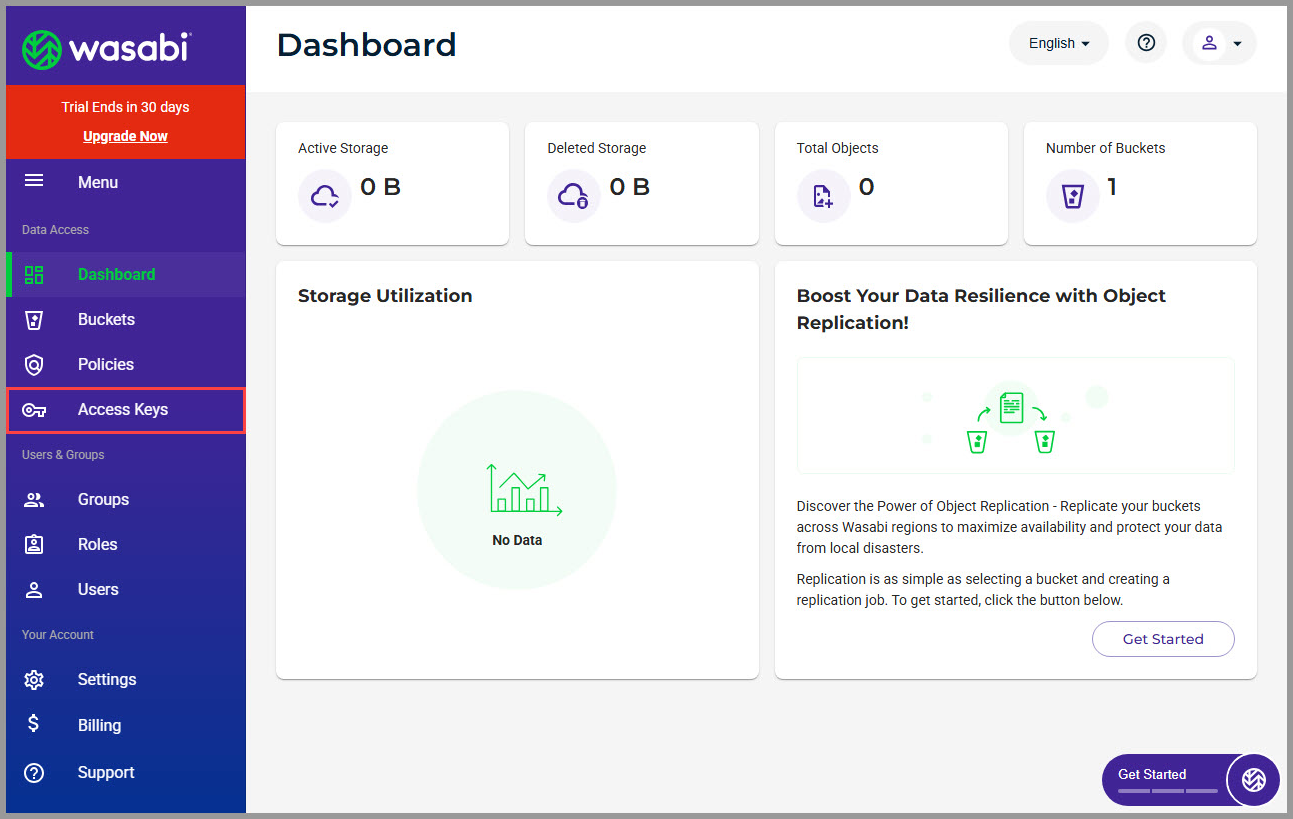
2) From the left-side menu, select Access Keys.
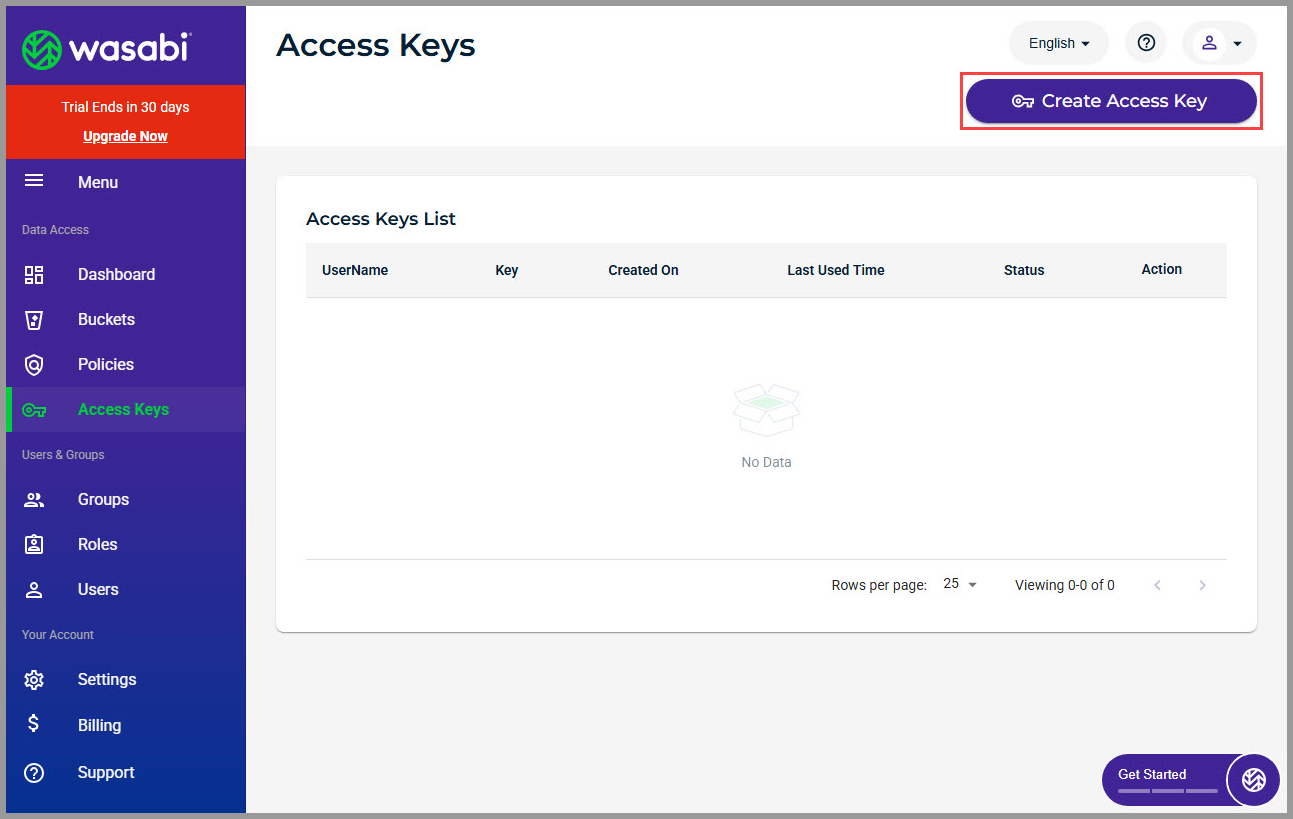
3) Click Create Access Key.
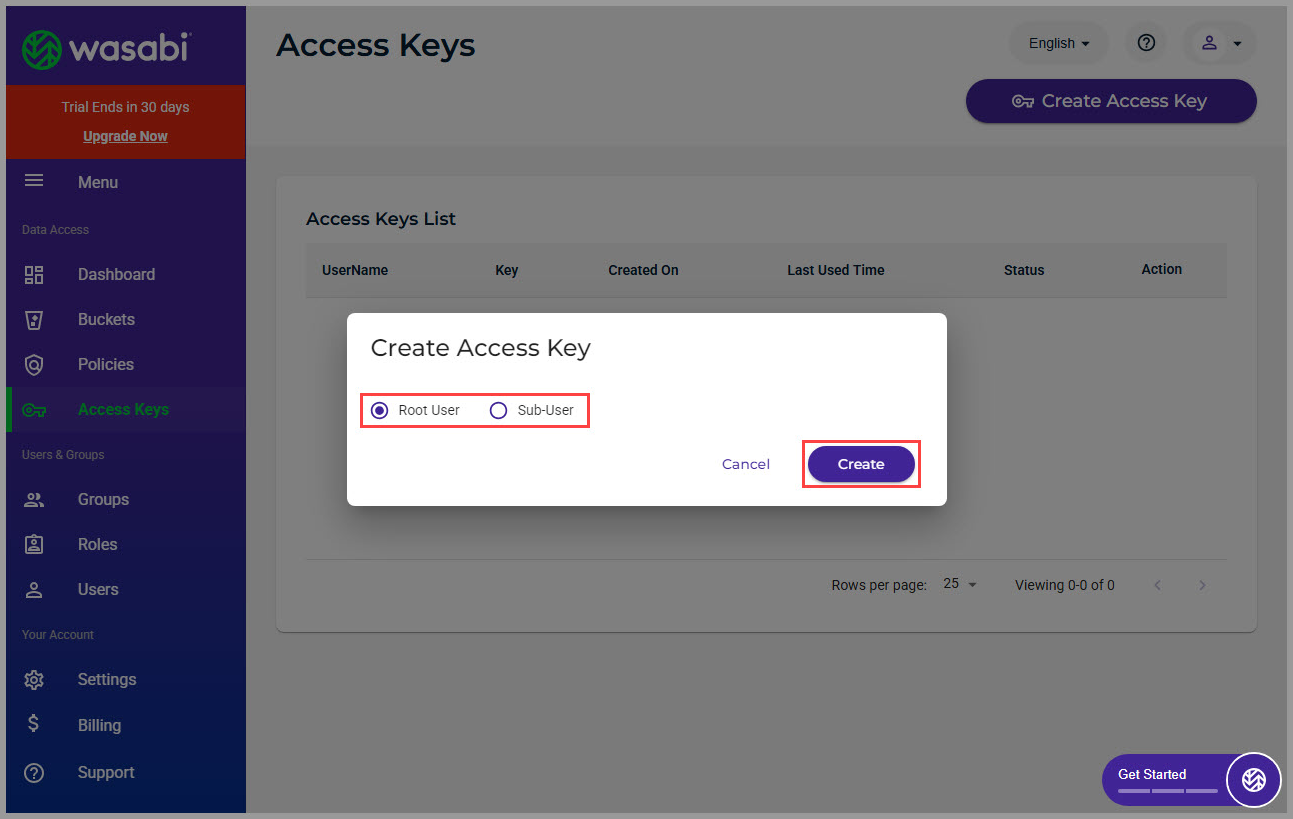
4) Select the appropriate user type, and then click Create.
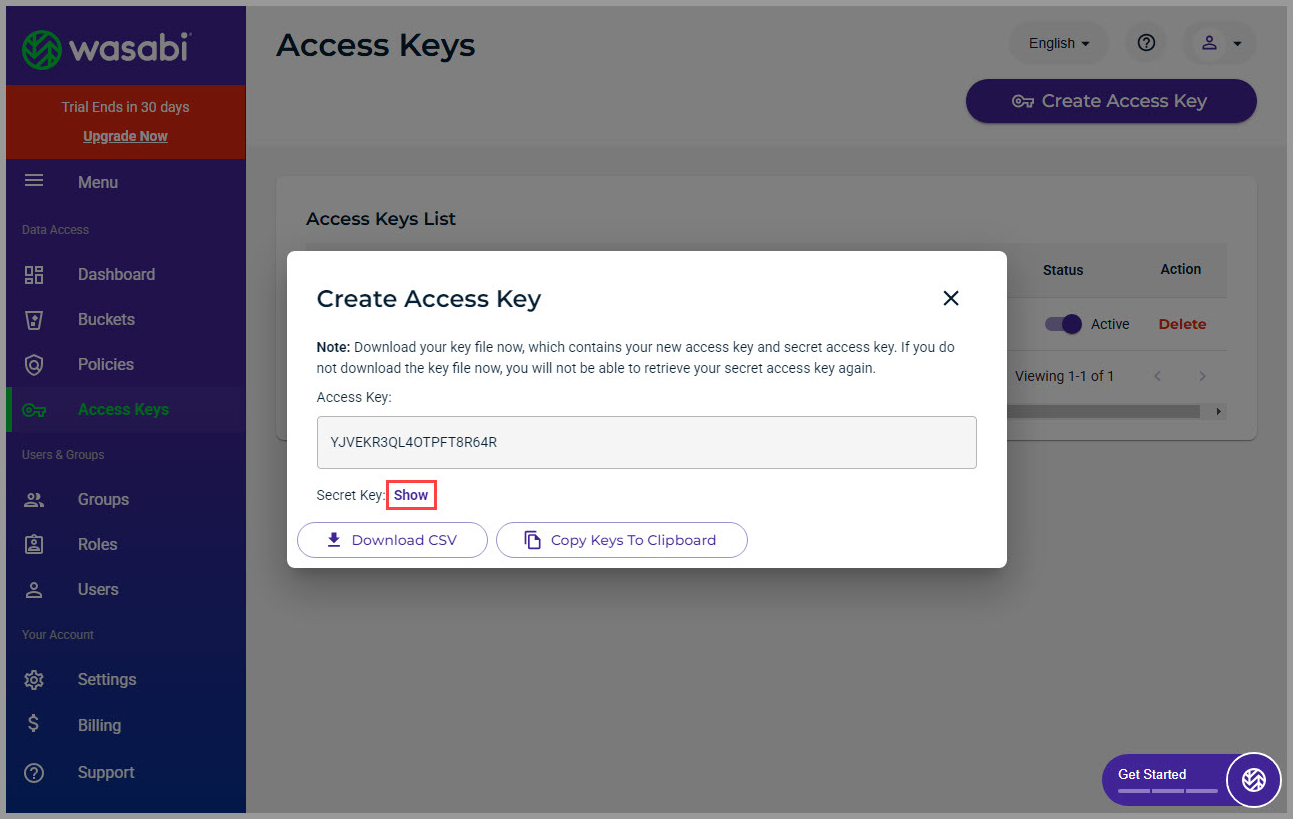
5) Wasabi will display the new Access Key and Secret Key. Click Show to display the Secret Key.
Save both keys in a secure location. You will need them when creating the Wasabi connection in GoodSync.
Important: Make sure the Secret Key is saved when it is created. Store your credentials in a secure password manager, such as RoboForm SafeNote.
Connect Wasabi to GoodSync
1) Open GoodSync and create a new job:
New Job > Enter a job name > Select Backup or Synchronize > OK.
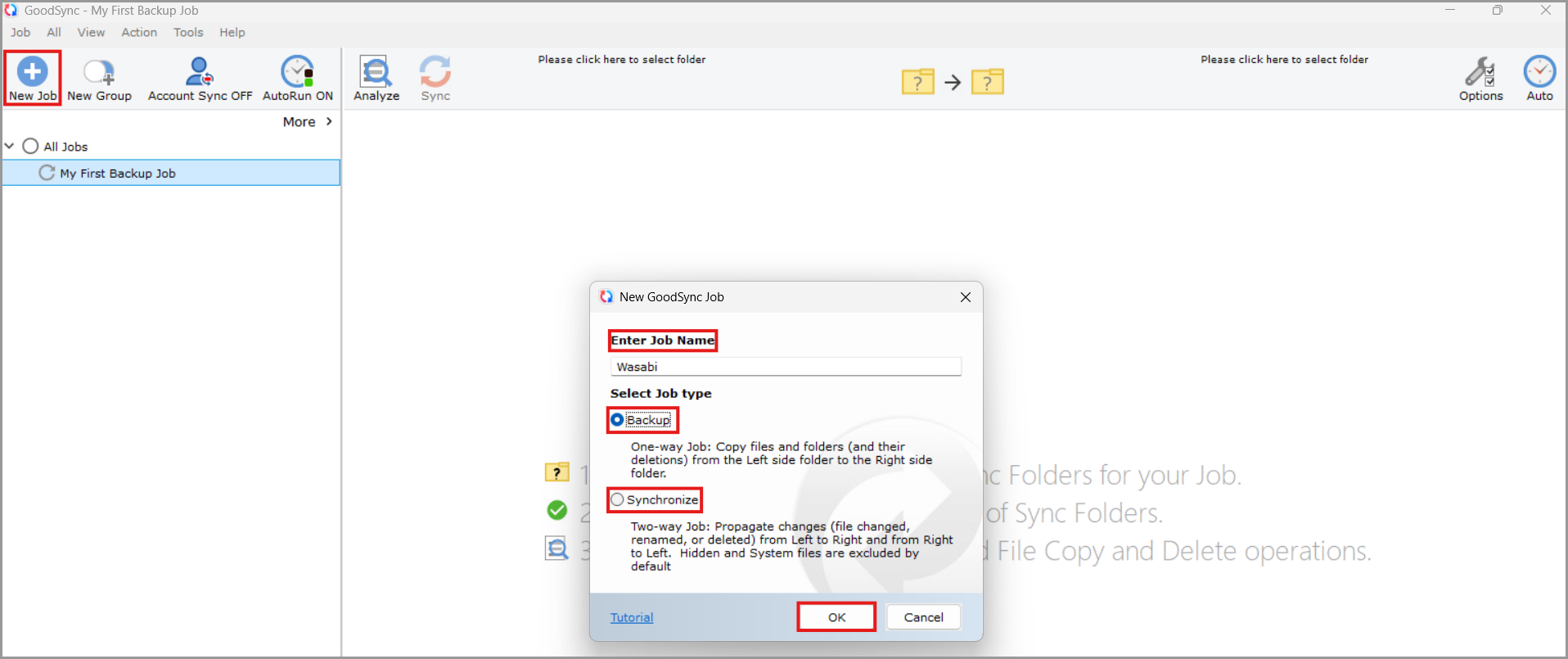
2) Click the folder icon on the left or right side of the job to select the source or destination.

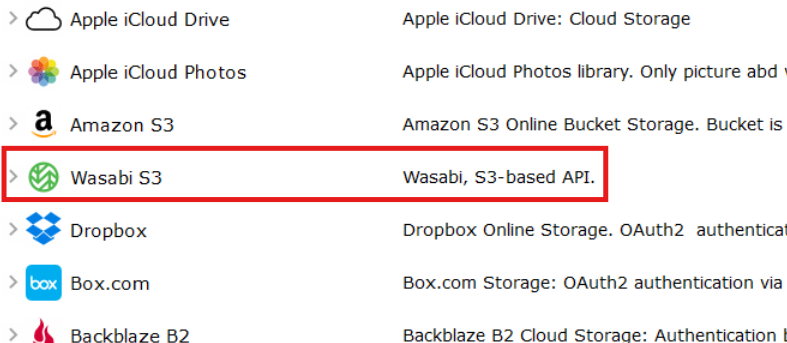
3) Scroll through the available services and select Wasabi S3.
Wasabi no longer needs to be configured through the Amazon S3 connection option. Select Wasabi S3 directly from the available services.
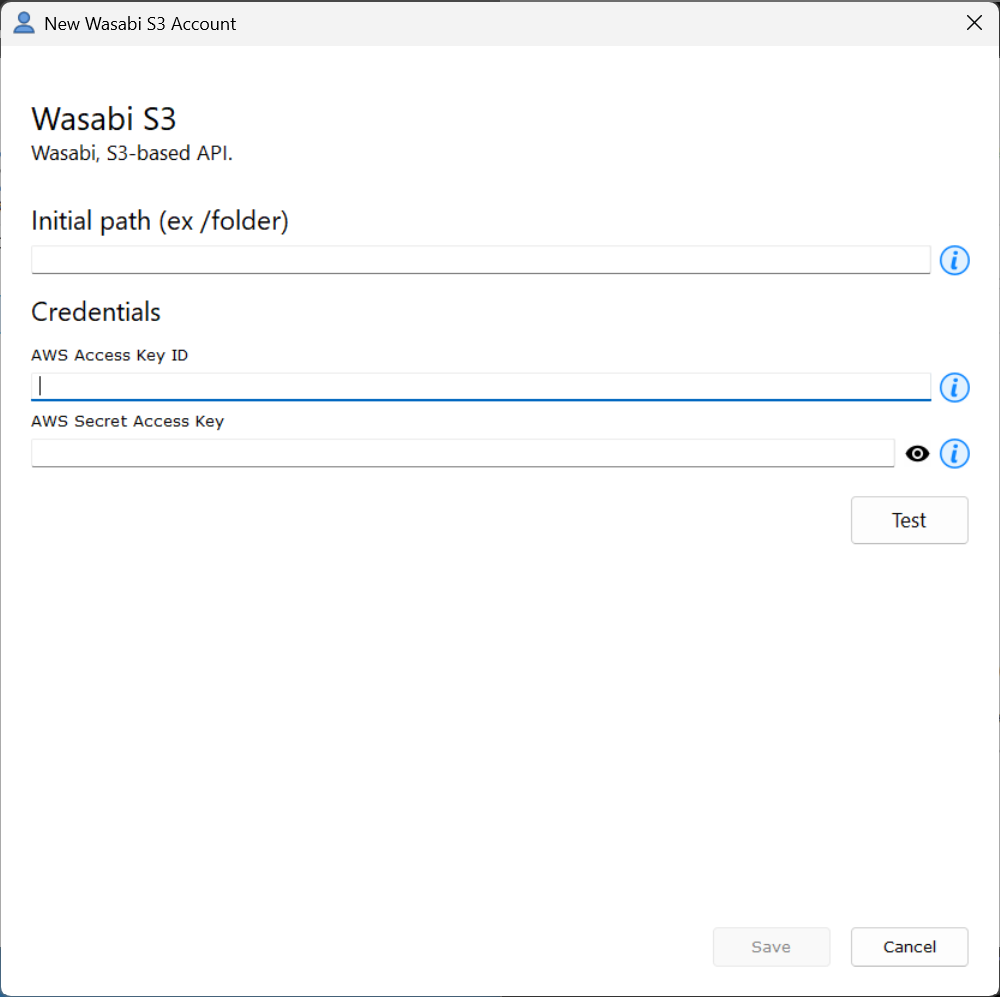
4) Enter your Wasabi credentials:
- Access Key: Enter the Access Key created in the Wasabi Console.
- Secret Key: Enter the corresponding Secret Key.
5) Click Test to verify the connection and credentials.
After the connection test is successful, click Save.
6) Your saved connection will now appear under Wasabi S3.
Select the connection, browse to the required Wasabi bucket or folder, and select the location you want to use for the GoodSync job.

Note: Once saved, the Wasabi connection can be selected from either side of a GoodSync job, allowing Wasabi to be used as the source or destination.
Additional Information
For more information about configuring a GoodSync job, see GoodSync Job Options.
If you need additional assistance, open GoodSync and select Help > Contact Support, or submit a support ticket.