If you haven't already, download and install GoodSync.
GoodSync enables you to back up and synchronize data to and from your Google Cloud Storage. It supports both the native JSON API and S3-like XML API for Google Cloud, allowing you to choose your preferred option.
To set up GoodSync for synchronization or backup with your Google Cloud Storage, adhere to the following steps:
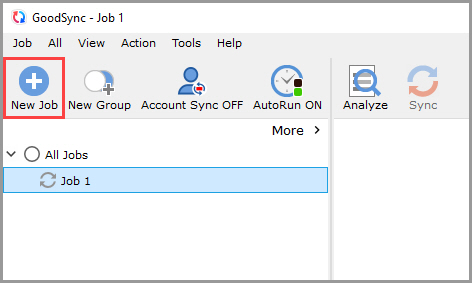
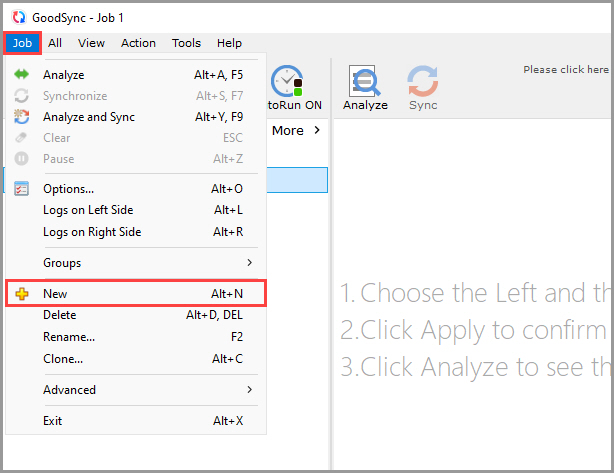
1) Open GoodSync and click the "New Job" button in the toolbar, or, in the "Job" menu, select "New."
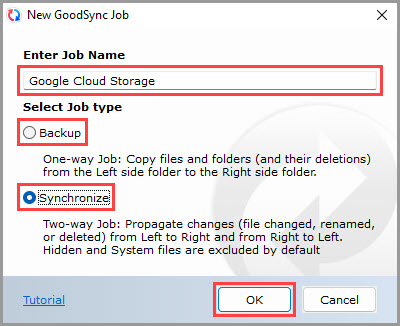
2) In the New GoodSync Job prompt, enter the name of your new Job. Then, select "Backup" or "Synchronize" as your Job type.
Click the "OK" button when done.
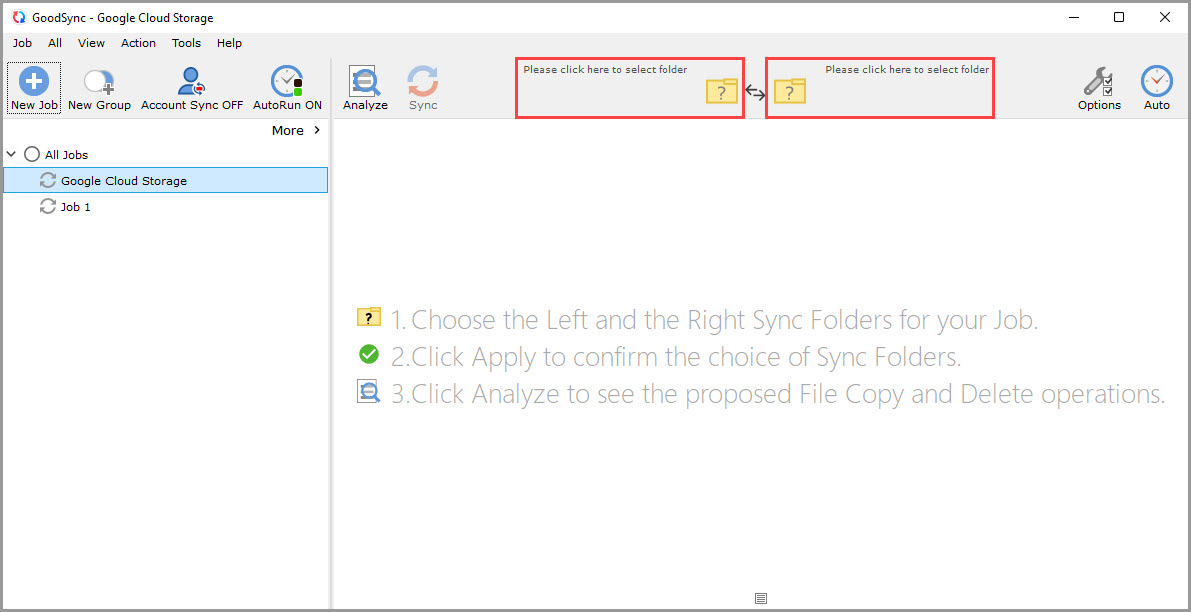
3) Click the left or right sync folder controls to view the files and folders available for selection.
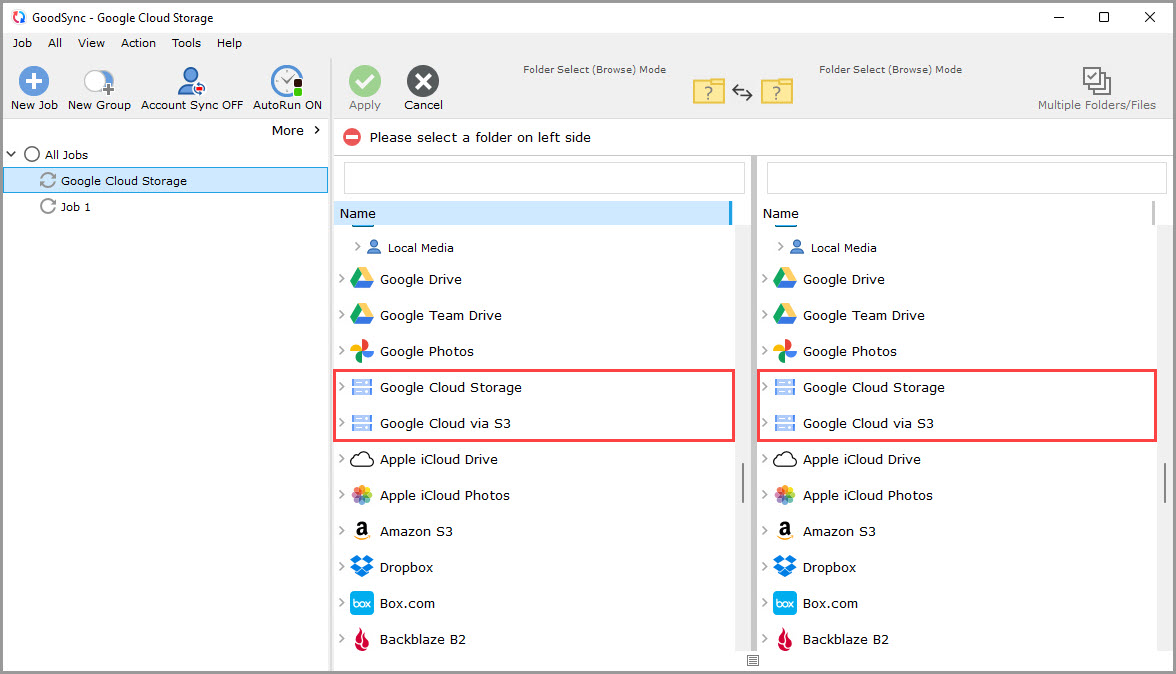
4) Scroll down and select "Google Cloud Storage" or "Google Cloud via S3" from the list of supported services on either side.
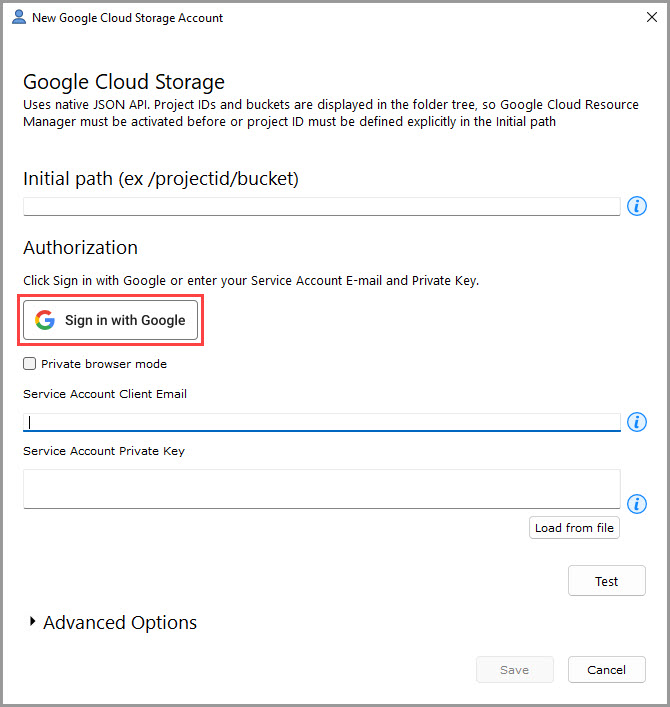
5) A window will appear, prompting you to authorize GoodSync to access your Google Cloud Storage.
5a) If in Step 4 you selected "Google Cloud Storage," you have two authorization options:
– Authorize with your Google Account (via OAuth2). Click the "Sign in with Google" button and proceed to Step 6.
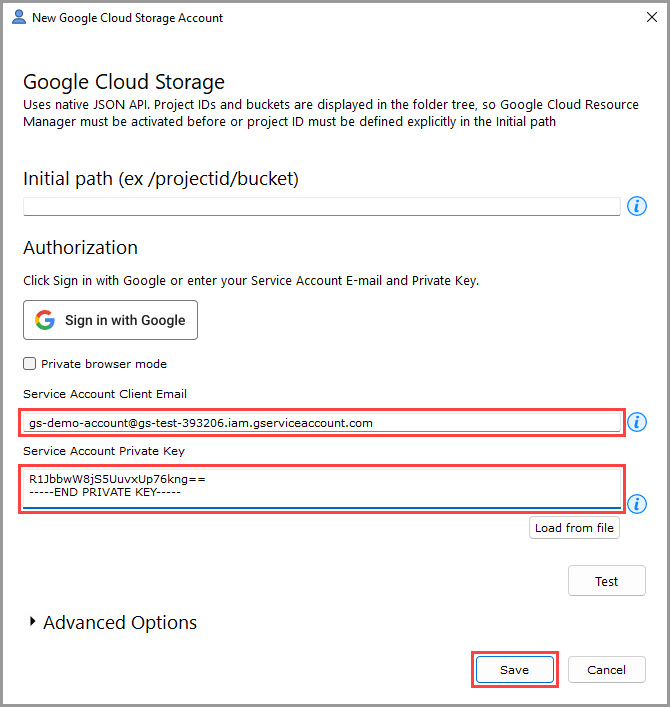
– Authorize with your Service Account:
In the "Service Account Client Email" field, enter the Client Email for your Service Account as it appears on your Google Cloud Storage account.
In the "Service Account Private Key" field, enter the Private Key for your Service Account as it appears on your Google Cloud Storage account.
Finally, click the "Save" button and proceed to Step 9.
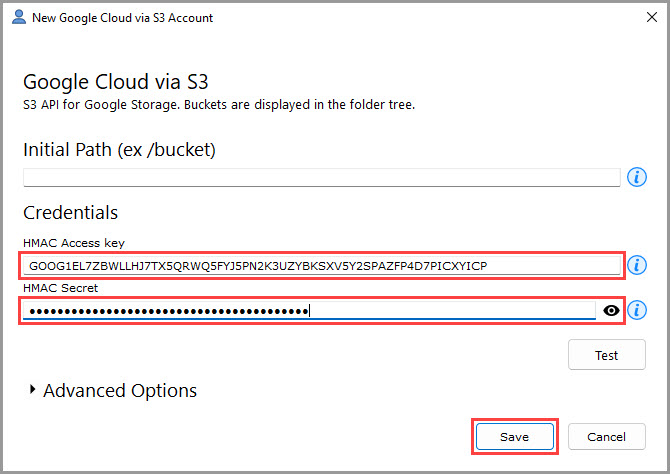
5b) If in Step 4 you selected "Google Cloud via S3," enter the following details to authorize:
In the "HMAC Access key" field, enter the "Access key" as it appears on your Google Cloud Storage account.
In the "HMAC Secret" field, enter the "Secret" as it appears on your Google Cloud Storage account.
NOTE: For instructions on generating an HMAC key pair, go to the bottom of this page.
Finally, click the "Save" button and proceed to Step 9.
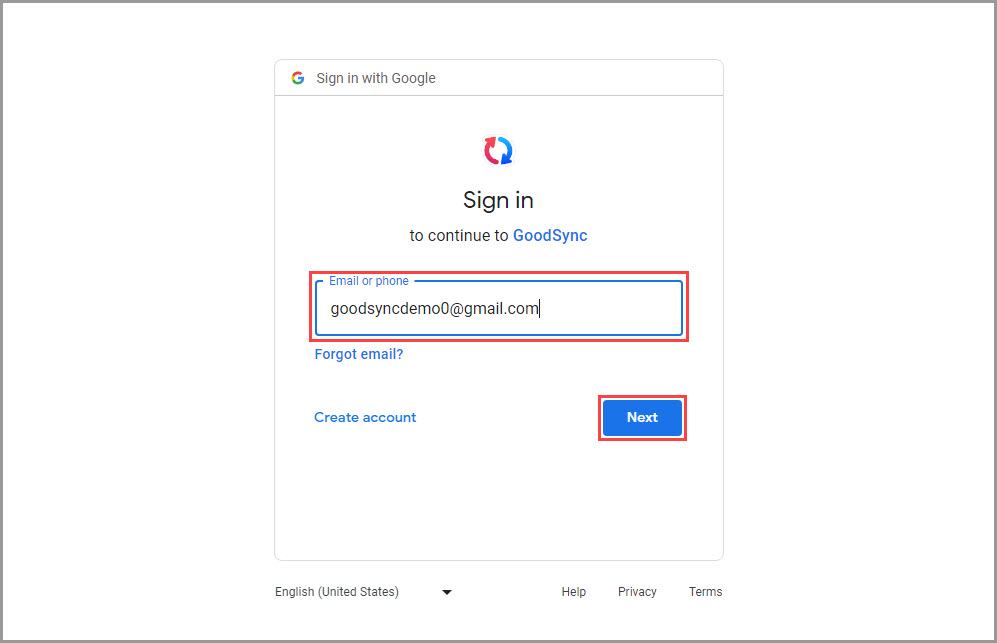
6) A Google authentication page will open in your default browser. Enter the name of your Google account. Then, click the blue "Next" button.
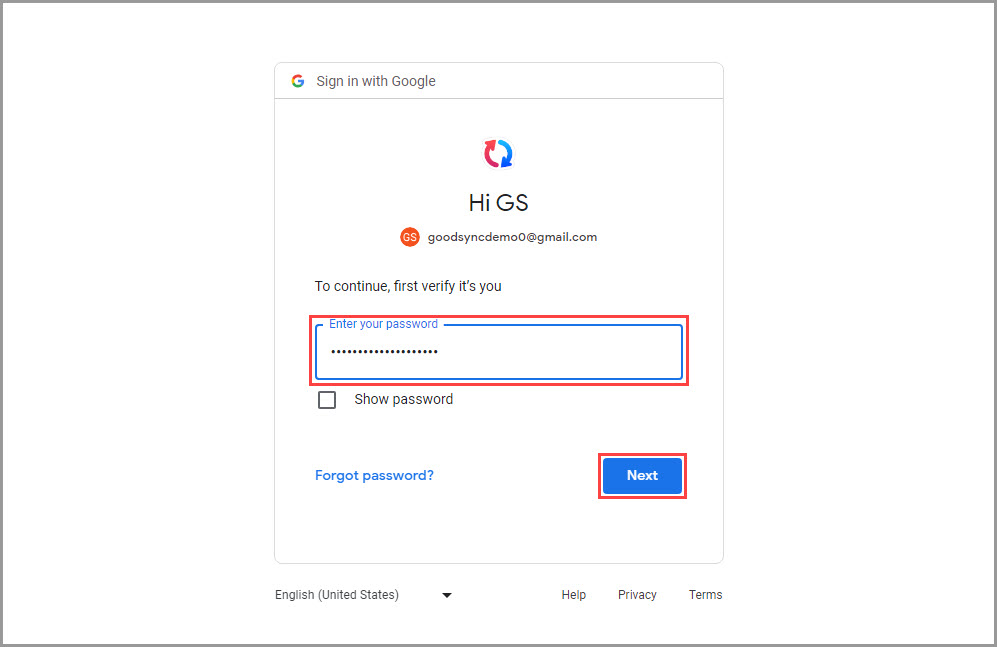
7) On the next step, enter the password of your Google account, and click the "Next" button.
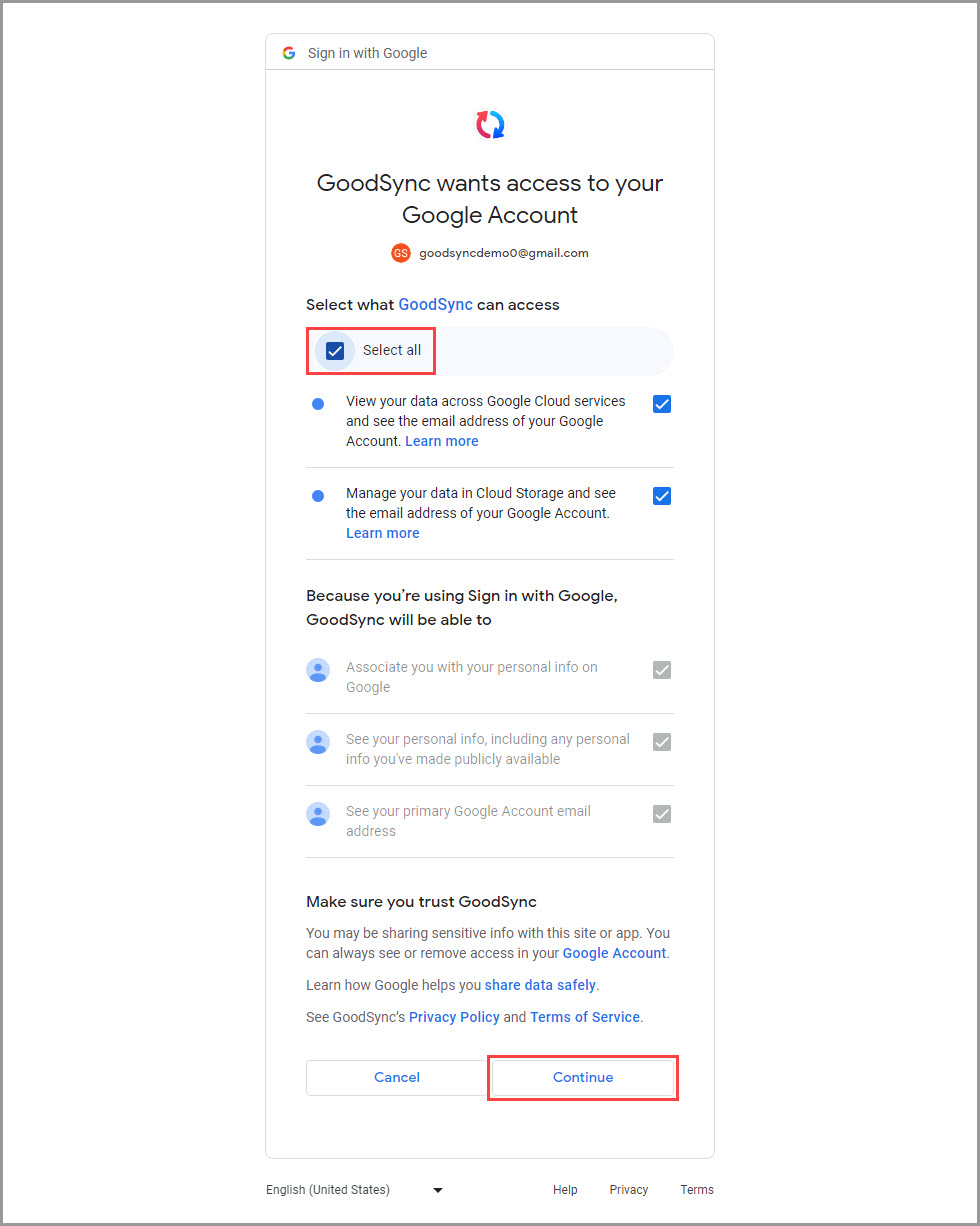
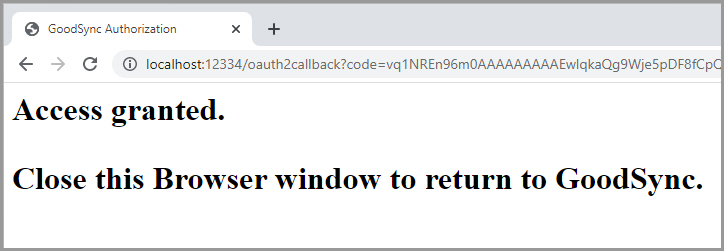
8) Check the "Select all" box and click the "Continue" button to grant GoodSync access to Google Cloud Storage. You will then be taken to a page confirming you granted access to GoodSync.
9) After permission is given to GoodSync, your Google Cloud Storage account content will be shown within the GoodSync interface.
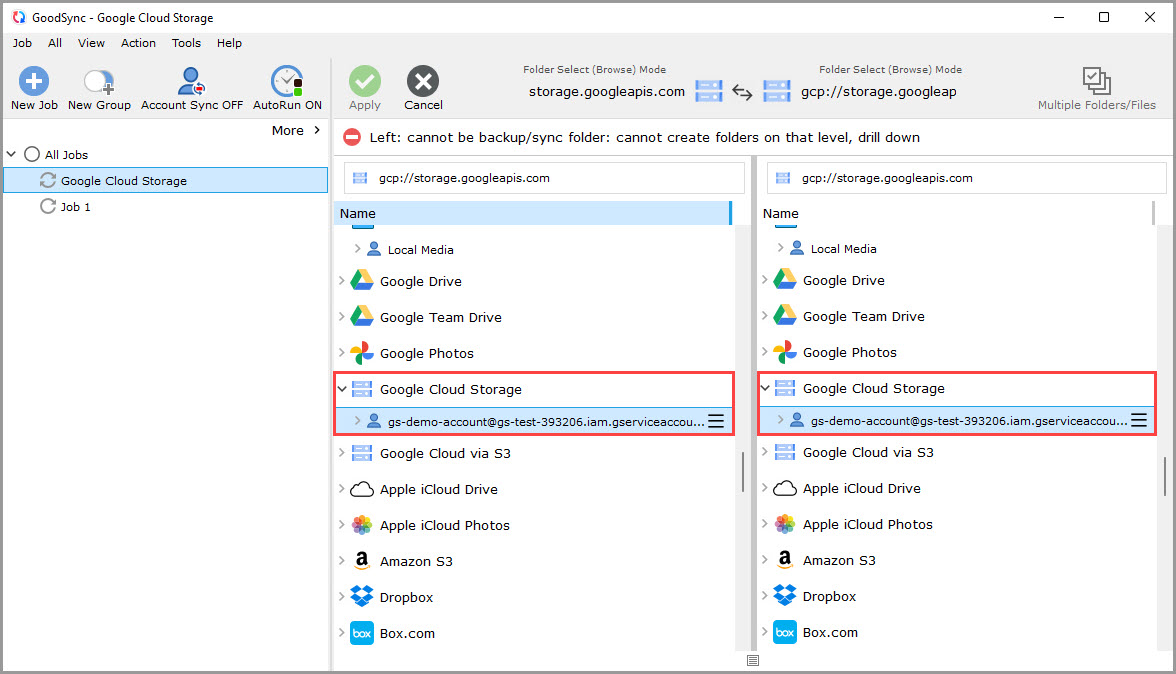
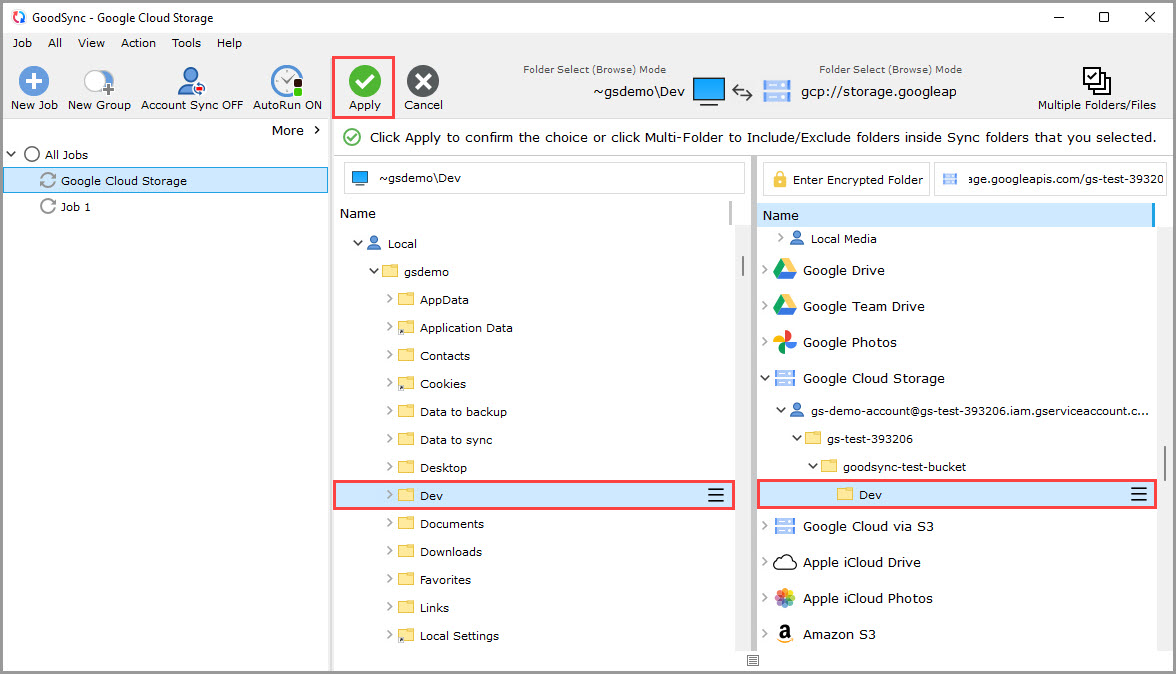
10) Select a folder that contains the data you wish to back up or sync on the left side.
On the right side, click "Google Cloud Storage" or "Google Cloud via S3" and select or create a folder you wish to back up or sync to.
Then, click the green "Apply" button.
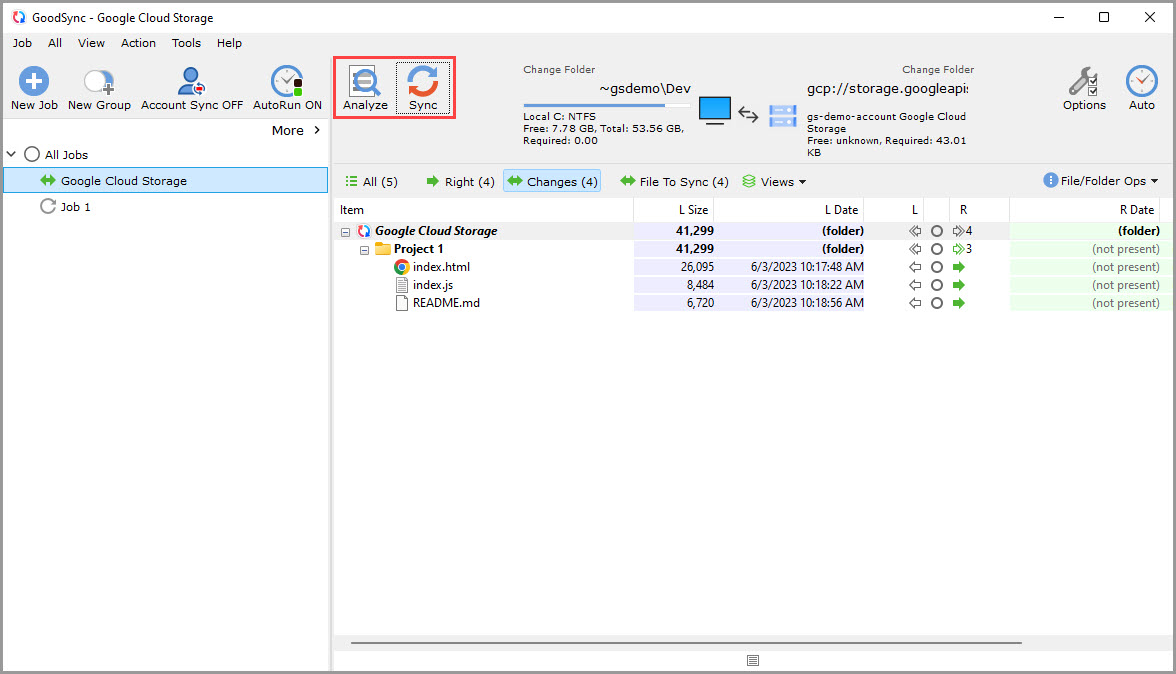
11) Your Job is now ready to Analyze and Sync.
NOTE: To configure the job with automation or other settings, click here.
How to obtain a Google Cloud Storage HMAC key
1) Log in to your Google Cloud Console account.
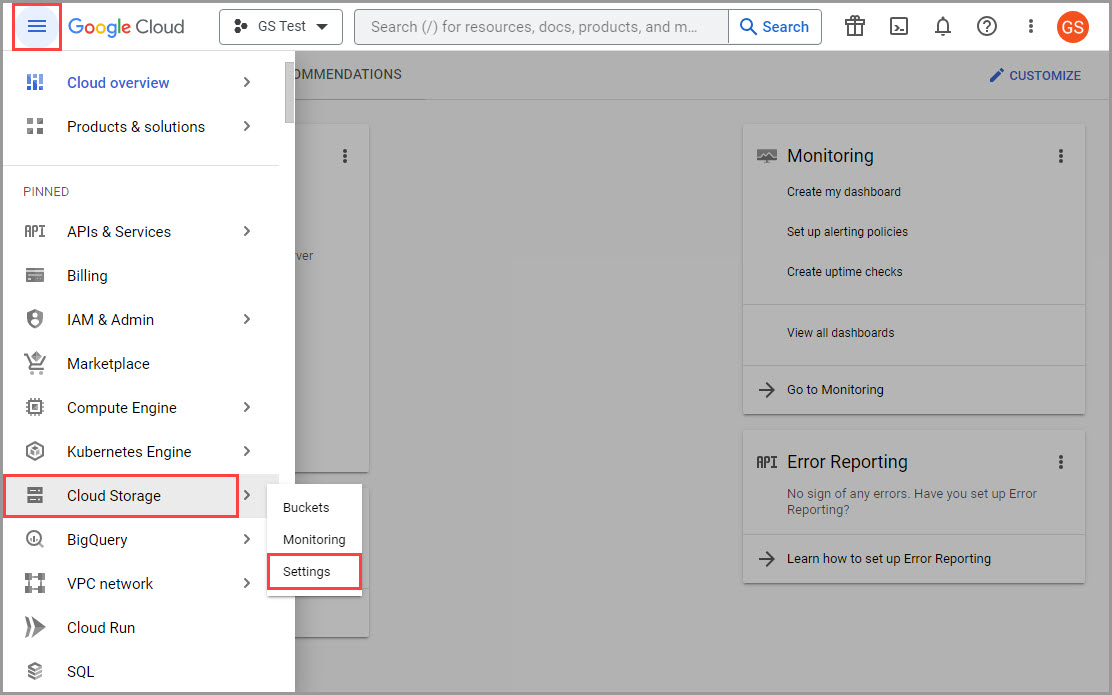
2) Click the Navigation menu icon in the upper left corner, and select the "Cloud Storage" >> "Settings" item.
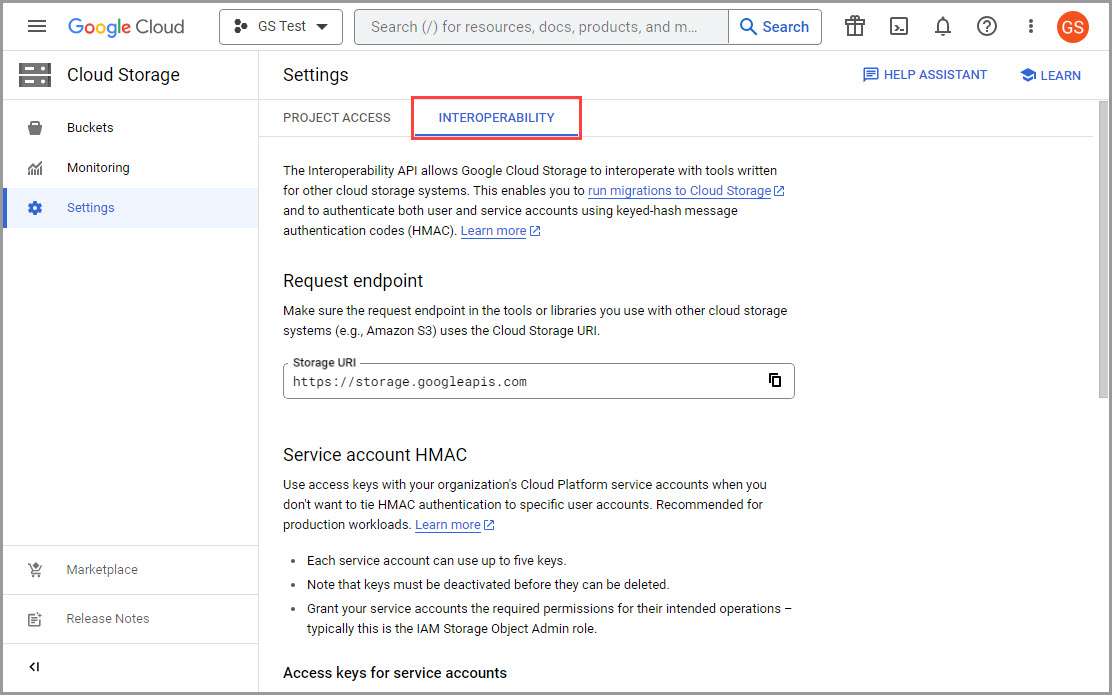
3) Select the "Interoperability" tab.
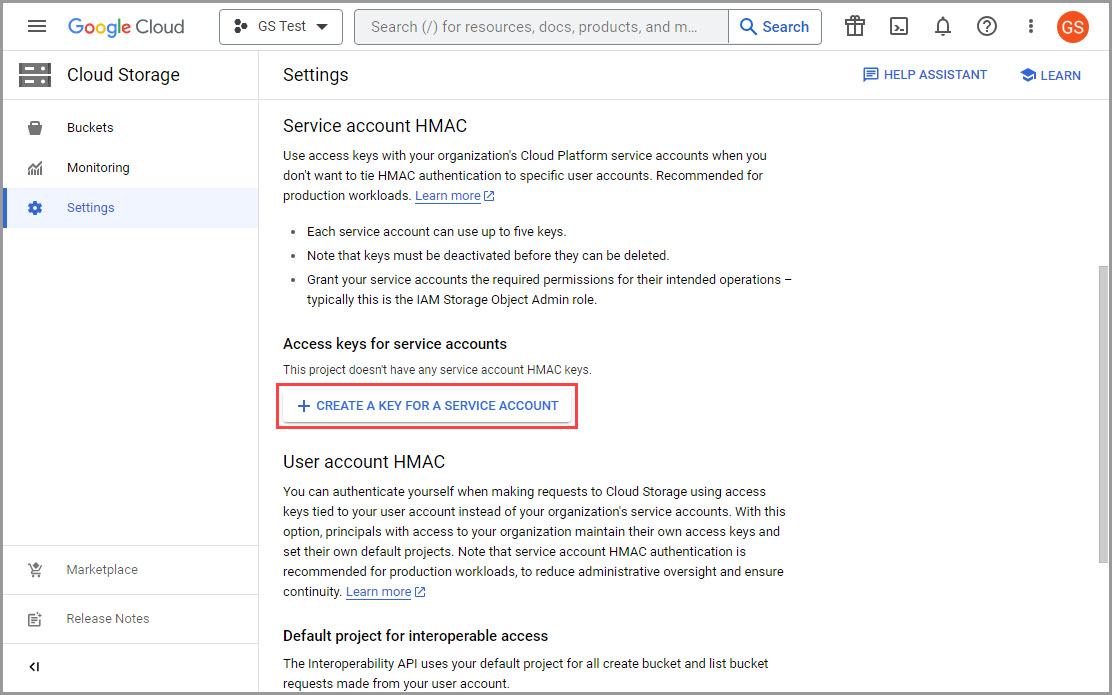
4) Scroll down and click the "Create a key for a service account" button.
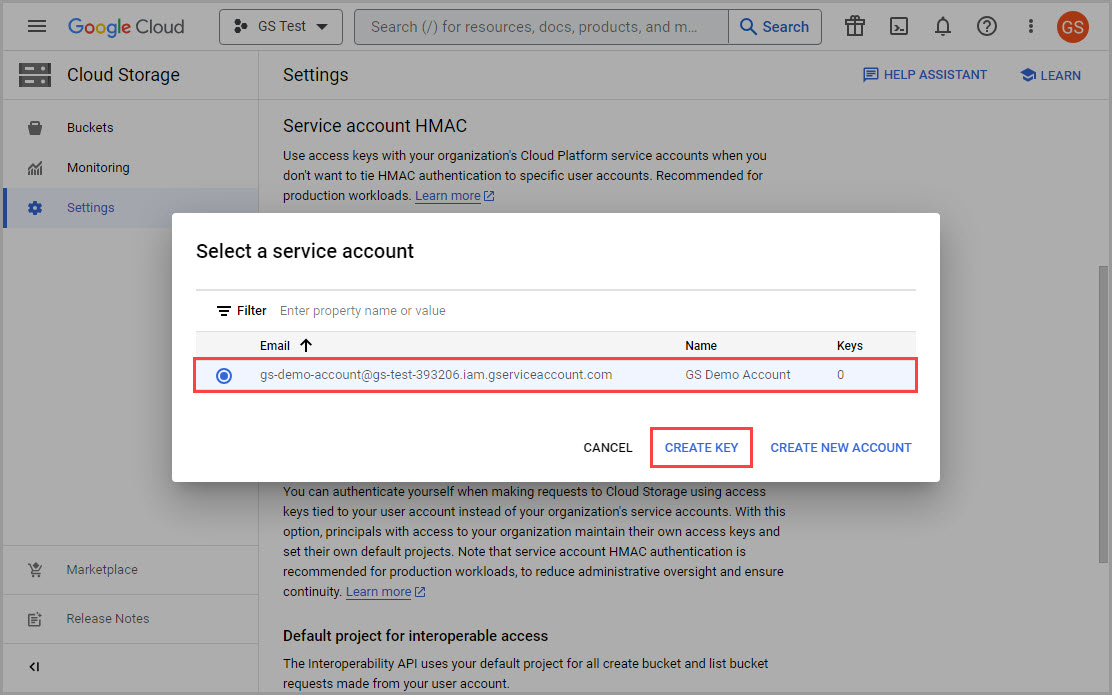
5) Select a service account you want to create a key for, and click "Create key."
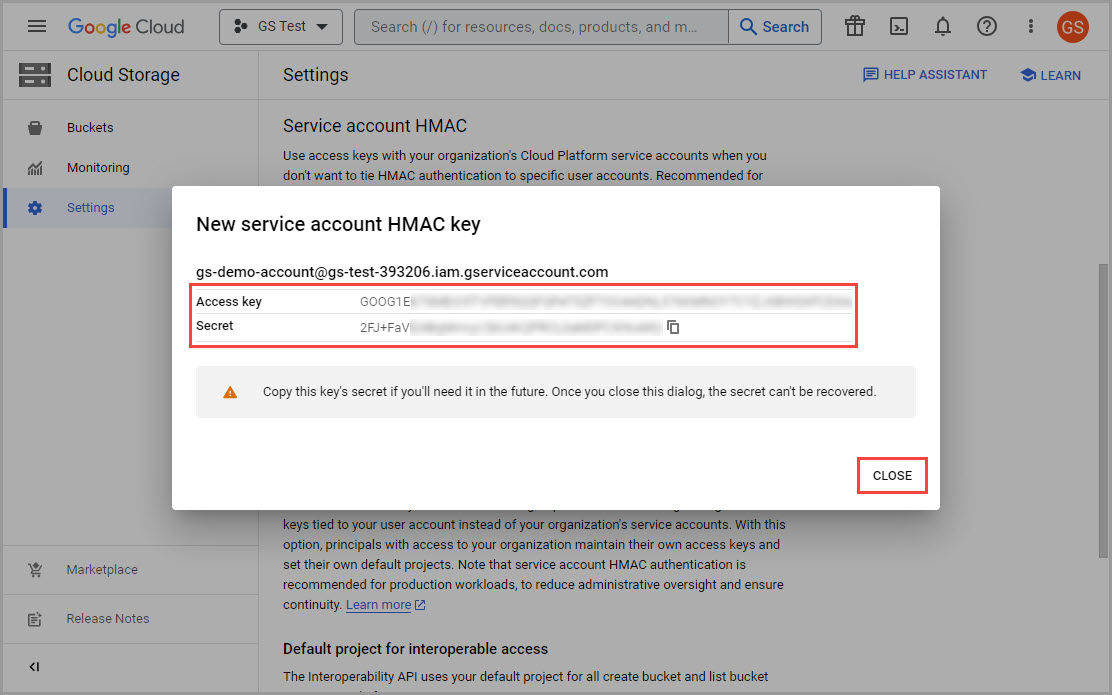
6) You will see your new HMAC key. The "Access key" and "Secret" for use in GoodSync will be listed.
NOTE: We recommend storing the HMAC key pair in a safe place like a RoboForm SafeNote.
Finally, click "Close."